
You enter the product key from the package either during installation or after it. The Windows Server 2022 and 2019 activation guide below covers the after-installation method, plus converting an evaluation edition to a full edition.
The guide applies to the Standard and Datacenter editions. If you don’t have the license yet, you can find it as a BOX with USB stick: Windows Server 2019 Standard or Windows Server 2019 Datacenter. The 2022 editions are in the “Buying the license?” section at the end.
What you need
- an administrator account;
- an elevated command line: Command Prompt or PowerShell, started with Run as administrator;
- an internet connection, for online activation;
- the key from the package. Don’t post it or send it in open messages.
Method 1: during installation
You enter the key at the Activate Microsoft Server Operating System Setup step, described in the guide Installing Windows Server 2022 and 2019 from a USB stick. If you entered it there, just check the activation status with step 5 below.
Method 2: activating Windows Server 2022 and 2019 with slmgr commands
- Open Command Prompt or PowerShell as administrator.
Install the key:
slmgr.vbs /ipk <your product key>The command checks whether the key is valid and suitable for the installed system. If it isn’t, you get an error. If a key was already installed, it is replaced without a warning.
- Restart the server or the Software Protection service. Microsoft recommends this step after installing a key, for the stability of the licensing service.
Activate online:
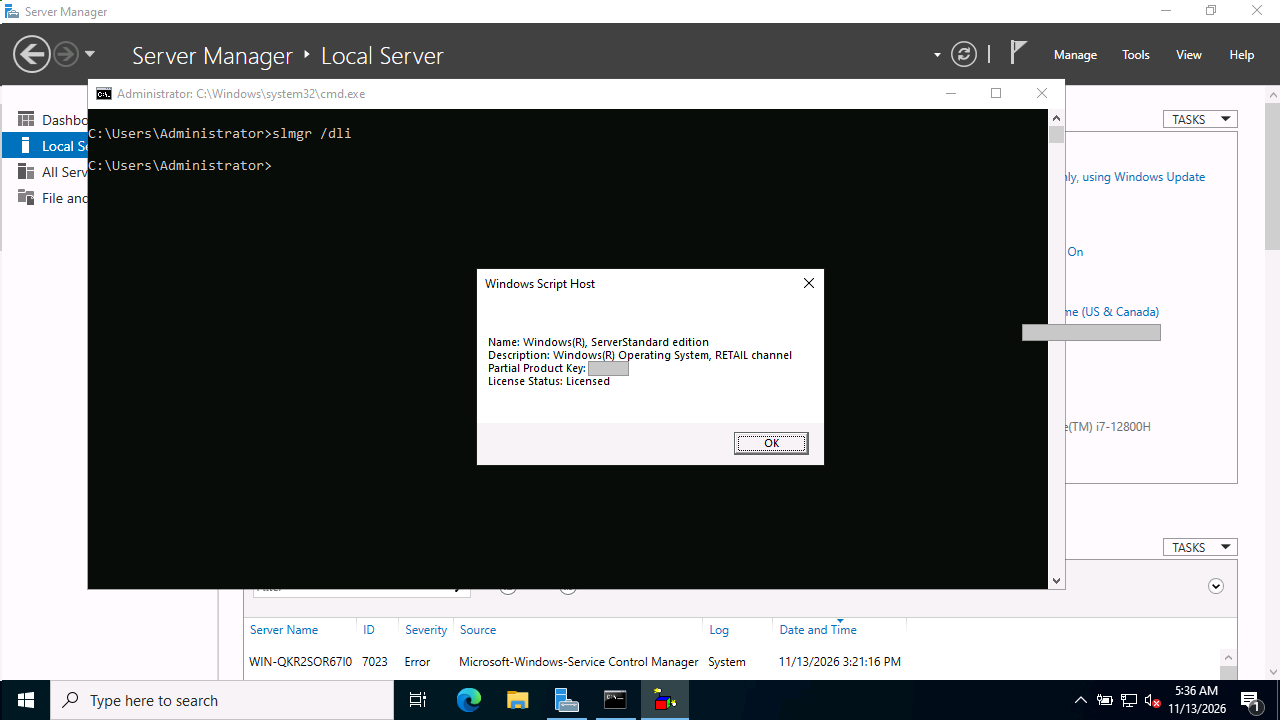
slmgr.vbs /atoCheck the result:
slmgr.vbs /dli slmgr.vbs /dlv slmgr.vbs /xpr/dlishows the license information,/dlvshows it in detail, and/xprshows the activation expiration date.
Method 3: SConfig (Server Core)
On Server Core, the SConfig tool has a dedicated option, Windows activation (number 11 in the Microsoft documentation). Choose:
- 1 to view the activation status;
- 3 to add a new key. Enter the key, press Enter, then go back to the menu;
- 2 to try activating with the installed key.
SConfig starts on its own on Windows Server 2022 Server Core. On 2019, type sconfig at the command line.
Converting from the evaluation edition to the full edition, with DISM
If you installed an evaluation version, you can convert it with DISM, without reinstalling. First check that the evaluation is running: DISM /online /Get-CurrentEdition must show a name containing Eval, and slmgr.vbs /dlv must contain EVAL.
Find the current edition:
DISM /online /Get-CurrentEditionSee which editions you can convert to:
DISM /online /Get-TargetEditionsSave and read the license terms (replace
<target edition>with the name you noted in step 2):DISM /online /Set-Edition:<target edition> /GetEula:C:\license.rtfConvert:
DISM /online /Set-Edition:<target edition> /ProductKey:<your product key> /AcceptEula
Converting Standard to Datacenter uses the same command, with ServerDatacenter as the target edition and with the Datacenter edition key.
Warning: not all conversions are possible. A Datacenter evaluation converts only to Datacenter, not to Standard. A Desktop Experience evaluation doesn’t convert to Core. An Active Directory domain controller can’t be converted from an evaluation to a full edition. If the edition you want isn’t listed by
/Get-TargetEditions, the only way is a clean installation.
If it doesn’t work
- Error with
/ipk: the key doesn’t match the installed edition. Check the edition withDISM /online /Get-CurrentEdition. Microsoft states that you can’t downgrade from Datacenter to Standard through an in-place upgrade. If you installed a different edition than the one you bought, redo the installation and choose the correct edition. - No internet:
slmgr.vbshas the options/dti, which shows the installation ID for offline activation, and/atp, which activates with a confirmation ID. You can no longer get the confirmation ID by phone: you get it on the Microsoft product activation portal, at aka.ms/aoh, from any device with an internet connection. If you see an activation phone number, don’t call it.
Buying the license?
We sell Windows Server as a BOX with USB stick, delivered by courier. For Windows Server 2022 and for the bundles with SQL Server:
- Windows Server 2022 Standard, BOX with USB stick
- Windows Server 2022 Datacenter, BOX with USB stick
- Windows Server 2022 Standard + SQL Server 2022 Standard bundle, BOX with USB stick
- Windows Server 2022 Datacenter + SQL Server 2022 Enterprise bundle, BOX with USB stick
See also all the BOX USB sticks or the bundles. The differences between Standard and Datacenter are explained in the guide Windows Server 2022 and 2019 licensing in brief: cores, Standard, Datacenter, and CALs. If you also install a database on the server, see Installing SQL Server 2022 and 2019.
Frequently asked questions
How do I activate Windows Server 2022 or 2019 with a product key?
Open Command Prompt or PowerShell as administrator and run slmgr.vbs /ipk <your product key>. Restart the server or the Software Protection service, then run slmgr.vbs /ato for online activation. On Server Core you can also use the activation option in SConfig.
How do I check whether Windows Server is activated?
Run slmgr.vbs /dli for the license information, slmgr.vbs /dlv for the detailed view, and slmgr.vbs /xpr for the activation expiration date.
What do I do if I installed an evaluation edition?
You can convert it with DISM, without reinstalling, using DISM /online /Set-Edition:<target edition> /ProductKey:<your product key> /AcceptEula. Not all conversions are possible: the edition you want must be listed by DISM /online /Get-TargetEditions.
What do I do if slmgr /ipk gives an error?
The /ipk error appears when the key doesn’t match the installed edition. Check the edition with DISM /online /Get-CurrentEdition. If you installed a different edition than the one you bought, redo the installation and choose the correct edition.
Can I activate Windows Server without internet?
Yes. slmgr.vbs /dti shows the installation ID. On another device with an internet connection, open the Microsoft product activation portal, at aka.ms/aoh, and get the confirmation ID, which you use to activate with slmgr.vbs /atp <confirmation ID>. Phone activation is no longer available: since December 3, 2025, Microsoft has moved it to this portal.
Need help?
Write to us at contact@conio-software.ro or on WhatsApp at 0799 237 426 (https://wa.me/40799237426).