
This guide to installing Windows Server 2022 and 2019 takes you through a clean installation (Standard or Datacenter edition) from the USB stick in the BOX package. The steps are the same for both versions.
If you don’t have the kit yet, you can find the 2022 editions as a BOX with USB stick: Windows Server 2022 Standard or Windows Server 2022 Datacenter. The 2019 editions are in the “Buying a license?” section at the end.
Before you start
The stick contains the official installation kit, and the product key is printed in the package. Keep the key handy: setup asks for it during installation.
Microsoft’s official minimum requirements, valid for Standard and Datacenter, on both 2022 and 2019:
- Processor: 64-bit, at least 1.4 GHz, x64-compatible, with NX and DEP, CMPXCHG16b, LAHF/SAHF, PrefetchW, and Second Level Address Translation (EPT or NPT).
- RAM: 1 GB for Server Core, 2 GB for Server with Desktop Experience. For physical servers, Microsoft requires ECC memory or a similar technology.
- Disk: at least 32 GB on the system partition. Microsoft calls it the “absolute minimum.” Server Core takes about 4 GB less than Desktop Experience, and with more than 16 GB of RAM you need extra space for paging and memory dump files.
- Network: an Ethernet adapter of at least 1 Gbps, PCI Express compatible.
- UEFI and TPM: UEFI 2.3.1c with Secure Boot and a TPM chip are required only for certain features, for example BitLocker.
Warning: a clean installation erases everything on the disk you choose. Make backups first. If you install in a virtual machine, allocate at least 800 MB of RAM for setup: Microsoft states that installation fails with 512 MB.
Desktop Experience or Server Core?
- Server with Desktop Experience has a full graphical interface, with Server Manager, Explorer, and the MMC consoles.
- Server Core has no desktop. It has a smaller disk footprint and a smaller attack surface. You manage it from the command line, PowerShell, SConfig, or remotely (RSAT, Windows Admin Center).
Make the right choice from the start. Microsoft does not support switching from one to the other during an in-place upgrade.
Installing Windows Server 2022 and 2019: the steps
- Plug the stick into the server and restart it.
- Enter the BIOS/UEFI or the boot menu (usually with the F2, F10, F12, or Delete keys, depending on the manufacturer) and put the USB drive first in the boot order. Save and exit.
- When the message to boot from the installation media appears, press any key.
In Microsoft Server Operating System Setup, choose the language, the time and currency format, and the keyboard, then click Next and Install now.
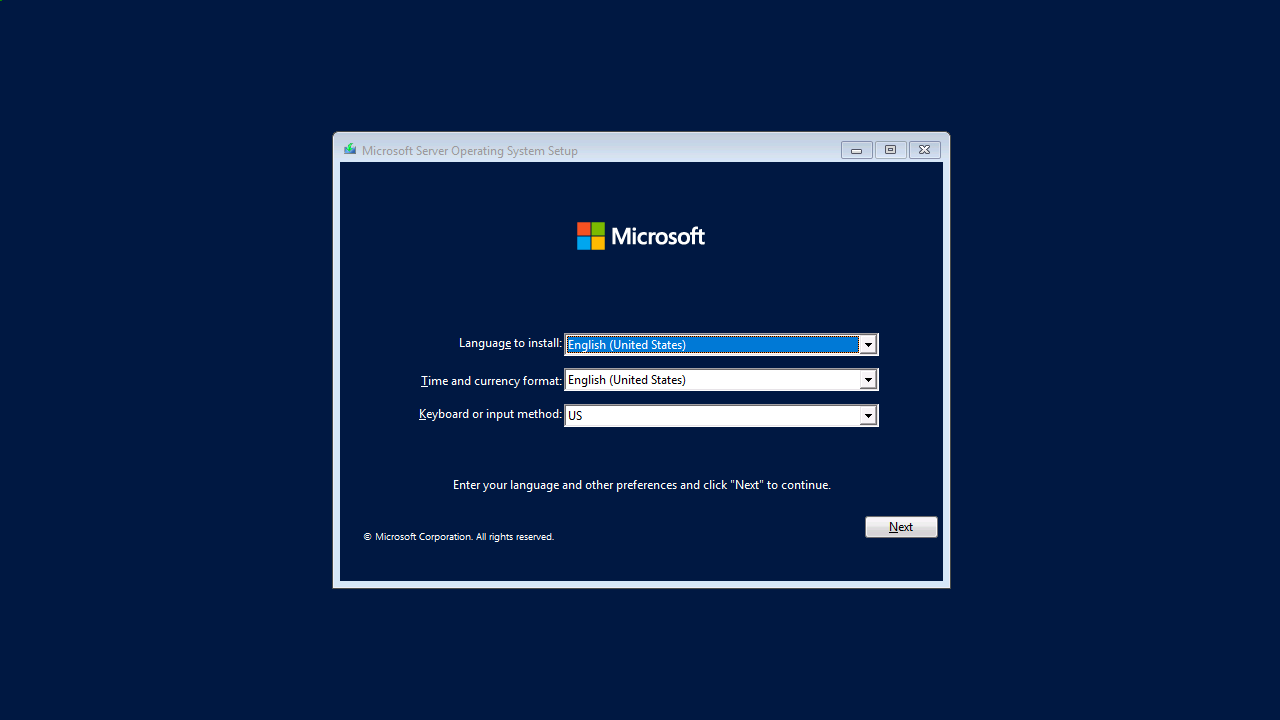
Screenshot from the Microsoft Windows Server 2022 setup program: the first window, choosing the language, the time and currency format and the keyboard (English interface). Used with permission from Microsoft. - At Activate Microsoft Server Operating System Setup, enter the key from the package and click Next.
At Select the operating system you want to install, choose the version that matches your license: Standard or Datacenter, with or without “(Desktop Experience)”.
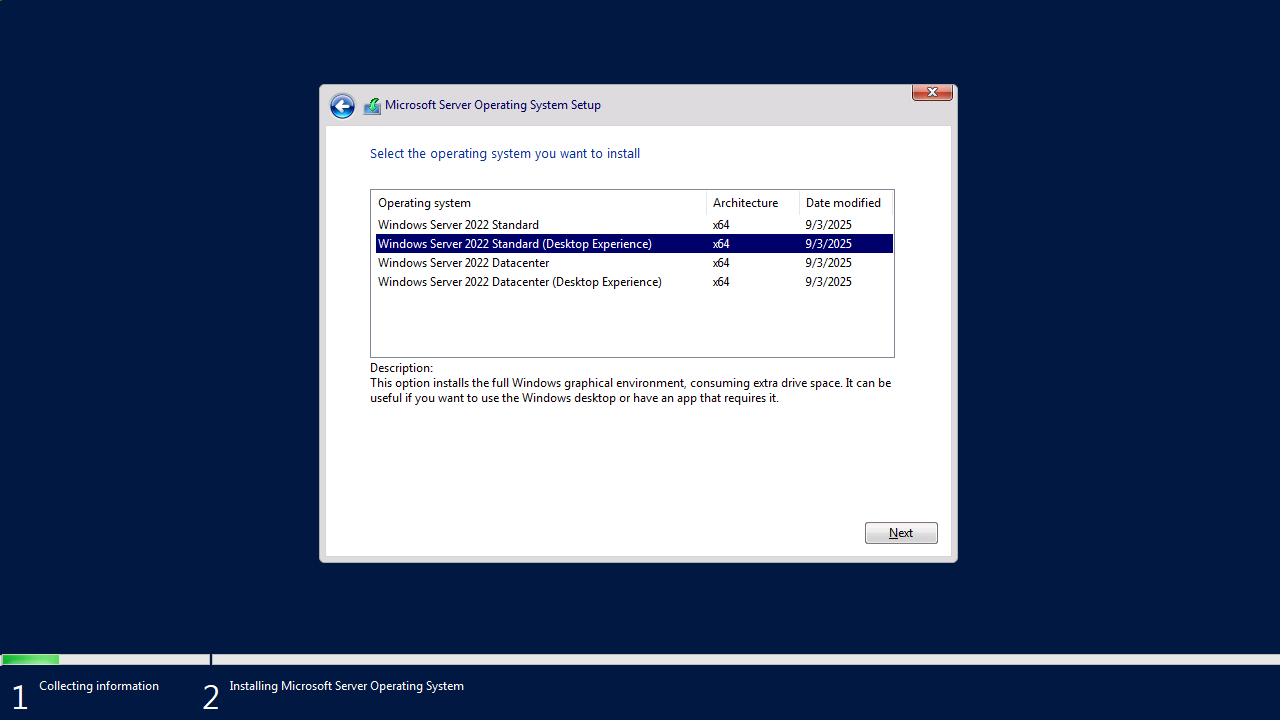
Screenshot from the Microsoft Windows Server 2022 setup program: choosing the edition, Standard or Datacenter, with or without Desktop Experience (English interface). Used with permission from Microsoft. - Read the terms, check the box to accept them, and click Next.
- At Which type of installation do you want?, choose Custom: Install Microsoft Server Operating System only (advanced).
- At Where do you want to install Windows?, choose an empty drive and click Next. The server restarts.
Set the Administrator account password.
- Desktop Experience: on the Customize settings screen, enter a complex password and click Finish.
- Server Core: at the first startup you are asked whether to change the password. Press Enter, type the password, press Tab, type it again to confirm, and press Enter.
Initial setup
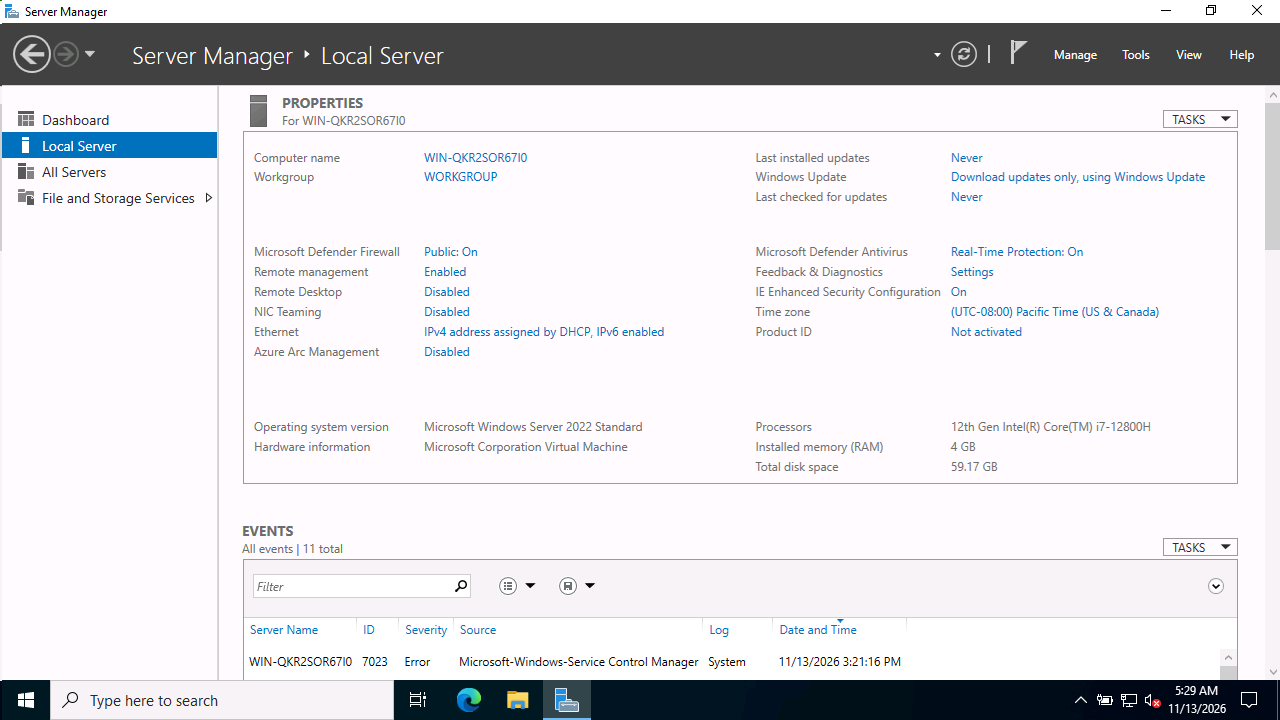
Desktop Experience. Server Manager starts automatically when you sign in as a member of the Administrators group. From the Local Server page you can change the server name, the workgroup or domain membership, and the Remote Desktop settings.
Server Core. On Windows Server 2022, the SConfig tool opens by itself. On 2019, type sconfig in the command window. In Microsoft’s documentation, the menu includes: domain or workgroup (1), computer name (2), remote management (4), update settings (5), install updates (6), Remote Desktop (7), network settings (8), date and time (9), and Windows activation (11). Check the numbering on your screen.
After installation, check the time and time zone, configure the network, install updates, and activate the server. For activation, see the guide Activating Windows Server with a product key.
Microsoft support
The information below is valid as of November 11, 2026:
- Windows Server 2022: mainstream support ended on October 13, 2026. The server now receives monthly security updates, at no extra cost, under extended support, until October 14, 2031.
- Windows Server 2019: mainstream support ended on January 9, 2024, and extended support runs until January 9, 2029.
Under extended support you receive security updates, but not non-security updates or new features.
Buying a license?
We sell Windows Server as a BOX with USB stick, delivered by courier. The 2019 editions and the bundles with SQL Server:
- Windows Server 2019 Standard, BOX with USB stick
- Windows Server 2019 Datacenter, BOX with USB stick
- Bundle Windows Server 2022 Standard + SQL Server 2022 Standard, BOX with USB stick
- Bundle Windows Server 2022 Datacenter + SQL Server 2022 Enterprise, BOX with USB stick
See also all the BOX USB sticks or the bundles. The differences between Standard and Datacenter are explained in the guide Windows Server 2022 and 2019 licensing in brief: cores, Standard, Datacenter, and CALs. For the bundles with SQL Server, see also Installing SQL Server 2022 and 2019.
Frequently asked questions
How do I install Windows Server 2022 from a USB stick?
Plug in the stick and put the USB drive first in the boot order in the BIOS/UEFI. In Setup you choose the language, enter the key, choose the version and the Custom installation, then the drive to install on. At the end you set the Administrator account password.
What are the minimum requirements for Windows Server 2022 and 2019?
An x64 processor of at least 1.4 GHz, 1 GB of RAM for Server Core or 2 GB for Desktop Experience, at least 32 GB on the system partition, and an Ethernet adapter of at least 1 Gbps. These are Microsoft’s official minimum requirements for Standard and Datacenter, on both 2022 and 2019.
Desktop Experience or Server Core: which one should I choose?
Desktop Experience has a full graphical interface, while Server Core has no desktop and a smaller attack surface; you manage it from the command line, PowerShell, SConfig, or remotely. Make the right choice from the start, because Microsoft does not support switching from one to the other during an in-place upgrade.
How much memory does it need in a virtual machine?
If you install in a virtual machine, allocate at least 800 MB of RAM for setup. Microsoft states that installation fails with 512 MB.
Is Windows Server 2022 still supported in November 2026?
Mainstream support for Windows Server 2022 ended on October 13, 2026, and the server receives monthly security updates, under extended support, until October 14, 2031. For Windows Server 2019, extended support runs until January 9, 2029.
Need help?
Write to us at contact@conio-software.ro or on WhatsApp at 0799 237 426 (https://wa.me/40799237426).