
The Adobe Acrobat Pro 2020 installation guide below follows the official Adobe pages. Acrobat Pro 2020 is one of the “Classic” versions of Acrobat: you install it from a kit downloaded from Adobe and activate it with a serial number.
Warning: Adobe ended support for Acrobat 2020 on November 30, 2025. As of that date, Adobe no longer provides technical support for this product, including security updates, and recommends installing the latest version of Acrobat. Keep this in mind when you choose a version.
You can find the license here: Adobe Acrobat Pro 2020, digital license ESD. The serial number arrives by email after payment.
What you need
- The serial number you received by email. Adobe states that you need it to finish the installation.
- Windows 10 (version 1903 or newer) or 64-bit Windows 11. A 1.5 GHz or faster processor, 2 GB of RAM and 4.5 GB of free space, according to Adobe’s technical requirements for Acrobat Pro 2020.
- An internet connection the first time you start the app. Adobe says activation happens online, the first time you open the application.
- Space for the kit: the ZIP archive and the extracted folder take up about 3 GB together.
Step 1. Download the kit from Adobe
- Open the official Adobe page Install Acrobat 2020 on Windows or macOS.
- In the Windows section, download the ZIP archive for Acrobat Pro 2020. Adobe offers Pro and Standard in the same package.
Step 2. Extract the archive
- Copy the ZIP archive to a folder on your computer.
- Extract it: right-click the file, then Extract All.
- Open the resulting folder, then the
Adobe Acrobatfolder. It holdsSetup.exeand the rest of the installation files (AcroPro.msi,Data1.caband the updateAcrobat2020Upd….msp).
Warning: Do not run
Setup.exefrom inside the ZIP archive. Adobe warns that installation errors can occur this way.
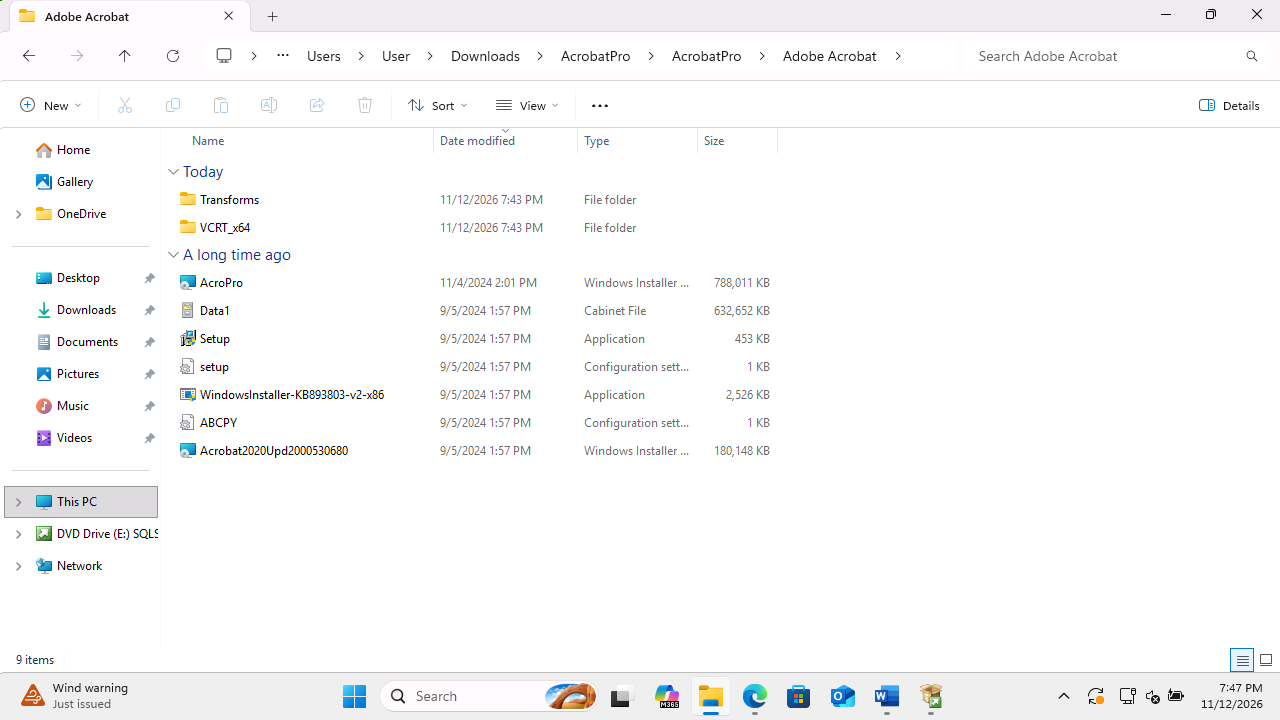
Step 3. Install Adobe Acrobat Pro 2020 and enter the serial number
If you have a trial version or another edition of Acrobat on your computer, uninstall it first. Adobe recommends uninstalling the wrong version before you install the right one.
- From the
Adobe Acrobatfolder, runSetup.exe. When asked “Do you want to allow this app to make changes to your device?” (publisher: Adobe Inc.), choose Yes. - In the “Adobe Acrobat 2020 (Classic) – Setup” window, leave I have a serial number selected and type the serial number in the Serial Number field.
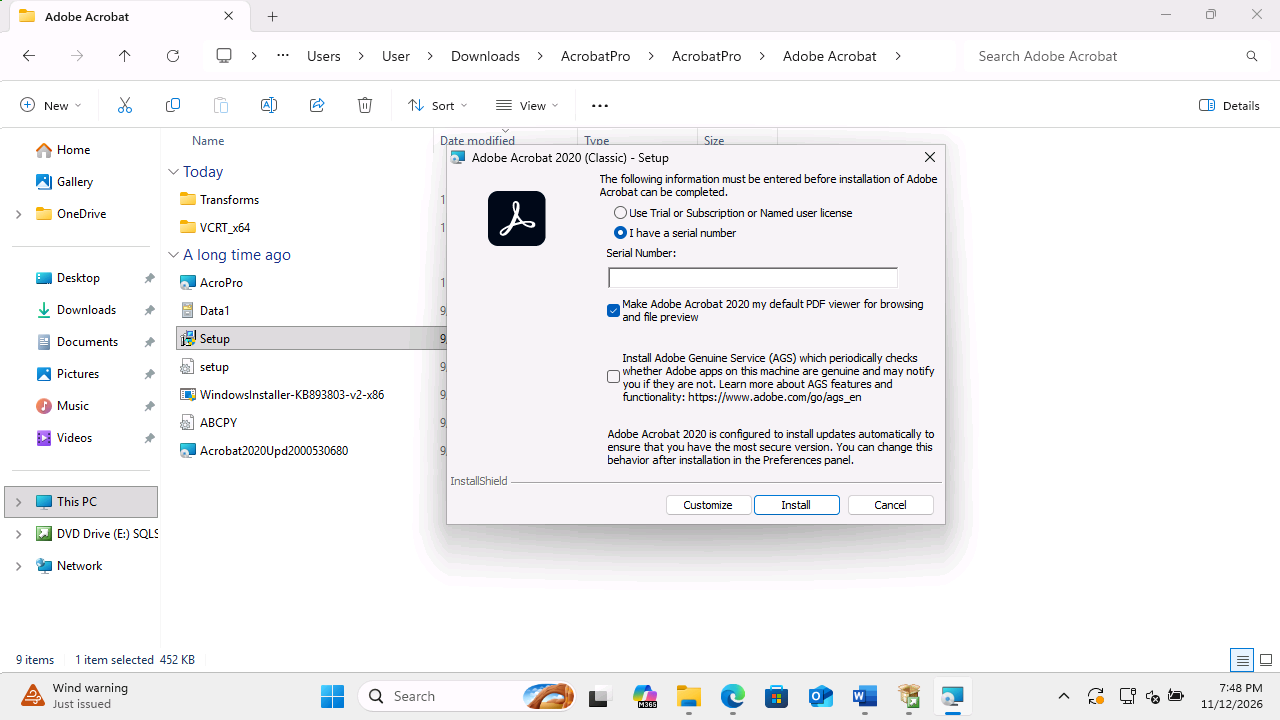
- You can leave the “Make Adobe Acrobat 2020 my default PDF viewer…” checkbox selected. The checkbox for AGS (Adobe’s software validation service) is optional. Click Install.
- The installation takes a few minutes. At the end, “Setup Completed” appears: click Launch Now to start Acrobat or Finish to close the window.
If the serial number is not accepted, the installer shows “Serial number could not be processed” and “This is not a valid serial number”. Click Back, check the serial number (all 24 digits, with the hyphens) and try again. If the message persists, write to us.
Step 4. First launch and activation
- Connect your computer to the internet.
- Open Acrobat Pro 2020 from the Start menu. The first time you start it, Acrobat may ask whether you want it to be the default app for PDF files.
- If the app asks for the serial number, enter it again.
- Check the license at Help → About Adobe Acrobat Pro 2020: it should say “2020 Release (Classic)” and the version number.
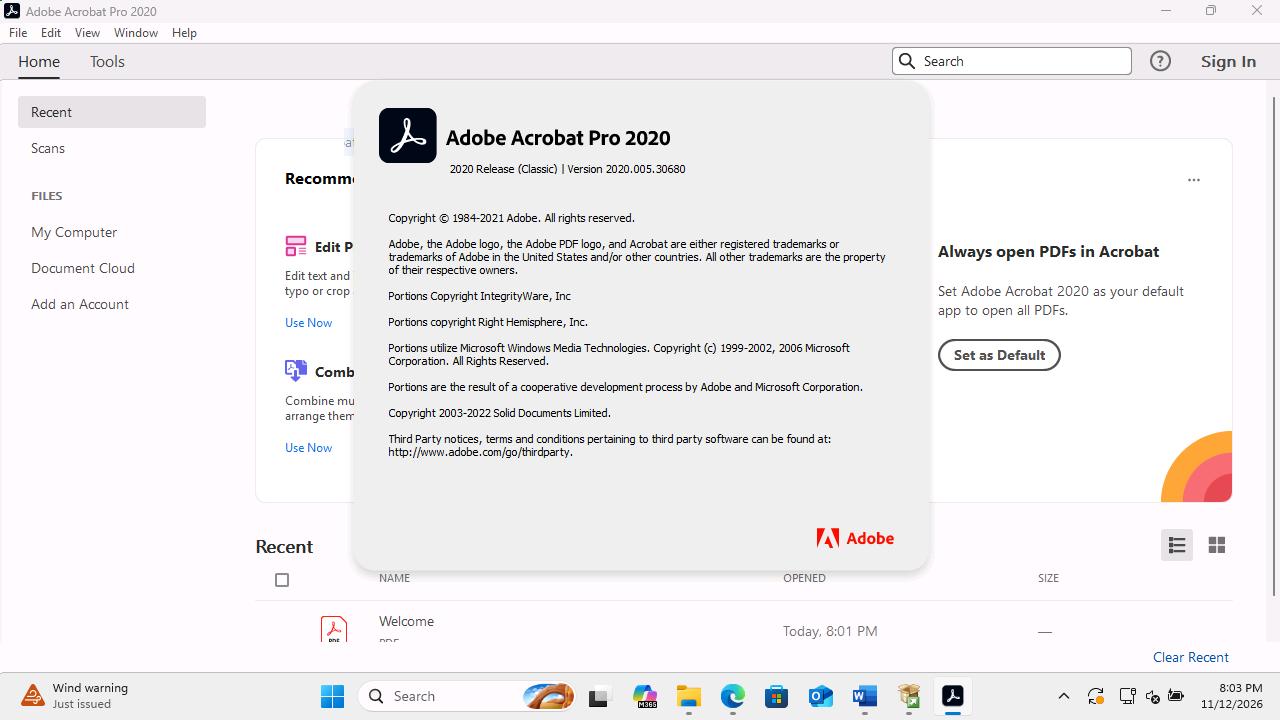
For the Classic versions, Adobe lists the serial number as the activation method. A serial number has a limited number of activations. If you get a limit error, follow the Adobe page Troubleshoot activation.
If Acrobat asks for your Adobe ID or shows a trial message
Adobe has a dedicated page: Prompted for serial number or Adobe ID. It explains when the app asks for the serial number and when it asks for the account. If you still cannot sort it out, write to us and we will tell you what to check.
On macOS
Adobe offers Acrobat Pro 2020 for macOS as a DMG file. You open (mount) it and run the installer package inside. Acrobat Standard 2020 does not exist for macOS.
Did you buy Acrobat Pro 2019?
This guide follows the official Adobe page for Acrobat 2020. If your license is for Acrobat Pro 2019, write to us before installing. Together we will work out the right kit for your version.
Buying the license?
Adobe Acrobat Pro 2020 is sold in our shop as a digital license (ESD): the serial number arrives by email after payment. Before you choose a version, keep in mind the end-of-support date in the “Warning” box at the top.
- Adobe Acrobat Pro 2020, digital license ESD
- Bundle Office Professional Plus 2024 + Adobe Acrobat Pro 2020, digital licenses ESD
- Bundle Windows 11 Pro + Office Professional Plus 2024 + Adobe Acrobat Pro 2020, digital licenses ESD
See also all the digital licenses or the bundles. For the bundles with Office and Windows, the installation is described in Install and activate Office Professional Plus 2024 and in Installing Windows 11 Home and Pro, step by step.
Frequently asked questions
How do I install Adobe Acrobat Pro 2020 on Windows?
Download the ZIP archive from the official Adobe page and extract it to a folder. Run Setup.exe from the extracted folder and enter the serial number when asked. Do not run Setup.exe from inside the ZIP archive, because installation errors can occur.
How do I activate Acrobat Pro 2020 with a serial number?
With your computer connected to the internet, open Acrobat Pro 2020 from the Start menu and enter the serial number if the app asks for it. Adobe lists the serial number as the activation method for the Classic versions; a serial number has a limited number of activations.
What are the requirements for Acrobat Pro 2020?
Windows 10 (version 1903 or newer) or 64-bit Windows 11, a 1.5 GHz or faster processor, 2 GB of RAM and 4.5 GB of free space, according to Adobe’s technical requirements for Acrobat Pro 2020.
Does Acrobat Pro 2020 still receive updates?
Adobe ended support for Acrobat 2020 on November 30, 2025. As of that date it no longer provides technical support, including security updates, and recommends installing the latest version of Acrobat.
What do I do if Acrobat asks for my Adobe ID or shows a trial message?
Adobe has a dedicated page, Prompted for serial number or Adobe ID, which explains when the app asks for the serial number and when it asks for the account. If you still cannot sort it out, write to us and we will tell you what to check.
Need help?
Write to us at contact@conio-software.ro or on WhatsApp at 0799 237 426 (https://wa.me/40799237426).