
This Office 2024 installation guide takes you from downloading the kit to activation. Office Professional Plus 2024 includes Access, Excel, OneNote, Outlook, PowerPoint, and Word. Publisher is no longer part of Office LTSC 2024, and Teams is downloaded separately. Microsoft supports Office LTSC 2024 until October 9, 2029, with no extended support after that date.
Don’t have the license yet? See Office Professional Plus 2024, digital license ESD or Office Professional Plus 2024, BOX with USB stick.
Before you start: Office 2024 system requirements
- Operating system: Microsoft lists Windows 11 (as well as Windows 11 LTSC 2024, Windows 10 LTSC 2021 and 2019, and Windows Server 2022 and 2025). Regular Windows 10 is not in the current list.
- Minimum requirements: 1.1 GHz dual-core processor, 4 GB of RAM, 4 GB of free space, 1280 x 768 screen.
- Internet, for installation and for activation.
- The activation key, from the email you received after payment or printed in the package.
Warning: Windows 10 reached the end of support on October 14, 2025. In Microsoft’s table of supported configurations, Office LTSC 2024 on regular Windows 10 has the date October 2025, not October 2029. For full support until 2029, use Windows 11 (see the Windows 11 Pro installation guide). Save your files before you change anything on your computer.
Step 1: uninstall old versions of Office
Microsoft requires you to uninstall any earlier version of Office before installing Office LTSC 2024. Follow our tutorial Completely uninstall an old version of Office.
Step 2: install Office 2024
With the kit from our site
- Open the kits page, under Office and download
Office-2024.zip, about 3.5 MB. - Extract the file to a folder: right-click it, then choose Extract All.
- From the extracted folder, run
start.bat. The file starts the installation from thepackagefolder. - Wait for the installation to finish.
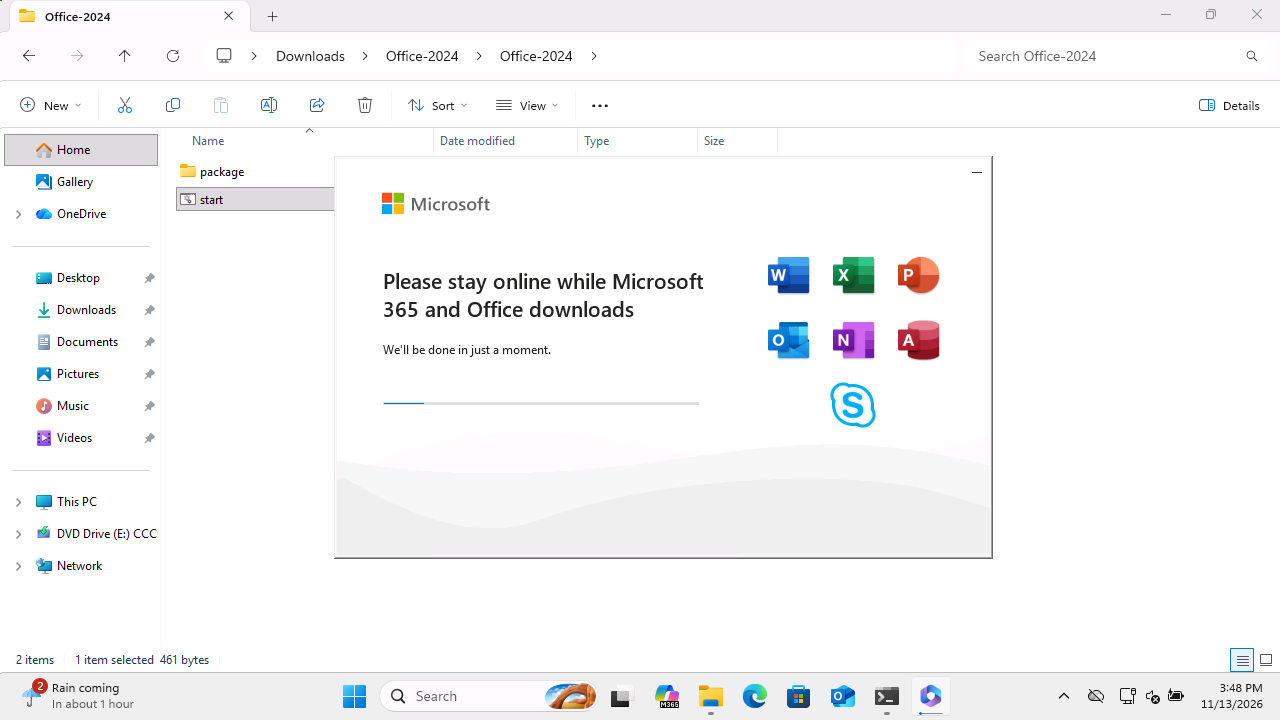
Office downloads from Microsoft’s servers, so you need an internet connection for the whole installation. Office installs on the system drive (usually C:), and the location cannot be changed. For the method described by Microsoft, using the Office Deployment Tool, see the official page.
Want Office in Romanian?
Add the Romanian language pack after installation, following the tutorial How to change the Office language to Romanian.
Did you buy a combo bundle on a USB stick?
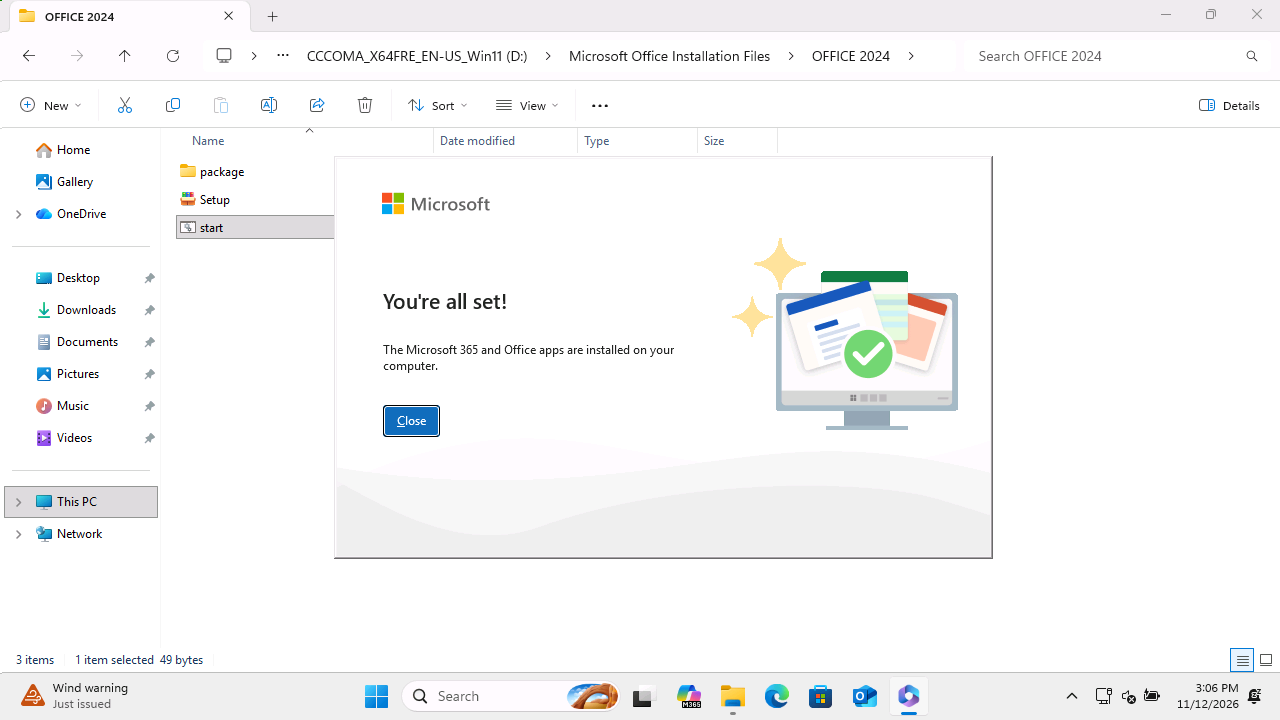
With the combo bundles that include Windows and Office (for example “2 x USB” or “One Box”), the Office installation kits are on the Windows 10/11 stick, in the Microsoft Office Installation Files folder. Open it in File Explorer, go into the subfolder for your version, OFFICE 2024, and start the installation from there: you will find start.bat and the package folder. The remaining steps, uninstalling old versions and activation, are the same. The Office key is printed in the package.
When you start start.bat from the stick, Windows may show the “Open File – Security Warning” window, with “Unknown Publisher”. Click Run. Next comes the User Account Control confirmation window for “Microsoft 365 and Office”, with the verified publisher Microsoft Corporation: click Yes. The installation ends with the message “You’re all set!”.
Step 3: activate Office 2024 online
- Open an Office app, for example Word.
- Go to File → Account.
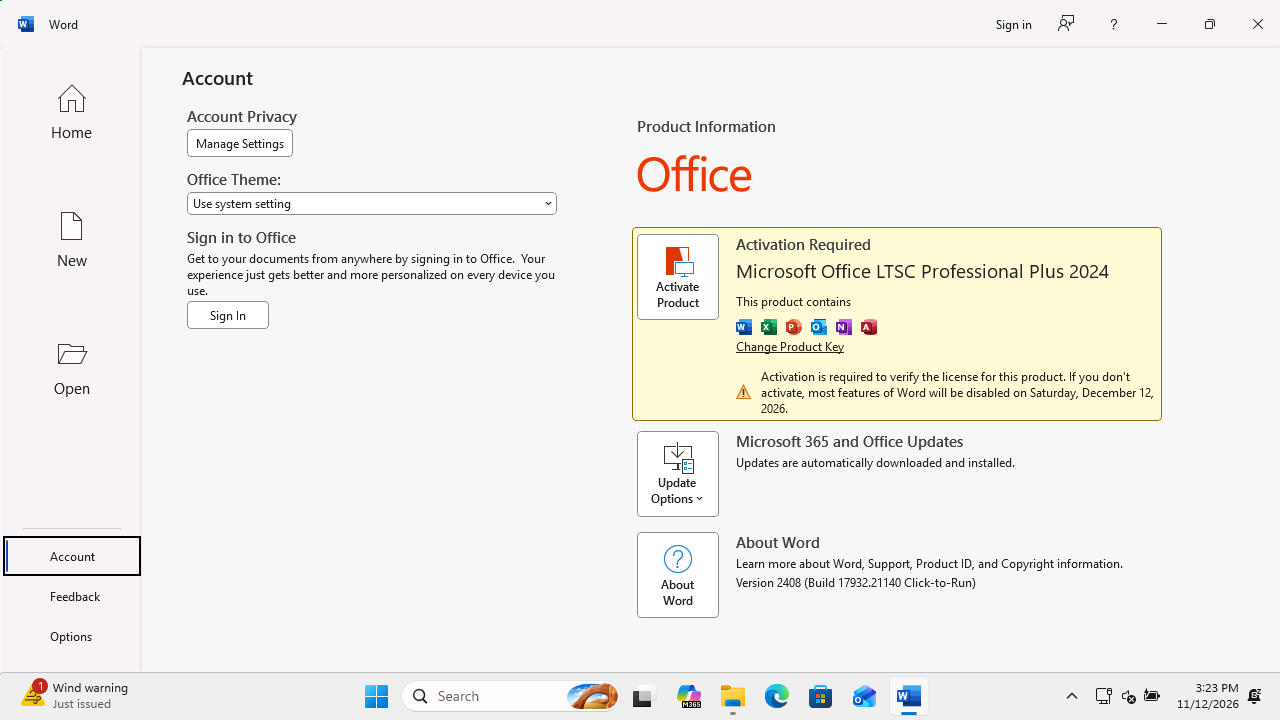
- Choose Change Product Key, enter the activation key, and click Activate Office.
- On the Account page, check that the product shows as activated (“Product Activated”). If the page does not update, restart the app.
The first time you start Word, it asks you to accept the license (“Accept the license agreement”). If Office is not activated yet, the activation wizard (Microsoft Office Activation Wizard) may also appear on its own at startup: choose to activate over the internet and click Next.
If online activation doesn’t work: offline activation on the Microsoft portal
Online activation is the option you try first, and the one Microsoft recommends too. But keep the backup option at hand: offline activation on the Microsoft portal (formerly activation by phone). You use it when the computer has no internet or when online activation stops with an error, for example with a message that the installation cannot be activated because the key’s activation limit has been reached.
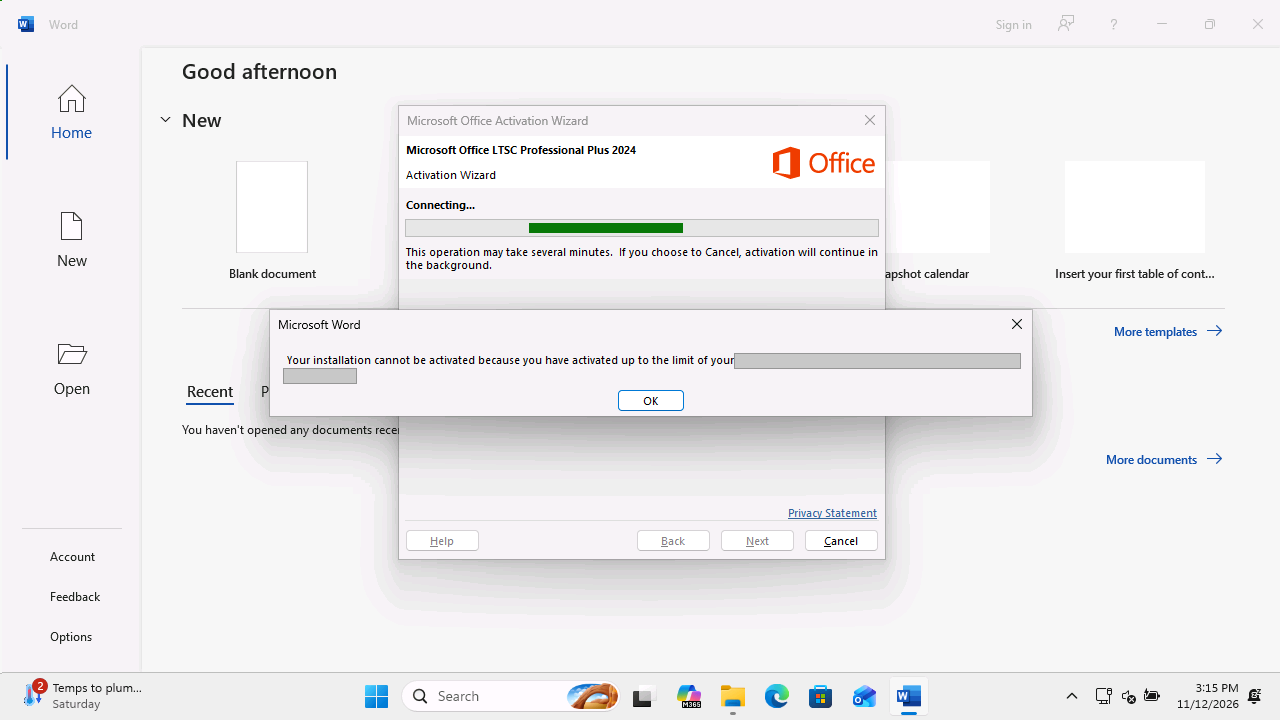
Activation by phone is no longer available: since December 3, 2025, Microsoft has moved it to the product activation portal, at aka.ms/aoh. The activation wizard shows you an Installation ID, and on another device with internet you get a Confirmation ID from Microsoft, on the portal. The wizard also has a “by telephone” option and shows phone numbers, but don’t call them: Microsoft says to use the portal.
- In the activation wizard (Microsoft Office Activation Wizard), choose the option I want to activate the software by telephone (only to see the Installation ID) and write down the Installation ID from Step 2.
- On another device with internet, open the official Microsoft portal at aka.ms/aoh (the official short address, which leads to visualsupport.microsoft.com), sign in, and choose Activate a Microsoft Product.
- Enter the Installation ID and write down the Confirmation ID you receive.
- On the computer with Office, type the Confirmation ID in Step 3 and click Next.
The complete steps, with details, are in the guide Activating Office on the Microsoft portal (formerly activation by phone).
Warning: do not call any phone number: not the ones shown in the activation wizard, and not the ones in old tutorials or on other websites. Enter the Installation ID only on the official Microsoft portal, at the address above.
Buying the license?
You can find Office Professional Plus 2024 with us as a digital license (the key arrives by email after payment) or as a BOX with USB stick (delivered by courier). There are also bundles with Windows 11 Pro:
- Office Professional Plus 2024, digital license ESD
- Office Professional Plus 2024, BOX with USB stick
- Bundle Office Professional Plus 2024 + Windows 11 Pro, 2 digital licenses ESD
- Bundle Windows 11 Pro Retail FPP + Office Professional Plus 2024, One Box with USB stick
See also all the digital Office licenses or the bundles.
Frequently asked questions
How do I install Office 2024?
Download Office-2024.zip from the kits page, extract it, and run start.bat. Office downloads from Microsoft’s servers, so you need an internet connection for the whole installation.
How do I activate Office 2024 with the key?
Open an Office app, for example Word, go to File → Account, and choose Change Product Key. Enter the key, restart the app, and check on the Account page that the product shows as activated.
Does Office 2024 work on Windows 11?
Microsoft lists Windows 11 among the supported systems. Regular Windows 10 is not in the current list, and Microsoft’s configuration table gives it the date October 2025.
How long is Office 2024 supported?
Microsoft supports Office LTSC 2024 until October 9, 2029, with no extended support after that date.
Contact
Need help? Write to us at contact@conio-software.ro or on WhatsApp at 0799 237 426.