
This SQL Server 2022 installation guide takes you from the installation kit to a working instance, in the Standard, Enterprise or Enterprise Core edition. The steps and screenshots come from the actual installer, with Standard, Enterprise and Enterprise Core keys.
Our SQL Server 2022 licenses are digital (the key arrives by email after payment) or BOX with USB stick: SQL Server 2022 Standard, digital license ESD and SQL Server 2022 Enterprise, digital license ESD. For SQL Server 2019, see the guide Installing SQL Server 2019 Standard and Enterprise.
What you need
- The installation kit. With the BOX, it is on the stick. With the digital license, you download the official kit from the kits page, under SQL Server.
- The product key, 25 characters, from the email or from the package.
- An administrator account on the computer or server.
- Microsoft minimum requirements: an x64 processor of at least 1.4 GHz (2.0 GHz recommended), at least 1 GB of memory (at least 4 GB recommended), at least 6 GB free on the system drive for the setup’s temporary files, and .NET Framework 4.7.2.
- Operating system: Windows Server 2016 or newer. On Windows 10 and 11 Pro, Standard works, but Enterprise does not.
Warning: do not install SQL Server on a domain controller. Microsoft does not recommend it, for security reasons, and it imposes limitations.
Standard, Enterprise or Enterprise Core?
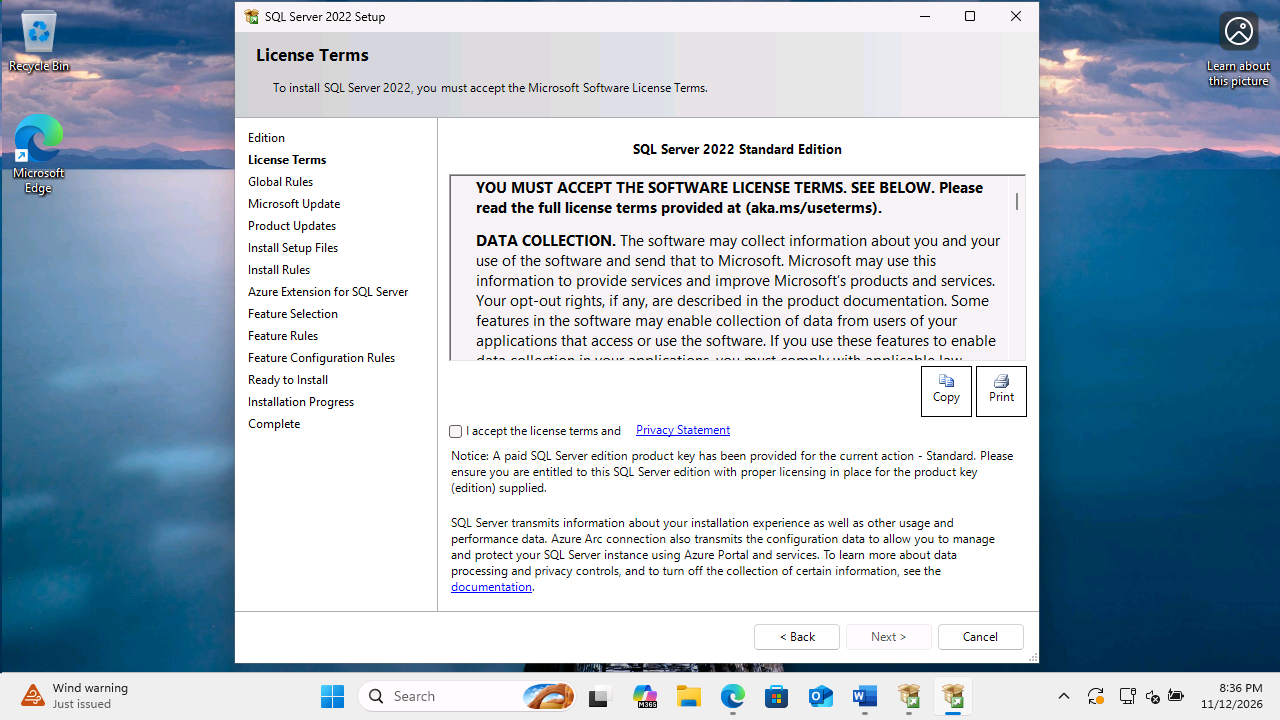
The kit is the same for all editions. The key you enter at step 3 decides the edition, and the License Terms page at step 4 confirms which edition you are about to install.
- Standard uses at most 4 sockets or 24 cores per instance, whichever is lower.
- Enterprise (Server + CAL licensing) uses at most 20 cores per instance.
- Enterprise Core (core-based licensing) uses the maximum the operating system allows. In the installer it appears as “Enterprise Edition: Core-based Licensing”.
Installing SQL Server 2022, step by step
- Run
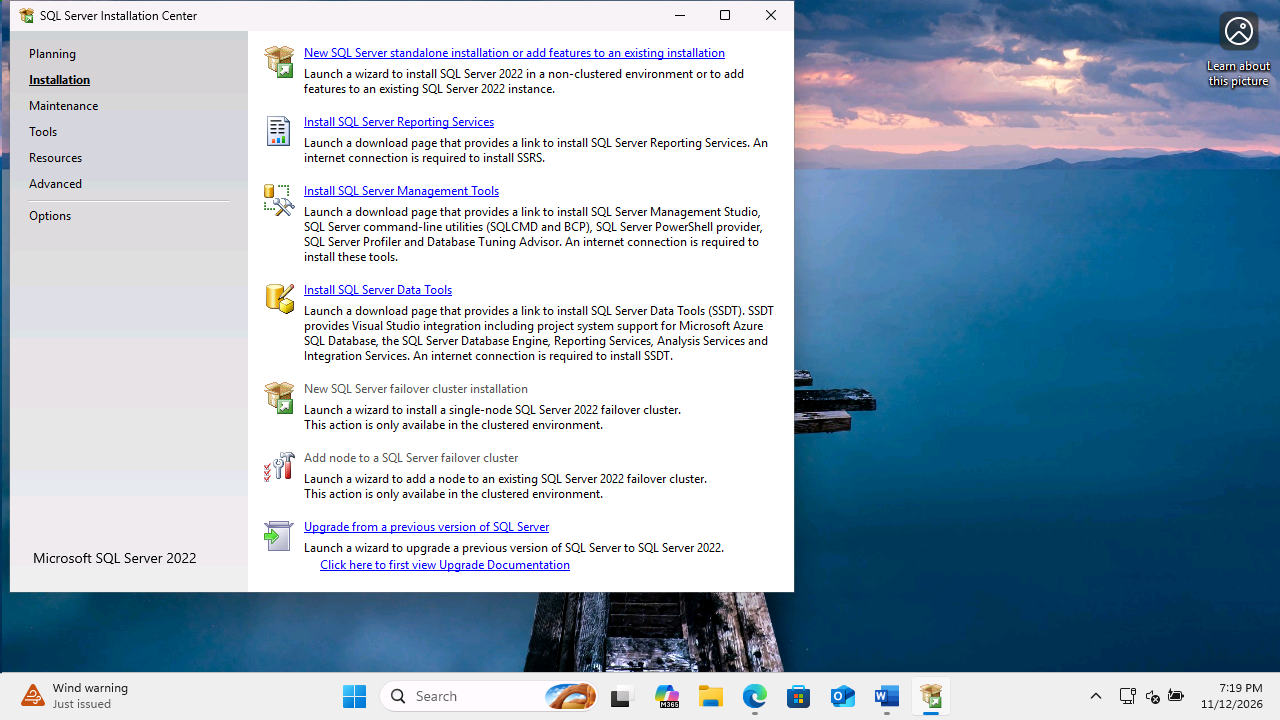
setup.exefrom the root of the kit. When you see “Do you want to allow this app to make changes to your device?” (SQL Server 2022, publisher: Microsoft Corporation), choose Yes. - In SQL Server Installation Center, choose Installation, then New SQL Server standalone installation or add features to an existing installation.
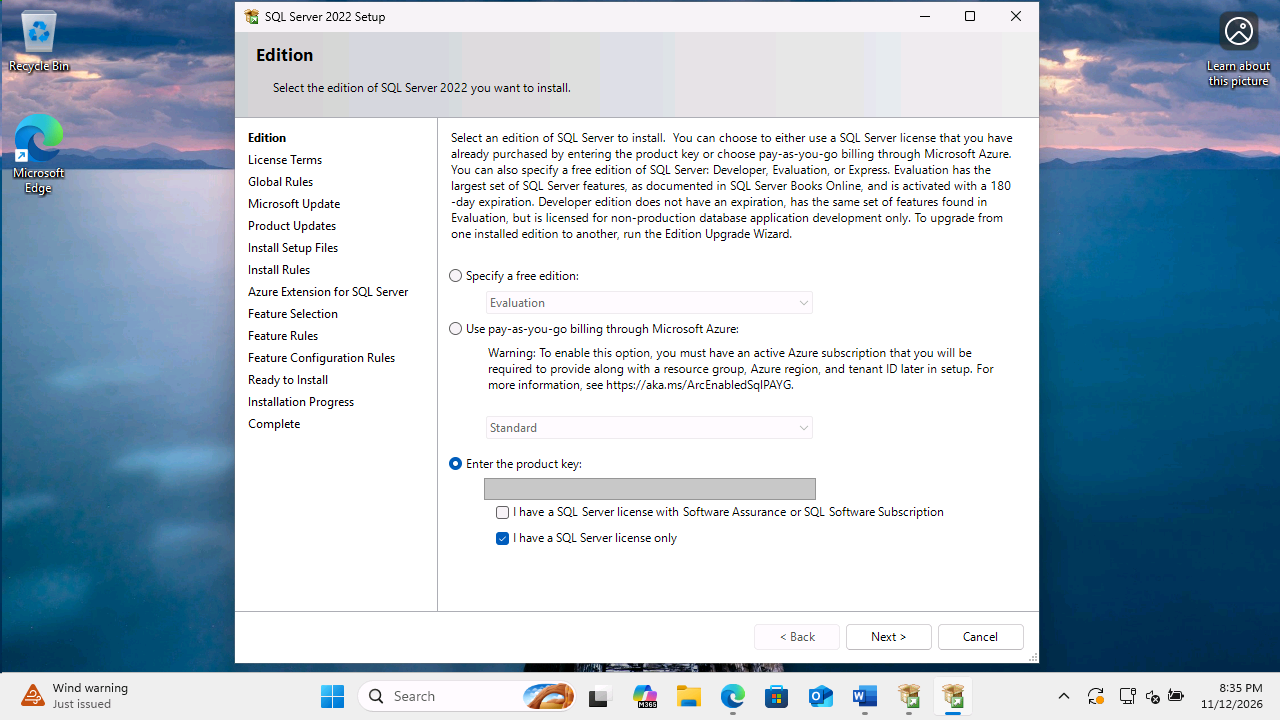
- On the Edition page, choose Enter the product key and type the key. If you use our kit, the key may already be filled in; check that it is the one you received. Then select the option that matches your license: if the license does not include Software Assurance or a SQL subscription, this is I have a SQL Server license only. Do not choose the free editions (Evaluation, Developer, Express) or payment through Azure.
- On the License Terms page, check the title and the note below the box. For Standard it reads “SQL Server 2022 Standard Edition” and “A paid SQL Server edition product key has been provided for the current action – Standard”. For Enterprise, the note says “Enterprise”; for Enterprise Core, “Enterprise Edition: Core-based Licensing”. Select I accept the license terms and click Next.
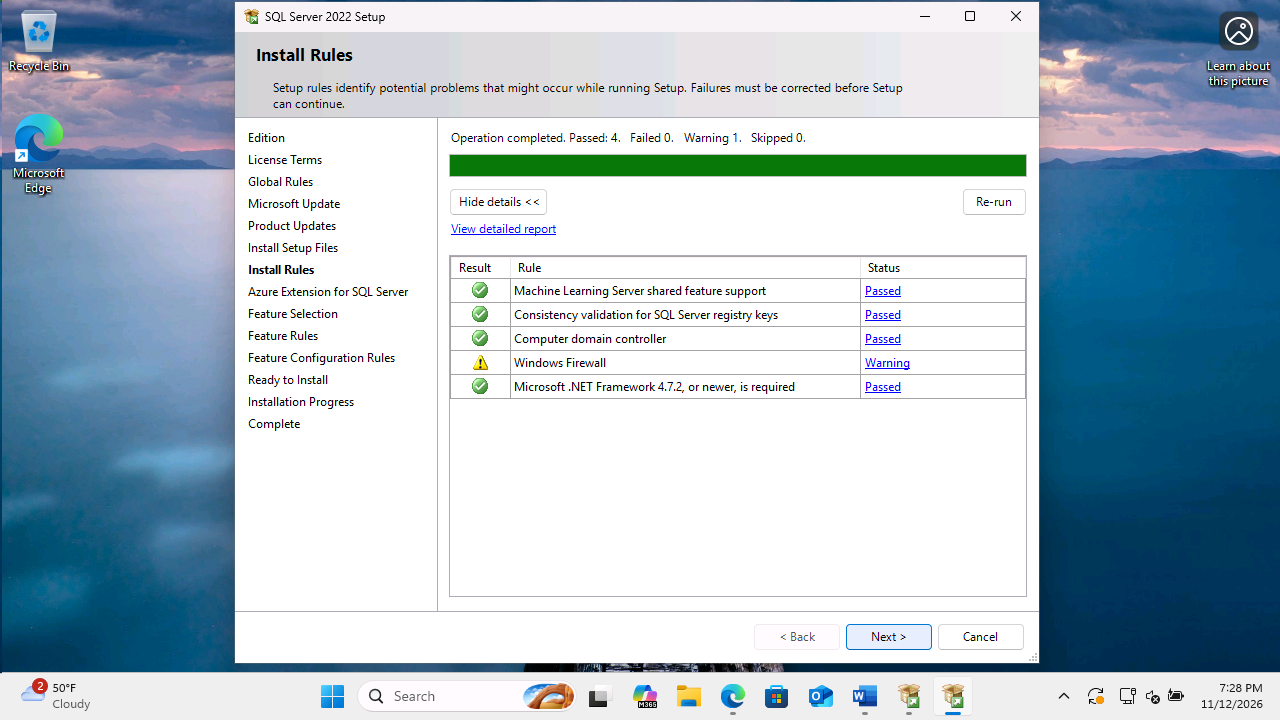
- The Global Rules, Microsoft Update, Product Updates and Install Setup Files steps run almost on their own. On Microsoft Update you can optionally choose to check for updates. On Install Rules, a Windows Firewall warning is normal: it reminds you that, for network access, the server port must be opened (by default TCP 1433 for the default instance). Click Next.
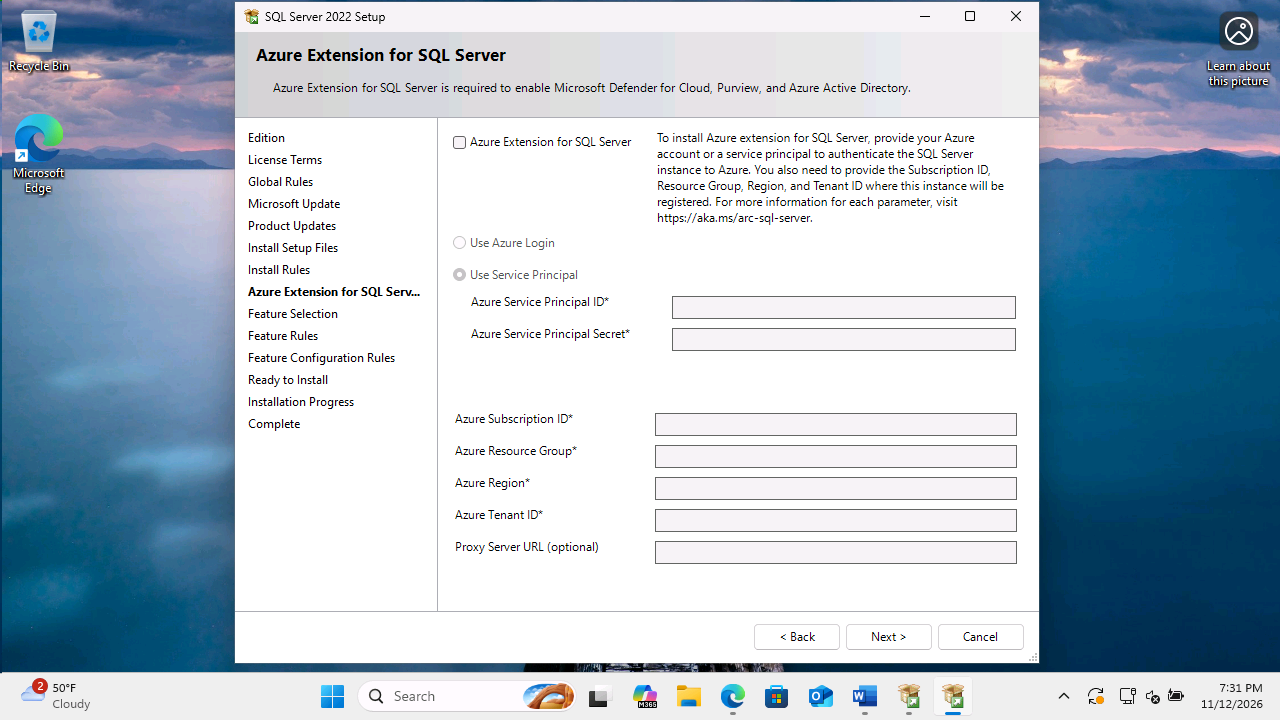
- On the Azure Extension for SQL Server page, the option is selected by default. Clear it if you are not connecting the server to Azure (otherwise you will be asked for your Azure account details).
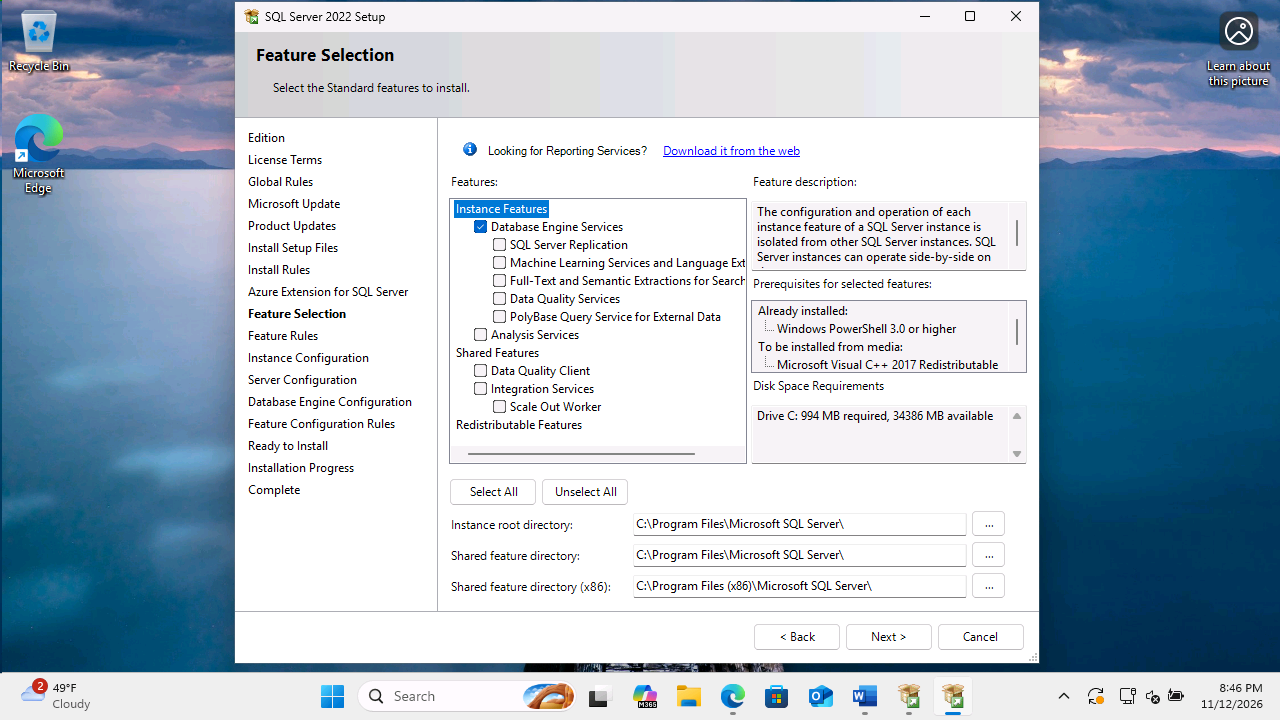
- On Feature Selection, choose only what you need. For a database server, the core component is Database Engine Services. The page title shows the edition again (“Select the Standard features to install”).
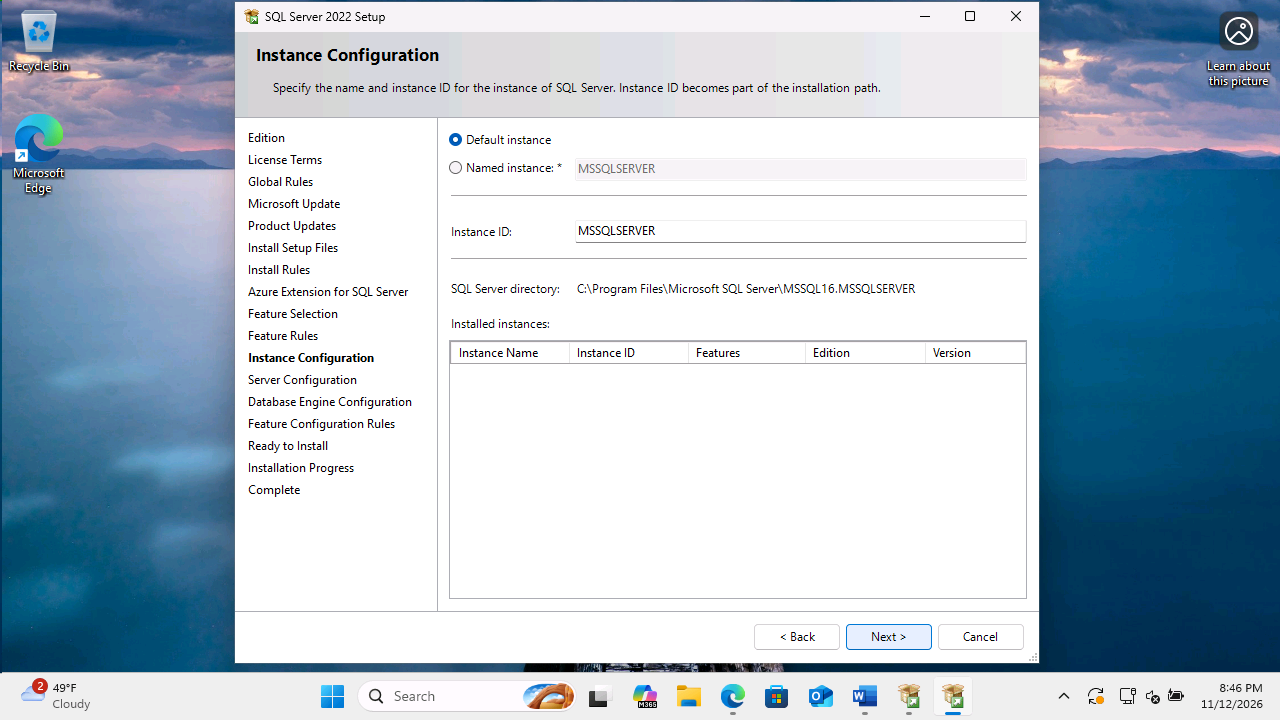
- On Instance Configuration, leave Default instance (MSSQLSERVER) if it is the first instance, or choose Named instance and give it a name. If the computer already has a SQL Server 2022 instance, the Installation Type page appears first: choose Perform a new installation of SQL Server 2022.
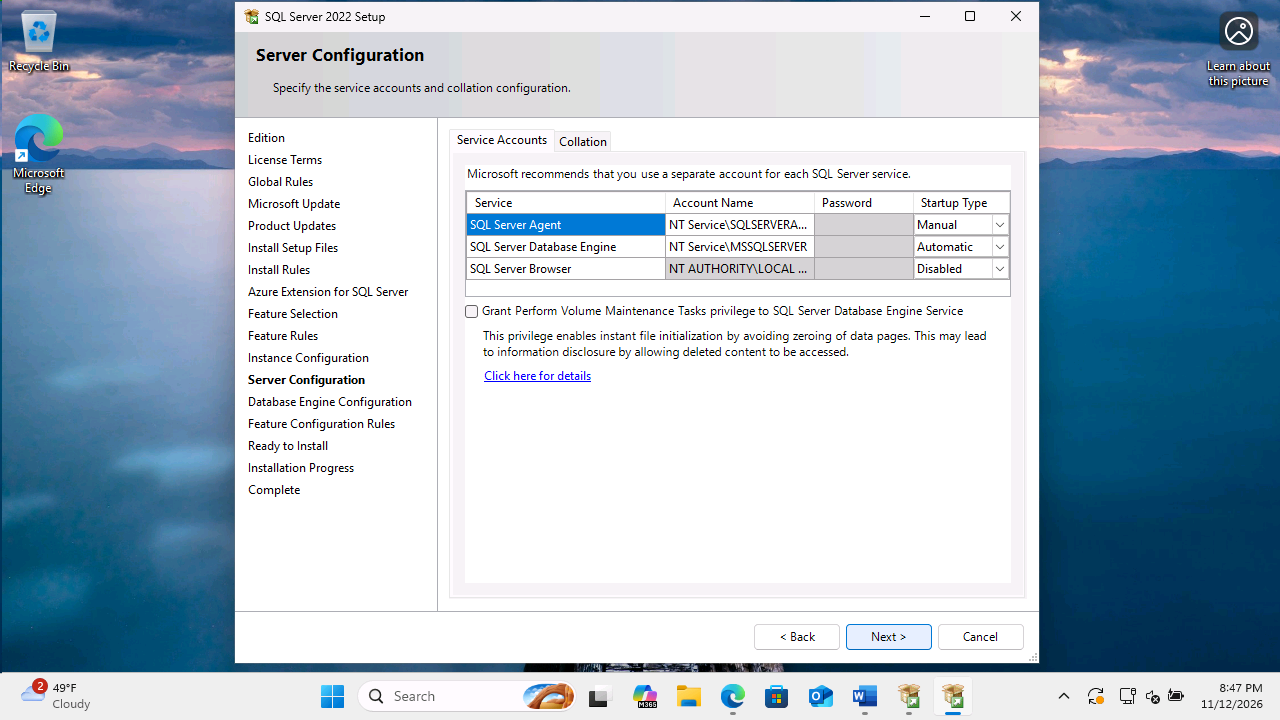
- On Server Configuration, you can leave the default service accounts (
NT Service\MSSQLSERVERfor the Database Engine). SQL Server Agent starts as Manual by default; if you use scheduled jobs, change it to Automatic. The Collation tab shows the default collation; change it only if your application requires a different one.
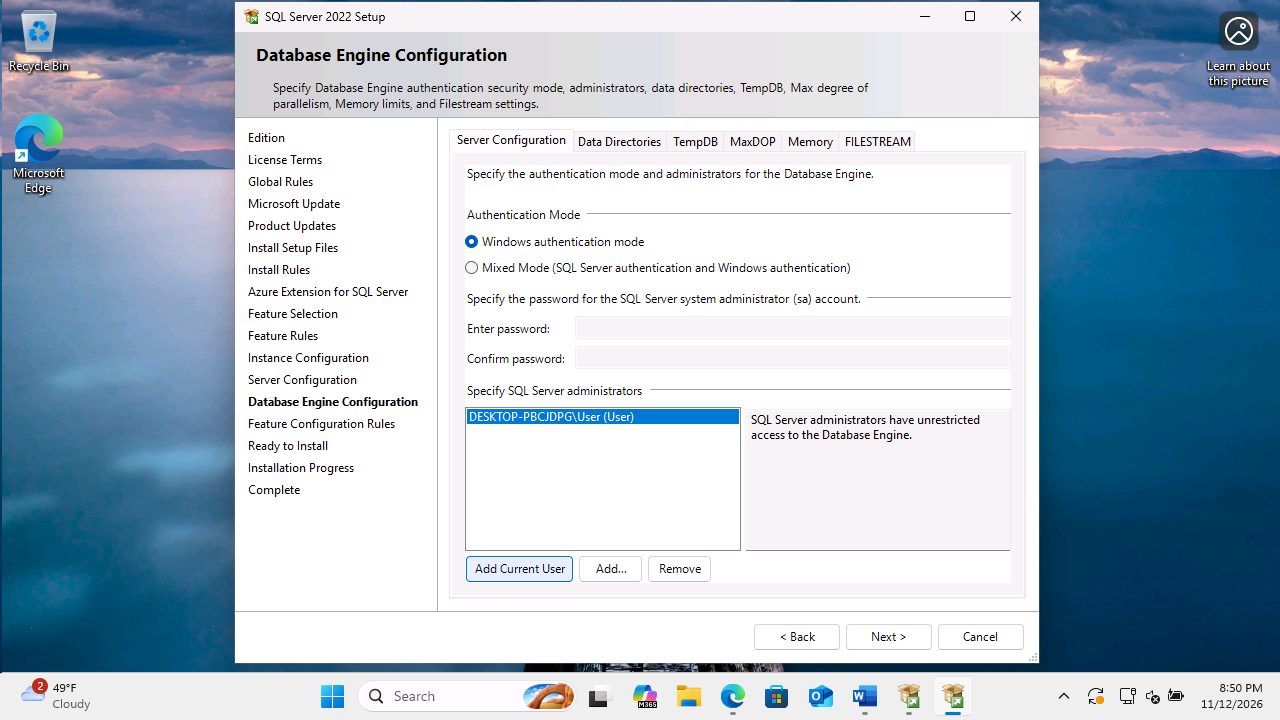
- On Database Engine Configuration, you choose the authentication mode (see below) and add at least one administrator: Add Current User adds the account you are running the installation with. The Data Directories, TempDB, MaxDOP and Memory tabs can stay at their default values.
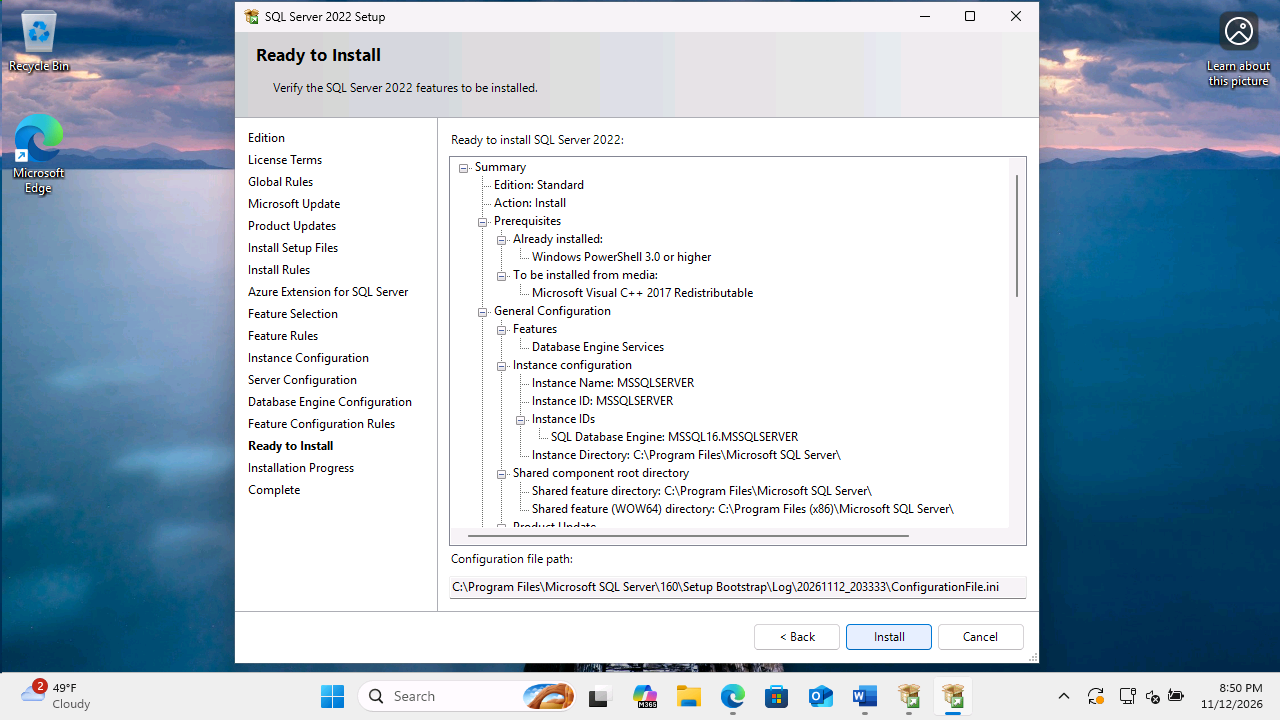
- On Ready to Install, check the summary, especially Edition, then click Install.
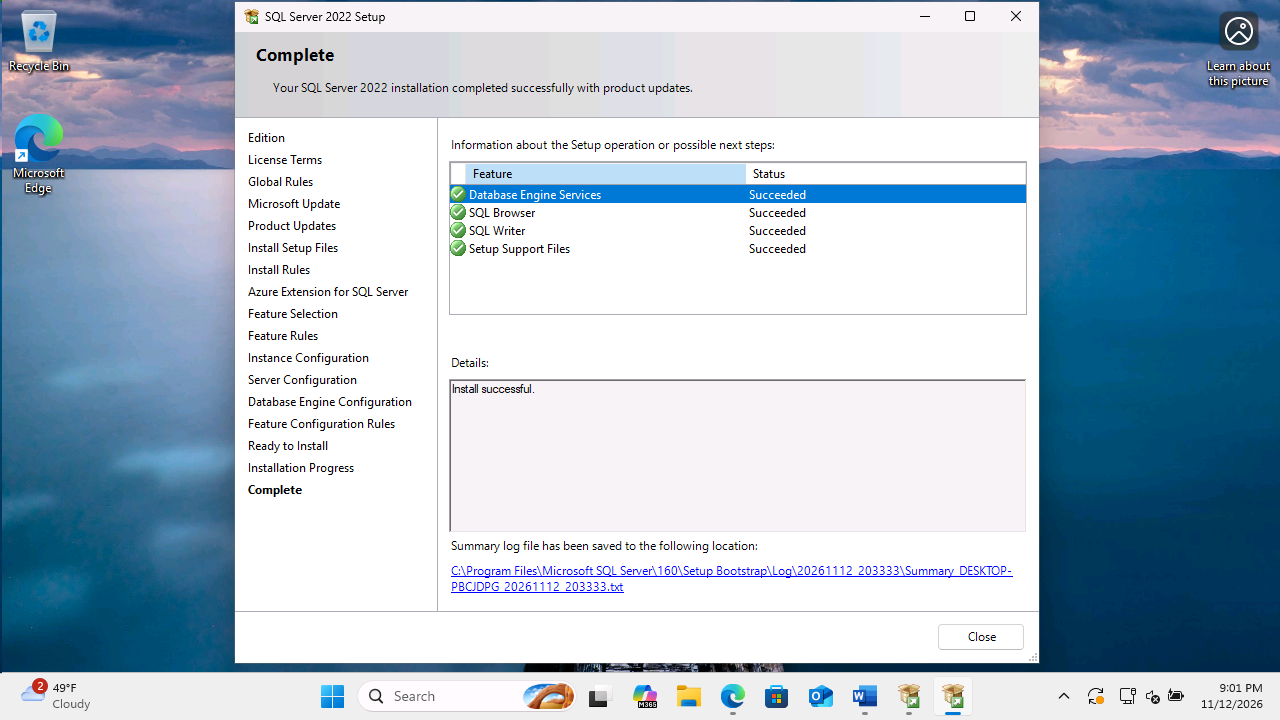
- The installation takes a few minutes. At the end, the Complete page says “Your SQL Server 2022 installation completed successfully with product updates”, and the components show the status Succeeded. Click Close. Restart the computer if you are asked to.
Authentication: Windows Authentication or Mixed Mode
- Windows Authentication is the default and is recommended by Microsoft: “when possible, use Windows Authentication”.
- Mixed Mode also accepts SQL Server authentication. You set a strong password for the
saaccount.
If you choose Windows Authentication, the sa account is created but disabled. Do not enable it unless your application requires it, and never set an empty or weak password.
After the installation
Install the latest cumulative update (CU): Microsoft always recommends the latest CU. Then install SQL Server Management Studio, using the guide Installing SQL Server Management Studio (SSMS) and connecting to the server.
If you have already installed an Evaluation, Developer or Express edition, do not reinstall it: switch it to the licensed edition with the guide How to move a SQL Server installation from Evaluation or Express to the licensed edition.
Microsoft support
SQL Server 2022 has mainstream support until January 11, 2028 and extended support until January 11, 2033. During extended support you receive security updates only.
Buying the license?
We sell SQL Server 2022 as a digital license (the key arrives by email after payment) and as a BOX with USB stick, delivered by courier:
- SQL Server 2022 Standard, digital license ESD
- SQL Server 2022 Enterprise, digital license ESD
- SQL Server 2022 Standard, BOX with USB stick
- SQL Server 2022 Enterprise, BOX with USB stick
- Bundle Windows Server 2022 Standard + SQL Server 2022 Standard
- Bundle Windows Server 2022 Datacenter + SQL Server 2022 Enterprise
See also all the SQL Server digital licenses. For the server that runs SQL Server, see the guide Installing Windows Server 2022 and 2019 from a USB stick.
Frequently asked questions
How do I install SQL Server 2022 Standard or Enterprise?
You run setup.exe, choose Installation → New SQL Server standalone installation…, enter the key on the Edition page and follow the wizard: the features (the core one is Database Engine Services), the instance, the service accounts and the authentication. At the end you click Install.
How do I know which edition I am installing?
From the key. The License Terms page shows the edition (for example “SQL Server 2022 Standard Edition”) and a note with the paid edition it recognized. The Ready to Install page shows it again, under Edition.
What is Enterprise Core?
It is the Enterprise edition with core-based licensing. It installs from the same kit; the installer recognizes it from the key and shows it as “Enterprise Edition: Core-based Licensing”. Unlike Enterprise with Server + CAL licensing (at most 20 cores per instance), it uses the maximum the operating system allows.
What do I do about the Windows Firewall warning?
It is only a notice: the installation continues. If other computers need to connect to the server, open the port used by SQL Server in Windows Firewall (by default TCP 1433 for the default instance).
How long is SQL Server 2022 supported?
Mainstream support until January 11, 2028 and extended support, with security updates, until January 11, 2033.
Need help?
Write to us at contact@conio-software.ro or on WhatsApp at 0799 237 426 (https://wa.me/40799237426).