
You installed SQL Server as the evaluation or Express version, and now you have a key for the Standard or Enterprise edition? You don’t need to reinstall. The official Microsoft procedure is called Edition Upgrade, and it changes the edition of the existing instance while keeping your databases. This SQL Server Edition Upgrade guide takes you through it step by step, for 2022 and 2019.
The Standard and Enterprise editions are also available as a BOX with USB stick, delivered by courier: SQL Server 2022 Standard, BOX with USB stick and SQL Server 2022 Enterprise, BOX with USB stick. The digital versions are in the “Buying a license?” section at the end.
When this applies
Microsoft’s tables for SQL Server 2022 and 2019 have the same structure. These are the rows that matter to you:
| Installed edition | You can move it to |
|---|---|
| Evaluation | Enterprise, Standard (and Developer, Web) |
| Express (including Express with Tools and Advanced Services) | Enterprise, Standard (and Developer, Web) |
| Standard | Enterprise |
The change happens within the same version: 2022 stays 2022, and 2019 stays 2019. Use the installation kit for the version you have installed.
Two important limitations:
- Moving from Evaluation to a paid edition is supported for stand-alone installations, but not for failover cluster instances.
- Edition Upgrade doesn’t work downward. To go from Enterprise to Standard, you must uninstall the instance completely and install it again with the kit for the edition you want (the installation steps are in the Installing SQL Server 2022 and 2019 guide).
Warning: for the new edition to take effect, setup restarts the SQL Server services. Applications that use the database will be stopped during this time. Back up your databases, including the system databases, and schedule the operation for a quiet period.
Before you start
- On the Microsoft page Editions and supported features of SQL Server 2022, check that the features you use are available in the target edition.
- Make sure no Windows restart is pending and that the Windows Installer service is running. Microsoft states that the process is blocked otherwise.
- Run setup as a local administrator.
- Keep the key at hand. Don’t write it in unprotected messages.
Steps for SQL Server Edition Upgrade
- From the installation kit, run
setup.exeor open SQL Server Installation Center from Configuration Tools. - Choose Maintenance, then Edition Upgrade.
On SQL Server 2022, the wizard Upgrade the Edition for SQL Server 2022 opens directly on the Edition page, before the Rules check pages. The page has three options: Specify a free edition, Use pay-as-you-go billing through Microsoft Azure and Enter the product key. Choose Enter the product key and type the key in the field below. Then select the option that matches your license: if your license doesn’t include Software Assurance or a SQL subscription, this is I have a SQL Server license only. On SQL Server 2019, the page is called Product Key: choose Enter the product key and type the key.
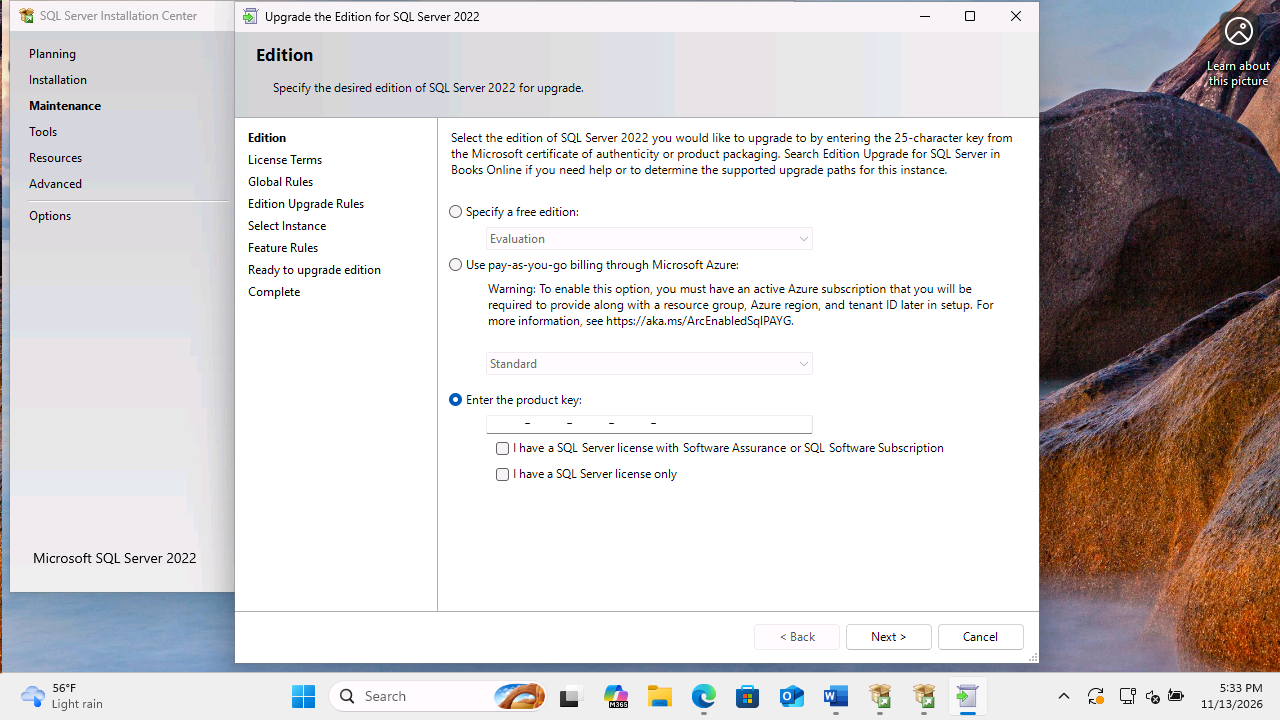
Screenshot from the SQL Server 2022 Installation Center: Maintenance > Edition Upgrade, the Edition page, with Enter the product key selected and the key field empty (English interface). Used with permission from Microsoft. - Click Next. On License Terms, read the license, select the checkbox to accept it and click Next.
- The Global Rules and Edition Upgrade Rules checks follow. If everything is fine, continue.
- On Select Instance, choose the instance you want to move to the new edition.
- Feature Rules follows (this is the order in the wizard’s left pane). Click Next.
- On Ready to upgrade edition, click Upgrade. The services restart.
- The Complete page offers a link to the log file. Click Close and restart the computer if you are asked to.
Check the result
Connect with SQL Server Management Studio (see Installing SQL Server Management Studio (SSMS) and connecting to the server), open a New Query window and run:
SELECT SERVERPROPERTY('Edition') AS Edition,
       SERVERPROPERTY('ProductVersion') AS ProductVersion;
The result should show the new edition, not Evaluation or Express.
If you started from Express: upgrading to Standard or Enterprise
Microsoft requires a few extra steps:
- Start the SQL Server Agent service from the Windows Service Control Manager.
- Configure the SQL Server Agent service account with SQL Server Configuration Manager.
- Users created in Express stay configured, including the
BUILTIN\Usersgroup. Disable them, delete them or reconfigure them as needed. - The sizes and the recovery model for
tempdbandmodelstay unchanged. Adjust them if needed.
If setup stops at the Engine_SqlEngineHealthCheck rule
Microsoft documents a command-line variant that skips this rule. From a Command Prompt opened in the folder that contains setup.exe:
setup.exe /q /ACTION=editionupgrade /InstanceName=MSSQLSERVER /PID=<your product key> /SkipRules=Engine_SqlEngineHealthCheckUse it only if this rule is the one blocking the procedure. For a named instance, change InstanceName.
Microsoft support
SQL Server 2022 has mainstream support until January 11, 2028 and extended support until January 11, 2033. SQL Server 2019 has been in extended support since February 28, 2025, and it runs until January 8, 2030, with security updates.
Buying a license?
For digital licenses, the key arrives by email after payment. For the versions in this guide:
- SQL Server 2022 Standard, digital license ESD
- SQL Server 2022 Enterprise, digital license ESD
- SQL Server 2019 Standard, digital license ESD
- SQL Server 2019 Enterprise, digital license ESD
See also all the SQL Server digital licenses or the BOX USB sticks. For a new installation, not an edition change, see Installing SQL Server 2022 and 2019.
Frequently asked questions
How do I move SQL Server from Evaluation or Express to Standard or Enterprise?
You run Edition Upgrade from the installation kit: in SQL Server Installation Center, choose Maintenance, then Edition Upgrade, enter the key, choose the instance and click Upgrade. You don’t reinstall, and your databases stay.
Do I lose my databases during Edition Upgrade?
The procedure changes the edition of the existing instance and keeps the databases. However, setup restarts the SQL Server services, so the applications that use them are stopped during this time; back up before you start.
Can I move from Enterprise to Standard without reinstalling?
No. Edition Upgrade doesn’t work downward: to go from Enterprise to Standard, you uninstall the instance completely and install it again with the kit for the edition you want.
Can I move from SQL Server 2019 to 2022 with Edition Upgrade?
No. The change happens within the same version: 2022 stays 2022, and 2019 stays 2019.
How do I check the edition after Edition Upgrade?
Connect with SSMS, open a New Query and run SELECT SERVERPROPERTY('Edition') AS Edition, SERVERPROPERTY('ProductVersion') AS ProductVersion;. The result should show the new edition, not Evaluation or Express.
Need help?
Write to us at contact@conio-software.ro or on WhatsApp at 0799 237 426 (https://wa.me/40799237426).