
The SQL Server Management Studio (SSMS) installation guide below takes you from the download to your first connection. SSMS is Microsoft’s free tool for administering and querying SQL Server. It is not installed along with the server: you install it separately, either on the server itself or on another Windows computer on the network.
If you don’t have the server you want to connect to yet, install it with the guide Installing SQL Server 2022 and 2019 (Standard and Enterprise editions), or see SQL Server 2022 Standard, digital license (ESD) and SQL Server 2022 Enterprise, digital license (ESD). The 2019 editions are in the “Buying the license?” section at the end.
What you need to know
- SSMS is free and runs only on Windows.
- The current version is SSMS 22. It works with SQL Server 2014 and later versions, so it also works with 2019 and 2022.
- It is installed through the Visual Studio Installer. There is no separate MSI package, and you don’t need Visual Studio for SSMS.
Official requirements (SSMS 22)
- Operating system, 64-bit: Windows 11, Windows Server 2025, 2022 or 2019 (Standard and Datacenter editions). The requirements page does not list Windows 10; check it before installing if you use Windows 10.
- Processor: x64, four cores or more recommended.
- Memory: 4 GB minimum, 16 GB recommended.
- Disk: between 4 GB and 50 GB, depending on the components. Microsoft recommends an SSD.
- Display: 1366 × 768 minimum.
- .NET Framework 4.8: required to run. If it is missing, the installer adds it.
- Permissions: an administrator account for the installation.
SSMS is not supported on the IoT or Minimal Server Interface variants of Windows Server, nor on virtual desktop hosts with several simultaneous users.
Installing SQL Server Management Studio, step by step
- Prepare the computer: install the Windows updates, restart, and free up space on the system drive.
- Download the installer from Microsoft: SSMS 22. The file is named
vs_SSMS.exe. - Double-click
vs_SSMS.exe. At the User Account Control prompt, choose Yes. - Confirm that you have read the Microsoft privacy statement and the license terms, then click Continue.
Visual Studio Installer opens on the Workloads tab. The Hybrid and Migration workload is selected by default. To connect to the server you don’t need any additional components, so you can leave the selection as it is. Click Install.
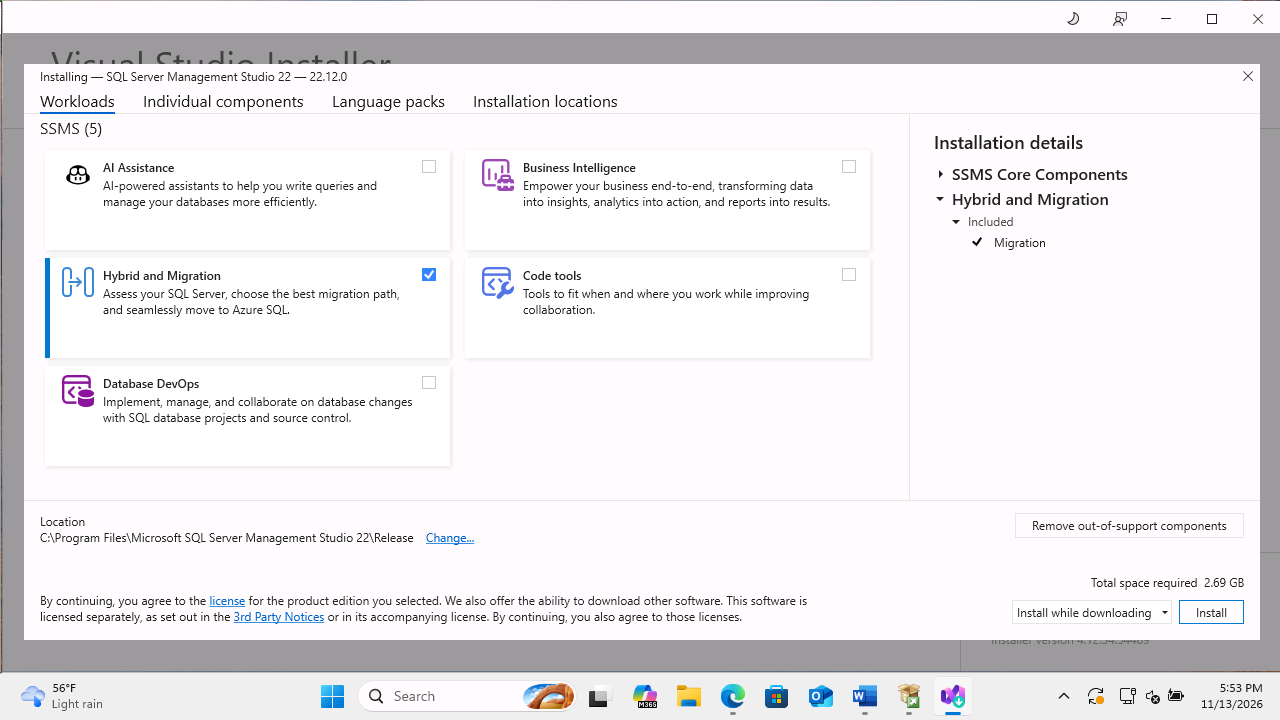
Screenshot from Visual Studio Installer: installing SQL Server Management Studio 22, the Workloads tab, with the Install button (English interface). Used with permission from Microsoft. - Wait for it to finish. If the installer asks you to restart, restart.
You choose the interface language on the Language packs tab. By default, the program matches it to the system language. You can choose the installation location only the first time you install.
Connecting to SQL Server from SSMS
- Start SSMS. On the first launch, which can take longer (about 12 minutes on our test machine), the Sign in to Visual Studio window appears; you don’t need an account to connect to the server, so you can choose Skip and add accounts later. Then the Connect window opens. If it doesn’t open, choose Object Explorer, then Connect, then Database Engine.
Fill in:
- Server Name: the server name, or
localhostif you are connecting from the server itself. For a named instance, enter the server name and the instance name, in the formSERVER\INSTANTA. - Authentication: Windows Authentication is the default. For SQL Server Authentication you need a login and a password. The
saaccount can be used only in mixed mode and only if it is enabled (in Windows mode it is created, but disabled). - Encrypt and Trust Server Certificate: the defaults are Encrypt = Mandatory and Trust Server Certificate cleared.
- Server Name: the server name, or
Click Connect.
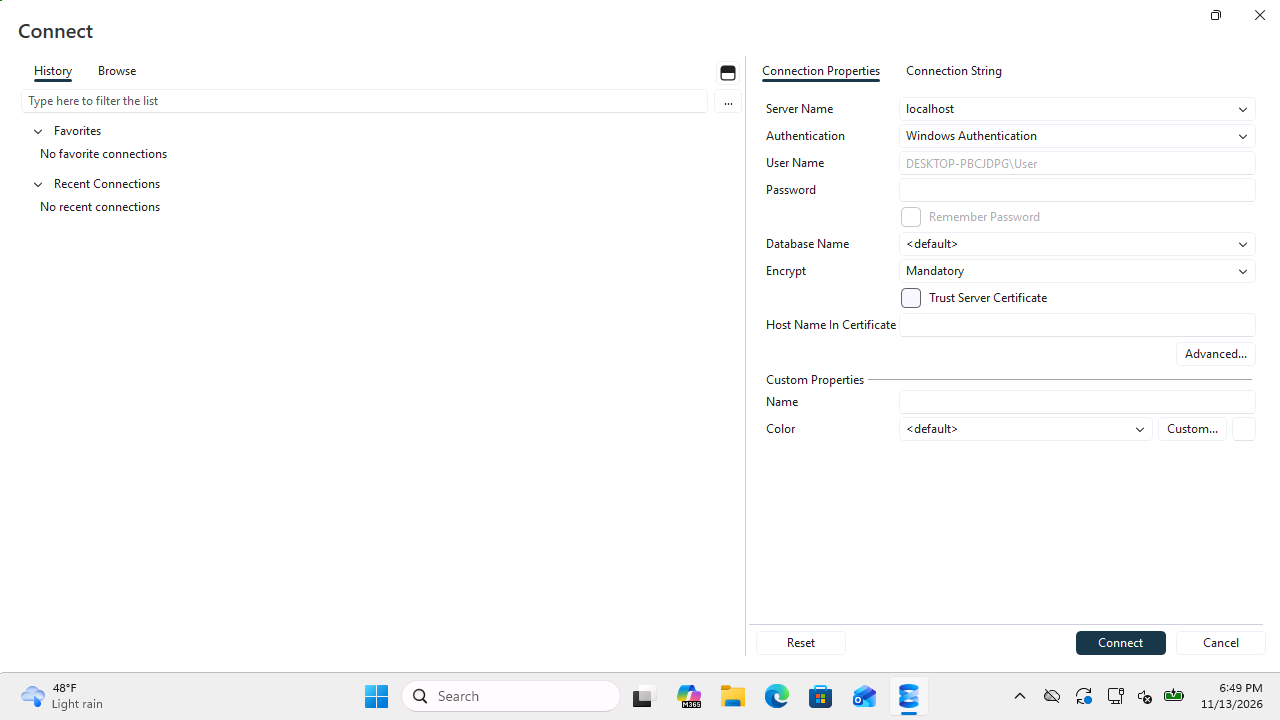
Screenshot from SQL Server Management Studio 22: the Connect window, with Server Name localhost and Windows Authentication (English interface). Used with permission from Microsoft.
Warning: with the default settings (Encrypt = Mandatory, Trust Server Certificate cleared), connecting to
localhostmay fail with the error “The certificate chain was issued by an authority that is not trusted”. In that case, select Trust Server Certificate and click Connect again; in our test the connection succeeded after that. According to Microsoft, the option skips validation of the server certificate, and the default (cleared) is safer, because it relies on trusted certificates. For production servers, use a trusted certificate.
Check the connection
- In Object Explorer, expand the server. The server name, the SQL Server version and the connected user are shown.
- Right-click the server and choose New Query.
Type the query below and click Execute or press F5:
SELECT SERVERPROPERTY('Edition') AS Edition,
       SERVERPROPERTY('ProductVersion') AS ProductVersion;
The result shows the installed edition and version.
If you can’t connect, Microsoft has a dedicated guide: Troubleshoot connecting to the SQL Server Database Engine.
Buying the license?
SSMS is free; the server you connect to is SQL Server, which we sell as a digital license (the key arrives by email after payment) or as a BOX with USB stick, delivered by courier. For SQL Server 2019:
- SQL Server 2019 Standard, digital license (ESD)
- SQL Server 2019 Enterprise, digital license (ESD)
- SQL Server 2019 Standard, BOX with USB stick
- SQL Server 2019 Enterprise, BOX with USB stick
See also all SQL Server digital licenses or the BOX USB sticks.
Frequently asked questions
How do I install SQL Server Management Studio (SSMS)?
Download the vs_SSMS.exe installer from the official Microsoft link aka.ms/ssms/22/release/vs_SSMS.exe, run it, accept the terms and click Install in the Visual Studio Installer. You don’t need Visual Studio for SSMS.
Which SQL Server versions does SSMS 22 work with?
It works with SQL Server 2014 and later versions, so it also works with 2019 and 2022. SSMS is free and runs only on Windows.
How do I connect to SQL Server from SSMS?
In the Connect window, fill in Server Name (localhost if you are connecting from the server itself) and Authentication, then click Connect. Windows Authentication is the default. If the certificate error appears, select Trust Server Certificate and try again; for production servers, use a trusted certificate.
How do I check the edition and version after connecting?
Open a New Query and run SELECT SERVERPROPERTY('Edition') AS Edition, SERVERPROPERTY('ProductVersion') AS ProductVersion;. The result shows the installed edition and version. The same query is used in the guide How to move a SQL Server installation from Evaluation or Express to the licensed edition, to check the edition after switching to a licensed edition.
Can I use the sa account in SSMS?
The sa account can be used only in mixed mode and only if it is enabled; in Windows mode it is created, but disabled.
Need help?
Write to us at contact@conio-software.ro or on WhatsApp at 0799 237 426 (https://wa.me/40799237426).