
Visual Studio 2019 and 2017 are no longer the current versions, but Microsoft still supports them with security updates. The Visual Studio 2019 and 2017 download guide below covers the official support dates, where to download the installer, the installation steps and how to enter the key.
We no longer sell licenses for Visual Studio 2019 and 2017. The guide stays for anyone who already has a key for these versions. The versions we sell now are in the “Buying a license?” section at the end.
End-of-support dates
The dates come from the Microsoft Lifecycle page (checked on November 11, 2026). All three versions follow the “Fixed” policy: 5 years of mainstream support, then 5 years of extended support.
| Version | Mainstream support | Extended support |
|---|---|---|
| Visual Studio 2017 | ended in April 2022 | until April 2027 |
| Visual Studio 2019 | ended in April 2024 | until April 2029 |
| Visual Studio 2022 | until January 2027 | until January 2032 |
- Mainstream support includes new features, security updates and fixes.
- Extended support includes security updates only.
- Support applies to the last version of each line: 15.9 for 2017, 16.11 for 2019, 17.14 for 2022. The official installer installs the latest version of that line.
System requirements
The values are the ones Microsoft publishes for each version.
- Operating system: the pages for 2019 and 2017 list Windows 11 (Home, Pro, Pro Education, Pro for Workstations, Enterprise, Education) and Windows Server 2016, 2019, 2022, 2025. Windows 10 no longer appears in these lists.
- Processor: 1.8 GHz or faster. Four cores are recommended for 2019 and two for 2017.
- Memory: 2 GB minimum. Recommended: 8 GB for 2019 and 4 GB for 2017.
- Disk space: a typical installation needs 20–50 GB. The maximum is 210 GB for 2019 and 130 GB for 2017. Microsoft recommends an SSD.
- Administrator rights and .NET Framework 4.5.2 or later for installation. .NET Framework 4.7.2 is installed during setup.
Visual Studio 2019 can be installed on the same computer as older versions, including 2017.
Warning: Install the Windows updates first and restart the computer. Do not check every component “just in case”; the space used grows quickly.
Step 1. Download Visual Studio 2019 and 2017: get the installer
Visual Studio 2019
- Open the Microsoft page Visual Studio 2019 Release History.
- The first row of the table is the latest version, the one recommended for installation. In that row, choose the link for your edition, Professional or Enterprise.
- Shortcut:
https://aka.ms/vs/16/release/vs_professional.exeorvs_enterprise.exe.
Visual Studio 2017
- The official page is Older Downloads, in the “Visual Studio 2017” section. Microsoft states there that older versions require an active Visual Studio subscription, with sign-in.
- If you do not have a subscription, use the short Microsoft links:
https://aka.ms/vs/15/release/vs_professional.exeorhttps://aka.ms/vs/15/release/vs_enterprise.exe.
Step 2. Install
- Run the downloaded file (
vs_professional.exeorvs_enterprise.exe). If User Account Control appears, choose Yes. - A Visual Studio Installer window opens, starting with “Before you get started…”, with the Microsoft Privacy Statement and Microsoft Software License Terms links. Its text says that by continuing you accept the terms; choose Continue. Visual Studio Installer opens.
- On the Workloads tab, check what you need (see the article Which components (workloads) to choose when installing Visual Studio). Then choose Install.
- At the end, choose Launch.
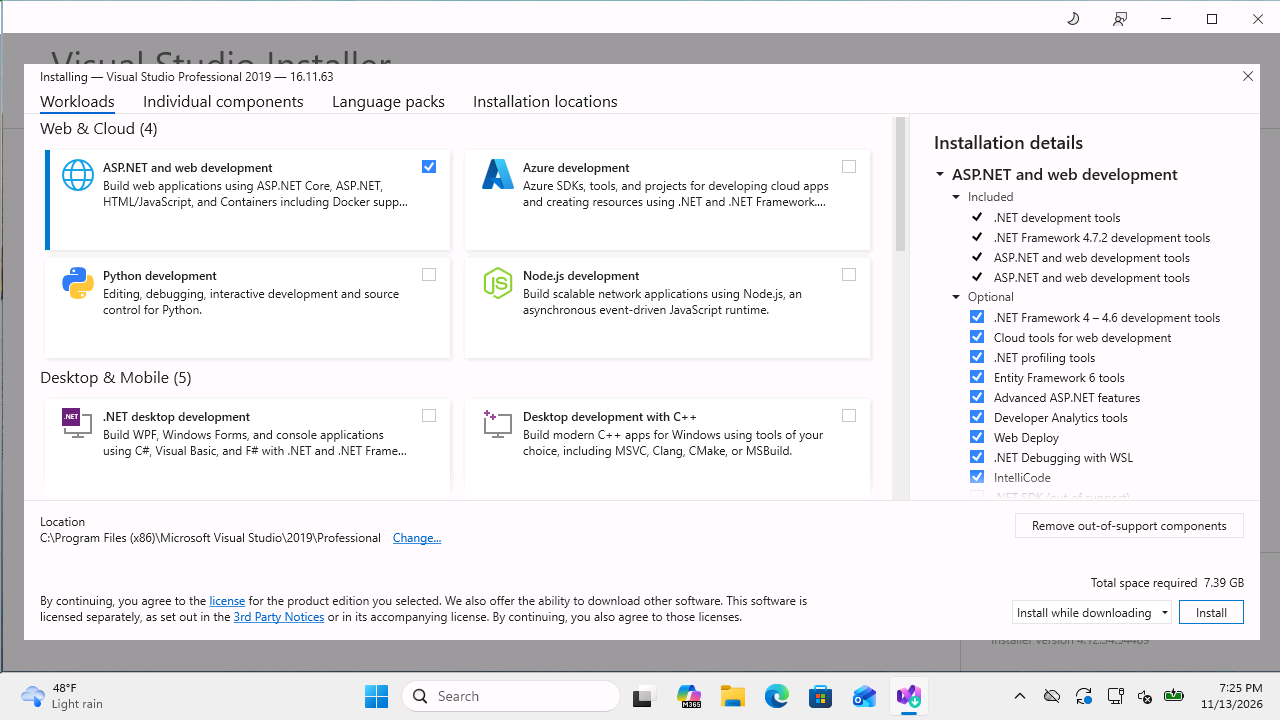
Step 3. Enter the product key
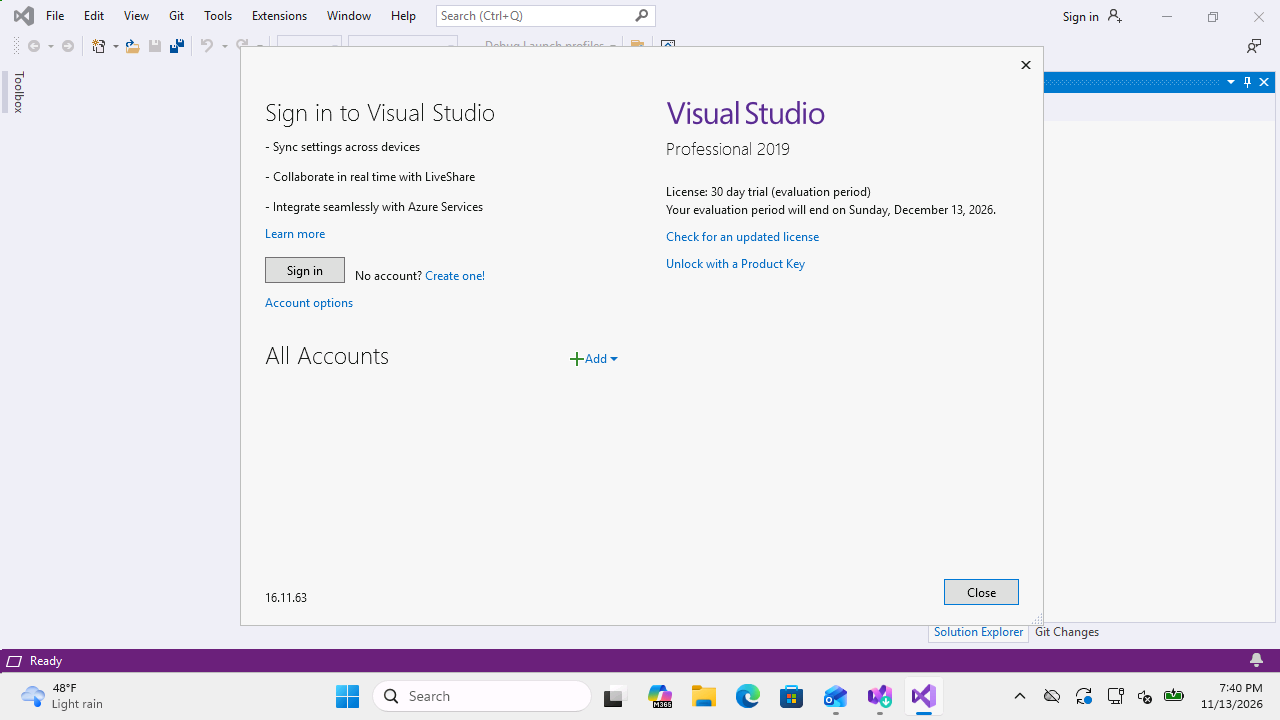
The path is the same in the Microsoft documentation for 2019 and 2017. Without a key, Professional and Enterprise run as a free 30-day trial.
- In Visual Studio, choose File → Account Settings.
- In the window that opens (on the left it says Sign in to Visual Studio, on the right the edition and license), choose the Unlock with a Product Key link, located under Check for an updated license.
- Enter your key in the field provided.
- Check the license information on the right side of the window.
Signing in with an account is optional and extends the trial to 90 days, one time only. Microsoft presents the product key as an unlock method separate from signing in with an account.
If something goes wrong
The Microsoft page Troubleshoot Visual Studio installation and upgrade issues covers common installation errors.
Buying a license?
We sell Visual Studio as a digital license (ESD): the key arrives by email after payment. The versions available now:
- Visual Studio Professional 2026, digital license ESD
- Visual Studio Enterprise 2026, digital license ESD
- Visual Studio Professional 2022, digital license ESD
See also all Visual Studio digital licenses. For Visual Studio 2022, see the guide How to install and activate Visual Studio Professional 2022 with the product key.
Frequently asked questions
Where do I download Visual Studio 2019 Professional or Enterprise?
From the Microsoft Visual Studio 2019 Release History page: the first row of the table is the latest version, the one recommended for installation, and in it you choose the link for your edition, Professional or Enterprise.
Where do I download Visual Studio 2017?
The official page is Older Downloads, in the “Visual Studio 2017” section. Microsoft states there that older versions require an active Visual Studio subscription, with sign-in. If you do not have a subscription, the guide above points to the short Microsoft links for 2017.
How long are Visual Studio 2019 and 2017 supported?
For Visual Studio 2019, mainstream support ended in April 2024, and extended support lasts until April 2029. For Visual Studio 2017, mainstream support ended in April 2022, and extended support lasts until April 2027. Extended support includes security updates only.
How do I enter the product key in Visual Studio 2019 or 2017?
Choose File → Account Settings, then Unlock with a Product Key and enter the key. Without a key, Professional and Enterprise run as a free 30-day trial.
Can I have Visual Studio 2019 and 2017 on the same computer?
Yes. Microsoft states that Visual Studio 2019 can be installed on the same computer as older versions, including 2017.
Need help?
Write to us at contact@conio-software.ro or on WhatsApp at 0799 237 426 (https://wa.me/40799237426).