
The Visual Studio 2026 installation guide below covers the whole process: downloading, installing and activating the Professional or Enterprise edition. Visual Studio 2026 is installed with the Visual Studio Installer, a Microsoft program that downloads the components from the internet. You enter the product key after installation, from the File menu.
You can find the licenses here: Visual Studio Professional 2026, digital license ESD and Visual Studio Enterprise 2026, digital license ESD. The key arrives by email after payment.
What to check first
The requirements are the ones Microsoft publishes for Visual Studio 2026 (checked on November 11, 2026).
- 64-bit operating system: Windows 11 (Home, Pro, Pro Education, Pro for Workstations, Enterprise, Education, including ARM64) or Windows Server 2025, 2022, 2019 (Standard and Datacenter). Windows 10 is not on the official list. Windows in S mode and Windows Enterprise LTSC editions are not supported.
- Processor and memory: x64 or ARM64 (recommended: four cores or more) and at least 4 GB of RAM; 16 GB for professional projects.
- Disk space: between 2.5 GB and 210 GB, depending on the components you choose; a typical installation needs 20–50 GB. Microsoft recommends an SSD.
- Screen: at least 1366 × 768.
- A Windows account with administrator rights. Install the Windows updates first and restart the computer.
Warning: Visual Studio can take up tens of GB. Select only the components you need; you can add more at any time. Keep the key in a safe place and do not publish it.
Step 1. Download the installer from Microsoft
Microsoft publishes the official links on the Visual Studio Release History page, in the “Installation of Visual Studio” section. They install the latest version from the Stable channel:
- Professional: https://aka.ms/vs/stable/vs_professional.exe
- Enterprise: https://aka.ms/vs/stable/vs_enterprise.exe
The downloaded file is small. The rest of the components are downloaded during installation. The visualstudio.microsoft.com/downloads page is also an official source.
LTSC 18.11 channel (optional). For Professional and Enterprise, Microsoft also offers a channel with security and reliability updates only, supported until November 2028: Professional LTSC or Enterprise LTSC.
Step 2. Install Visual Studio 2026: start the installer
- From the Downloads folder, run the file you downloaded (
vs_Professional.exeorvs_Enterprise.exe). - If User Account Control appears, choose Yes.
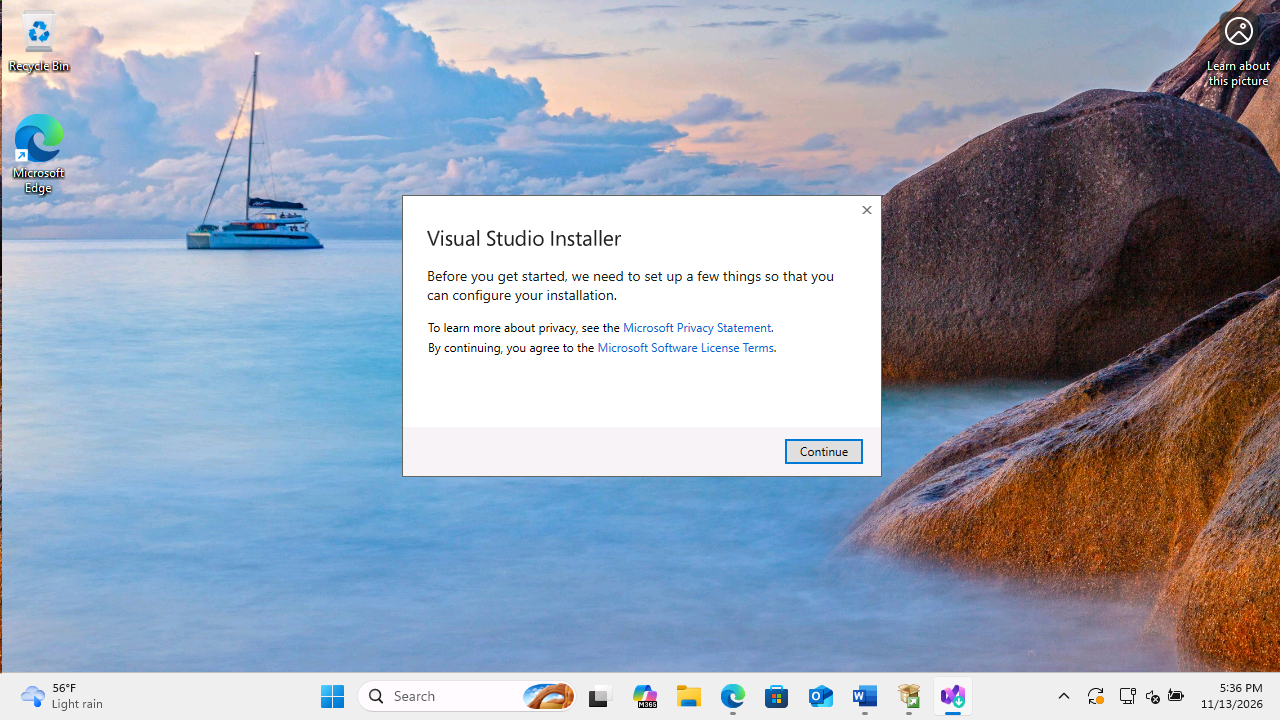
- A Visual Studio Installer window opens, beginning with “Before you get started…”, with links to the Microsoft Privacy Statement and the Microsoft Software License Terms. Its text says that by continuing you accept the terms; choose Continue.
- If you already have Visual Studio 2022 (in our test), the Install Visual Studio Professional 2026 window appears (for Enterprise, the edition name differs), with the Copy workloads, components, and settings from a previous installation option (you pick the version from the list; the Include installed extensions from the Visual Studio Marketplace box is checked by default, and you can clear it). There are also Use a .vsconfig file and Select workloads and components manually. Choose the option you want, then Next.
Step 3. Choose the components
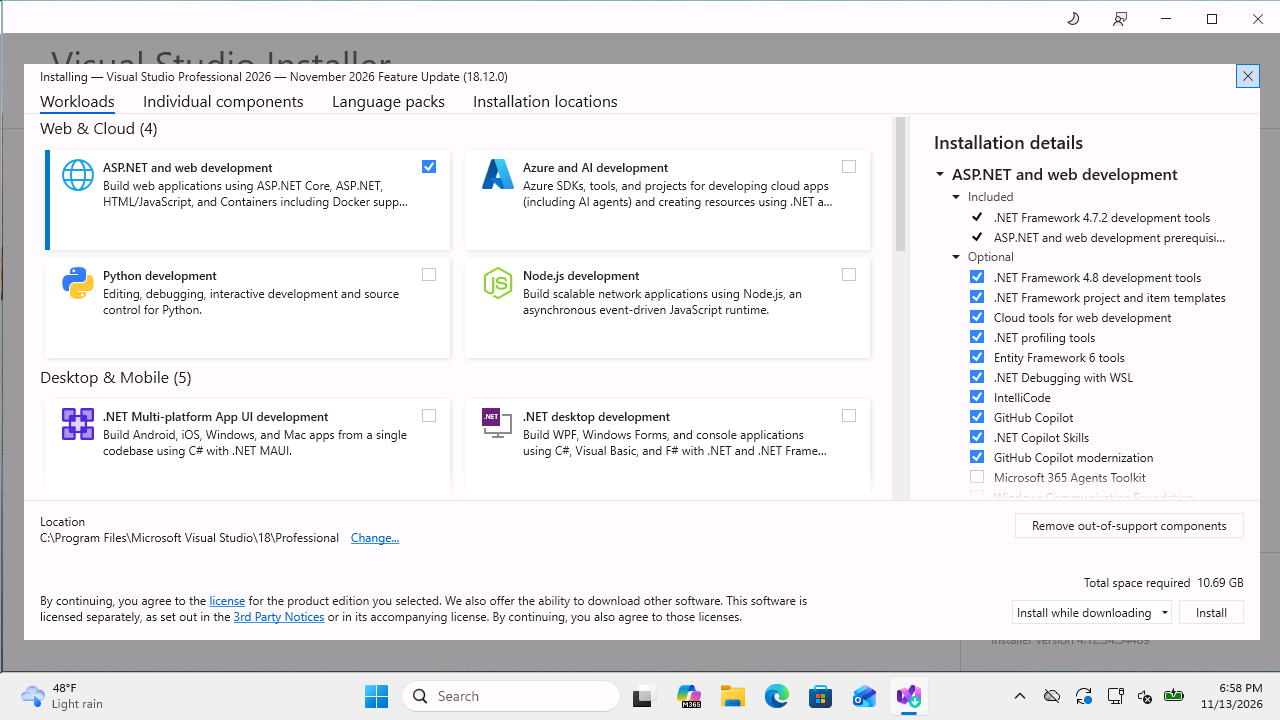
- On the Workloads tab, select what you want to develop, for example ASP.NET and web development. For details, see the article Which components (workloads) to choose when installing Visual Studio. The names there are the 2022 ones; for 2026, look at the list in the Installer.
- Optionally, on the Language packs tab, choose the language. The interface is available in 14 languages; Romanian is not one of them.
- Optionally, under Installation locations, move the download cache to another drive. The drive for Visual Studio IDE and Download cache can only be chosen at the first installation.
- The recommended installation includes the optional GitHub Copilot component; you can clear it. Its features require a GitHub account with Copilot access.
- Choose Install, then, at the end, Launch.
Step 4. Activate with the product key
Without a key, Professional and Enterprise run as a free 30-day trial.
- In Visual Studio, choose File → Account Settings.
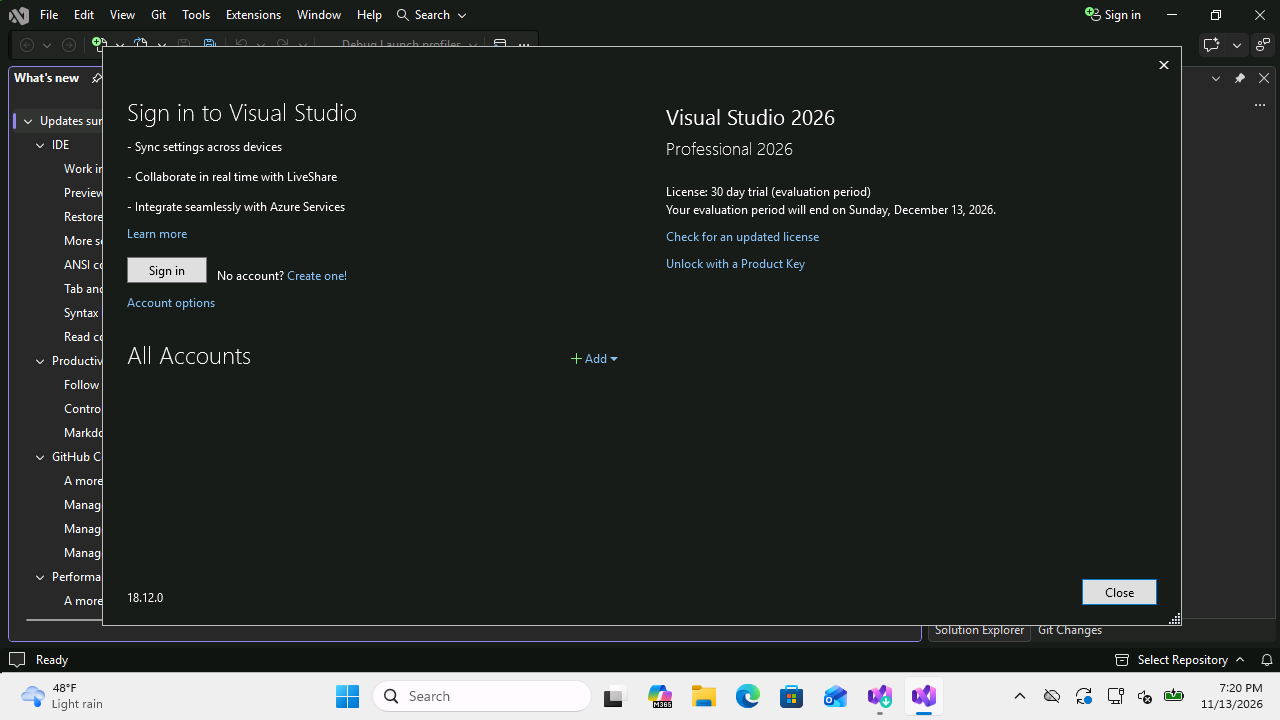
- In the window that opens (on the left it says Sign in to Visual Studio, on the right the edition and license), choose the Unlock with a Product Key link, found under Check for an updated license.
- Enter the key you received from us in the field provided.
- Reopen File → Account Settings and check the license information on the right.
Signing in with an account: do you need it?
Signing in with Sign in is optional. If you sign in with a Microsoft, work or GitHub account, Visual Studio looks for a subscription linked to the account, and the trial is extended from 30 to 90 days, once only. Microsoft recommends the product key if you use Visual Studio for long periods in environments with limited or no internet access.
Professional or Enterprise?
Microsoft describes the Professional edition as suited to small teams. According to the comparison page, Enterprise adds, among other things, IntelliTrace, Snapshot Debugger, Live Unit Testing, IntelliTest, Microsoft Fakes and Architecture Validation. Full list: Compare Visual Studio Product Offerings.
Visual Studio 2026 and version 2022
- Visual Studio 2026 has been available since November 11, 2025 and can be installed alongside other versions, including 2022. It follows the Modern policy: support until November 2027, and the LTSC 18.11 channel until November 2028. Microsoft requires you to keep the product up to date by installing updates.
- Visual Studio 2022 has its own lifecycle: mainstream support until January 2027, extended support until January 2032. See the guide How to install and activate Visual Studio Professional 2022 with a product key.
If something goes wrong
For installation errors, see the Microsoft page Troubleshoot Visual Studio installation and upgrade issues. The Microsoft installation chat is available in English only.
Buying a license?
We sell Visual Studio as a digital license (ESD): the key arrives by email after payment.
- Visual Studio Professional 2026, digital license ESD
- Visual Studio Enterprise 2026, digital license ESD
- Windows 11 Pro, digital license ESD
See also all the Visual Studio digital licenses. Visual Studio 2026 requires Windows 11 or Windows Server; installing the operating system is covered in Installing Windows 11 Home and Pro, step by step.
Frequently asked questions
How do I install Visual Studio 2026 Professional or Enterprise?
Download the official installer from the Microsoft Visual Studio Release History page (vs_professional.exe or vs_enterprise.exe), run it and accept the terms. In the Visual Studio Installer, select the workloads you need and choose Install.
Where do I enter the product key in Visual Studio 2026?
In Visual Studio, choose File → Account Settings, then the Unlock with a Product Key link, and enter the key. Without a key, Professional and Enterprise run as a free 30-day trial.
What are the system requirements for Visual Studio 2026? Does it work on Windows 10?
A 64-bit operating system (Windows 11 or Windows Server 2025, 2022, 2019), at least 4 GB of RAM and a screen of at least 1366 × 768. Windows 10 is not on the official Microsoft list. Disk space is between 2.5 GB and 210 GB, and a typical installation needs 20–50 GB free.
What is the difference between Visual Studio Professional and Enterprise?
Enterprise adds features such as IntelliTrace, Snapshot Debugger, Live Unit Testing, IntelliTest and Architecture Validation. The full list is on the Microsoft edition comparison page.
Until when is Visual Studio 2026 supported?
Current support runs until November 2027, and the LTSC 18.11 channel, for Professional and Enterprise, until November 2028. Microsoft requires you to keep the product up to date by installing updates.
Need help?
Write to us at contact@conio-software.ro or on WhatsApp at 0799 237 426 (https://wa.me/40799237426).