
During installation, Visual Studio Installer asks what you want to build. You answer through Visual Studio workloads: bundles of components for a language or a platform. What you choose decides how much space the installation takes and how long the download takes.
The installation steps are in the guide for Visual Studio 2022 and in the guide for Visual Studio 2019 and 2017. You can find Visual Studio licenses in the shop, for example Visual Studio Professional 2022, digital license ESD.
How much space Visual Studio takes
For Visual Studio 2022, Microsoft gives a range from 850 MB to 210 GB, depending on what you select. A typical installation needs 20–50 GB of free space. For 2019 the range is 800 MB–210 GB, and for 2017 the maximum is 130 GB.
Warning: Don’t select everything “just in case.” Every workload adds gigabytes, and the download takes longer. Check the free space on the system drive before you click Install.
Which Visual Studio workloads to choose, based on what you want to do
The names below are the ones in Visual Studio 2022, as Microsoft lists them.
| You want to build | Workload |
|---|---|
| Windows desktop apps in C#, Visual Basic or F# (WPF, Windows Forms, console apps) | .NET desktop development |
| Websites and web apps (ASP.NET Core, Blazor, HTML and JavaScript, containers) | ASP.NET and web development |
| Windows apps in C++ (MSVC, Clang, CMake, MSBuild) | Desktop development with C++ |
| Apps for Android, iOS, Windows and Mac from a single codebase, in C# with .NET MAUI | .NET Multi-platform App UI development |
| Cloud apps and Azure resources | Azure development |
| Working with SQL Server, Azure Data Lake or Hadoop | Data storage and processing |
| Python apps | Python development |
| Network apps in Node.js | Node.js development |
| Add-ins for Office and SharePoint (including VSTO) | Office/SharePoint development |
| Games with Unity | Game development with Unity |
| Games in C++ (DirectX, Unreal, Cocos2d) | Game development with C++ |
| Windows apps with WinUI | WinUI application development |
| Extensions for Visual Studio | Visual Studio extension development |
The base editor (Visual Studio core editor) is included either way. In 2017 some names differ, for example Universal Windows Platform development, Mobile development with .NET or .NET Core cross-platform development. In 2019 and 2017, check the list in the Installer.
On ARM64 computers, Microsoft states that Python development, Data science and analytical applications, Mobile development with C++ and Office/SharePoint development are not supported. Azure development is supported only for the container tools.
How to choose, step by step
- Start Visual Studio Installer. On the first installation it opens by itself after the bootstrapper.
- On the Workloads tab, select a single workload, the one for your main project. Not several “just in case.”
- If you need something specific on top of that, open the Individual components tab and select only that component.
- On the Installation locations tab you can choose where the download cache is saved. If you clear Keep download cache after the installation, the downloaded files are deleted at the end and only the metadata stays. The drive for Visual Studio IDE and Download cache can be chosen only on the first installation. Microsoft recommends keeping the product core on your fastest drive (SSD).
- Choose between Install while downloading and Download all, then install, then click Install.
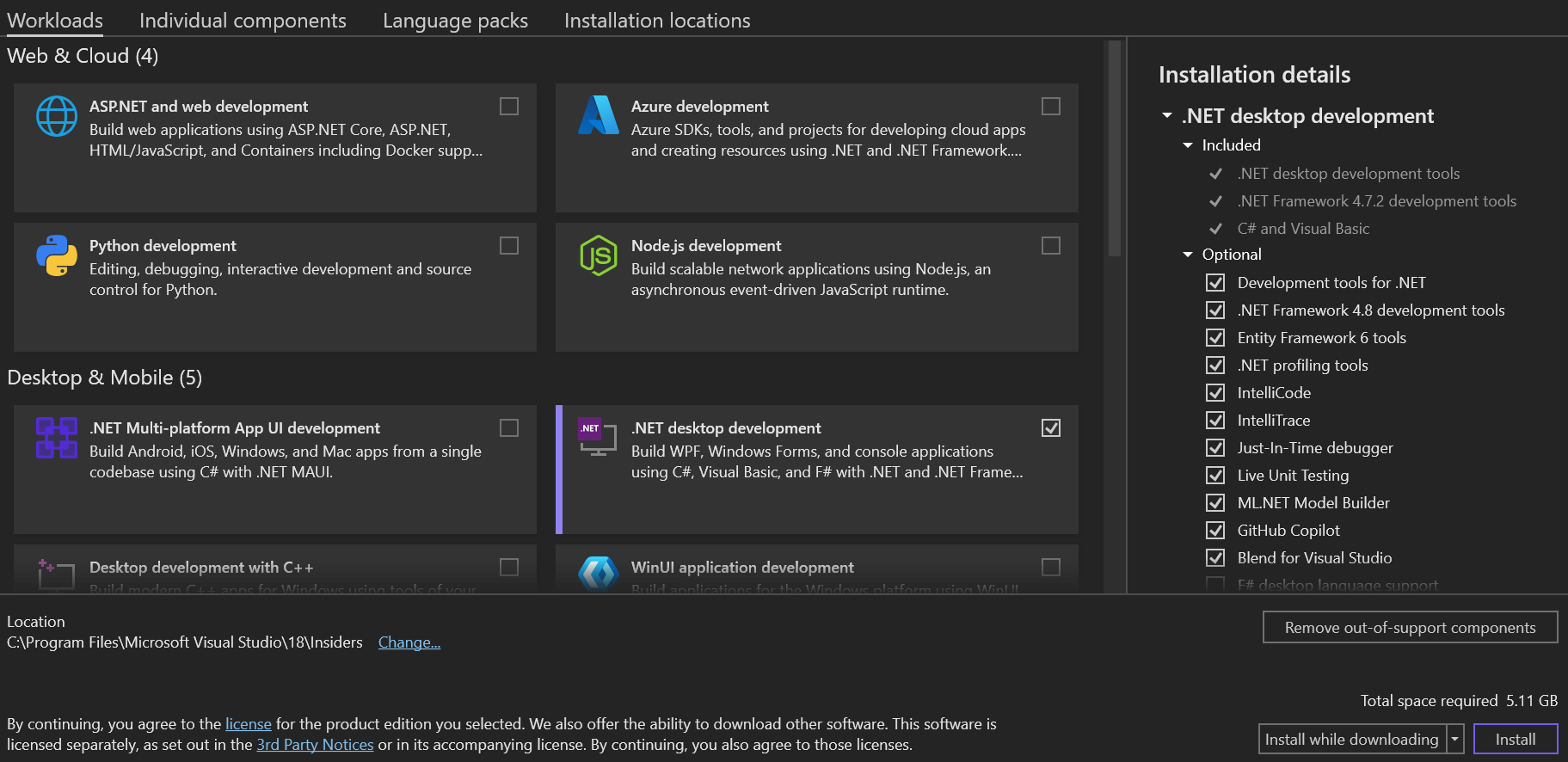
Adding or removing components later
You don’t have to decide for good right now.
- With Visual Studio open, choose Tools → Get Tools and Features. Or open Visual Studio Installer from the Start menu.
- For your installation, choose Modify.
- Select or clear the workloads, then choose Modify again.
You change the interface language from the Language packs tab.
Buying the license?
We sell Visual Studio as a digital license (ESD): the key arrives by email after payment.
- Visual Studio Professional 2026, digital license ESD
- Visual Studio Enterprise 2026, digital license ESD
- Visual Studio Professional 2022, digital license ESD
See also all the Visual Studio digital licenses.
Frequently asked questions
Which workloads do I select in Visual Studio for web or desktop apps?
For websites and web apps, choose ASP.NET and web development. For Windows desktop apps in C#, Visual Basic or F#, choose .NET desktop development, and for C++ on Windows, Desktop development with C++. The names are the ones in Visual Studio 2022; in 2019 and 2017, check the list in the Installer.
How much space does Visual Studio take?
For Visual Studio 2022, Microsoft gives a range from 850 MB to 210 GB, depending on what you select; a typical installation needs 20–50 GB of free space. For 2019 the range is 800 MB–210 GB, and for 2017 the maximum is 130 GB.
How many workloads should I select?
Select a single workload, the one for your main project, because each one adds gigabytes and lengthens the download. If you need something extra, select only that component from the Individual components tab.
Can I add or remove workloads after installation?
Yes. Choose Tools → Get Tools and Features or open Visual Studio Installer, then choose Modify, select or clear the workloads and choose Modify again.
Can I move Visual Studio to another drive?
On the Installation locations tab you choose where the download cache is saved. The drive for Visual Studio IDE and Download cache can be chosen only on the first installation.
Need help?
Write to us at contact@conio-software.ro or on WhatsApp at 0799 237 426 (https://wa.me/40799237426).