
Looking for Office phone activation? It is no longer done by phone. On the official activation portal page, Microsoft says that the automated phone activation process moved from the phone to online starting December 3, 2025. Offline activation is still possible, but you do it on the Microsoft Product Activation Portal, at the official short address aka.ms/aoh. The address leads to visualsupport.microsoft.com.
Don’t have the license yet? See Office Professional Plus 2024, digital license ESD.
Warning: the Office activation wizard still shows phone numbers. Don’t call them. On its offline activation page, Microsoft explicitly says not to call the number shown and to use the portal instead. Don’t call numbers found in old tutorials or on other sites either. Enter the Installation ID only on the official Microsoft portal.
Activating Office through the portal: what you need
- The computer where Office is installed, with the key entered. If you haven’t installed it yet, see the guides for Office 2024, Office 2021 or Office 2019.
- A device with internet access (phone, tablet or another computer) to open the portal. The computer with Office can stay offline.
- A personal, work or school Microsoft account. Signing in only validates access to the portal; Microsoft states that it does not link the account to the license.
Step 1: try online activation first
Microsoft recommends trying online activation first. In Office, go to File → Account and use Change Product Key or, if that is the only one you see, Activate Product; enter the key and click Activate Office. Use the portal only if that computer has no internet access or if online activation fails.
When online activation fails, Word shows an error message. For example, for a key that has no online activations left, the message says the installation cannot be activated because the key’s activation limit has been reached. Click OK and continue with step 2.
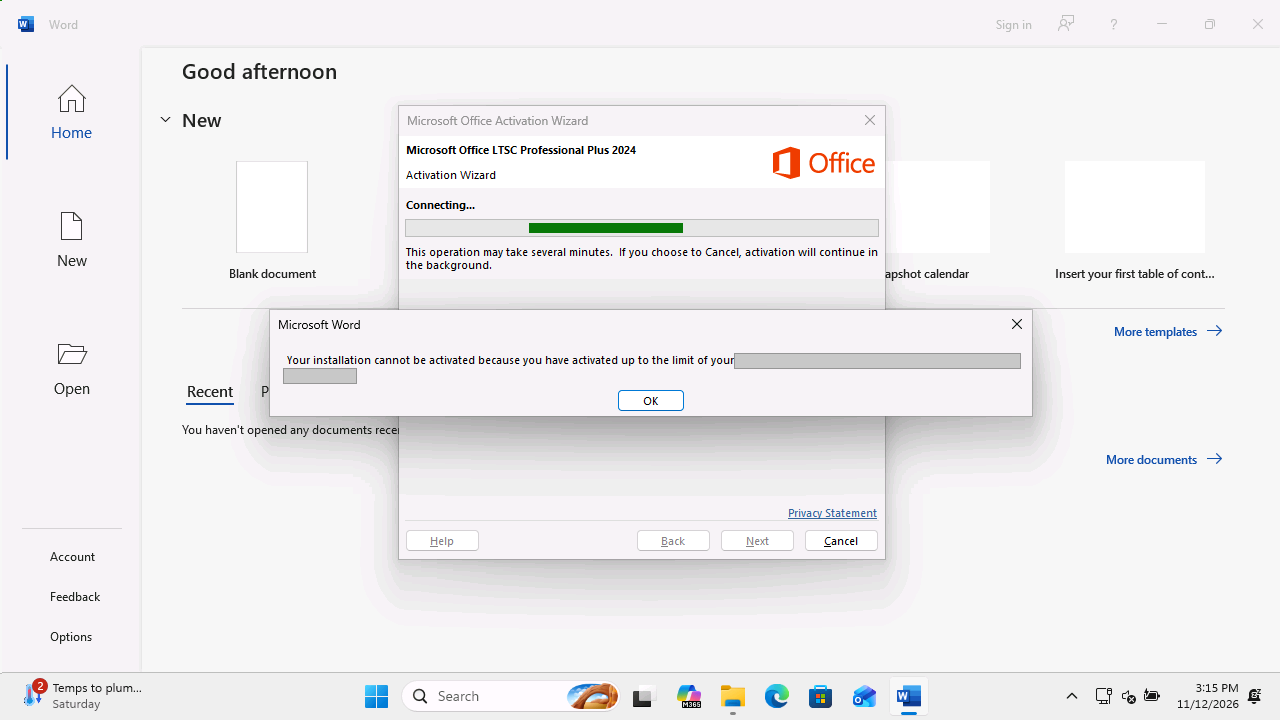
Step 2: find the Installation ID
- Open the Microsoft Office Activation Wizard. When Office is not activated, the wizard appears on its own when you start the application; you can also start it from File → Account → Activate Product.
- Choose I want to activate the software by telephone and click Next. The option kept its old name, but you use it only to see the Installation ID.
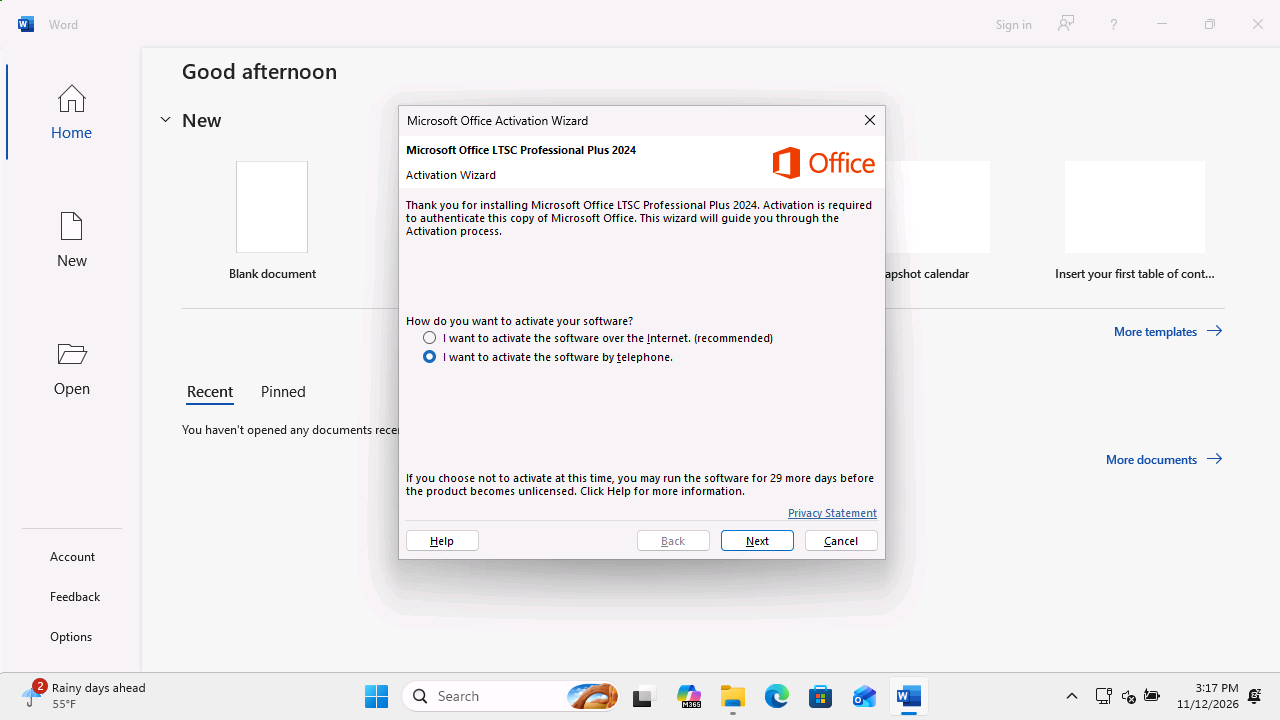
- At Step 1, choose Romania. The wizard shows phone numbers: don’t call them.
- At Step 2, the Installation ID appears, a long string of digits, in groups of seven. Write it down exactly or take a photo of it. Leave the wizard open: at Step 3 you will enter the Confirmation ID.
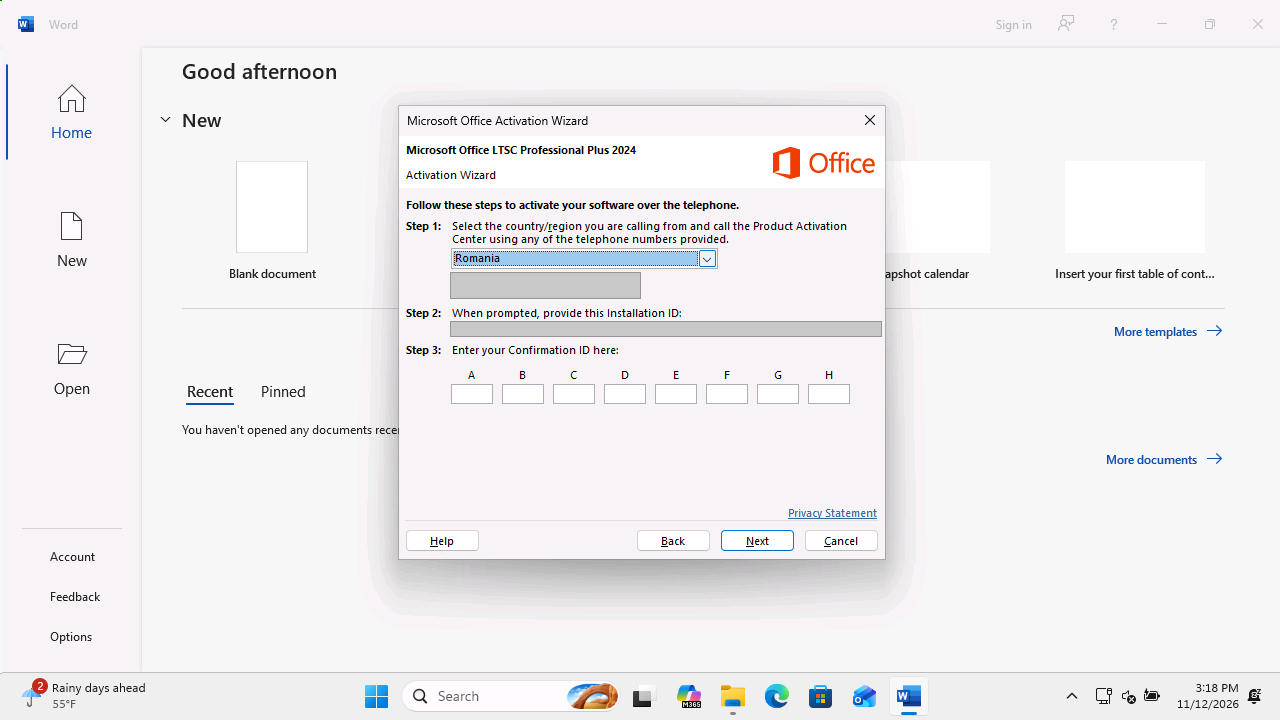
You may get the message “Telephone activation is no longer supported for your product”. In this case Microsoft points to the activation portal, so continue with step 3. If the option above doesn’t appear at all, write to us.
Step 3: get the Confirmation ID on the portal
- On the other device, open aka.ms/aoh. The official Microsoft short address leads to the visualsupport.microsoft.com portal.
- On the first page, Welcome to Microsoft Product Activation Portal!, click Let’s Get Started.
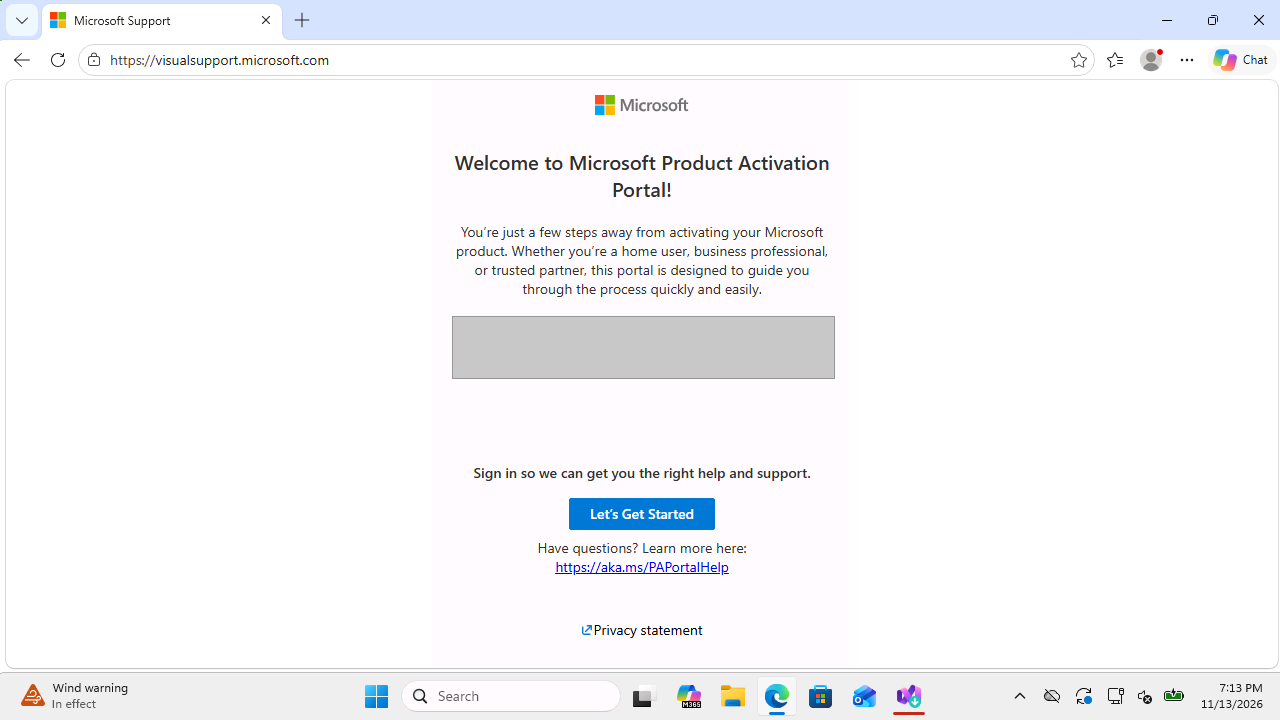
- Next, according to the Microsoft support page, complete the CAPTCHA check and sign in (Proceed to Sign In), with your Microsoft account or with your work or school account.
- Select Activate a Microsoft Product and choose the product and version.
- Enter the Installation ID and click Submit. The portal gives you the Confirmation ID.
Step 4: activate Office
- On the computer with Office, in the activation wizard, at Step 3, enter the Confirmation ID exactly as you received it, in boxes A–H.
- Click Next and follow the instructions.
- Check under File → Account that the product shows as activated (“Product Activated”).
If it still doesn’t work
Microsoft says the portal can connect you to live chat, if your case is eligible. You can also write to us.
Buying the license?
The guide is written for the Office licenses we sell, as a digital license (the key arrives by email after payment) or a BOX with USB stick (delivered by courier):
- Office Professional Plus 2024, digital license ESD
- Office Professional Plus 2021, digital license ESD
- Office Professional Plus 2019, digital license ESD
- Office Professional Plus 2024, BOX with USB stick
See also all the Office digital licenses.
Frequently asked questions
Can I still activate Office by phone?
No. Microsoft moved the automated phone activation process online, starting December 3, 2025. Offline activation is still possible, but you do it on the Microsoft portal, at aka.ms/aoh. The Office activation wizard still has the “by telephone” option and shows numbers, but you use it only to find the Installation ID.
What is the address of the Microsoft activation portal?
aka.ms/aoh, the official short address, which leads to visualsupport.microsoft.com. For Windows, Microsoft also uses aka.ms/WindowsActivate, which leads to the same portal.
How do I activate Office without internet?
On the computer with Office, you get the Installation ID from the activation wizard. On another device with internet access, you enter it on the Microsoft portal and receive the Confirmation ID, which you type into the wizard at Step 3. The computer with Office can stay offline.
What should I do if the message “Telephone activation is no longer supported for your product” appears?
In this case Microsoft points to the activation portal. Continue with step 3: you get the Confirmation ID on the portal and enter it in the activation wizard.
What phone number do I call to activate Office?
None. Don’t call the numbers shown in the activation wizard, nor those in old tutorials or on other sites. Enter the Installation ID only on the official Microsoft portal, at aka.ms/aoh.
Do I have to try online activation first?
Yes, Microsoft recommends trying online activation first. Use the portal only if that computer has no internet access or if online activation fails.
Contact
Need help? Write to us at contact@conio-software.ro or on WhatsApp at 0799 237 426.