
To completely uninstall Office, follow the steps below. Before you install a new version of Office, Microsoft recommends uninstalling the old versions. This also applies to versions preinstalled by the computer maker, for example the Microsoft 365 that came with a laptop. The steps are for Windows 10 and 11.
Installing a new version next? See Office Professional Plus 2024, digital license ESD.
Warning: close all Office apps and save your files before uninstalling. Keep the activation key for the version you want to reinstall. If you use the official tool, run it on the same computer where Office is installed.
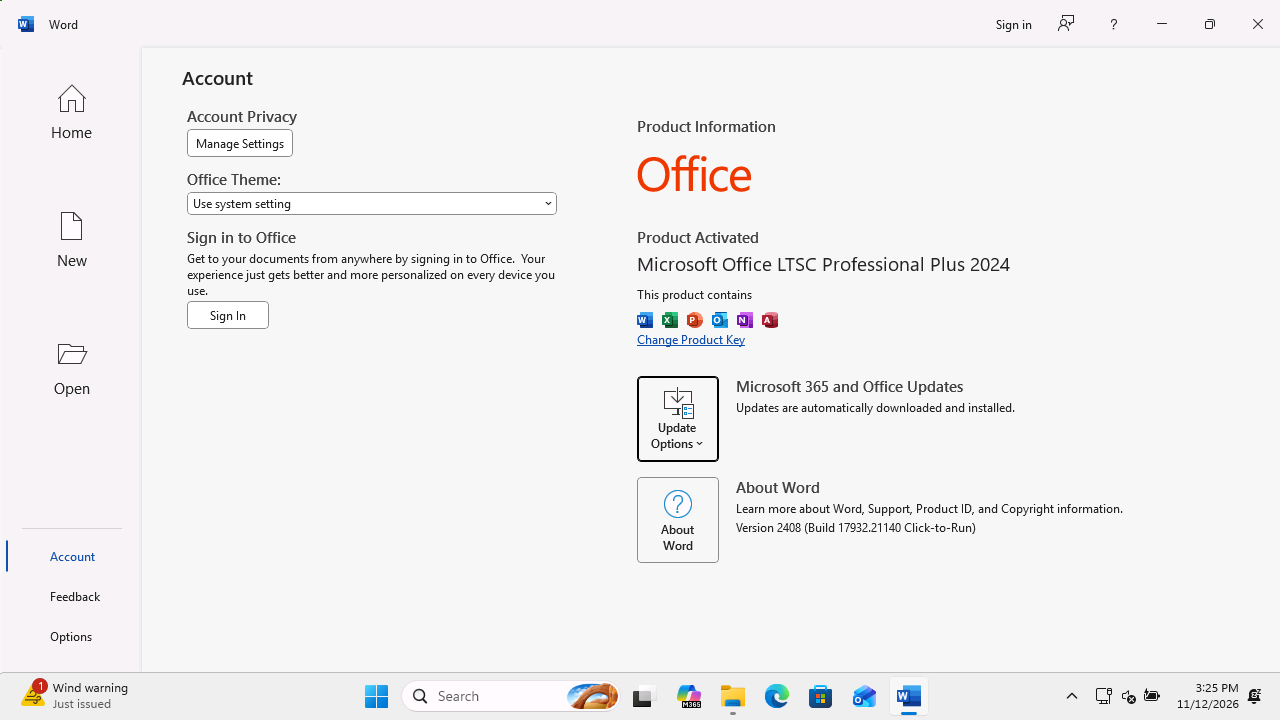
Step 1: find out how Office was installed
- Open an Office app, for example Word.
- Go to File → Account (or Office Account).
- Under Product information, select About.
- Next to the version and build number, you’ll see “Click-to-Run” or “Microsoft Store”. If no version number appears next to “About”, the installation is the Windows Installer (MSI) type.
Step 2: completely uninstall Office from Control Panel
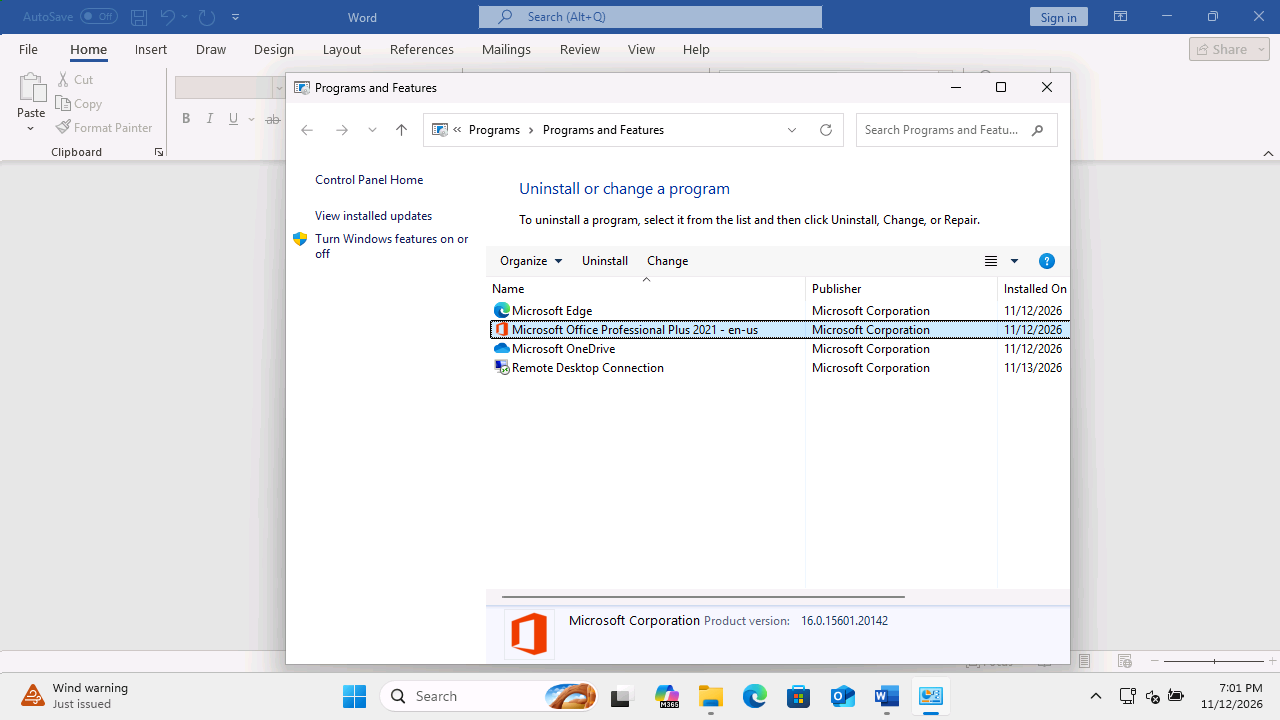
- Press the Windows key, type
control paneland open Control Panel. - Go to Programs → Programs and Features.
- Select the Office product (for a suite, look for the suite name; for Project or Visio, the app name) and choose Uninstall.
- Follow the on-screen instructions.
Microsoft states that, in general, you can’t uninstall a single app from a suite. The exception is apps bought separately. If Office doesn’t appear in the list, it may be a Microsoft Store installation: go to step 4.
Step 3: the Microsoft Office uninstall tool
Use it if Control Panel fails or leaves traces behind.
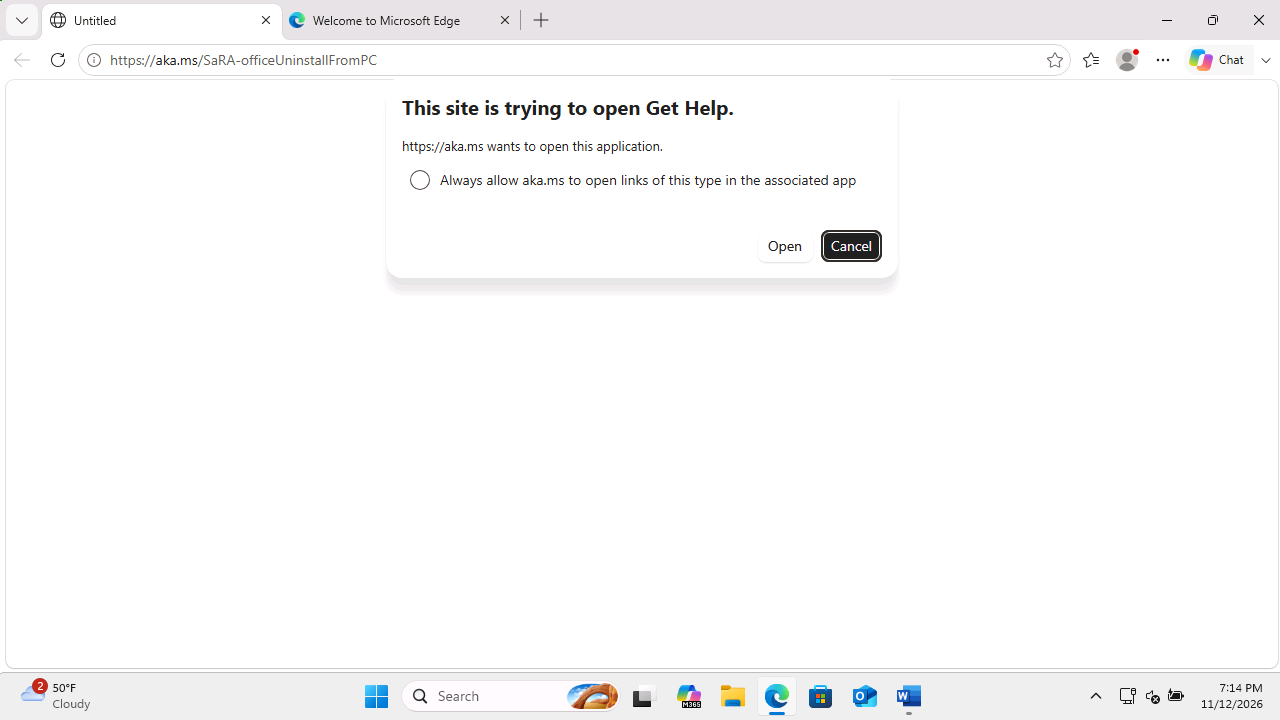
- Open the official tool and select Uninstall.
- If the message “This site is trying to open Get Help” appears, select Open.
- Follow the instructions and restart the computer when asked.
Microsoft states that the tool works on Windows 10 or later and covers Microsoft 365, Office 2021 and Office 2019. Don’t use it for Office 2024: uninstall it from Control Panel, in step 2.
If the tool doesn’t remove Office completely, Microsoft also has a manual uninstall guide. Microsoft warns that the manual method is long and complex and may even require reinstalling the operating system. Write to us before you try it.
Step 4: Office installed from the Microsoft Store
Only if Office doesn’t appear in Control Panel:
- Right-click Start and choose Windows PowerShell (Run as Administrator).
- Type the command below and press Enter. It takes a few minutes.
Get-AppxPackage -name "Microsoft.Office.Desktop" | Remove-AppxPackage- Check with
Get-AppxPackage -name "Microsoft.Office.Desktop". If no package information appears, the uninstall worked.
Step 5: restart and check
Restart the computer so the cleanup can finish. Open Programs and Features again and check that no Office products are left in the list. Then you can install the new version, following its guide: Office 2024 installation, Office 2021 installation, Office 2019 installation or Project and Visio 2021 installation.
On a Mac, uninstall by following Microsoft’s instructions for Mac.
Buying a license?
After uninstalling, you can install a new version of Office. We offer digital licenses (the key arrives by email after payment) and BOX licenses with USB stick (delivered by courier):
- Office Professional Plus 2024, digital license ESD
- Office Professional Plus 2024, BOX with USB stick
- Office Professional Plus 2021, digital license ESD
- Office Professional Plus 2019, digital license ESD
See also all the Office digital licenses.
Frequently asked questions
How do I completely uninstall Office?
Go to Control Panel → Programs → Programs and Features, select the Office product and choose Uninstall. If that fails or leaves traces behind, use the Microsoft uninstall tool, then restart the computer.
Do I have to uninstall the old version of Office before a new one?
Microsoft recommends uninstalling old versions before a new installation. This also applies to versions preinstalled by the computer maker, for example the Microsoft 365 that came with a laptop.
How do I uninstall Office 2024?
From Control Panel, in step 2. Microsoft states that the uninstall tool from step 3 can’t uninstall Office 2024.
Office doesn’t appear in Control Panel. What do I do?
It may be a Microsoft Store installation. Open Windows PowerShell as administrator and follow step 4, using the Get-AppxPackage command.
Contact
Need help? Write to us at contact@conio-software.ro or on WhatsApp at 0799 237 426.