
Installing Project Professional 2024 and Visio Professional 2024: these are separate apps from Office, for Windows. You redeem the key once, on a Microsoft account, then download the app from your account, install it and activate it. If you don’t have the license yet, see Project Professional 2024, digital license ESD or Visio Professional 2024, digital license ESD.
Warning: the key becomes tied to the Microsoft account you redeem it with and stays tied to it. Use an account you will keep (preferably a personal one, not a work account that may be closed) and write it down, so you can reinstall the app later.
Before you start
- Microsoft account. If you don’t have one, you create it for free in step 1.
- The 25-character activation key, one for each product, from the email you received or printed in the package.
- Operating system: Windows 11 (and Windows 11 LTSC 2024, Windows 10 LTSC 2021 and 2019, Windows Server 2022 and 2025). Regular Windows 10 is not in Microsoft’s list for Office 2024, and its support ended on October 14, 2025. It does not run on Mac: Microsoft lists Project and Visio 2024 for Windows.
- Minimum requirements: 1.1 GHz dual-core processor, 4 GB RAM, 4 GB free space, 1280 x 768 display.
- Internet, for the whole installation and for activation.
- Microsoft support: until October 9, 2029.
Step 1: redeem the key on your Microsoft account
- Open microsoft365.com/setup (Microsoft sends you to the key redemption page).
- Sign in with your Microsoft account or create a new one.
- Enter the 25-character key.
- Follow the on-screen instructions until the redemption is finished.
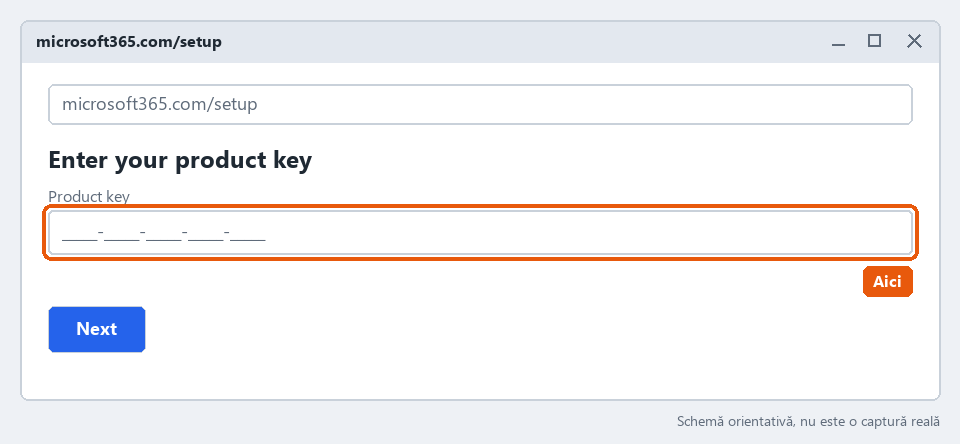
You redeem the key only once: after that, the app stays tied to your account and you can download it again at any time, without the key. If the page says the key has already been used, don’t enter it a second time: sign in with the account that redeemed it the first time. If the product does not appear in your account after redemption, write to us.
Step 2: download the app from your account
- Open account.microsoft.com/services and sign in with the same Microsoft account you redeemed the key with.
- Find Project Professional 2024 or Visio Professional 2024 in the list.
- Click Install next to the product.
- If you want a different language or a different bit version, first choose the Other options link, then the language and the bit version (the same as your Office, if you have it) and click Install.
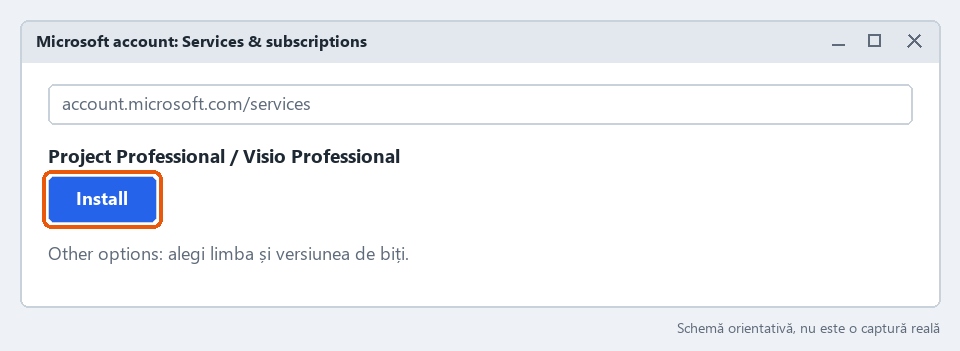
If several products appear in the list, pay attention to the names: Project and Visio each have their own key and their own row.
Step 3: install the app
- Open the downloaded file: Run in Edge, Setup in Chrome or Save File in Firefox.
- When asked “Do you want to allow this app to make changes to your device?” choose Yes.
- Wait for the installation to finish.
- Click Start and look for Project or Visio in the app list.
If you bought the BOX version, the package also contains a USB stick with installation instructions; redeeming the key (step 1) stays the same.
If you already have Office on your computer
Microsoft requires all the Office, Project and Visio products on the same computer to have the same bit version (32 or 64) and the same update channel. To check the bit version: open Word, go to File → Account → About Word and note whether Office is 32-bit or 64-bit; under Other options (step 2) choose the same version.
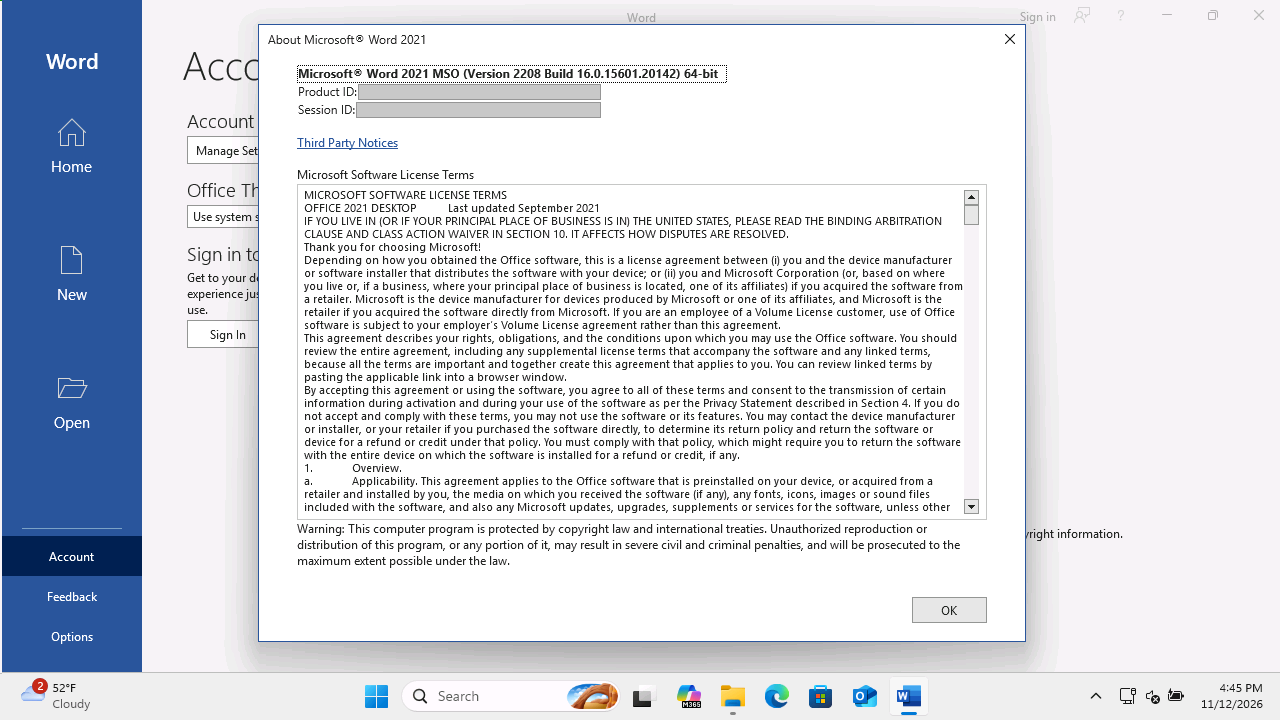
An old Office installed with Windows Installer (MSI) can block the installation; uninstall it by following the guide Completely uninstall an old version of Office. If you have Office 2021, Office 2019 or Microsoft 365, write to us before installing.
Step 4: activate the app
- Open Project or Visio and accept the license terms.
- If asked, sign in with the Microsoft account you redeemed the key with.
- If activation does not start on its own, go to File → Account and follow the instructions there.
- Under File → Account, check that the product shows as activated.
If online activation does not work
First check that you are signed in with the account that redeemed the key and that you have an internet connection. If the activation wizard (Microsoft Office Activation Wizard) opens and online activation stops with an error, you can use, as a backup, offline activation on the Microsoft portal (formerly activation by phone).
Activation by phone is no longer available: as of December 3, 2025, Microsoft has moved it to the product activation portal, at aka.ms/aoh. The wizard shows you an Installation ID, and on another device with internet you get a Confirmation ID from Microsoft, on the portal. The wizard also has a “by telephone” option and shows phone numbers, but don’t call them: Microsoft says to use the portal.
- In the activation wizard, choose the option I want to activate the software by telephone (only to see the Installation ID) and note the Installation ID from Step 2.
- On another device with internet, open the official Microsoft portal at aka.ms/aoh (the official short address, it leads to visualsupport.microsoft.com), sign in and choose Activate a Microsoft Product.
- Enter the Installation ID and note the Confirmation ID you receive.
- On the computer with Project or Visio, type the Confirmation ID at Step 3 and click Next.
The full steps are in the guide Activating Office on the Microsoft portal (formerly activation by phone).
Warning: don’t call any phone number: not the ones shown in the activation wizard, nor the ones in old tutorials or on other websites. Enter the Installation ID only on the official Microsoft portal, at the address above.
For Office: Installing and activating Office Professional Plus 2024.
Buying a license?
We sell Project and Visio 2024 as a digital license (the key arrives by email) or as a BOX with USB stick, by courier:
- Project Professional 2024, digital license ESD
- Visio Professional 2024, digital license ESD
- Project Professional 2024, BOX with USB stick
- Visio Professional 2024, BOX with USB stick
See also digital Office licenses or BOX USB sticks.
Frequently asked questions
How do I install Project Professional 2024?
You redeem the key at microsoft365.com/setup with a Microsoft account, download the app from account.microsoft.com/services with the same account, install it and activate it under File → Account.
Can I reinstall the app later?
Yes. After redemption, the app stays tied to your Microsoft account and you download it again from account.microsoft.com/services, without the key.
Can I install Project 2024 and Visio 2024 on the same computer as Office?
Yes, if all the products have the same bit version and the same update channel. For Office 2021, Office 2019 or Microsoft 365, write to us first.
Do Project 2024 and Visio 2024 run on Windows 10 or on Mac?
Microsoft lists Windows 11 and the LTSC editions of Windows 10; regular Windows 10 is not in the list. They do not run on Mac.
How do I activate Visio Professional 2024?
You redeem the key on your Microsoft account, install the app from your account and sign in with the same account; then you check under File → Account that it is activated.
Need help?
Write to us at contact@conio-software.ro or on WhatsApp at 0799 237 426.