
Office Home & Business 2021 for Mac is activated with a Microsoft account. This guide to installing Office on Mac has three steps: you redeem the key, install the package and sign in to the app.
Looking for the license? See Office Home & Business 2021 for Mac, digital license (ESD).
Warning: support for Office 2021 ended on October 13, 2026. Microsoft no longer provides security updates, bug fixes or technical support, and the apps may keep working, but with security risks. Microsoft recommends Microsoft 365. Microsoft also states that a license bought once (one-time-use) cannot be deactivated after activation, so keep track of which license you used on each device.
Before you start
- A Mac connected to the internet, with administrator rights (you are asked for your Mac password during installation).
- A Microsoft account, personal or new. If you don’t have one, you can create it in step 1.
- The activation key, from the email you received after payment or printed inside the package.
- Check that your version of macOS is supported in the Microsoft system requirements.
- If you are reinstalling Office, uninstall it first: Microsoft’s instructions for Mac.
Step 1: redeem the Office key (one time only)
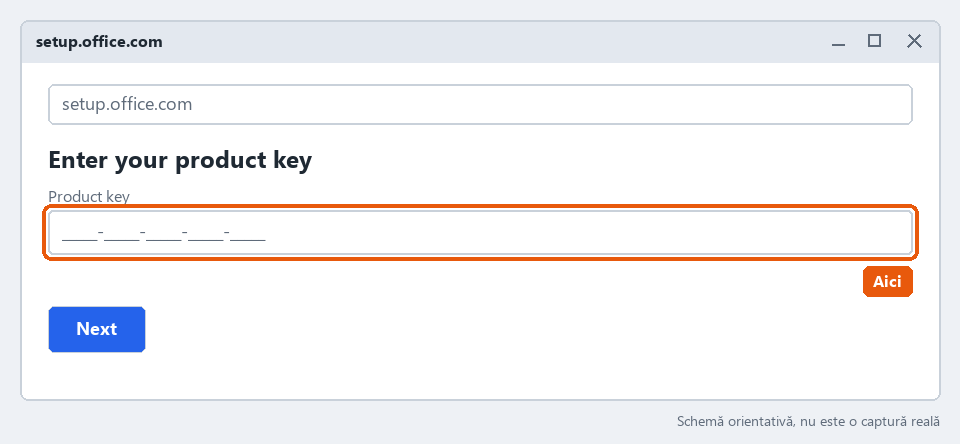
- Open
office.com/setupin your browser. - Sign in with your Microsoft account or create one.
- Enter the activation key, without hyphens, and follow the on-screen instructions.
By redeeming the key, Microsoft links Office to your account. You don’t repeat this step when you reinstall.
Step 2: install Office on Mac
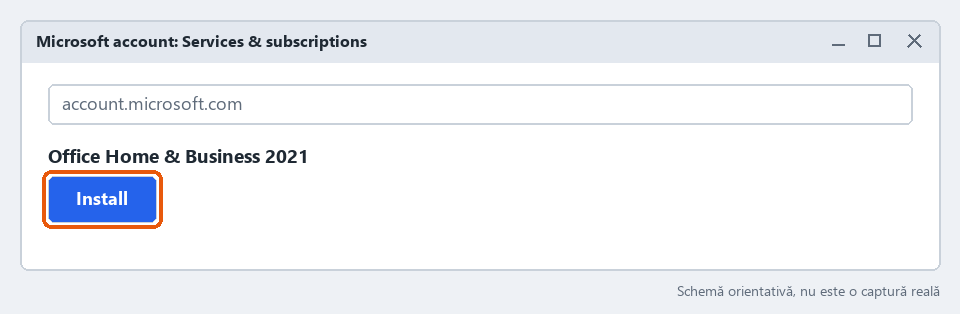
- Go to account.microsoft.com and sign in with the same account you used in step 1.
- Find the Office 2021 product and select Install. If you want another language, choose it from the drop-down list next to the install button. For the display language on Mac, see How to change the Office language to Romanian.
- When the download finishes, open Finder, go to Downloads and double-click the
.pkginstaller file. If macOS says the package comes from an unidentified developer, wait 10 seconds and try again. If it stays stuck on “Verifying…”, cancel and start again. - Select Continue in the first window, read the license agreement and select Continue, then Agree.
- Choose the installation type and select Continue.
- Check the disk space or change the install location, then select Install. If you only want some of the apps, select Customize and uncheck the others.
- If asked, enter your Mac password and select Install Software.
- At the end, select Close. If an update appears, select Update and follow the steps.
Step 3: activate Office Home & Business 2021 on Mac
- Select the Launchpad icon in the Dock and open Microsoft Word (or another Office app).
- In the What’s New window, select Get Started.
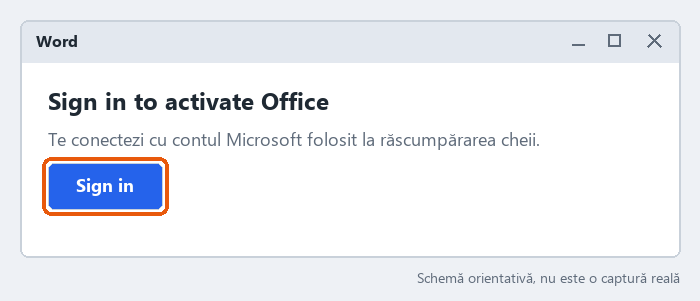
- On the “Sign in to activate Office” screen, select Sign in. If it doesn’t appear, open a blank file and go to File → New from template → Sign in.
- Enter the email address of your Microsoft account, then the password.
- Wait for the license check and activation, then select Start Using Word.
If your account has several licenses, you choose the license you want to use. If the message “Key already used” appears, select Cancel and choose another license that hasn’t been used. If activation fails, see what to try if you can’t install or activate Office for Mac.
Using Windows, not Mac? See the guides Install and activate Office Professional Plus 2021 and Install and activate Office Professional Plus 2024.
Buying the license?
Office Home & Business 2021 for Mac is sold here as a digital license: the key arrives by email after payment.
See also all Office digital licenses.
Frequently asked questions
How do I install Office on Mac?
You redeem the key at office.com/setup with a Microsoft account, then download the package from your Microsoft account and double-click the .pkg file in Downloads. At the end, you sign in to the app with the same account to activate Office.
How do I activate Office Home & Business 2021 on Mac?
Open Microsoft Word from Launchpad, select Get Started, then Sign in and sign in with the Microsoft account you used to redeem the key. After the license check, select Start Using Word.
What do I do if I get the “Key already used” message?
Select Cancel and choose another license that hasn’t been used. If activation fails, see the Microsoft page on what to try if you can’t install or activate Office for Mac.
Do I have to redeem the key every time I reinstall?
No. By redeeming the key, Microsoft links Office to your account, and you don’t repeat the step when you reinstall.
Is Office 2021 for Mac still supported?
No. Support for Office 2021 ended on October 13, 2026, and Microsoft no longer provides security updates, bug fixes or technical support. Microsoft recommends Microsoft 365.
Contact
Need help? Write to us at contact@conio-software.ro or on WhatsApp at 0799 237 426.