
Changing the Office language to Romanian is easy with a language pack. If the Office you installed from our kit is not in Romanian, you add the Romanian language and then set it as the display language. Microsoft lists Romanian (ro-RO) as a full language: it includes the display in Romanian, help, and spell check.
Looking for an Office license? See Office Professional Plus 2024, digital license ESD.
Step 1: check whether Romanian is already in the list
- Open an Office app, for example Word.
- Go to File → Options → Language.
- Under Office display language, check whether Română appears.
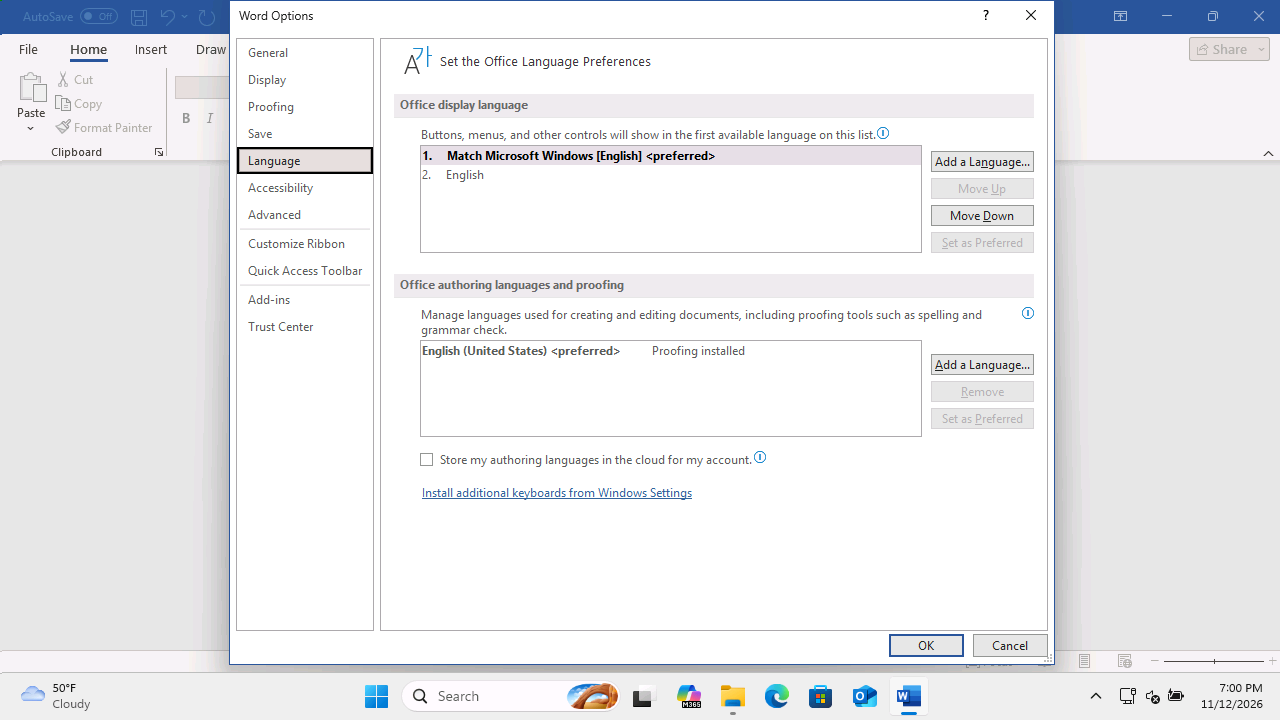
If it appears, go to step 3. If not, continue with step 2.
Step 2: install the Romanian language pack for Office
- Find out whether your Office is 32-bit or 64-bit: File → Account → About.
- Open the Microsoft page Language Accessory Pack for Office.
- Choose the tab for your version of Office and select Română (ro-ro) from the drop-down list.
- Choose the 32-bit or 64-bit download link, matching your Office.
- Open the downloaded file to start the installation.
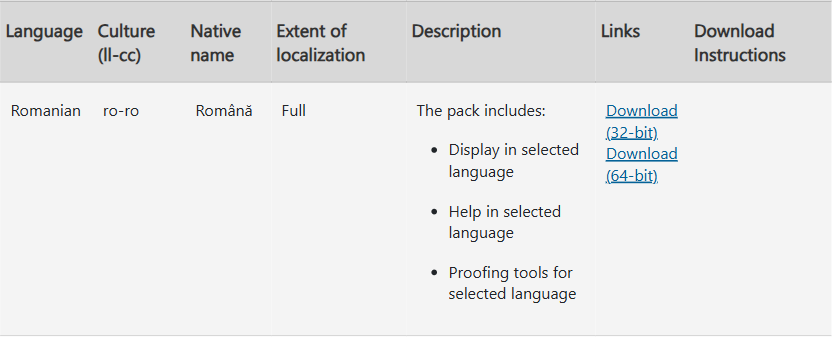
The Microsoft page covers Office 2024, 2021, and 2019. If the pack does not install, write to us. For versions installed with a configuration file, Microsoft describes installing languages with the Office Deployment Tool on the official page for Office LTSC 2024.
If you have not installed Office yet, see the guides Install and activate Office Professional Plus 2024 and Install and activate Office Professional Plus 2021.
Step 3: change the Office language to Romanian (display and spelling)
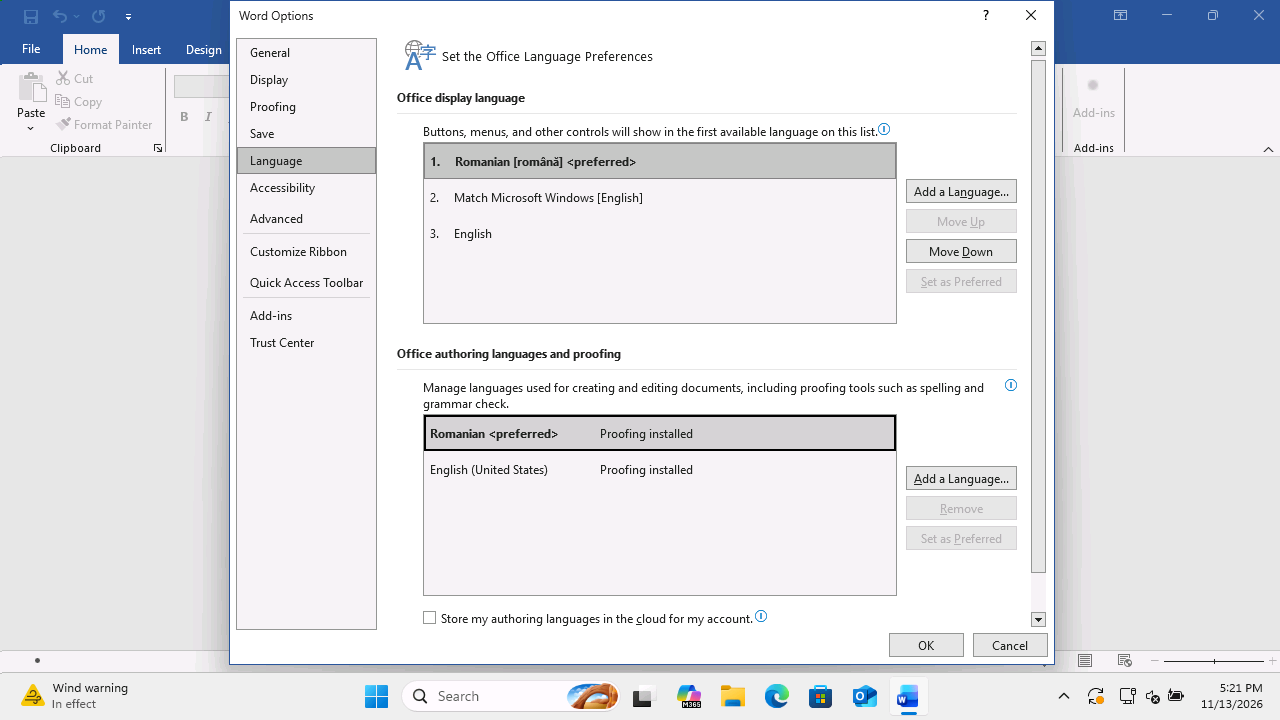
- In Word, go to File → Options → Language.
- Under Office display language, select Română and choose Set as Preferred. For Office to follow the Windows language, choose “Match Microsoft Windows”.
- Under Office authoring languages and proofing, select Română and choose Set as Preferred.
- If Proofing available appears next to Romanian, select the link next to it to install the proofing tools. If it says Proofing installed, everything is in order.
- Restart all Office programs so the changes take effect.
Office for Mac
Office for Mac includes all available languages, so you do not download anything. The display language follows the primary language of the system: from the Apple menu, open the system settings, then General → Language & Region, and set Romanian as the primary language. Restart the Office app. The full guide for Mac: Install and activate Office Home & Business 2021 on Mac.
Project and Visio
Project uses the same languages as Visio. Check the list of supported display languages for Visio before you try.
Windows language
The Windows language is changed separately, following the guide How to change the display language in Windows 11 and Windows 10; Office can follow it if you choose “Match Microsoft Windows”.
Buying the license?
This guide is written for the Office licenses we sell as a digital license (the key arrives by email after payment):
- Office Professional Plus 2024, digital license ESD
- Office Professional Plus 2021, digital license ESD
- Office Professional Plus 2019, digital license ESD
- Office Home & Business 2021 for Mac, digital license ESD
See also all the Office digital licenses.
Frequently asked questions
How do I change the language in Word to Romanian?
In Word, go to File → Options → Language, select Română under Office display language, and choose Set as Preferred. If Romanian does not appear in the list, install the language pack first, then restart the Office programs.
Where do I download the Romanian language pack for Office?
From the Microsoft page Language Accessory Pack for Office: choose your version of Office, select Română (ro-ro), and download the 32-bit or 64-bit version that matches your Office.
Does the language pack also include Romanian spell check?
Microsoft lists Romanian as a full language: display, help, and spell check. If Proofing available appears next to Romanian, select the link next to it to install the proofing tools.
How do I set Office to Romanian on a Mac?
Office for Mac includes all available languages. Set Romanian as the primary language in the system settings, under General → Language & Region, then restart the Office app.
Contact
Need help? Write to us at contact@conio-software.ro or on WhatsApp at 0799 237 426.