
Windows may appear in a language you don’t want, for example if you picked a different language when you created the installation USB stick (see how to create a bootable USB stick with Windows 11). To change the language in Windows 11 or 10, you change the display language in Settings. Since the interface is probably in the language you don’t want, we give the names of the options as they appear in the English interface. You can find the Windows 11 and Windows 10 licenses in the shop: Windows 11 Pro, digital license ESD and Windows 10 Pro, digital license ESD.
Warning: save your work and close your apps first, because Windows signs you out to apply the language. The change can also alter the keyboard layout. Check the language icon on the sign-in screen before you type your password.
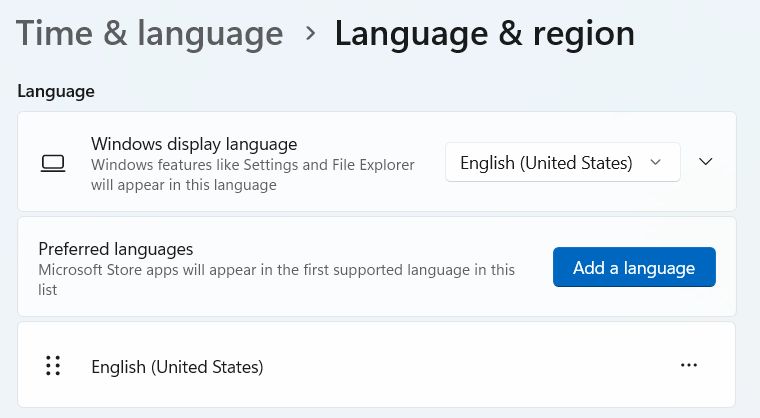
Change the language in Windows 11
- Save your work and close your apps.
- Open Start, then Settings, Time & language, Language & region.
- If the language you want is not in the Windows display language list, add it: next to Preferred languages, click Add a language.
- Under Choose a language to install, search for the language (for example “Romanian”; the list shows “Română (România)” and “Română (Moldova)”; pick the one that fits), select it and click Next.
- Under Install language features, below Optional language features, you see the Language pack, Text-to-speech and Handwriting check boxes (all checked by default). Below Language preferences is the Set as my Windows display language box; on 26H2 it is not checked by default, so check it if you want Windows to appear in the new language. Click Install and wait for the installation to finish.
- If you didn’t check the box in step 5, pick the language you want in the Windows display language list.
- The message “Windows needs to sign you out in order to apply your new display language.” appears. Click Sign out.
- Sign in again. The interface appears in the new language.
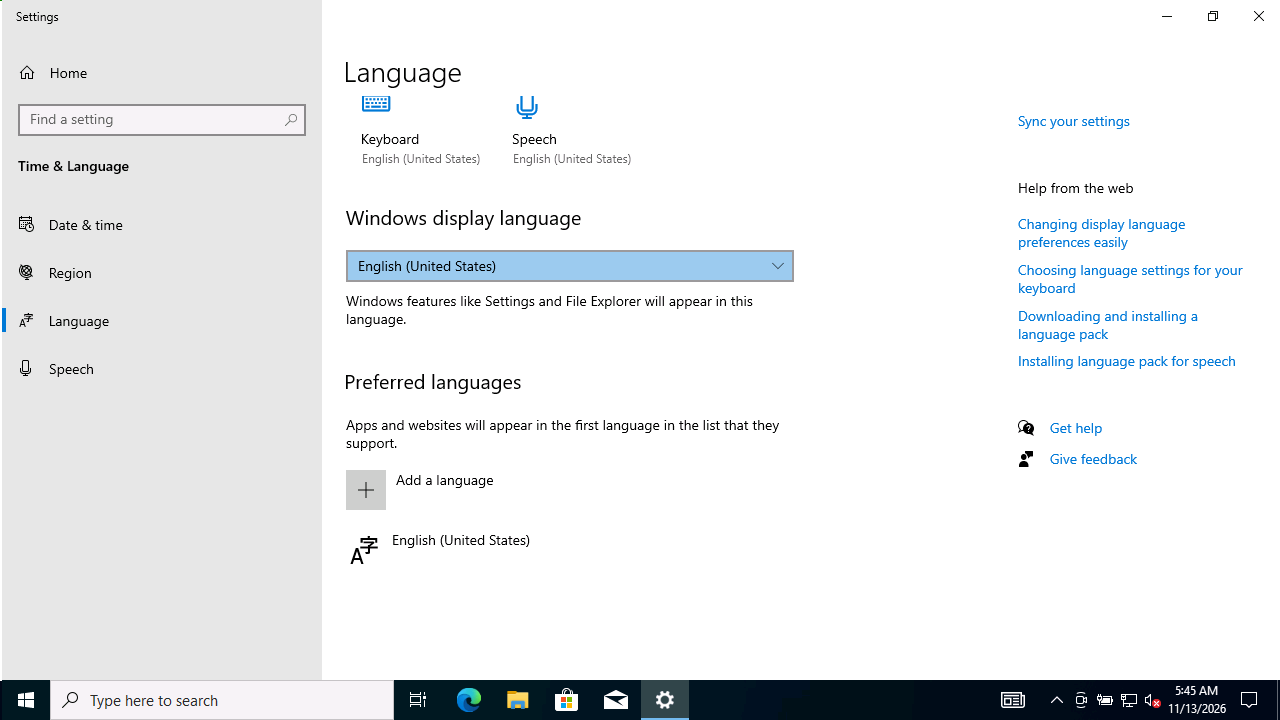
Change the language in Windows 10
Windows 10 support ended on October 14, 2025. If your PC is compatible, Microsoft recommends moving to Windows 11. The steps are in the guide on upgrading from Windows 10 to Windows 11.
- Save your work and close your apps.
- Open Start, then Settings, Time & Language, Language.
- If the language is not in the list, click Add a language under Preferred languages, pick the language under Choose a language to install, click Next, then click Install under Install language features. To add a language in Windows 10, you must be an administrator.
- Under Windows display language, pick the language you want from the list.
- The message “Windows needs to sign you out in order to fully apply the new language. Continue?” appears. Choose Yes, sign out now.
- If the message doesn’t appear, right-click Start, choose Shut down or sign out, then Sign out.
- Sign in again.
Buying a license?
Windows 11 and Windows 10 licenses in the shop:
- Windows 11 Pro, digital license ESD
- Windows 11 Home, digital license ESD
- Windows 10 Pro, digital license ESD
- Windows 10 Home, digital license ESD
See also all the digital Windows licenses.
Frequently asked questions
How do I change the language in Windows 11?
Open Start → Settings → Time & language → Language & region and pick the language from the Windows display language list. If the language is not in the list, add it first with Add a language; under Install language features, check Set as my Windows display language. Windows signs you out to apply the new language.
How do I add a new language in Windows?
Next to Preferred languages, click Add a language, search for the language (for example “Romanian”) under Choose a language to install, click Next, then Install.
How do I change the language in Windows 10?
Open Settings → Time & Language → Language, add the language if it is missing (you must be an administrator) and pick it under Windows display language. Then choose Yes, sign out now.
Why do I have to sign out after changing the language?
Windows signs you out to apply the new display language. Save your work and close your apps first, and check the language icon on the sign-in screen before you type your password.
Need help?
Write to us at contact@conio-software.ro or on WhatsApp at 0799 237 426 (https://wa.me/40799237426), with a screenshot of the language page.