
Below are the most common Windows installation problems and their solutions, starting with Windows not seeing the disk during setup. On BOX USB sticks with Windows 11, for example Windows 11 Pro, BOX with USB stick, the storage drivers are on the stick, in the Drivers folder.
Warning
- A clean installation erases the files on the disk you choose. Back up your data first (how to make a backup) and don’t change the partitions of any disk other than Disk 0.
- The installed edition must be the one your key is for (for example Home or Pro). You can check it in Settings > System > About, in the Windows specifications section, on the Edition row. The Activation page shows only the edition name, next to the logo. If the installer asks for a key, you can choose “I don’t have a product key” and enter it after installation, in Settings > System > Activation, on the Change product key row, with the Change button.
- Change the BIOS storage settings (for example Intel VMD) before installation. After installation, changing them can lead to the “Inaccessible Boot Device” blue screen.
- Windows 10 stopped receiving free security updates on October 14, 2025. Support for Windows 7 ended on January 14, 2020.
1. Windows doesn’t see the disk or SSD during setup
On some computers with an 11th-generation or newer Intel processor, the list of disks in the installer is empty. Intel recommends loading the Intel Rapid Storage Technology (RST) driver from the installer.
Screen titles differ between versions. On Windows 11 24H2, 25H2 and 26H2, the disk screen is called “Select location to install Windows 11” and has a Load Driver button. On 23H2 it is called “Where do you want to install Windows?” and the button is Load driver.
You have a digital license, without a BOX stick
- On another computer, open the Intel RST page and download the
SetupRST.exepackage that matches your processor generation. - In the folder with
SetupRST.exe, open PowerShell as administrator and run:./SetupRST.exe -extractdrivers SetupRST_extracted - Copy the
SetupRST_extractedfolder to a USB stick. - Start the Windows installation. On the disk screen, choose Load driver, then Browse.
- Choose the stick and the
VMDfolder from the copied drivers (Intel points to theiaStorVD.sysfile). - Select the driver, then the disk where you are installing Windows. Windows 11 requires at least 64 GB of storage.
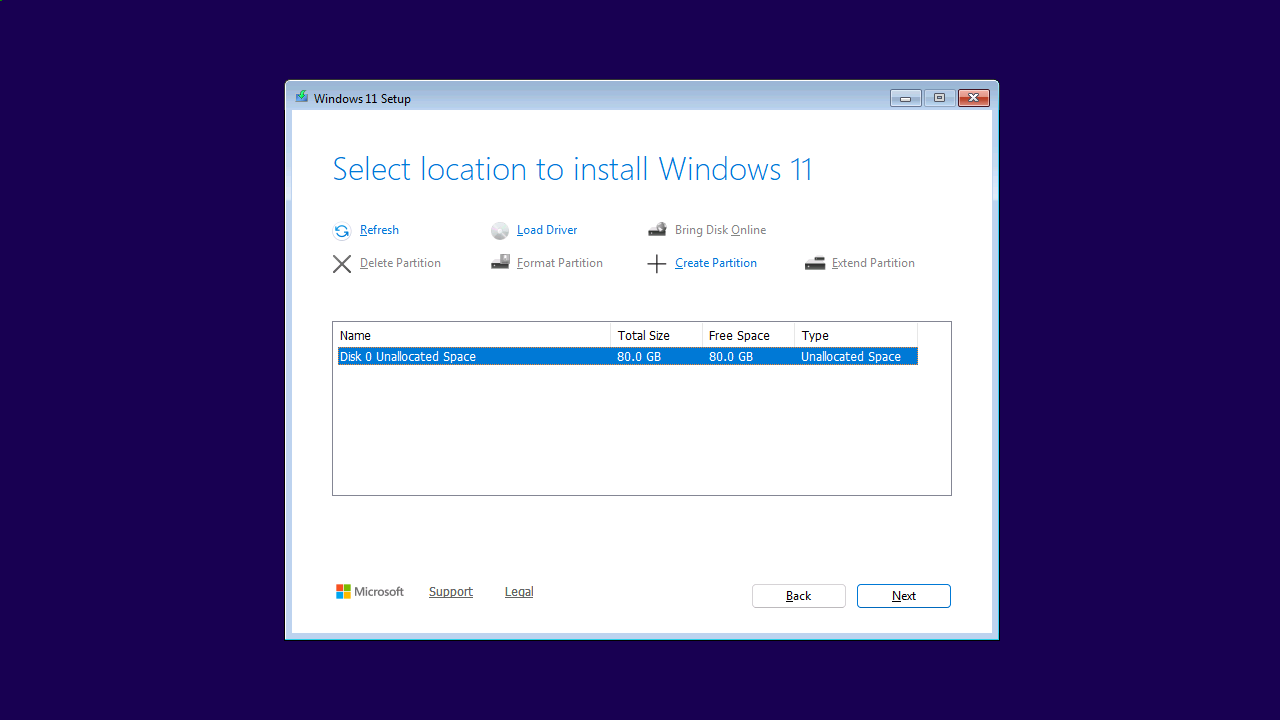
If the disk still doesn’t show up, repeat the steps with the driver from your computer manufacturer’s website. Manufacturers customize drivers, and Intel recommends this option.
You have a BOX stick with Windows 11
The stick has a Drivers folder with Intel storage drivers. You don’t need to download anything.
- On the disk screen, choose Load driver, then Browse.
- Choose the stick, then the
Driversfolder. - Open an
IRST_Intel_<version>_...folder. If VMD is enabled in the BIOS, useRST VMD Drivers\VMD. If the folder has anF6subfolder, open it.
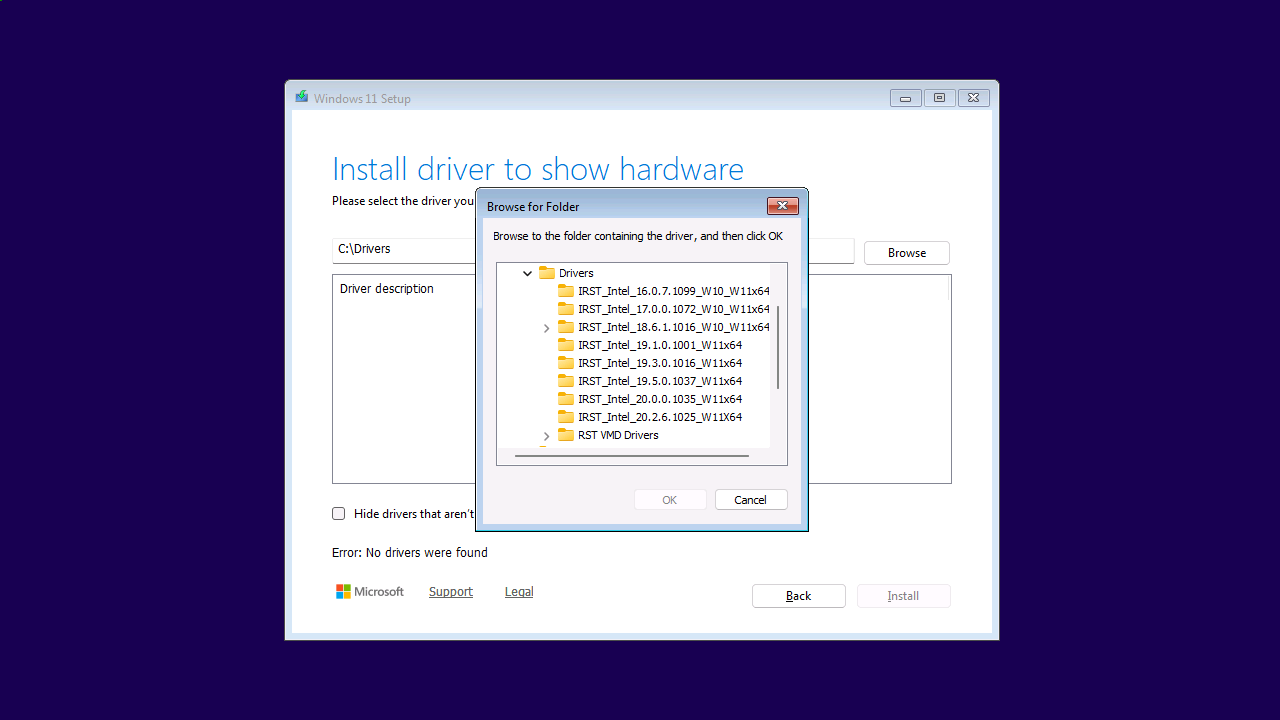
- Clear the “Hide drivers that aren’t compatible with this computer’s hardware” checkbox. With the box checked, the installer may show “Error: No drivers were found”, even though the drivers are on the stick.
- Choose the driver from the list and click Install. The disk and its partitions should appear in the list.
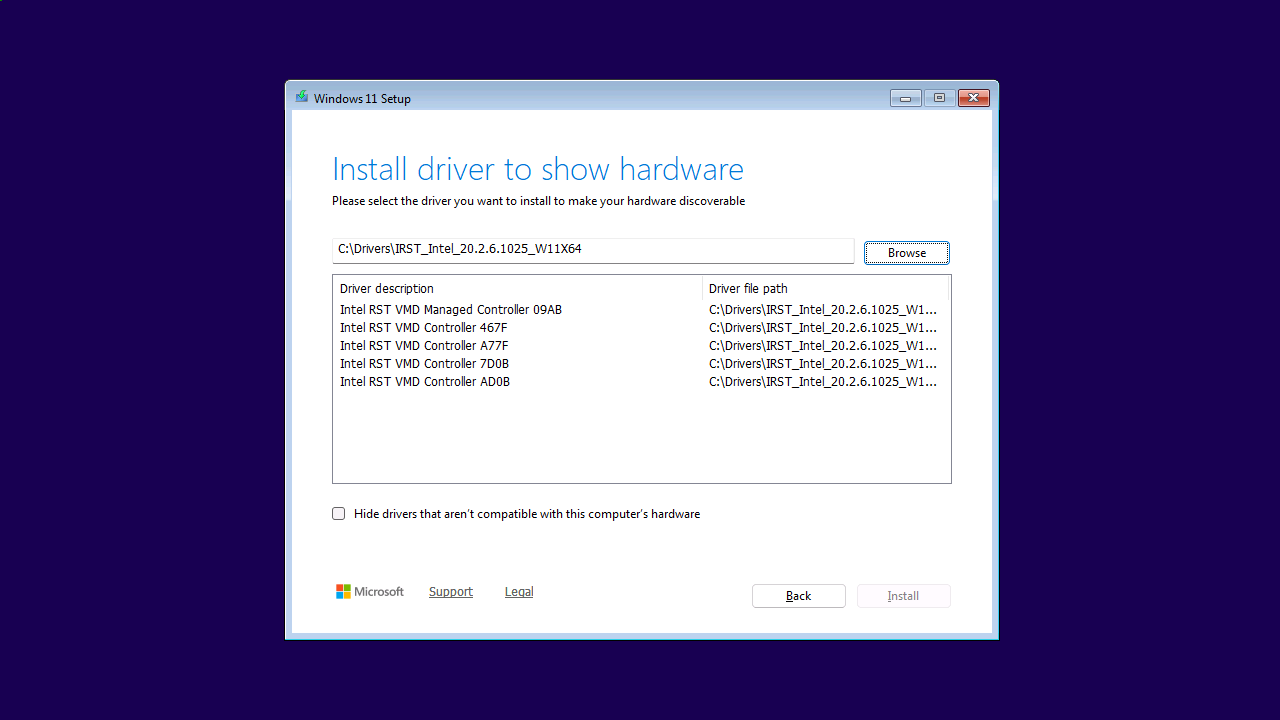
- If they don’t appear, try another folder. Intel splits the packages by generation: 17.x for generations 8–9, 18.x for 10–11, 19.5.x for 12–13, 20.2.x for 12–15. Start with the version that matches your processor. If you don’t know it, try them from the newest to the oldest.
Computers with an AMD processor
The principle is the same. If the BIOS has the storage controller in RAID mode, the installer needs the storage driver. Get it from the AMD website or from your motherboard manufacturer’s website, extract it to a folder on the stick, and load it with Load driver.
2. Error 0x80041023
We couldn’t find this code in Microsoft’s list of activation errors. For the codes documented by Microsoft, see Windows activation errors: codes and solutions. The steps below re-enter the key and repeat the activation.
- Open Start, type
cmd, right-click Command Prompt and choose Run as administrator. - Type
slmgr /ipk <your key>and press Enter. If the edition doesn’t match the key, the command shows an error. - Restart the computer.
- Open Command Prompt as administrator again, type
slmgr /atoand press Enter. Windows tries to activate online. - Check the status in Settings > System > Activation.
3. Error 0xC004C008
Microsoft says you might see this error if the key has already been used on another device, or on more devices than the license terms allow. Each device needs its own key.
- Check whether you activated the same key on another computer.
- If you changed major components on the same computer, you can try the offline activation below. See also what you can try after changing a part.
4. Offline activation (without internet, or when online activation doesn’t work)
If Windows shows you a phone number, don’t call. Microsoft now points to the Product Activation Portal.
- Open Command Prompt as administrator and type
slmgr /dti. A window with the Installation ID appears. On Windows 7 you useslmgr.vbs. - On a device with internet, go to aka.ms/WindowsActivate, pass the captcha and sign in.
- Choose Activate a Microsoft Product, then Windows and your version. Enter the Installation ID and submit it. You receive the Confirmation ID.
- In Command Prompt, type
slmgr /atp <confirmation ID>, without the < > brackets, dashes or spaces. - Check with
slmgr /dli.
5. No Wi-Fi network shows up during Windows 11 setup
After installation, on the “Let’s connect you to a network” screen, some laptops show no Wi-Fi network and don’t let you continue. The Windows image doesn’t have the driver for the laptop’s Wi-Fi card. You install it from a stick right on that screen (the Install driver button on 24H2, 25H2 and 26H2, or Shift+F10), connect temporarily by cable or through your phone, and after installation you get it from Windows Update, under Optional updates. The full steps are in No Wi-Fi network shows up during Windows 11 installation.
Buying a license?
BOX sticks and Windows licenses from the shop:
- Windows 11 Pro, BOX with USB stick
- Windows 11 Home, BOX with USB stick
- Windows 10 Pro, BOX with USB stick
- Windows 11 Pro, digital license ESD
See all digital Windows licenses and the BOX with USB stick products.
Frequently asked questions
Why doesn’t Windows see the disk or SSD during setup?
On some computers with an 11th-generation or newer Intel processor, the list of disks in the installer is empty. Intel recommends loading the Intel Rapid Storage Technology (RST) driver from the installer.
How do I load the storage driver during Windows installation?
On the disk screen, choose Load driver, then Browse, choose the stick and the folder with drivers (for Intel, the VMD folder), select the driver and then the disk.
What drivers does the BOX stick with Windows 11 have?
The stick has a Drivers folder with Intel storage drivers, so you don’t need to download anything.
What do I do if no Wi-Fi network shows up during Windows 11 setup?
The laptop is missing the Wi-Fi card driver. You install it from a stick on the setup screen (Shift+F10), or you connect temporarily by cable or through your phone and get it from Windows Update. See the dedicated guide.
What do I do if error 0xC004C008 appears?
Microsoft says you might see the error if the key has already been used on another device, or on more devices than the license terms allow. Check whether you activated the same key on another computer; after changing some major components, you can try offline activation.
Need help?
If activation stops working, write to us at contact@conio-software.ro or on WhatsApp at 0799 237 426 (https://wa.me/40799237426) and we’ll help you. Send the error code and a screenshot.