
A clean install of Windows erases your personal files, apps and settings. Microsoft recommends saving them first, on an external hard drive, a USB stick or in OneDrive. Pick one of the Windows backup methods below. Reinstall the same edition your license is for. Windows licenses in our shop: Windows 11 Pro, digital license ESD and Windows 10 Pro, digital license ESD.
Warning
- Do not keep the backup on the drive where you reinstall Windows.
- When you choose the drive in the installer, do not change or delete the partitions of any drive other than Disk 0. Installation steps: installing Windows 11 Pro and Home or installing Windows 10 Pro and Home.
- Before you rely on the backup, open a few files from it. If a file does not open, do not go ahead with the reinstall.
- Windows 10 no longer gets free security updates as of October 14, 2025.
Method 1: Windows Backup
It works on Windows 11 and Windows 10 and needs a personal Microsoft account, not a work or school account. It saves your Desktop, Documents, Pictures, Videos and Music folders to OneDrive. It also saves the list of your apps, your settings and your Wi-Fi networks with their passwords.
- Sign in with a Microsoft account: Settings > Accounts > Your info.
- Open Start, type “backup” and choose Windows Backup. Or go to Settings > Accounts > Windows backup.
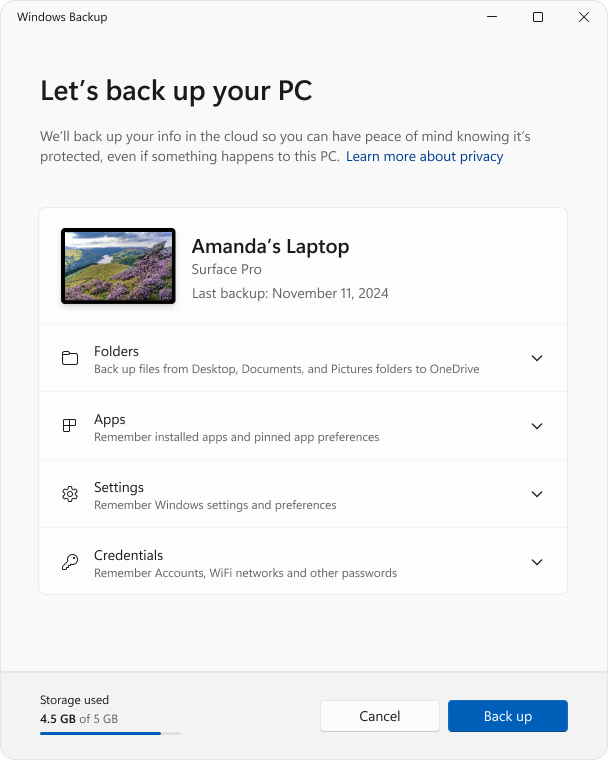
- If the app opens with the “Don’t lose your stuff” screen (Folders, Apps, Settings, Credentials), click Continue. Then choose the folders you want to save to OneDrive. In Settings > Accounts > Windows backup, you turn on folders from Set up syncing (under “OneDrive folder syncing”), and apps and preferences from Remember my apps and Remember my preferences.
- Wait for the sync to finish. A free account has 5 GB in OneDrive. If there is not enough space or OneDrive shows errors, the backup can be blocked.
After the reinstall, sign in with the same Microsoft account. Windows offers to restore the backup. Apps that do not come from the Microsoft Store have to be reinstalled from the internet.
Method 2: OneDrive folders
- Open the OneDrive settings from the icon next to the clock.
- Go to the Sync and backup tab, then Manage backup.
- Turn on the folders marked “Not backed up” and click Save changes.
Your files are safe once the sync finishes. OneDrive does not sync files larger than 250 GB, and the full path of a file must be under 260 characters.
Method 3: File History
It needs an external hard drive or a network location.
- Connect the external drive.
- In Control Panel, under System and Security, choose “Save backup copies of your files with File History”.
- Click Turn on. If needed, choose the drive under Select drive.
If you do not want an app, copy the folders by hand to an external hard drive or a USB stick.
Files not to forget
- The Desktop, Documents, Pictures, Videos and Music folders.
- Folders you created on other partitions or drives, and the Downloads folder.
- Installation kits and keys for programs that do not come from the Microsoft Store.
- Your Microsoft Edge favorites: turn on sync in Edge.
- The Windows activation key you received from us. Check in Settings > System > Activation that Windows is activated before you reinstall, and reinstall the same edition. How to check: whether Windows is activated and which edition you have. Linking the digital license to your Microsoft account helps with reactivation after a reinstall on the same computer. If you changed parts, see what you can try if Windows is no longer activated after a hardware change.
- If you are asked for a BitLocker recovery key, find it at aka.ms/myrecoverykey. Microsoft notes that if you lose it, you may need to reset the device, which erases the files.
Buying a license?
Windows licenses in our shop, for reinstalling the same edition:
- Windows 11 Pro, digital license ESD
- Windows 11 Pro, BOX with USB stick
- Windows 10 Pro, digital license ESD
- Windows 10 Pro, BOX with USB stick
See all digital Windows licenses and the BOX with USB stick products.
Frequently asked questions
What should I do before I reinstall Windows?
Save your files to an external hard drive, a USB stick or OneDrive, because a clean install erases your personal files, apps and settings. Before you rely on the backup, open a few files from it.
How do I back up Windows with Windows Backup?
Sign in with a personal Microsoft account, open Windows Backup and turn on the folders you want to save (Desktop, Documents, Pictures, Videos, Music). A free account has 5 GB in OneDrive.
Can I back up without OneDrive?
Yes, with File History, on an external hard drive or a network location, or by copying the folders by hand to an external hard drive or a USB stick.
Which files should I not forget?
The Desktop, Documents, Pictures, Videos and Music folders, folders you created on other partitions or drives, Downloads, your Edge favorites, the Windows activation key and, if you are asked for it, the BitLocker recovery key.
Need help?
Write to us at contact@conio-software.ro or on WhatsApp at 0799 237 426 (https://wa.me/40799237426).