
This guide to installing Windows 10 Pro and Home covers both editions, version 22H2, from the installation kit to activation.
Warning, end of support: Microsoft ended support for Windows 10 on October 14, 2025. Your PC still works, but it no longer gets free security updates or technical assistance. If your PC meets the requirements, Microsoft offers a free upgrade to Windows 11. If you stay on Windows 10, the Extended Security Updates (ESU) program runs until October 12, 2027. Details are in the article Windows 10 is no longer supported: what to do.
Before you start
- Save your important files to an external hard drive, a USB stick or OneDrive. A clean install erases your personal files, apps and settings. How to make the backup: backup before reinstalling Windows.
Prepare the installation kit.
- BOX: use the USB stick from the package (for example Windows 10 Pro, BOX with USB stick).
- Digital: download the media creation tool from the Microsoft page for Windows 10. Run it as administrator and use an empty USB stick of at least 8 GB. The contents of the stick are erased. All the kits are on the kits page.
- Keep your activation key at hand (from the package or from the delivery email). Do not share it publicly anywhere.
Installing Windows 10 Pro or Home, step by step
Video: PC Garage channel (YouTube)
If the screens in the video differ from yours, follow the steps written here.
- Insert the stick and start the PC from it. How you open the boot menu differs from one manufacturer to another, so check the website of your PC or motherboard manufacturer. If the installer does not appear, you may need to change the boot order in the BIOS/UEFI.
Choose the language, the time format and the keyboard, then continue with Install now.
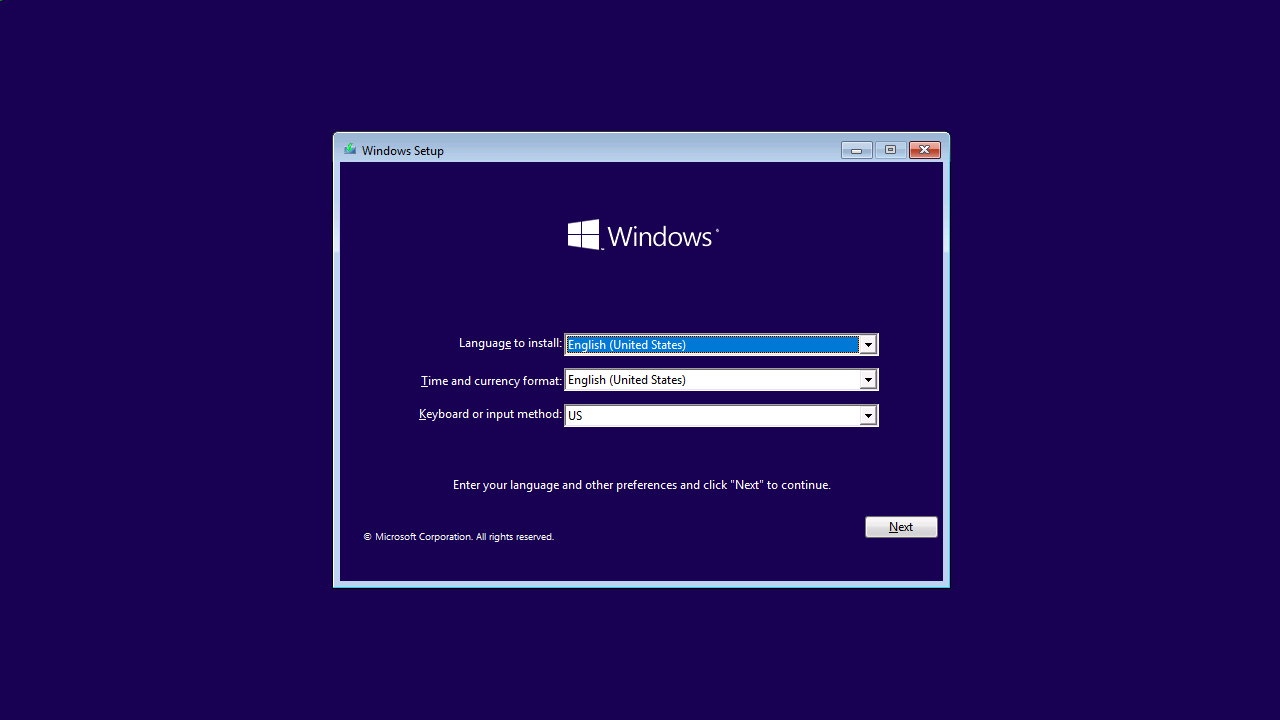
Screenshot from the Microsoft Windows 10 setup program: choosing the language, the time and currency format and the keyboard (English interface). Used with permission from Microsoft. - In the product key window you have two options: enter the key, or choose I don’t have a product key and activate after the installation. If the installer finds a key in the PC’s firmware, it applies it on its own and the window does not appear.
If you chose the option without a key, choose the Home or Pro edition, the same one your license is for.
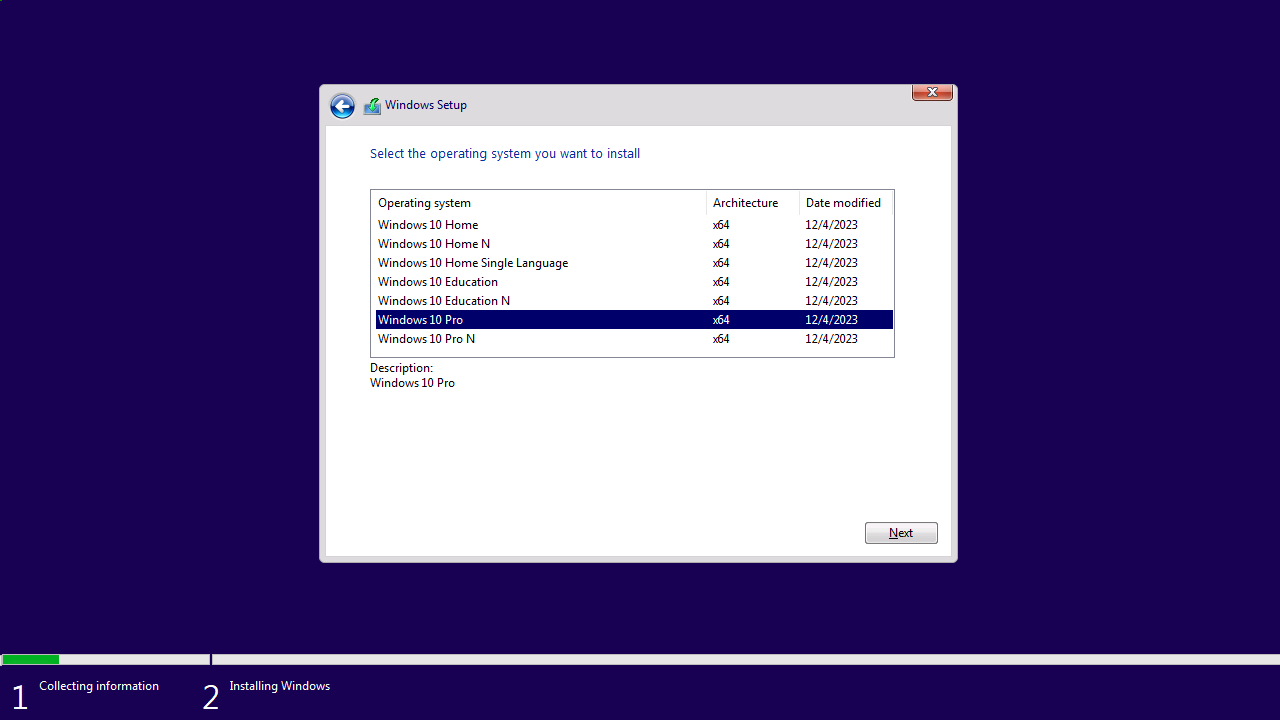
Screenshot from the Microsoft Windows 10 setup program: choosing the edition, with the list Home, Education and Pro (English interface). Used with permission from Microsoft. - Accept the license terms. Choose the clean install, not the upgrade over an existing system.
When you choose where to install, delete all the partitions on Disk 0, until only Unallocated Space is left. Select it and continue. Do not change the partitions on other disks.
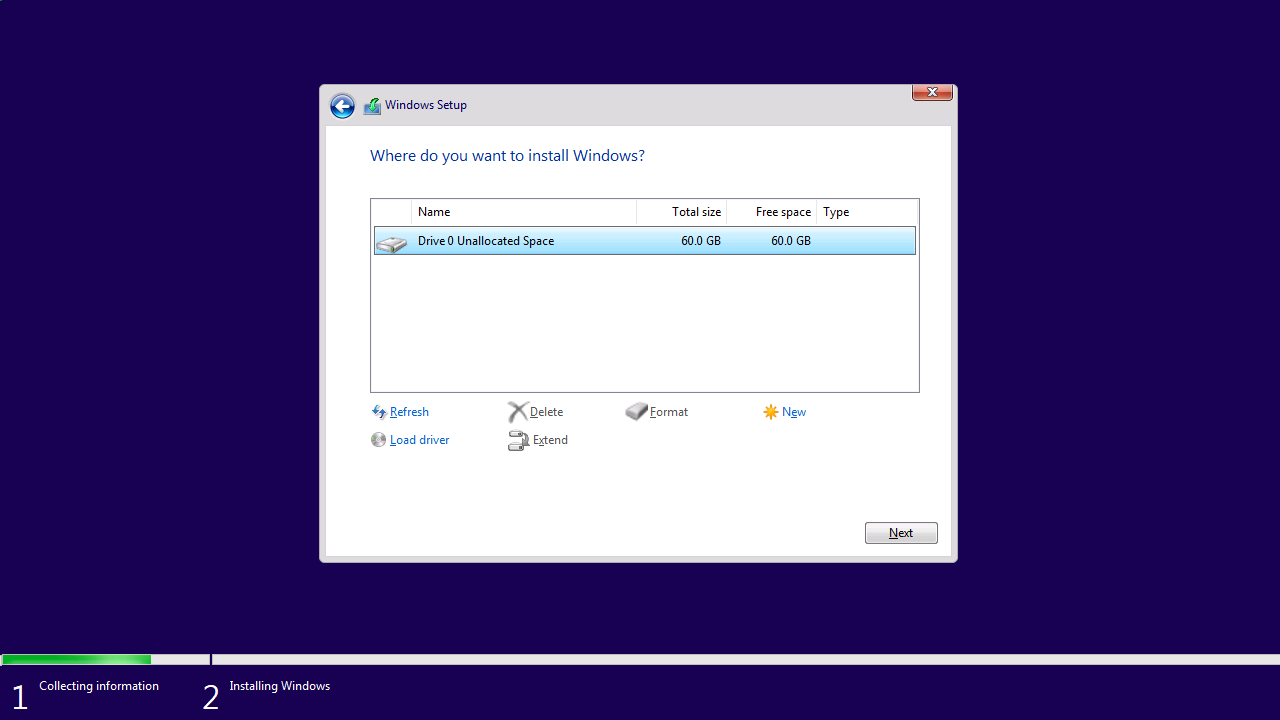
Screenshot from the Microsoft Windows 10 setup program: the “Where do you want to install Windows?” screen, with 60 GB of unallocated disk space (English interface). Used with permission from Microsoft. - Wait for it to finish. The PC restarts several times.
- During the initial setup you can sign in with a Microsoft account. If you don’t do it now, you link the account to the license later, at activation (see below).
Warning: step 6 permanently erases the data on the disk. Back up first. Do not change any BIOS/UEFI settings other than the boot order.
Activating Windows 10 with the product key
- Go to Start > Settings > Update & Security > Activation. Shortcut: press Win + R, type
ms-settings:activationand click OK. - Read the activation status. If Windows is not activated, select Change product key, enter the 25-character key and click Next. Keep the PC connected to the internet.
- If the message only says that Windows is activated with a digital license, the Microsoft account is not linked. Select Add an account and sign in. You must be signed in as an administrator, and the account must be a Microsoft account, not a local one.
- Linking the account lets you reactivate the license after a major hardware change, with the activation troubleshooter. The troubleshooter only works with the linked account.
- If an error appears, run the activation troubleshooter from the same page. Errors such as 0xC004F212 or 0xC004F210 appear when the key does not match the installed edition. Install the edition your key is for (Home or Pro). The list of errors is on the Microsoft page about activation errors. The common codes, with their meaning, are explained in the article Windows activation errors and their common codes.
After activation
Go to Settings > Update & Security > Windows Update and check for updates. For drivers, also check the website of your PC manufacturer. Keep in mind that Windows 10 no longer gets security updates except through the ESU program. If your PC meets the requirements, see also upgrading from Windows 10 to Windows 11 without losing your files.
Buying a license?
Windows 10 licenses from the shop, for the edition you are installing:
- Windows 10 Pro, digital license ESD
- Windows 10 Pro, BOX with USB stick
- Windows 10 Home, digital license ESD
- Windows 10 Home, BOX with USB stick
See all the digital Windows licenses and the BOX with USB stick products.
Frequently asked questions
How do I install Windows 10 Pro from a USB stick?
Insert the stick, start the PC from it, choose the language and Install now, then choose the edition and the clean install. The steps with all the details are in the installation section above.
Can I install Windows 10 without a product key?
Yes. In the product key window you can choose I don’t have a product key and activate after the installation. You activate at Settings > Update & Security > Activation, with the 25-character key.
How do I activate Windows 10 after installing it?
Open Settings > Update & Security > Activation, select Change product key, enter the key and click Next, with the PC connected to the internet.
Which edition do I choose, Home or Pro?
Choose the edition your license is for. Errors such as 0xC004F212 or 0xC004F210 appear when the key does not match the installed edition.
Does Windows 10 still get security updates?
Microsoft ended support on October 14, 2025. If you stay on Windows 10, the ESU program runs until October 12, 2027.
Need help?
Write to us at contact@conio-software.ro or on WhatsApp: 0799 237 426.