
After you install Windows 11 from a USB stick, on some laptops the “Let’s connect you to a network” setup screen shows no Wi-Fi network and won’t let you go any further. The cause is almost always the same: the Windows image does not contain the driver for your laptop’s Wi-Fi card. Intel explains exactly this: network drivers for newer systems can be missing from the Windows image, and Windows 11 requires an internet connection during setup.
Did you buy Windows 11 Pro, BOX with USB stick or a digital license and get stuck here? You have three options, in the order below.
Warning
- Get the driver only from the laptop maker’s website (the support page for your model) or from Windows Update. Do not use third-party “automatic driver update” programs: they can install the wrong package.
- You need the exact model of your laptop. You can find it on the label on the underside or on the box.
Option 1: temporarily connect the laptop to the internet by cable or through your phone
If Windows already has the driver for another way to get online, setup continues and you install the Wi-Fi driver afterward from Windows Update (see the section at the end).
- Network cable: if the laptop has a network (Ethernet) port, or you have a USB-Ethernet adapter, connect the cable from the router.
- Android phone over a USB cable: connect the phone to the laptop, then turn on USB tethering on the phone (usually in Settings, Network, Hotspot and tethering). Windows sees the phone as a wired connection.
If the network screen shows the connection, click Next and continue setup.
Do you have an iPhone?
With an iPhone, the temporary connection does not work at this step:
- Over a USB cable: Apple says that on Windows, before you connect to Personal Hotspot over USB, you must install the Apple Devices app or iTunes for Windows. You can’t install them on the setup screen.
- Over Wi-Fi: the iPhone hotspot is a Wi-Fi network, so the laptop needs the very Wi-Fi driver that is missing.
- Over Bluetooth: Apple describes this option as well, but on the setup screen you don’t have the Windows Bluetooth settings.
So if you only have an iPhone, use option 2 (the driver from a USB stick) or option 3 (setup without internet). Once you reach the desktop, you can connect to the iPhone hotspot over Bluetooth, if Bluetooth works on the laptop:
- On the iPhone: Settings, Personal Hotspot, turn on Allow Others to Join, then open the Bluetooth screen and stay on it.
- On the laptop: Settings, Bluetooth & devices, Add device, Bluetooth, choose the iPhone, and confirm that the same code appears on both devices.
- After pairing, in Control Panel, Devices and Printers, right-click the iPhone and choose Connect using, Access point.
With the internet connection you get this way, install the Wi-Fi driver from Windows Update (the section at the end) or from the manufacturer’s website. A Bluetooth connection is slower, but it is enough for a driver.
Option 2: install the Wi-Fi driver from a USB stick, right on the setup screen
First prepare the driver on another computer:
- Open the support page of your laptop’s manufacturer, search for your model, and download the latest version of the Wireless LAN (WLAN, Wi-Fi) driver for Windows 11. If the page lists several Wi-Fi drivers, pick the one from the maker of the card in your laptop (for example Intel, Realtek, MediaTek, Qualcomm).
- If you got a
.ziparchive, extract it. Copy the folder with the driver files (the ones with the.infextension) to a USB stick or, if you only got a.exeprogram, copy the program.
Do you have a BOX stick with the Drivers\WiFi folder?
BOX sticks with Windows 11 that have the Drivers\WiFi folder already contain the Intel Wi-Fi drivers for Intel Wi-Fi 7 cards (BE200, BE201, BE202, BE211, BE213), Wi-Fi 6E (AX210, AX211, AX411), Wi-Fi 6 (AX101, AX201, AX203, AX231) and Wireless-AC (9260, 9461, 9462, 9560). If your laptop has one of them, you don’t need to download anything: at step 3 below, you pick the Drivers\WiFi\Intel_WiFi_<version> folder on the stick. For Realtek, MediaTek, Qualcomm or Intel AX200 cards, use the driver from the laptop manufacturer’s website.
With the “Install driver” button (Windows 11 24H2, 25H2 and 26H2)
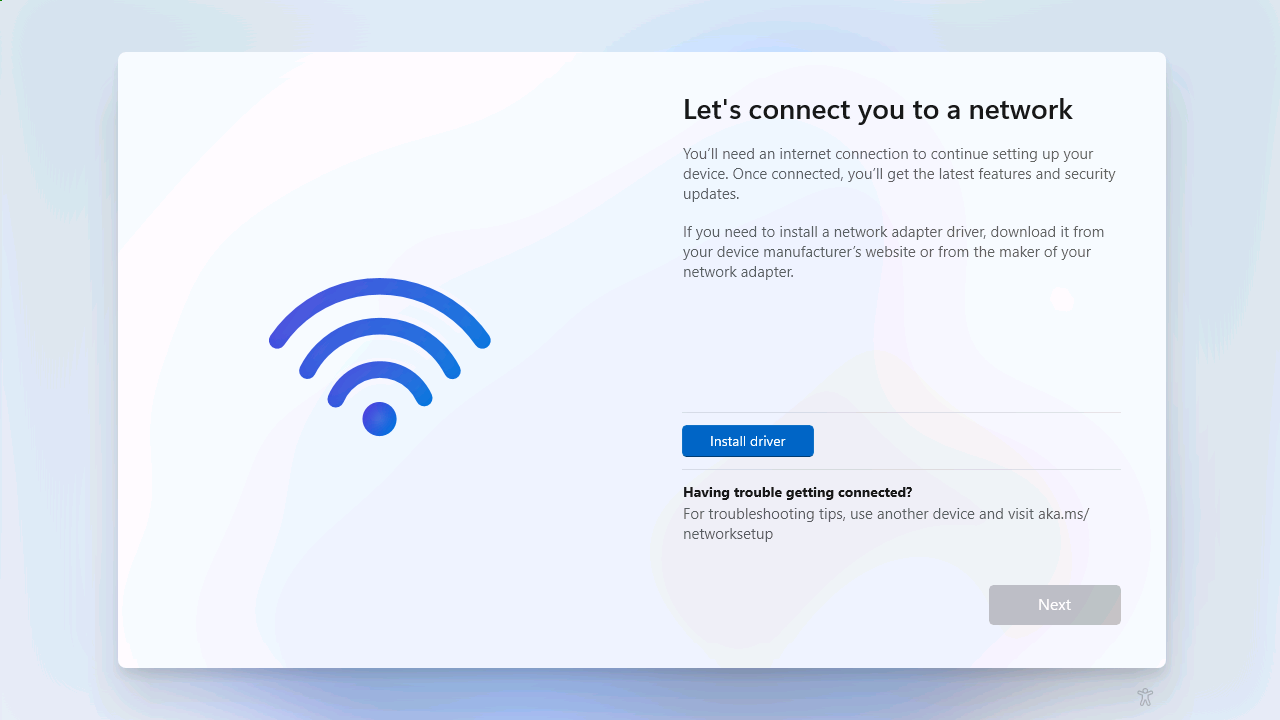
In Windows 11 24H2, 25H2 and 26H2, when Windows finds no network card, the “Let’s connect you to a network” screen has its own Install driver button. The text on the screen tells you to download the driver from the website of the computer manufacturer or of the network card maker. In our test on 23H2, the button did not appear on this screen; if you don’t have it, use Command Prompt or option 3.
- Insert the stick into the laptop.
- Click Install driver. The Select Folder window opens.
- Choose the stick, then the folder where you extracted the driver, and click Select Folder.
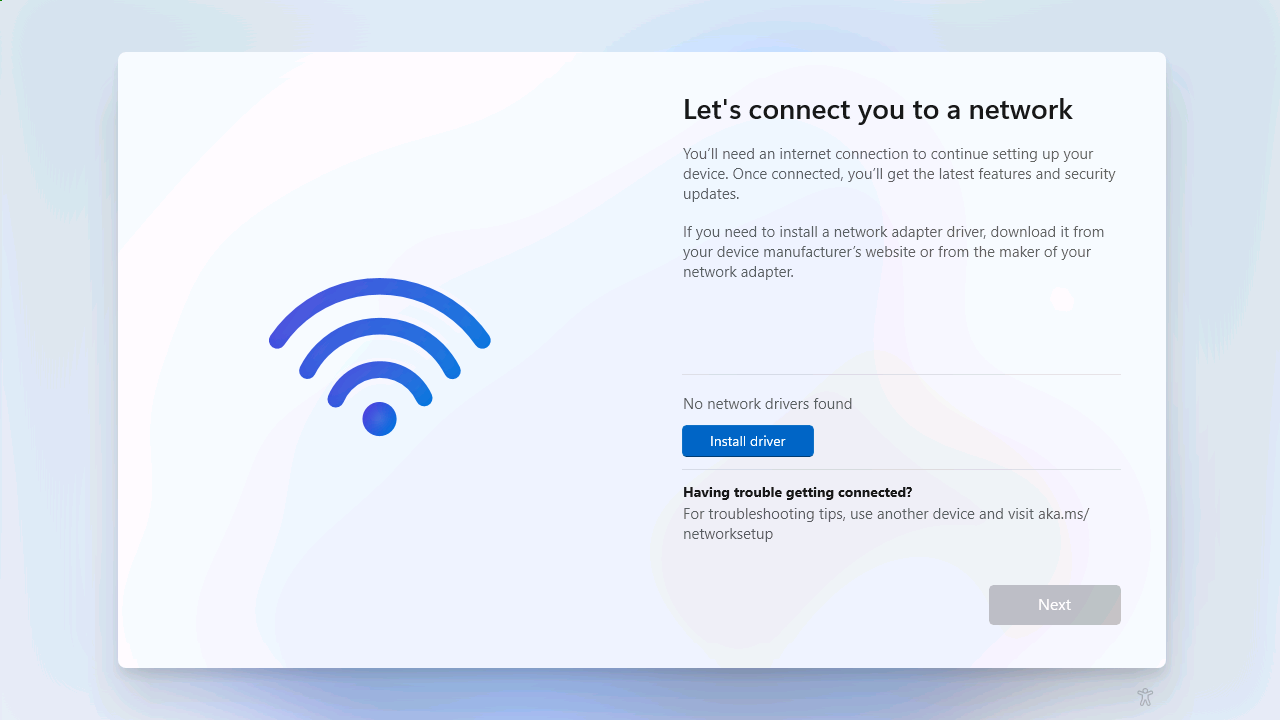
- If the folder contains the right driver, the Wi-Fi networks show up in the list. If you see “No network drivers found”, the folder you chose has no network driver for your card: choose another folder or another driver.
With Command Prompt (Shift + F10)
The Microsoft page about connection problems during setup (the address aka.ms/networksetup, shown right on the screen) also describes the command-line route:
- With the stick inserted, press Shift + F10. Command Prompt opens. On some laptops the combination is Shift + Fn + F10. If you can’t type in the window, click inside it once.
- Type
diskpart, press Enter, thenlist volumeand Enter. The stick’s letter appears in the Ltr column. Typeexitand press Enter. - Type
pnputil /add-driver D:\WiFi\*.inf /subdirs /installand press Enter. ReplaceD:\WiFiwith the stick’s letter and the driver folder./add-driveradds the driver,/subdirsalso searches subfolders, and/installinstalls it on the matching card. - If the networks don’t show up, type
pnputil /scan-devicesand press Enter.
If the driver is only a .exe program, ASUS describes an approach using File Explorer: in Command Prompt, type C:\Windows\explorer.exe & exit, open the stick, run the program and follow the steps through to Finish, then restart if prompted.
Option 3: continue without internet and install the driver afterward
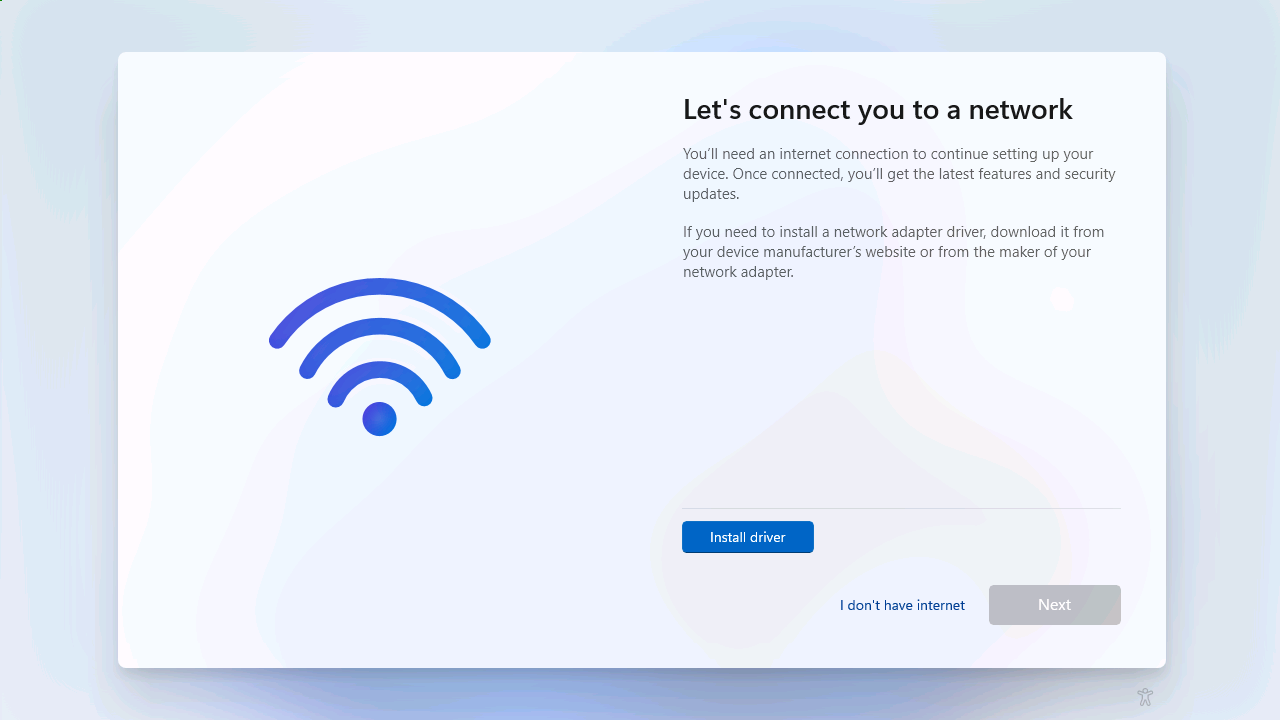
Intel describes a command that adds the “I don’t have internet” option to the network screen. On the BOX 24H2 stick, in our test, the “I don’t have internet” link already appeared on the network screen, without the command. On 25H2, 26H2 and 23H2, the link appeared in our tests only after the command.
The steps, if the link is missing from the network screen:
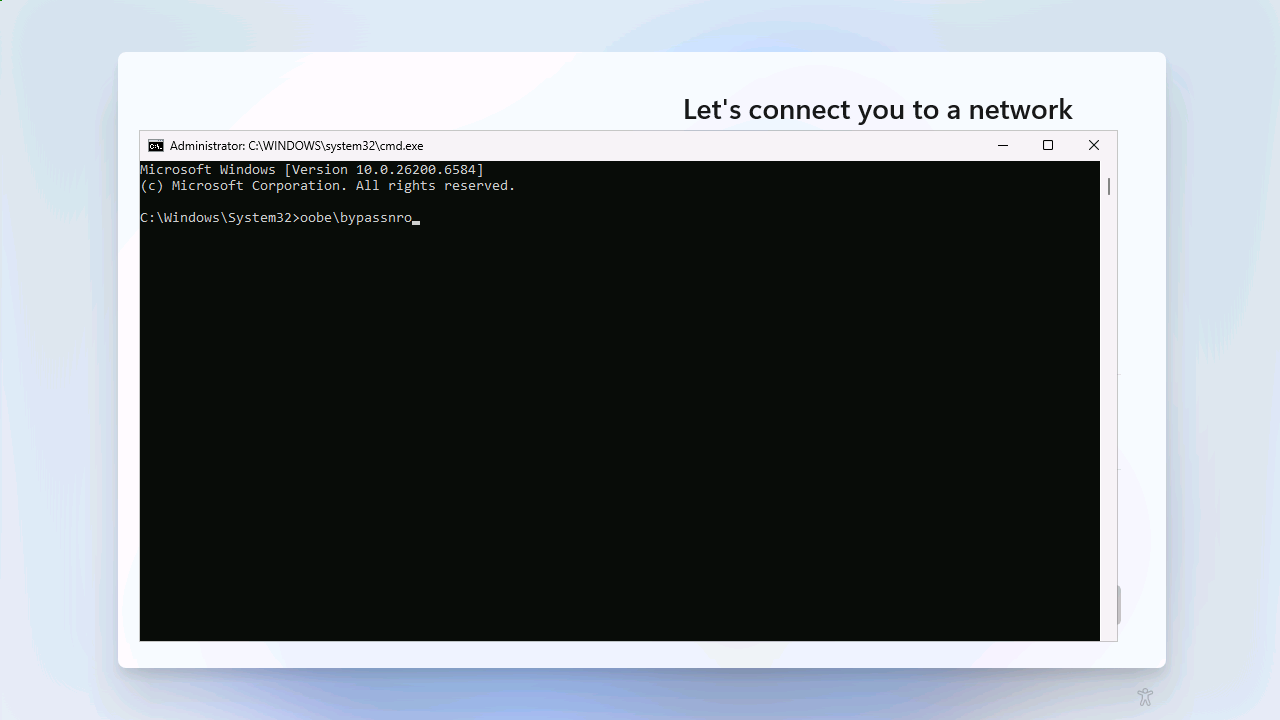
- On the “Let’s connect you to a network” screen, press Shift + F10 (or Shift + Fn + F10).
- Type
oobe\bypassnroand press Enter. The computer restarts and setup starts over.
- Choose your country and keyboard again (at “Want to add a second keyboard layout?” you can click Skip).
- The network screen now shows the I don’t have internet link next to Next. Click it. What follows depends on the version: on 26H2 it goes straight to “Who’s going to use this device?”, that is, the account name; on 23H2 “Connect now to quickly get started on your device” appears, you click Continue with limited setup and the account name follows; on 25H2 setup goes straight to the license (if Continue with limited setup appears, click it).
- Create the local account and finish setup. On the BOX 24H2 stick, after I don’t have internet you go straight to “Who’s going to use this device?”. Once you have internet, you can add your Microsoft account from Settings, Accounts.
Important: in our test, the file for this command exists in Windows 11 25H2 (version 10.0.26200.6584, the version on our sticks, verified on November 12, 2026) and in 26H2 (build 26300.9457); on 26H2 and on 23H2 (22631.5909) the command worked, on November 13, 2026. However, Microsoft removed it from some preview (Insider) versions in 2025, so on future versions the command may be missing. If you get “is not recognized”, use option 1 or 2.
After installation: the Wi-Fi driver from Windows Update
Microsoft says Windows 11 installs the recommended drivers automatically, but it does not install the optional ones on its own. With the laptop connected to the internet (by cable or through your phone, as in option 1):
- Open Start, Settings, Windows Update, Advanced options.
- Turn on Receive updates for other Microsoft products.
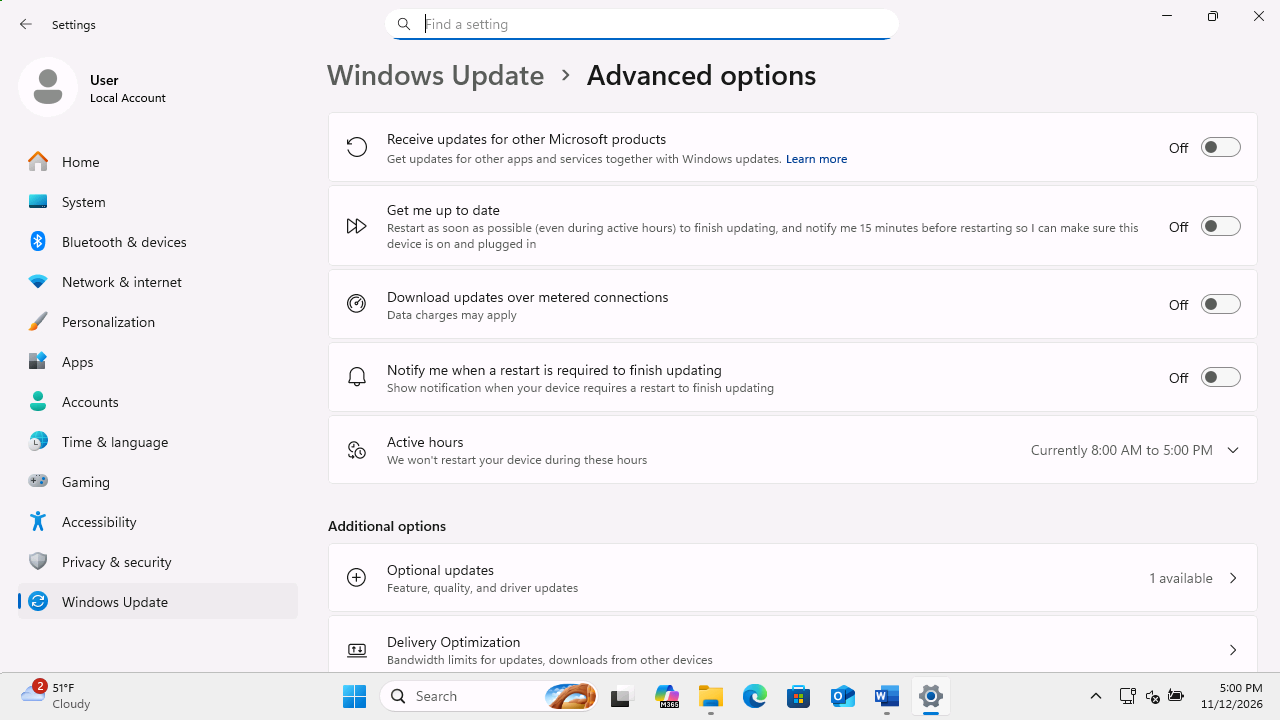
- Under Additional options, click Optional updates.
- Open Driver updates, check the Wi-Fi driver (or all the drivers listed) and click Download & install.
- Restart the computer, even if you aren’t prompted to.
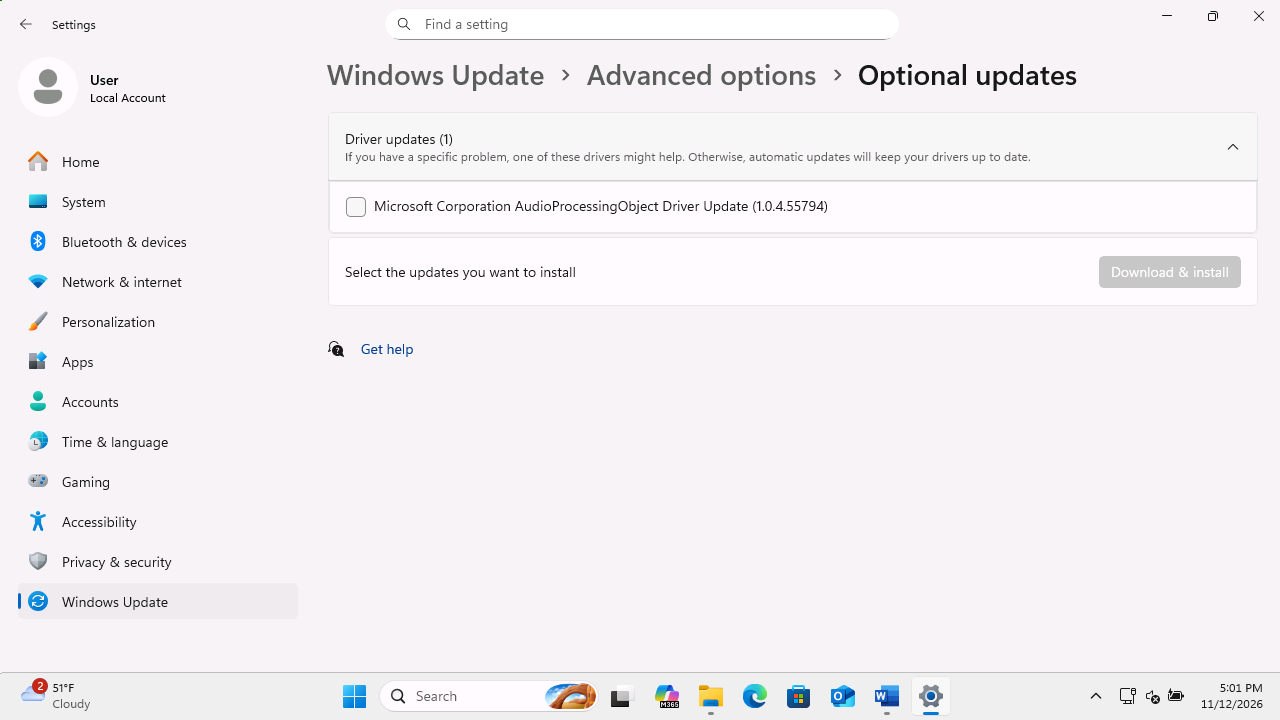
If Windows Update doesn’t find the driver, Microsoft recommends the hardware manufacturer’s website. Install the driver from there as in option 2, but directly from Windows.
You can see the card without a driver in Device Manager (right-click Start). It appears under Other devices, with a yellow mark, usually as “Network Controller”. After you install the driver, it moves to Network adapters.
Buying a license?
BOX sticks and Windows 11 licenses from the shop:
- Windows 11 Pro, BOX with USB stick
- Windows 11 Home, BOX with USB stick
- Windows 11 Pro, digital license ESD
The complete installation steps are in the Windows 11 installation guide. If the installer doesn’t see the disk, see Windows installation problems.
Frequently asked questions
Why does no Wi-Fi network show up during Windows 11 setup?
Because the Windows image does not contain the driver for your laptop’s Wi-Fi card. Without the driver, Windows doesn’t see the card, so it can’t show networks. Intel explains that network drivers for newer systems can be missing from the Windows image.
Can I finish installing Windows 11 without internet?
Intel describes the oobe\bypassnro command, which adds the “I don’t have internet” option. In our test, the command’s file exists in Windows 11 25H2 (10.0.26200.6584) and 26H2 (26300.9457), and on 25H2, 26H2 and 23H2 (22631.5909) the command added the option; on the BOX 24H2 stick the option appeared without the command. Microsoft removed it from some preview versions, so the safe route remains a temporary connection by cable or phone, or the driver installed from a stick.
Where do I get the Wi-Fi driver?
From the support page of your laptop’s manufacturer, for your model and Windows 11, or from Windows Update, under Optional updates, once the laptop has internet.
Does Windows Update install the Wi-Fi driver by itself?
Microsoft says recommended drivers are installed automatically, while optional ones are not. If the Wi-Fi driver appears under Optional updates, you check it and click Download & install.
Need help?
Write to us at contact@conio-software.ro or on WhatsApp at 0799 237 426 (https://wa.me/40799237426), with the exact model of your laptop and a screenshot, and we’ll tell you which driver to download.