
Windows 11 compatibility comes down to specific hardware requirements. Two of them cause most installation errors: TPM 2.0 and Secure Boot. Below you can see how to check your PC and how to enable both features if your PC has them. If your PC is compatible, continue with upgrading from Windows 10 to Windows 11 or with installing Windows 11 Pro and Home. Need a license? See Windows 11 Pro, digital license ESD or Windows 11 Home, digital license ESD.
Warning: BIOS/UEFI settings affect how your PC starts. Change only what you need, and back up your important data first. If you are not sure, check the documentation from the PC or motherboard manufacturer.
1. Check Windows 11 compatibility with the Microsoft app
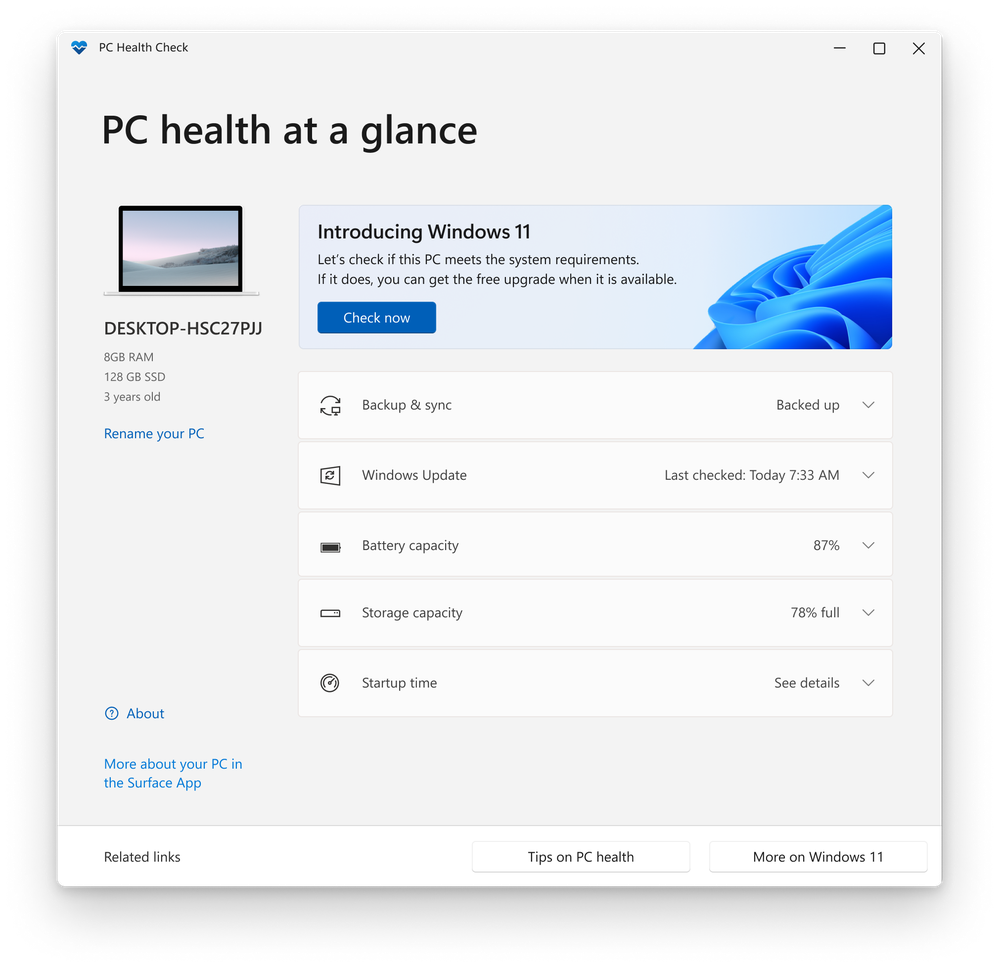
- The PC Health Check app is not preinstalled in Windows 10 22H2: searching for “PC Health Check” in Start does not find it. You get it from aka.ms/GetPCHealthCheckApp and install it on the PC running Windows 10.
- In the Windows 11 section, click Check now.
- The app tells you whether the device can run Windows 11. If it cannot, it shows you the reason and what you can do.
On a PC without Windows or with another operating system, compare the components with the official requirements: a compatible 64-bit processor with 2 or more cores, 4 GB of RAM, 64 GB of storage, UEFI with Secure Boot, and TPM 2.0.
2. What TPM 2.0 and Secure Boot are
TPM (Trusted Platform Module) is a secure chip that generates and stores cryptographic keys and helps verify the integrity of the startup process. Windows 11 requires version 2.0. In the BIOS it appears under different names, for example Intel PTT (Platform Trust Technology) or AMD fTPM.
Secure Boot checks the signature of every boot component at startup, including the operating system, and allows only trusted software. It works only in UEFI mode, not in Legacy/CSM mode.
3. Check whether you have TPM 2.0
- Press Windows + R, type
tpm.msc(without the quotation marks) and click OK. - The message “Compatible TPM cannot be found” means the TPM is disabled or missing.
- If the TPM is ready, under “TPM Manufacturer Information” check that “Specification Version” is 2.0.
4. Check Secure Boot
- Open PowerShell as administrator.
- Run
Confirm-SecureBootUEFI. - Result
True: Secure Boot is on.False: it is off. The message “Cmdlet not supported on this platform”: your PC uses a classic (non-UEFI) BIOS or does not support Secure Boot.
Without administrator rights you get “Unable to set proper privileges. Access was denied.”
5. Enable TPM and Secure Boot in BIOS/UEFI
Menus differ from one manufacturer to another, so the steps are general.
- Enter UEFI. In Windows 11: Settings, System, Recovery, under “Advanced startup” click Restart now, then Troubleshoot, Advanced options, UEFI Firmware Settings, Restart. Alternatively, press the manufacturer’s key at startup (often Esc, Delete, F1, F2, F10, F11 or F12).
- For TPM, look in the Advanced, Security or Trusted Computing menus for an option named Security Device, TPM State, Intel PTT, Intel Platform Trust Technology, AMD fTPM switch or AMD PSP fTPM. Enable it.
- For Secure Boot, set the boot mode to UEFI, not Legacy/CSM. If both options appear, put UEFI first or leave it as the only one. The Secure Boot option is usually in the Security menu.
- Save the changes, exit and let the PC restart. Then repeat the checks from steps 3 and 4.
If Windows was installed in Legacy/BIOS mode, changing the mode may require converting the disk; Microsoft mentions the MBR2GPT tool for this. Back up your data first.
Microsoft is updating the Secure Boot certificates issued in 2011, which start to expire in June 2026. On a supported version of Windows, the update should happen automatically.
If your PC is not compatible
Microsoft does not recommend installing Windows 11 on devices that do not meet the requirements: updates, including security updates, are not guaranteed, and malfunctions caused by incompatibility are not covered by the manufacturer’s warranty. We do not describe how to bypass the checks. Windows 10 reached the end of support on October 14, 2025; for PCs that are not eligible, Microsoft recommends the Extended Security Updates (ESU) program or a new PC. See Windows 10 no longer gets support: what to do.
Buying the license?
For a PC that meets the Windows 11 requirements:
- Windows 11 Pro, digital license ESD
- Windows 11 Home, digital license ESD
- Windows 11 Pro, BOX with USB stick
- Windows 11 Home, BOX with USB stick
See also all digital Windows licenses.
Frequently asked questions
How do I check whether my PC can run Windows 11?
Use the Microsoft PC Health Check app: in the Windows 11 section, click Check now. The app tells you whether the device can run Windows 11 and, if it cannot, shows you the reason.
What is TPM 2.0 and how do I check it?
TPM is a secure chip that generates and stores cryptographic keys; Windows 11 requires version 2.0. Press Windows + R, type tpm.msc and check that “Specification Version” shows 2.0.
How do I check whether Secure Boot is on?
Open PowerShell as administrator and run Confirm-SecureBootUEFI. The result True means Secure Boot is on, and False means it is off.
Can I install Windows 11 on a PC that does not meet the requirements?
Microsoft does not recommend this: updates, including security updates, are not guaranteed, and malfunctions caused by incompatibility are not covered by the manufacturer’s warranty.
Need help?
Write to us at contact@conio-software.ro or on WhatsApp at 0799 237 426 (https://wa.me/40799237426).