
You need a bootable Windows 11 USB stick to install or reinstall the system. With BOX packages the stick comes in the box (Windows 11 Pro, BOX with USB stick), so you do not need to create another one. With digital licenses you make it yourself, for free, with the official Microsoft tool.
Warning: everything on the stick is erased when you create it. Use an empty stick, and do not use the one from the BOX package: it holds the installation kit and the
Driversfolder. Download the files only from the official Microsoft page.
What you need for a bootable Windows 11 USB stick
- an empty USB stick of at least 8 GB;
- a Windows PC with a stable internet connection and administrator rights;
- a 64-bit (x64) processor: Microsoft states that the tool does not create media for PCs with an Arm processor;
- a target PC that meets the Windows 11 requirements (see the tutorial Windows 11 compatibility: TPM 2.0 and Secure Boot).
The kit you download now contains Windows 11 2026 Update (version 26H2). Versions 23H2 and 24H2 have reached the end of updates for Home and Pro, so download the current kit, not an older one.
Option 1: the media creation tool (recommended)
- Open the official Microsoft page: microsoft.com/software-download/windows11.
- In the Create Windows 11 Installation Media section, click Download Now. This downloads the file
MediaCreationTool.exe. Careful: the first option on the page is Windows 11 Installation Assistant, also with a "Download Now" button; it is not the right one for a stick. - Connect the stick to the PC.
- Run the file as administrator.
- Accept the license terms and confirm the Windows 11 language and edition.
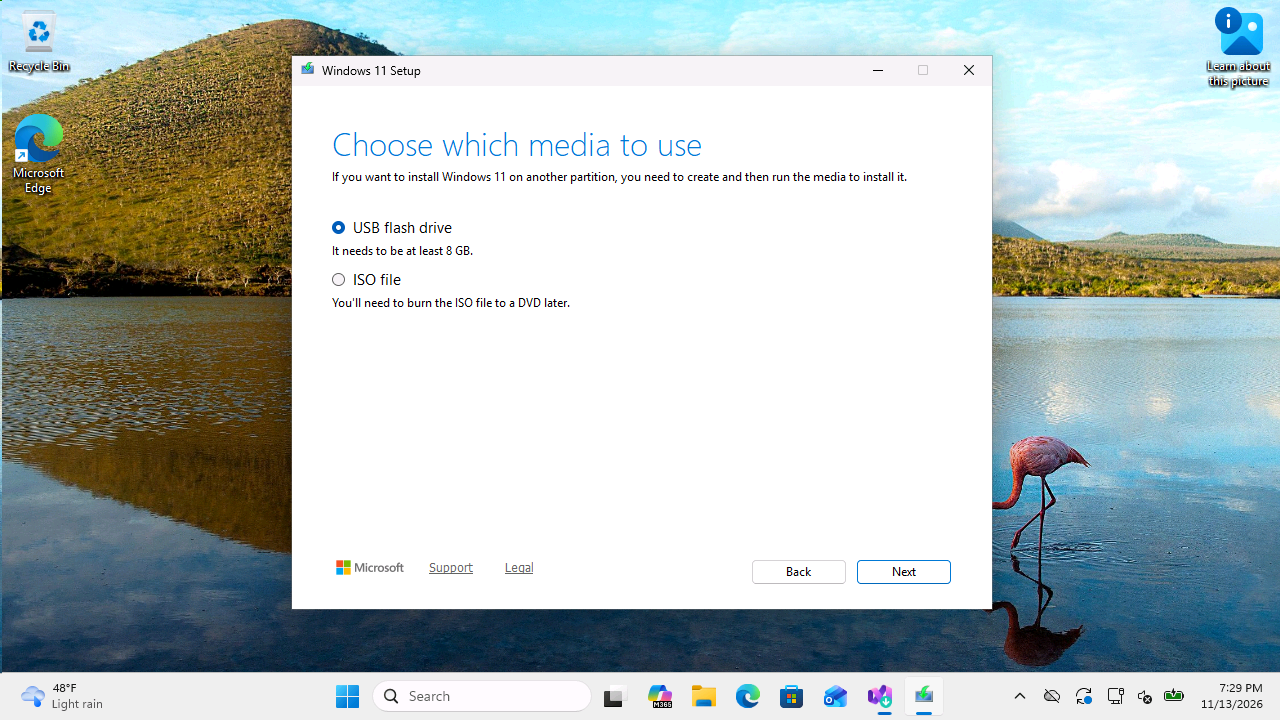
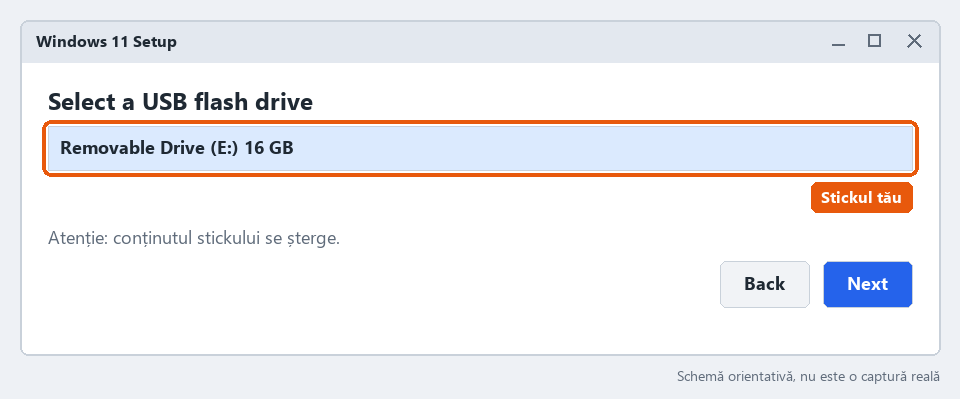
- Choose the USB flash drive (not the ISO file), then the correct drive. Check the drive letter, especially if you have several devices connected.
- Wait. The tool downloads Windows 11 and writes it to the stick.
Option 2: the ISO image
The ISO image is used for a DVD or a virtual machine.
- On the same Microsoft page, in the Download Windows 11 Disk Image (ISO) for x64 devices section, choose "Windows 11 (multi-edition ISO for x64 devices)" from the Select Download list and click the Confirm button.
- Choose the product language and click Confirm again.
- Download the file from the link shown (for example "English 64-bit"). The link is valid for 24 hours from the time it is generated.
The multi-edition ISO uses the product key to unlock the correct edition. To verify the file, run Get-FileHash C:\cale\fisier.iso in PowerShell and compare the SHA-256 result with the value in the table on the Microsoft page.
For a stick, the simplest official option remains the tool from Option 1. Third-party programs exist too, for example Rufus, but they are not Microsoft products and we do not cover them here.
Boot from the stick
- Connect the stick to the PC you are installing on and restart it.
- If the PC does not boot from the stick by itself, open the boot menu. Common keys are Esc, Delete, F1, F2, F10, F11 or F12, and they differ by manufacturer.
- Choose the entry that contains UEFI and the stick, for example "UEFI: USB Drive".
The next steps are in the tutorial Installing Windows 11 Home and Pro, step by step. If Windows Setup does not see the disk, see problems installing Windows.
Buying a license?
BOX sticks and digital licenses for Windows 11:
- Windows 11 Pro, BOX with USB stick
- Windows 11 Home, BOX with USB stick
- Windows 11 Pro, digital license ESD
- Windows 11 Home, digital license ESD
See all Windows digital licenses and the BOX with USB stick products.
Frequently asked questions
How do I make a bootable USB stick with Windows 11?
Download the media creation tool from the official Microsoft page, run it as administrator, choose the USB flash drive, then your stick. You need an empty stick of at least 8 GB.
What size should the stick be?
At least 8 GB and empty, because everything on the stick is erased when you create it.
Can I create the stick for a PC with an Arm processor?
Microsoft states that the tool does not create media for PCs with an Arm processor; you need a 64-bit (x64) processor.
What do I do with the ISO image?
The ISO image is used for a DVD or a virtual machine. The download link is valid for 24 hours, and the file is verified in PowerShell with Get-FileHash.
How do I boot the PC from the stick?
Open the boot menu (common keys are Esc, Delete, F1, F2, F10, F11 or F12) and choose the entry that contains UEFI and the stick, for example "UEFI: USB Drive".
Need help?
Write to us at contact@conio-software.ro or on WhatsApp at 0799 237 426 (https://wa.me/40799237426).