
Moving from Windows 10 Home or Pro to the matching edition of Windows 11 (Home to Home, Pro to Pro) is free if your PC meets the requirements. An in-place upgrade to Windows 11 can keep your files, apps, and settings. Below are the three methods, from the simplest to the most technical. If you need a Windows 11 license for another computer, see Windows 11 Pro, digital license ESD or Windows 11 Home, digital license ESD.
1. Check whether your PC can run Windows 11
Microsoft’s minimum requirements:
- a compatible 64-bit processor, 1 GHz or faster, with at least 2 cores;
- 4 GB of RAM and 64 GB of storage;
- UEFI firmware with Secure Boot;
- TPM 2.0;
- a DirectX 12 compatible graphics card with a WDDM 2.0 driver;
- a display of at least 720p, larger than 9 inches.
For a direct upgrade, your PC must be running Windows 10, version 2004 or later. You can use the PC Health Check app or Windows Update. The PC Health Check app may be missing, especially on a freshly installed Windows 10 22H2. If you can’t find it by searching in Start, download it from aka.ms/GetPCHealthCheckApp. The Windows Update page in Windows 10 also has a Check hardware requirements link, which leads to the Windows 11 requirements. The full list is on the Microsoft Windows 11 specifications page. For more on TPM 2.0 and Secure Boot, see the article Windows 11 compatibility: TPM 2.0 and Secure Boot.
Warning: Microsoft does not recommend installing Windows 11 on a PC that doesn’t meet the requirements. Such a PC may not receive updates.
2. Back up first
An in-place upgrade lets you keep your files, but a backup protects you from any error or wrong choice.
- Pick a method: Windows Backup (requires a Microsoft account and syncs the folders you choose with OneDrive) or File History (copies of your personal files on an external drive or on the network).
- Make the copy and check that your important files open from it. The methods are described in the article backup before reinstalling Windows.
- Make sure you have your activation key at hand.
3. Choose your Windows 11 upgrade method
Method A: Windows Update (recommended)
- Go to Settings → Update & Security → Windows Update and check for updates.
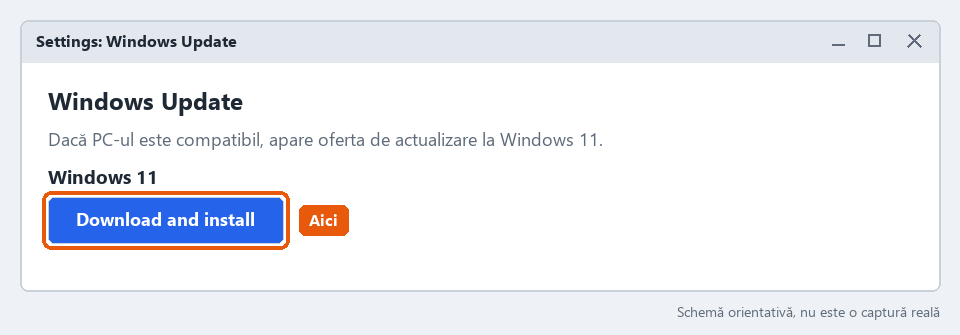
- If Windows 11 is offered, select Download and install and accept the license terms.
- Restart when prompted. The PC restarts several times, and then the sign-in screen appears.
Microsoft recommends waiting until Windows Update offers the upgrade. If the offer doesn’t appear, first install the pending Windows 10 updates.
Method B: Windows 11 Installation Assistant
- Download Windows 11 Installation Assistant from the Microsoft Windows 11 download page.
- Run it with an administrator account. The PC must have Windows 10 version 2004 or later, an x64 processor, and 9 GB of free space.
- If your PC is eligible, select Accept and install and restart when prompted.
- If the app asks for more information, run PC Health Check (download it first if you don’t have it) and click Refresh.
Method C: In-place upgrade with an ISO file
- On the same Microsoft page, download the disk image (ISO) for x64. The ISO contains several editions and uses your key to open the right edition.
- In Windows 10, open the ISO (right-click, Mount) and run setup.exe.
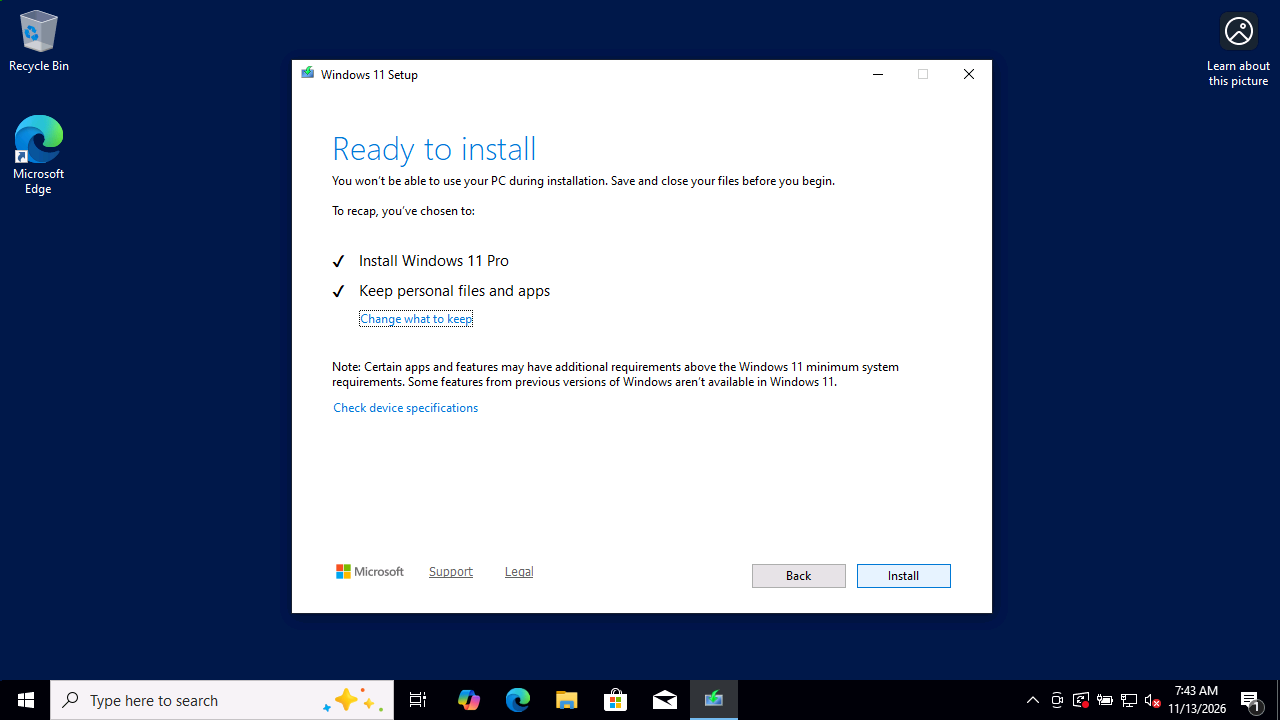
Setup first asks whether to download updates (Change how Setup downloads updates) and asks you to accept the license terms (Accept). Then the Ready to install screen appears, which shows what you keep: by default Keep personal files and apps (files, apps, and settings). To choose something else, click the Change what to keep link. On the Choose what to keep screen you have three options:
- Keep personal files and apps: files, apps, and settings (the default);
- Keep personal files only: apps and settings are deleted, files stay;
- Nothing: everything is deleted.
The screens and links above are the ones in Windows 11 26H2.
Warning: if you boot the PC from a USB stick or ISO instead of running setup.exe from within Windows, the installation erases the contents of the disk and the existing installation. To keep your files, use only setup.exe from Windows 10.
4. What happens to your license
- A free upgrade on an eligible PC produces a digital license, linked to the Microsoft account you signed in with during the upgrade.
- Check the status at Settings → System → Activation. The Activation page shows only the edition name, next to the logo. The full edition (the Edition row, plus the version and build number) is at Settings → System → About, in the Windows specifications section. If Windows 11 isn’t linked to your account, add your account from the Activation page.
- The edition stays equivalent: Home stays Home, Pro stays Pro.
- For a clean installation (which erases everything), follow the Microsoft page on activation, and write to us before you erase anything if you’re not sure which license covers the PC.
After the upgrade
Run Windows Update and check activation (how to check whether Windows is activated and which edition you have). On a PC that has moved to Windows 11, you no longer need the ESU program.
Buying a license?
Windows 11 licenses in the shop:
- Windows 11 Pro, digital license ESD
- Windows 11 Home, digital license ESD
- Windows 11 Pro, BOX with USB stick
- Windows 11 Home, BOX with USB stick
See all digital Windows licenses and the BOX with USB stick products.
Frequently asked questions
How do I upgrade to Windows 11 without losing my files?
Use the in-place upgrade (Windows Update, the Installation Assistant, or ISO) and make a backup first. With the ISO method, choose Keep personal files and apps (the default, shown on the Ready to install screen; other options are chosen from the Change what to keep link).
Is the upgrade from Windows 10 to Windows 11 free?
Yes, moving from Windows 10 Home or Pro to the matching edition of Windows 11 is free if your PC meets the minimum requirements.
What requirements must my PC meet for Windows 11?
A 64-bit, 1 GHz processor with at least 2 cores, 4 GB of RAM, 64 GB of storage, UEFI with Secure Boot, and TPM 2.0. For a direct upgrade you need Windows 10, version 2004 or later.
What happens to my license after the upgrade?
A free upgrade on an eligible PC produces a digital license, linked to the Microsoft account you signed in with. You check it at Settings → System → Activation; Home stays Home, Pro stays Pro.
Need help?
Write to us at contact@conio-software.ro or on WhatsApp: 0799 237 426.