
This guide walks you through installing the 64-bit version of Windows 7 Professional, from the installation kit to activation. We took all the screenshots ourselves, on a test installation with the English Windows 7 Professional SP1 kit. You can find the license in the shop, for example Windows 7 Professional, BOX with USB stick.
Warning: Microsoft support for Windows 7 ended on January 14, 2020. Windows 7 no longer receives security updates, and Office 2019, Office 2021, and Office 2024 are not supported on Windows 7. Before you install, read Windows 7: what you need to know before installing it.
Before you start
- Copy your important files to an external hard drive or a USB stick. A clean installation erases the data on the disk you choose. How to make the copy: backup before reinstalling Windows.
Get the installation kit ready.
- BOX: use the USB stick from the package.
- Digital: download the Windows 7 Professional SP1 kit, 64-bit, in English, from the kits page. The kit is an ISO image of about 3.3 GB.
- Turn the ISO image into a bootable USB stick with a bootable-stick creation tool, or burn it to a blank DVD. A stick of 4 GB or more is enough. Everything on the stick is erased.
- Keep your 25-character product key at hand. Do not post it anywhere.
Installing Windows 7 Professional, step by step
- Insert the stick or the DVD and boot the PC from it. The boot menu opens differently from one manufacturer to another, so check the website of your PC or motherboard manufacturer.
In the first window you choose the installation language, the time format, and the keyboard. The kit is in English, so Language to install stays on English. Click Next.
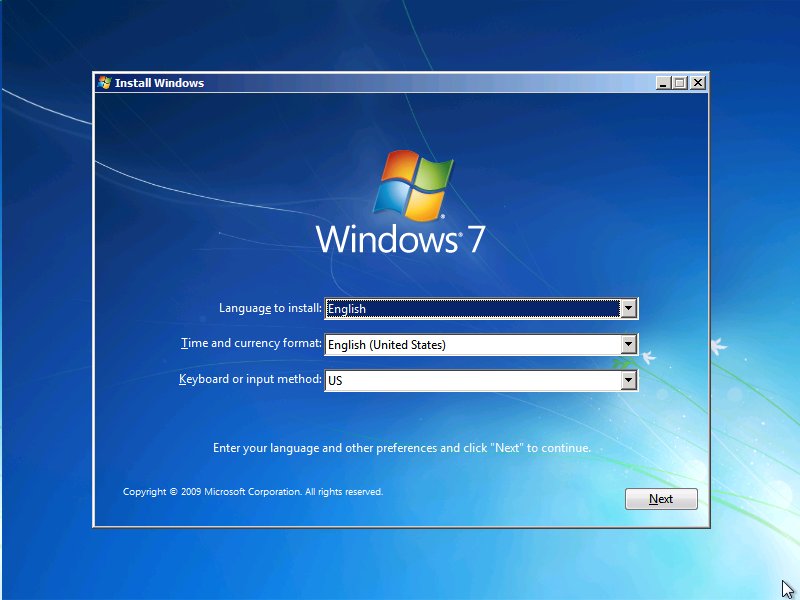
Screenshot from the Microsoft Windows 7 Professional setup program: the first window, with the language, time format and keyboard (English interface). Used with permission from Microsoft. Click Install now.
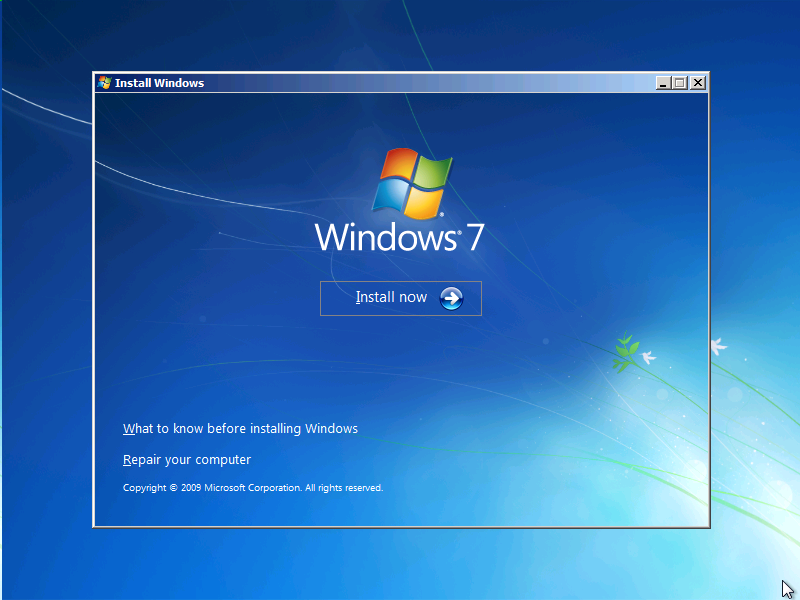
Screenshot from the Microsoft Windows 7 Professional setup program: the Install now button (English interface). Used with permission from Microsoft. Read the license terms, check I accept the license terms, and click Next. The Windows 7 Professional kit does not ask you to choose the edition: after Install now, the license terms appear right away.
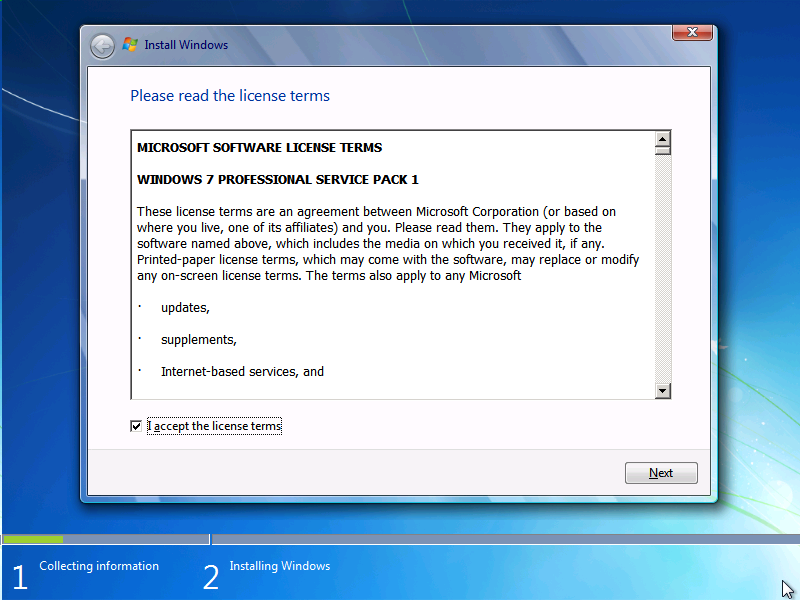
Screenshot from the Microsoft Windows 7 Professional setup program: the license terms, with “I accept the license terms” checked (English interface). Used with permission from Microsoft. At Which type of installation do you want? choose Custom (advanced). The Upgrade option only works if you start the installation from within a Windows installation that is already running.
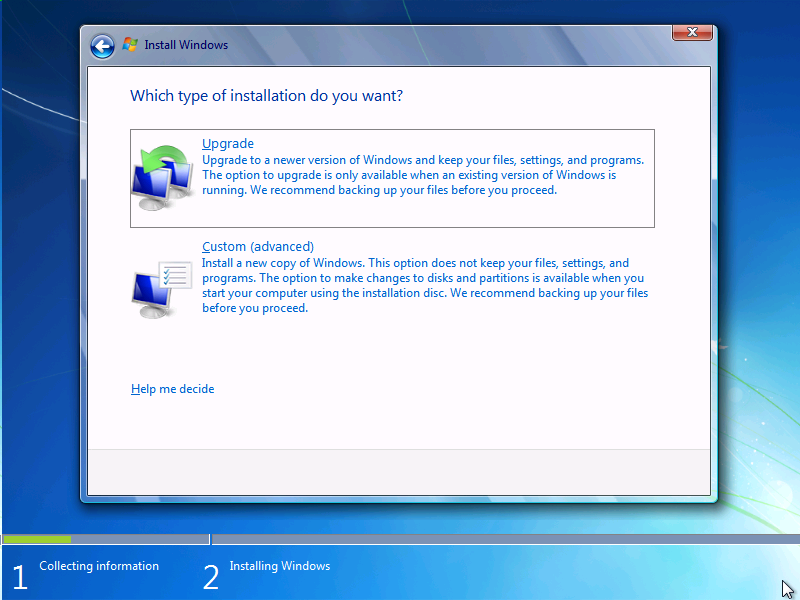
Screenshot from the Microsoft Windows 7 Professional setup program: choosing the installation type, Upgrade or Custom (advanced) (English interface). Used with permission from Microsoft. At Where do you want to install Windows? select the disk you are installing on and click Next. On an empty disk you see Disk 0 Unallocated Space. If the disk has old partitions you want to delete, use Drive options (advanced). If the disk does not show up at all, the PC needs a storage driver from the manufacturer, which you load with Load Driver. For details, see problems installing Windows.
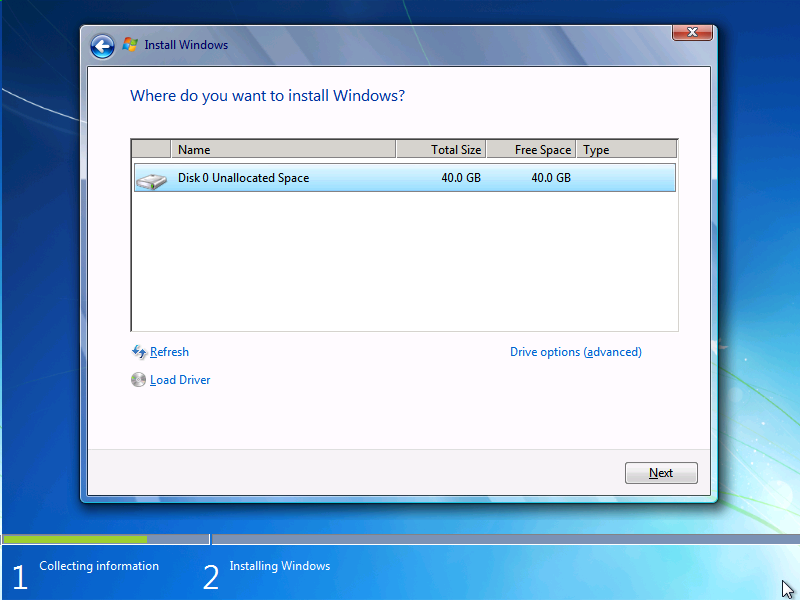
Screenshot from the Microsoft Windows 7 Professional setup program: “Where do you want to install Windows?”, with Disk 0 Unallocated Space (English interface). Used with permission from Microsoft. Warning: deleting a partition permanently erases the data on it. Do not change the partitions on any disk other than the one you are installing on.
Wait. Setup copies and expands the files (Copying Windows files, Expanding Windows files), then installs the features and the updates included in the kit. The PC restarts several times on its own.
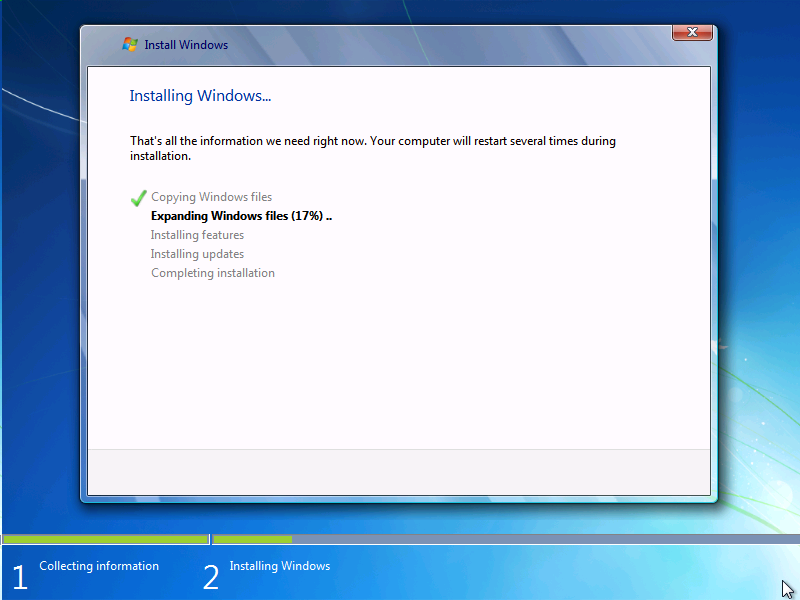
Screenshot from the Microsoft Windows 7 Professional setup program: copying and expanding the files (English interface). Used with permission from Microsoft.
Setting up on first start
Type a user name. The computer name fills in on its own (for example Utilizator-PC), but you can change it. Click Next.
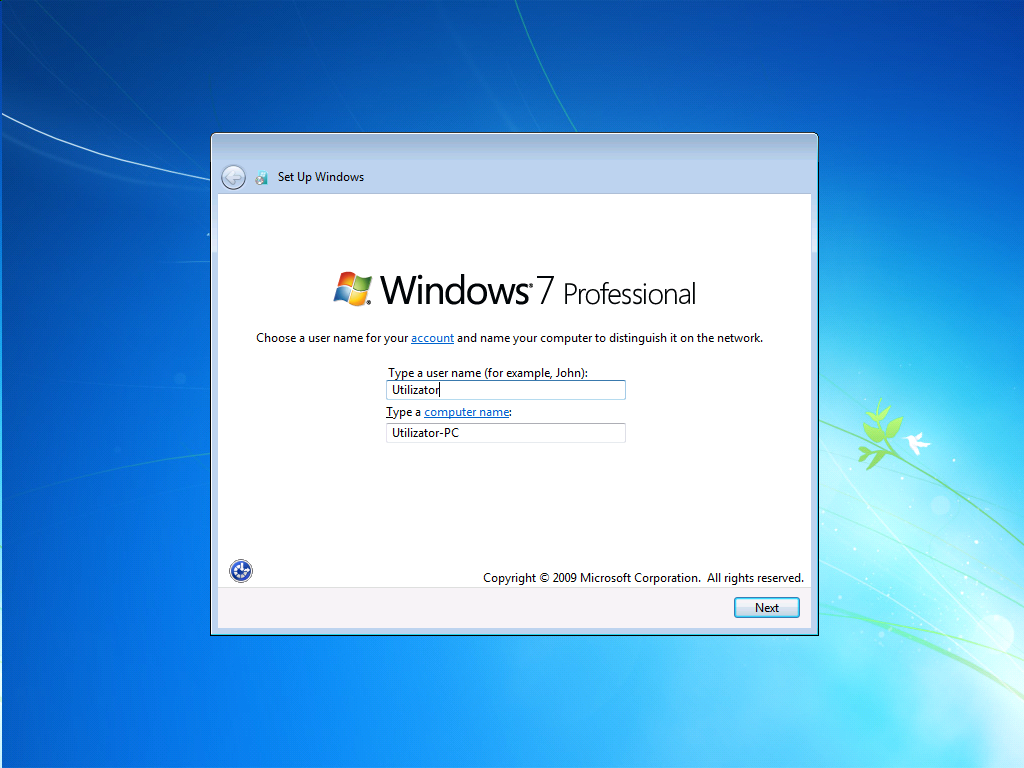
Screenshot from Microsoft Windows 7 Professional: the user name and the computer name at first start (English interface). Used with permission from Microsoft. - On the next screen (Set a password for your account) choose a password for the account and a hint that helps you remember it. Click Next.
At Type your Windows product key type the 25-character key. The dashes are added automatically. Leave Automatically activate Windows when I’m online checked and click Next. If you do not have the key with you, click Skip and enter it later from the System window, with Change product key.
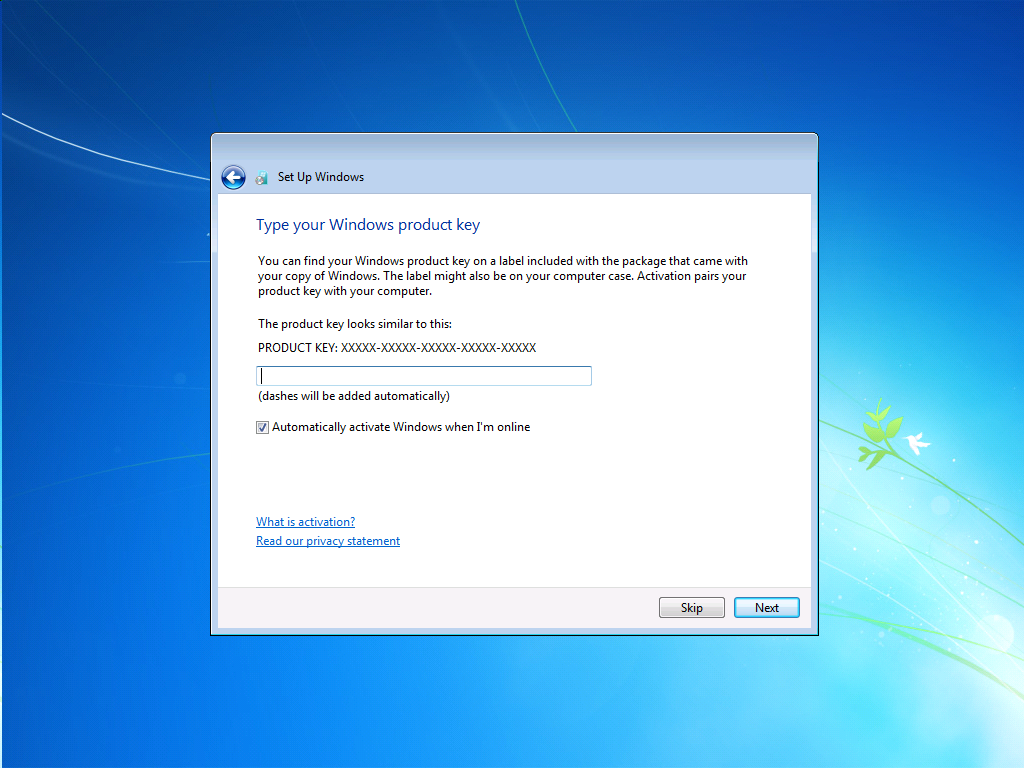
Screenshot from Microsoft Windows 7 Professional: the product key screen, with the field empty (English interface). Used with permission from Microsoft. At Help protect your computer and improve Windows automatically you choose how updates are installed: Use recommended settings, Install important updates only, or Ask me later. Keep in mind that Windows 7 has not received new security updates since January 14, 2020.
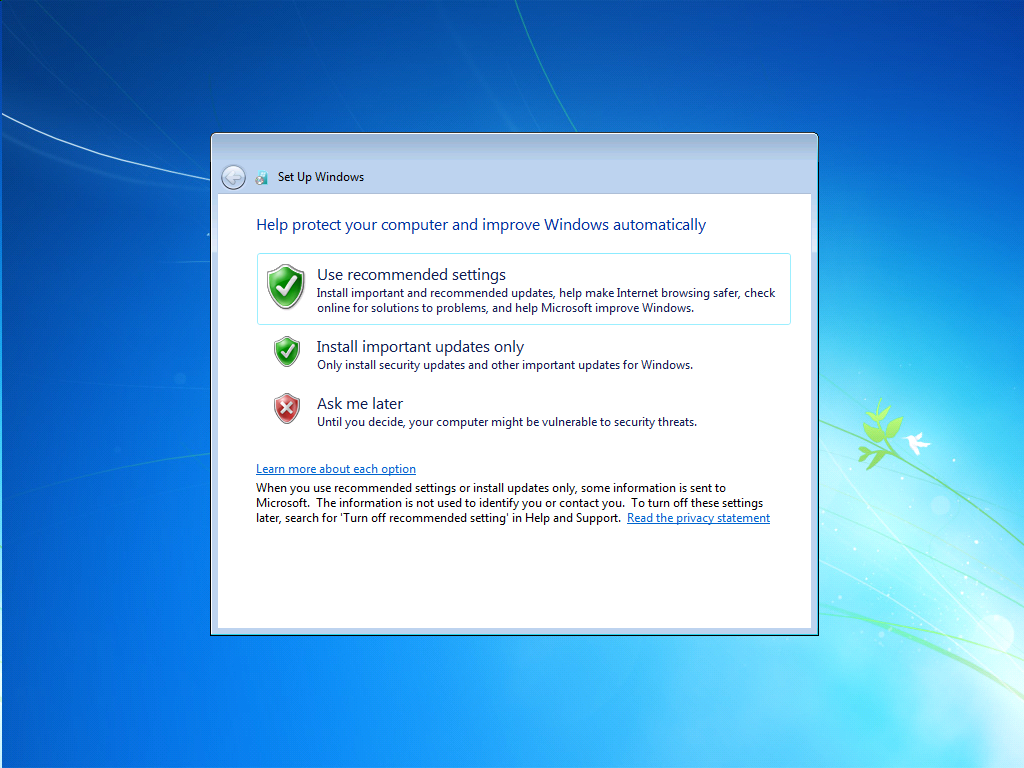
Screenshot from Microsoft Windows 7 Professional: the update settings, Use recommended settings, Install important updates only and Ask me later (English interface). Used with permission from Microsoft. At Review your time and date settings choose the time zone (UTC+02:00) Athens, Bucharest, Istanbul, check the date and time, and click Next.
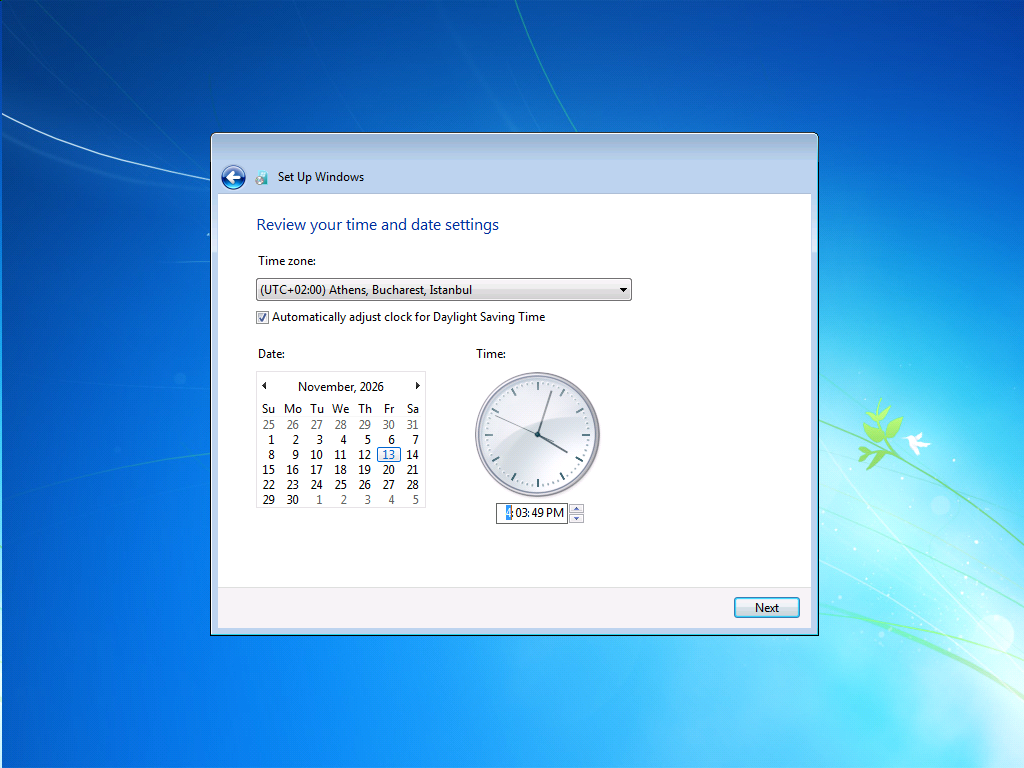
Screenshot from Microsoft Windows 7 Professional: the time zone (UTC+02:00) Athens, Bucharest, Istanbul, with the date and time (English interface). Used with permission from Microsoft. If the PC is connected to a network, Windows asks where it is: Home network, Work network, or Public network. Choose Home network only for your home network, where you know all the computers. If you are not sure, choose Public network, as the window also recommends.
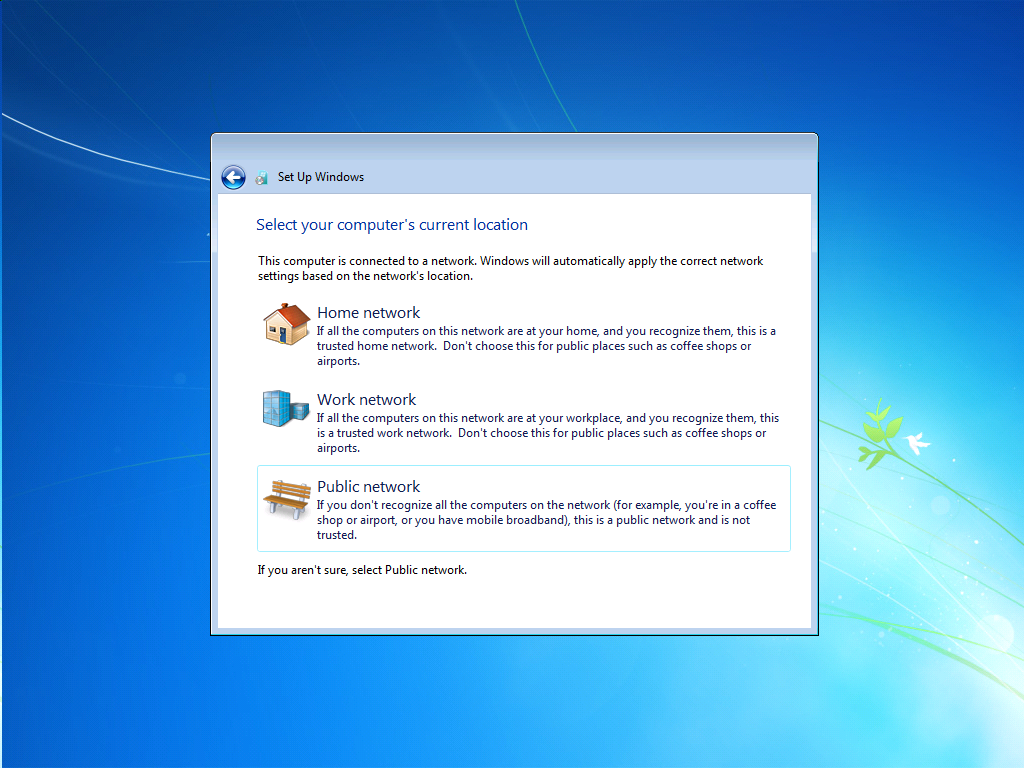
Screenshot from Microsoft Windows 7 Professional: choosing the network type, Home, Work or Public (English interface). Used with permission from Microsoft. After a few moments the Windows 7 desktop appears.
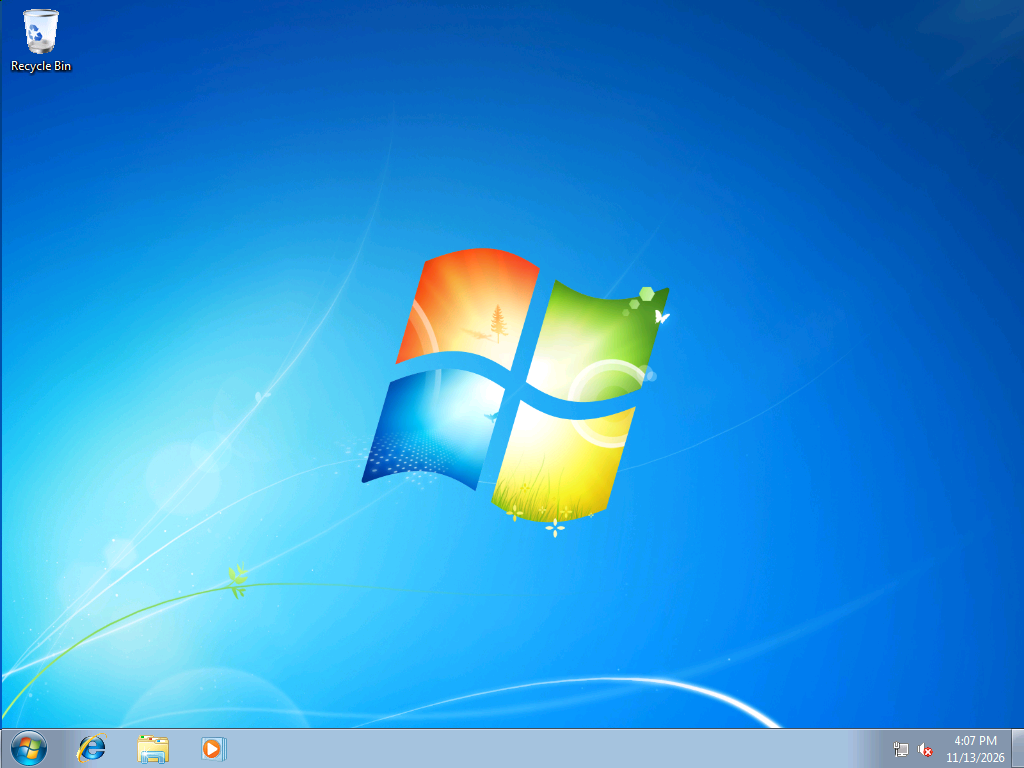
Screenshot from Microsoft Windows 7 Professional: the desktop at first start (English interface). Used with permission from Microsoft.
Activating Windows 7 Professional
- Open the System window: Start > Control Panel > System and Security > System. Shortcut: press Win + R, type
control /name Microsoft.System, and press Enter. Check the edition and the activation status. Under Windows edition it must say Windows 7 Professional and Service Pack 1, and under System type, 64-bit Operating System. Under Windows activation you see whether Windows is activated. As long as it is not, the Activate Windows now link appears.
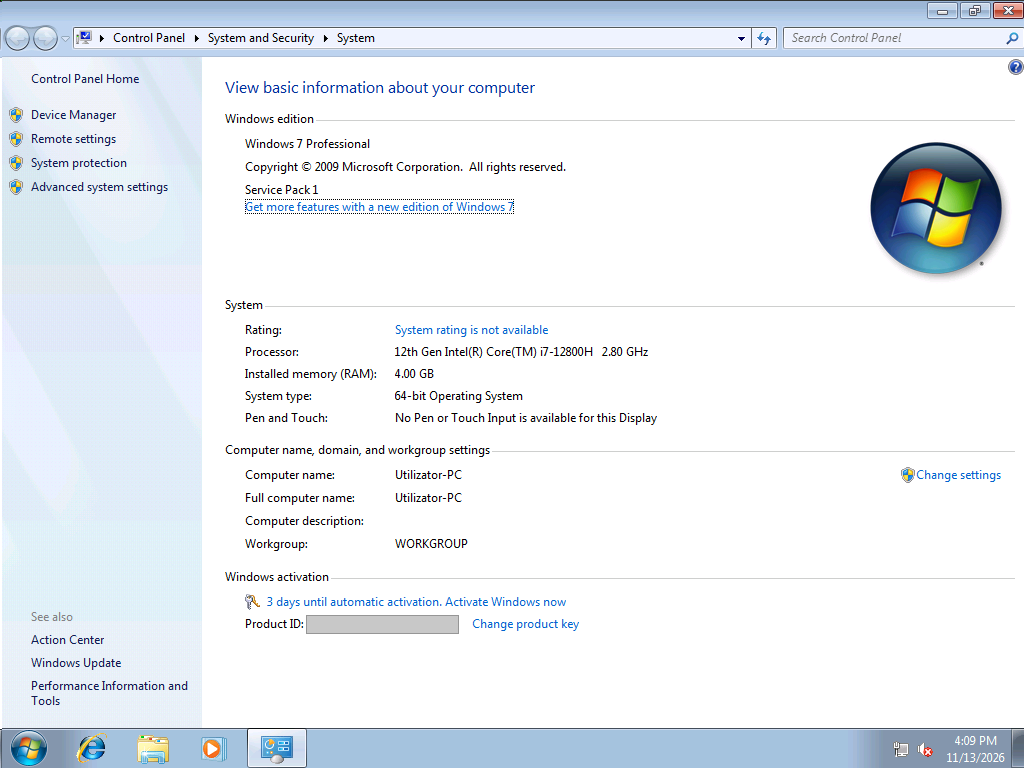
Screenshot from Microsoft Windows 7 Professional: the System window, with the edition, Service Pack 1, 64-bit and the activation status. The Product ID is covered (English interface). Used with permission from Microsoft. - Keep the PC connected to the internet and click Activate Windows now. Follow the steps in the Windows Activation window.
If the window shows the message The Windows 7 Professional product key you typed is invalid for activation and offers you the automated phone system, activation is done offline: Windows gives you an Installation ID, and you enter the Confirmation ID you get from Microsoft. Choose Use the automated phone system.
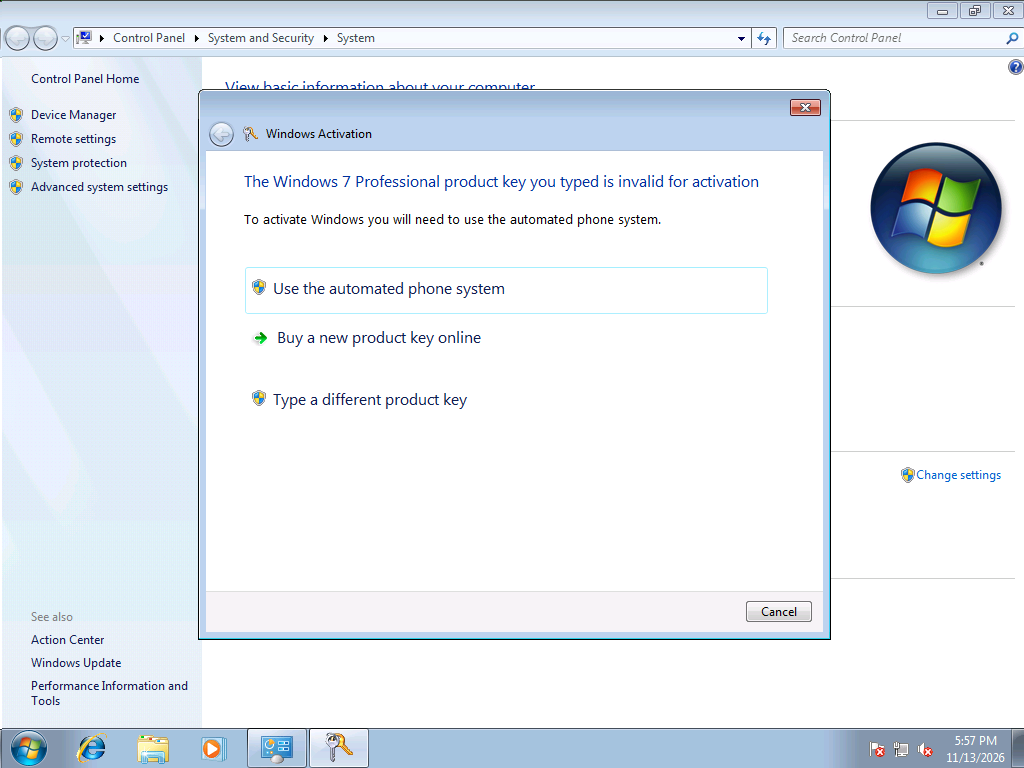
Screenshot from Microsoft Windows 7 Professional: the Windows Activation window, with the pointer to activation through the automated phone system (English interface). Used with permission from Microsoft. At Find available phone numbers for activation choose Romania and click Next.
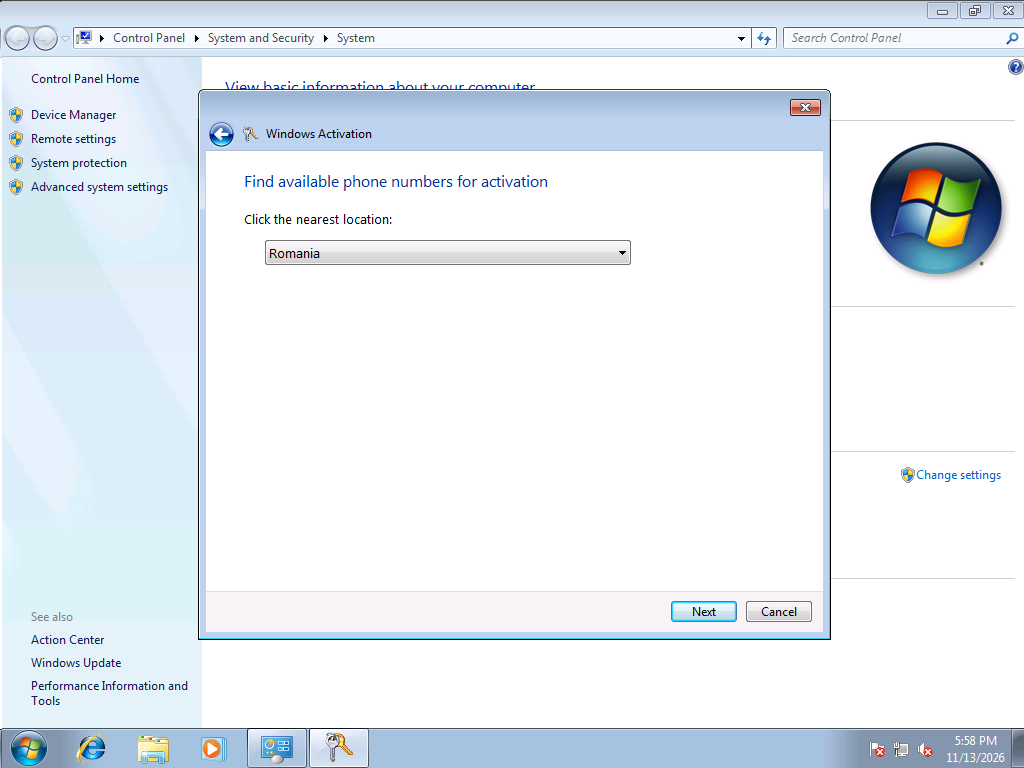
Screenshot from Microsoft Windows 7 Professional: the Windows Activation window, with Romania chosen under “Find available phone numbers for activation” (English interface). Used with permission from Microsoft. The Activate Windows now window shows phone numbers at Step 1, the Installation ID at Step 2, in 9 groups of 6 digits, and boxes A–H for the Confirmation ID at Step 3. Write down the Installation ID exactly, or take a photo of the screen. Leave the window open: at Step 3 you will type the Confirmation ID.
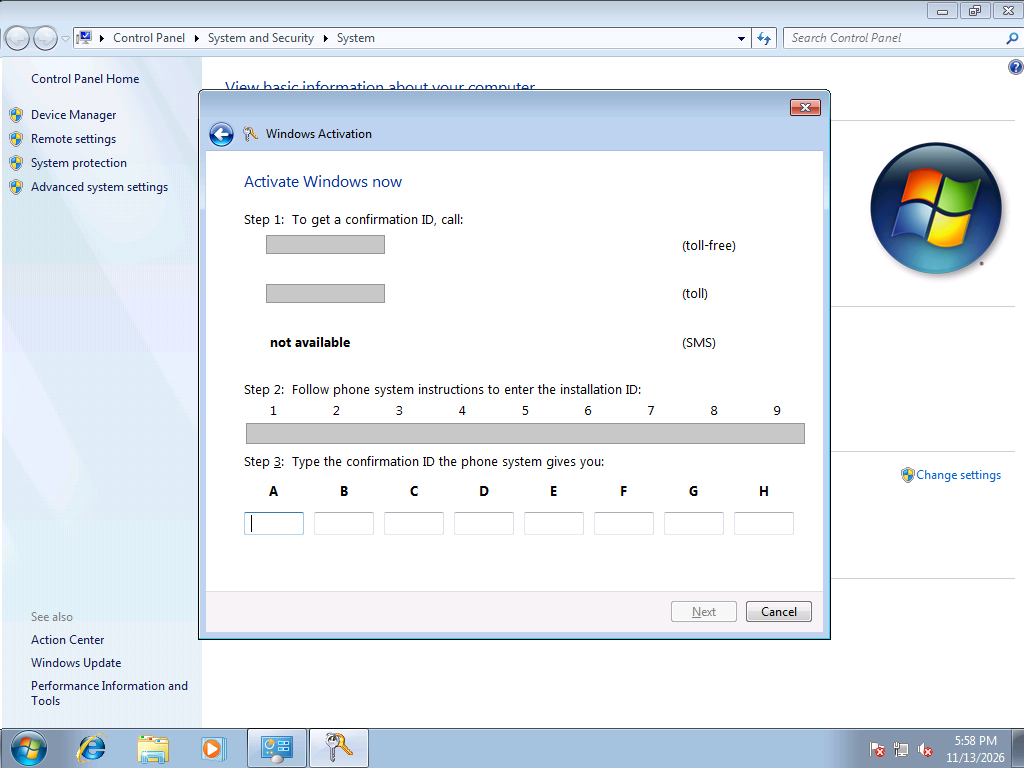
Screenshot from Microsoft Windows 7 Professional: the “Activate Windows now” window, with steps 1–3. The phone numbers and the installation ID are covered (English interface). Used with permission from Microsoft. Warning: do not call the numbers shown. Starting December 3, 2025, Microsoft moved automated phone activation online and says to use the activation portal instead of the phone number. Enter the Installation ID only on the official Microsoft portal. In our November 2026 test, the portal did not activate Windows 7 (see below).
Getting the Confirmation ID on the Microsoft portal
The Microsoft page about offline activation with an Installation ID and a Confirmation ID also applies to Windows 7 and points to the activation portal. In our November 2026 test we could not activate Windows 7 on the portal. If the portal does not give you the Confirmation ID either, write to us (the contact details are at the end of the guide).
- On another device with internet access (a phone, a tablet, or another computer) open aka.ms/WindowsActivate. This official Microsoft short address leads to the visualsupport.microsoft.com portal.
- On the first page, Welcome to Microsoft Product Activation Portal!, click Let’s Get Started.
- Then, according to the Microsoft support page, solve the CAPTCHA check and sign in (Proceed to Sign In) with a personal, work, or school Microsoft account. Microsoft states that this account is not linked to the license.
- Select Activate a Microsoft Product and choose the product and version.
- Enter the Installation ID. If activation succeeds, the portal gives you the Confirmation ID.
Completing the activation
- On the PC, in the Activate Windows now window, at Step 3, type the Confirmation ID in boxes A–H, exactly as you received it, and click Next.
- Open the System window again and check the status under Windows activation.
Buying a license?
Windows 7 Professional licenses in the shop:
Frequently asked questions
Can I install Windows 7 without a product key?
Yes. On the Type your Windows product key screen you click Skip, and you enter the key after installation from the System window, with Change product key.
Do I have to choose the edition during installation?
No. With the Windows 7 Professional SP1 kit, Setup goes straight from Install now to the license terms.
What do I do if online activation fails?
Try offline activation: choose Use the automated phone system, write down the Installation ID, and request the Confirmation ID on the Microsoft portal, at aka.ms/WindowsActivate. In our November 2026 test the portal did not activate Windows 7. If it does not work for you either, note the message and write to us at the address below or on WhatsApp.
Can I activate Windows 7 by phone?
The Windows 7 activation window still shows phone numbers, but starting December 3, 2025, Microsoft moved automated phone activation online. Do not call: Microsoft points to the activation portal, as in the steps above. In our November 2026 test the portal did not activate Windows 7; if it does not work for you either, write to us.
Does Office 2021 work on Windows 7?
No. Office 2019, Office 2021, and Office 2024 are not supported on Windows 7.
Does Windows 7 still get updates?
No. Microsoft support for Windows 7 ended on January 14, 2020, and Windows 7 no longer receives security updates. For details, see Windows 7: what you need to know.
Need help?
Write to us at contact@conio-software.ro or on WhatsApp: 0799 237 426.