
This guide walks you through installing 64-bit Windows 8.1 Pro, from the installation kit to checking the activation. We took the screenshots ourselves, on a test installation in English. The license: Windows 8.1 Pro, digital license.
Warning: Microsoft support for Windows 8.1 ended on January 10, 2023. Since then it no longer receives security updates, fixes or technical support, and Microsoft does not offer Extended Security Updates. Microsoft recommends moving to a supported version of Windows, preferably Windows 11. If your PC can run Windows 11, consider Windows 11 Professional.
Before you start
- Copy your important files to an external drive: a clean install erases the data on the disk you choose. How to: backup before reinstalling Windows.
- Download the installation kit from the kits page (Windows 8.1, 64-bit, in English).
- It is an ISO image: turn it into a bootable USB stick with a program that writes ISO images to a stick, or burn it to a blank DVD. Everything on the stick is erased.
- Keep the 25-character product key we sent you at hand, and do not post it anywhere. The installer asks for it right at the start.
Installing Windows 8.1 Pro, step by step
- Start the PC from the stick or DVD. The boot menu differs from one manufacturer to another. If Press any key to boot from CD or DVD appears, press a key.
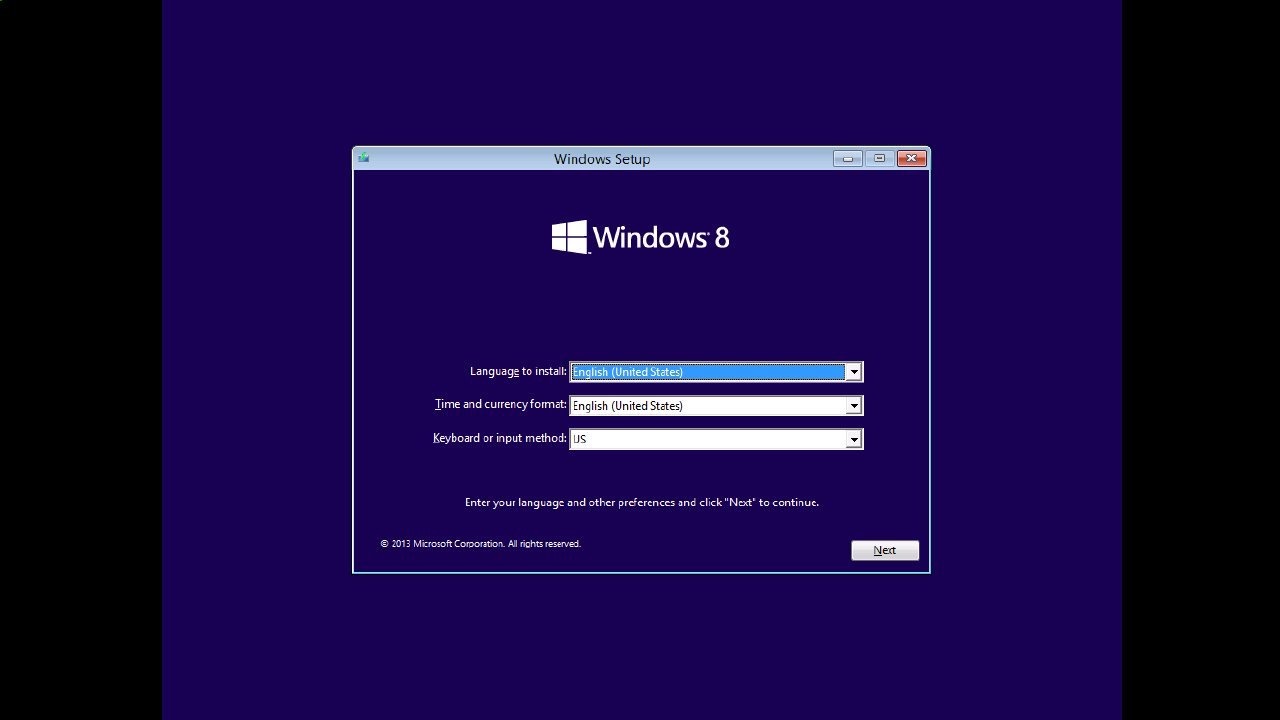
- Choose the installation language, the time format and the keyboard. The kit is in English, so keep English (United States). Click Next.
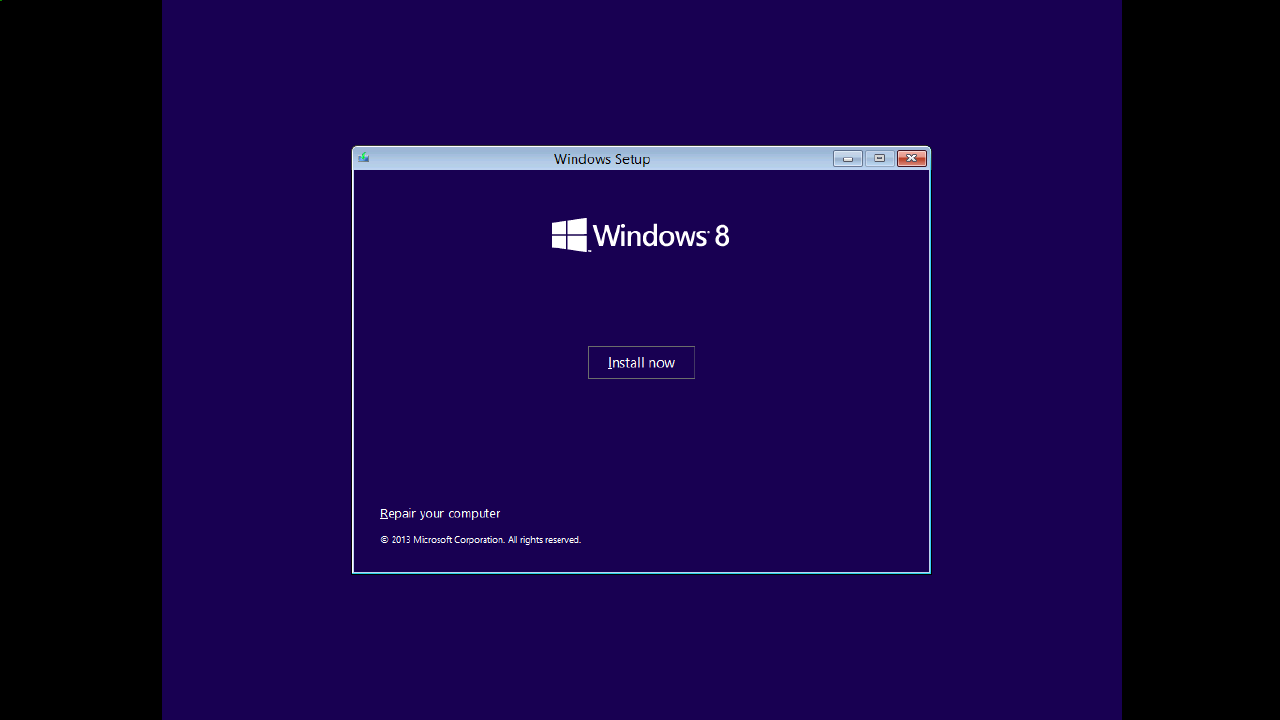
- Click Install now.
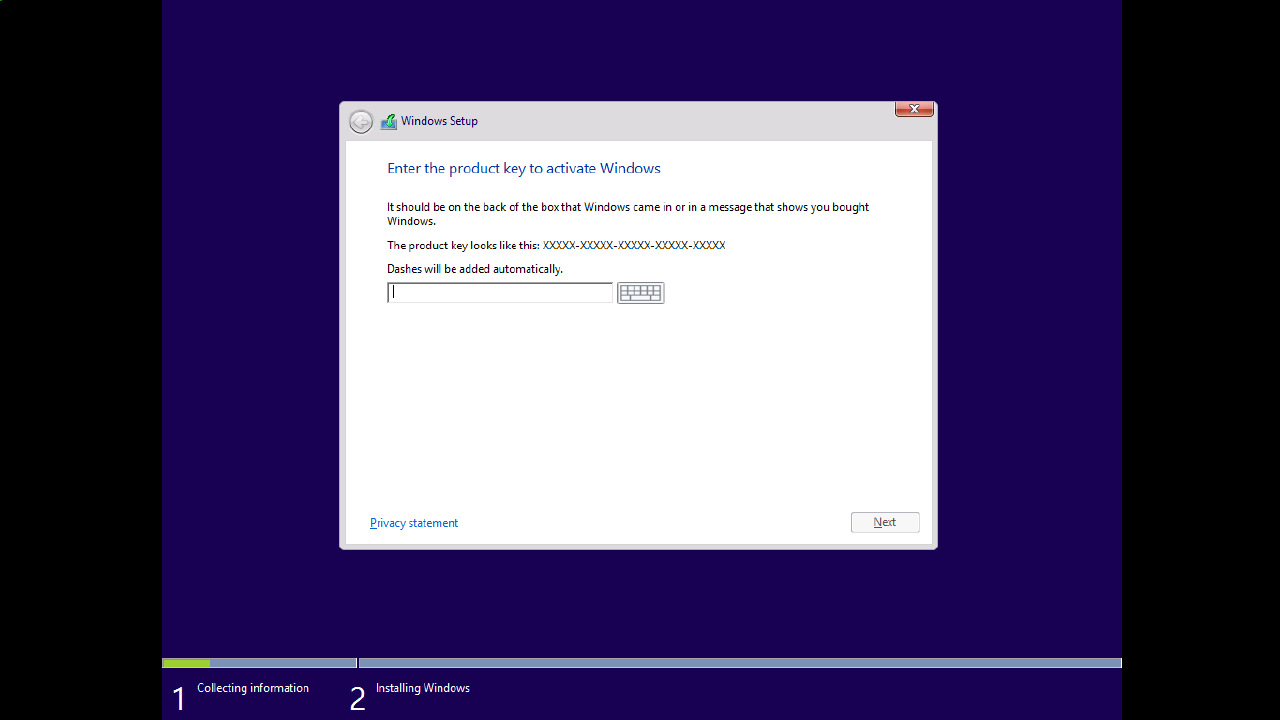
- Enter the product key to activate Windows appears. Type the 25-character key; the dashes are added automatically. In our test there was no option to skip this step. Click Next.
- Select I accept the license terms and click Next. In our test the edition selection screen did not appear: the installation went straight on with Windows 8.1 Pro.
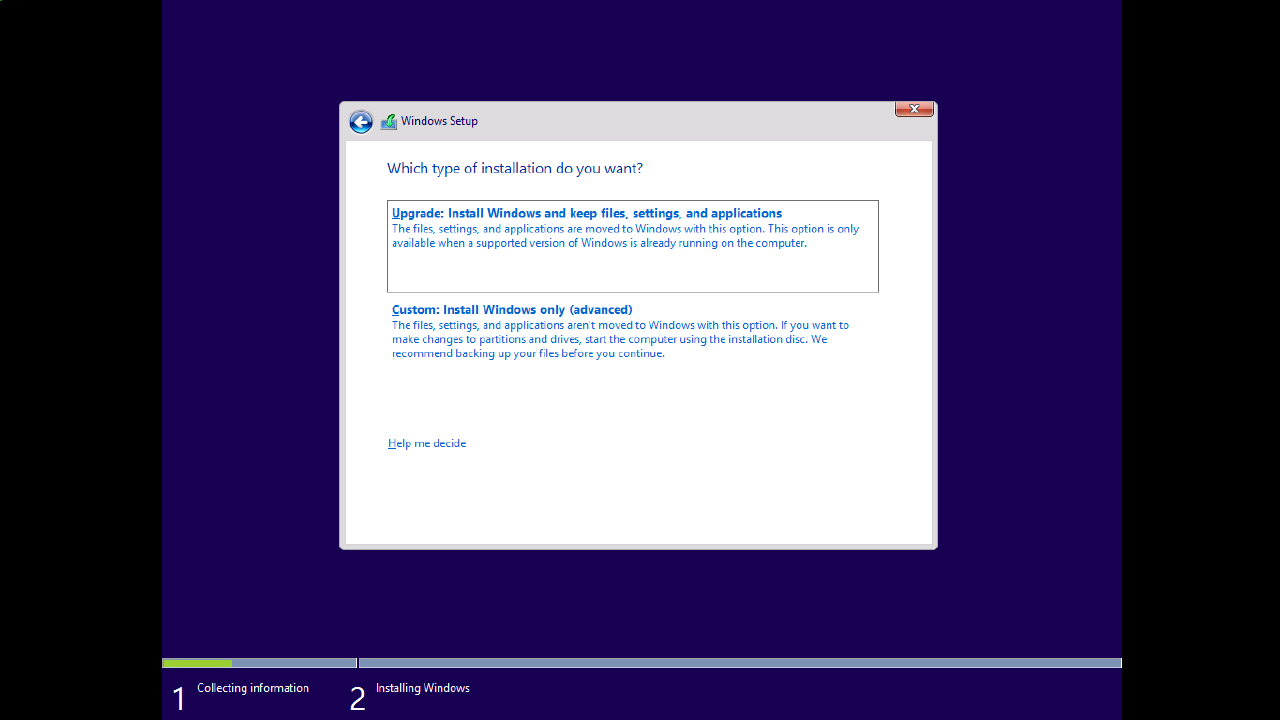
- At Which type of installation do you want? choose Custom: Install Windows only (advanced). Upgrade only works if you start the setup from a Windows installation that is already running.
- At Where do you want to install Windows? select the disk you are installing on and click Next. On an empty disk you will see Drive 0 Unallocated Space. If the disk does not appear, load the manufacturer’s storage driver with Load driver. Details: problems installing Windows.
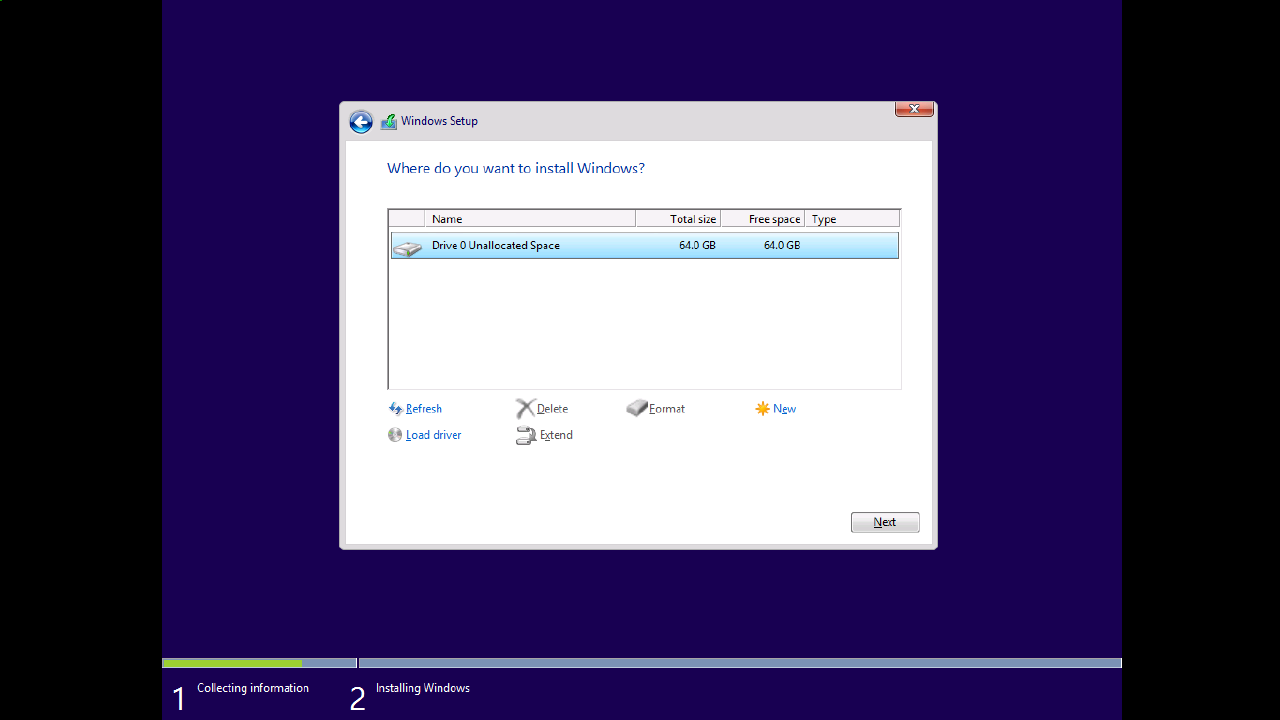
Warning: Deleting (Delete) or formatting (Format) a partition erases the data on it. Do not change the partitions on any disk other than the one you are installing on.
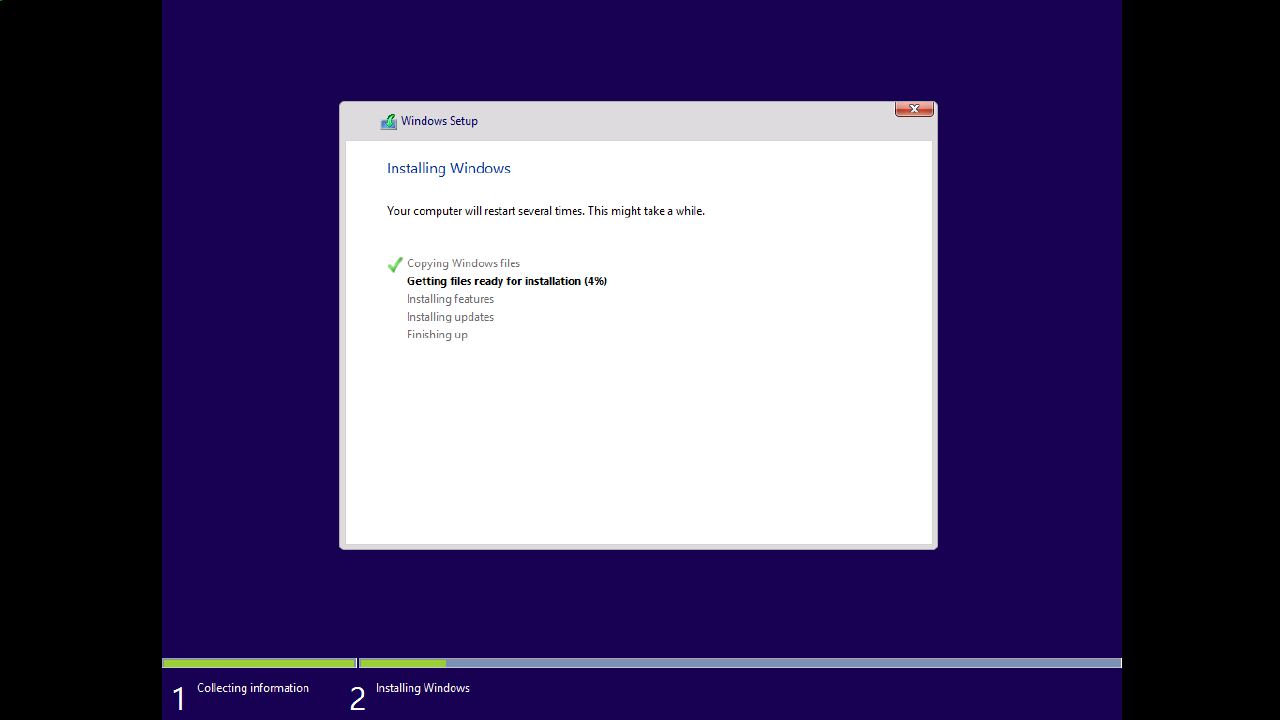
- Wait: the setup copies files and installs, and the PC restarts by itself several times. If Press any key to boot from CD or DVD appears again after a restart, do not press any key.
First-start setup
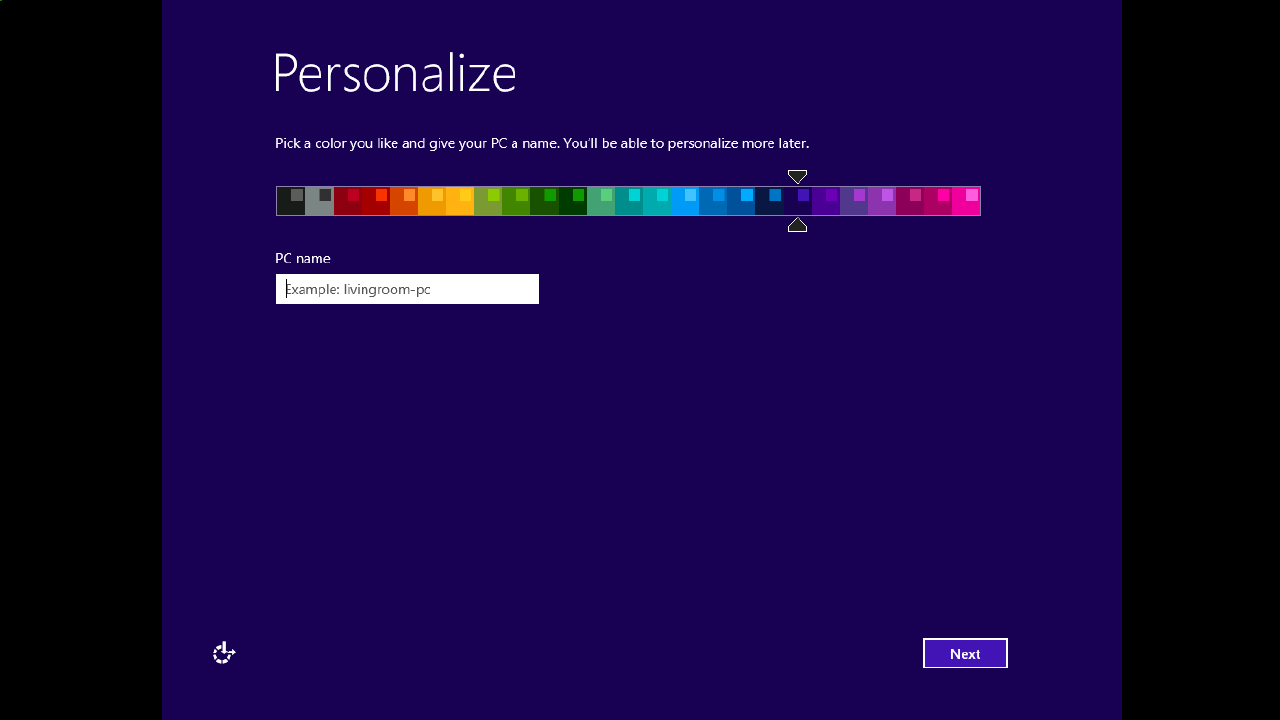
- At Personalize you pick a color and type a name for the PC in PC name, for example
Demo-PC. Click Next.
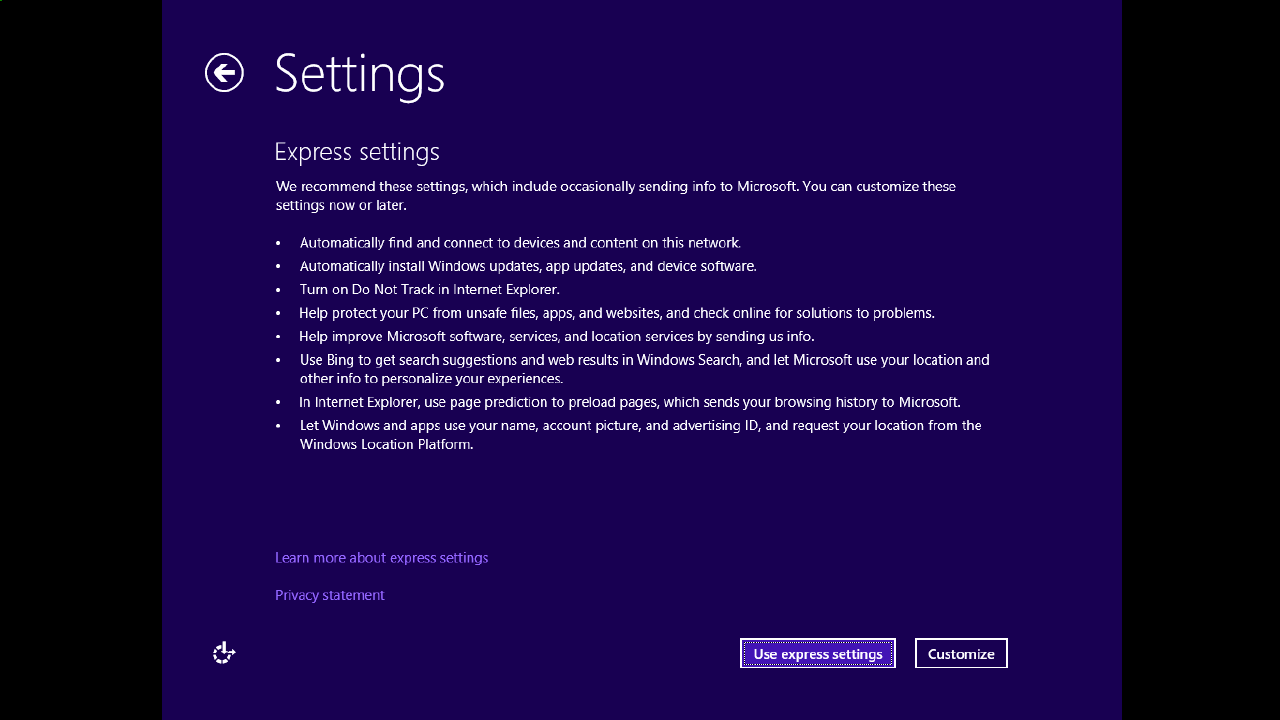
- At Settings you choose Use express settings or Customize. As the screen says, Express settings sends information to Microsoft and turns on automatic updates. If you want control, choose Customize.
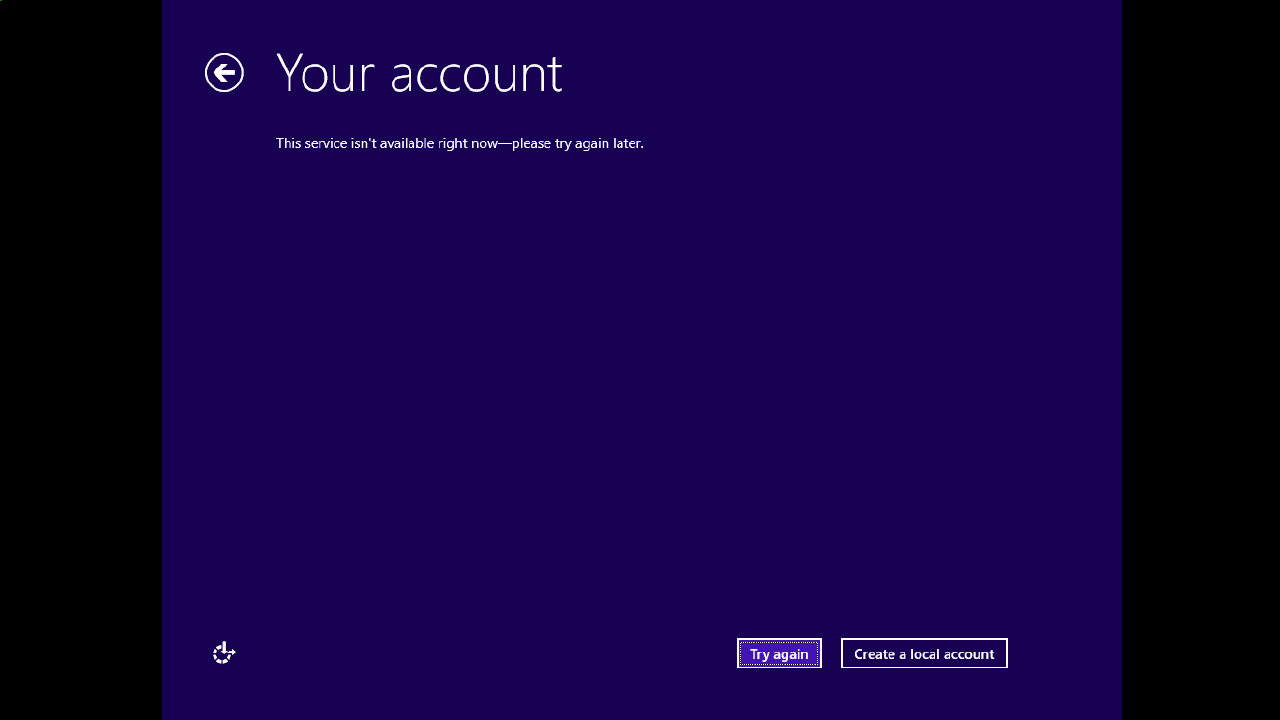
- At Your account you may be asked for a Microsoft account. In our test, the screen showed This service isn’t available right now—please try again later., with the buttons Try again and Create a local account. We chose Create a local account. On a PC that is online, the screen may ask for a Microsoft account first.
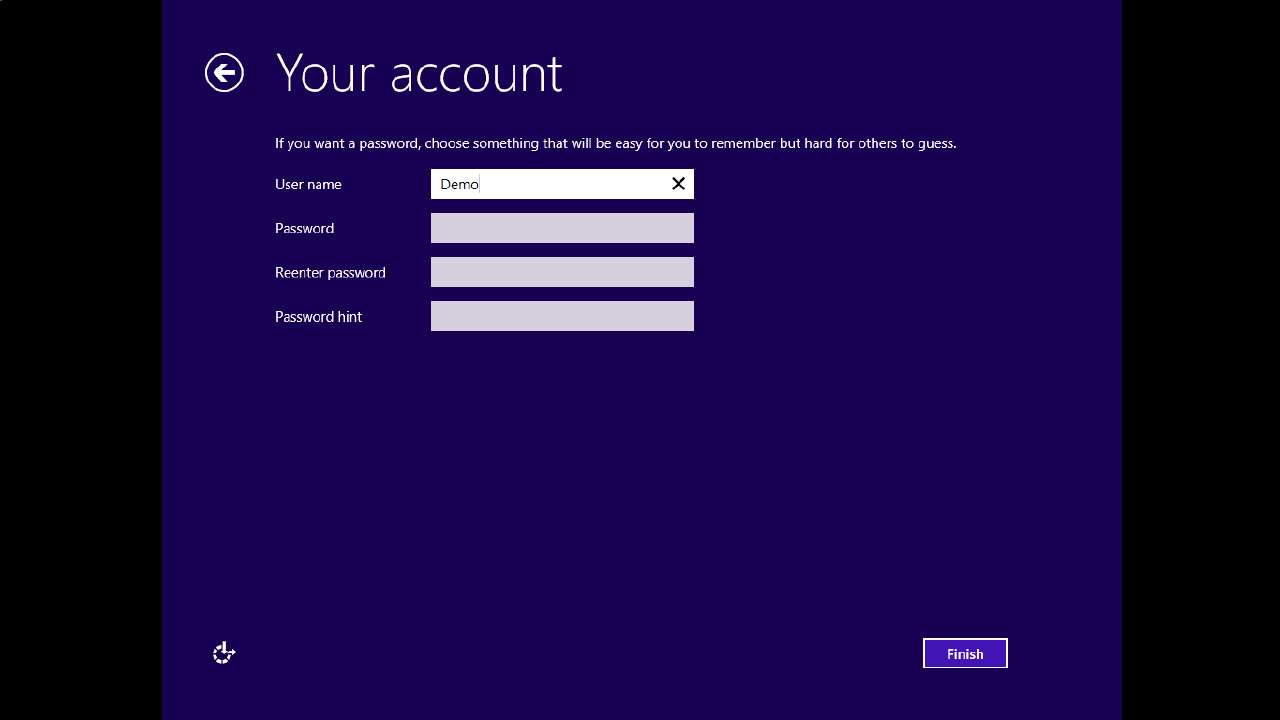
- Type a name in User name. The password and the hint are optional. Click Finish.
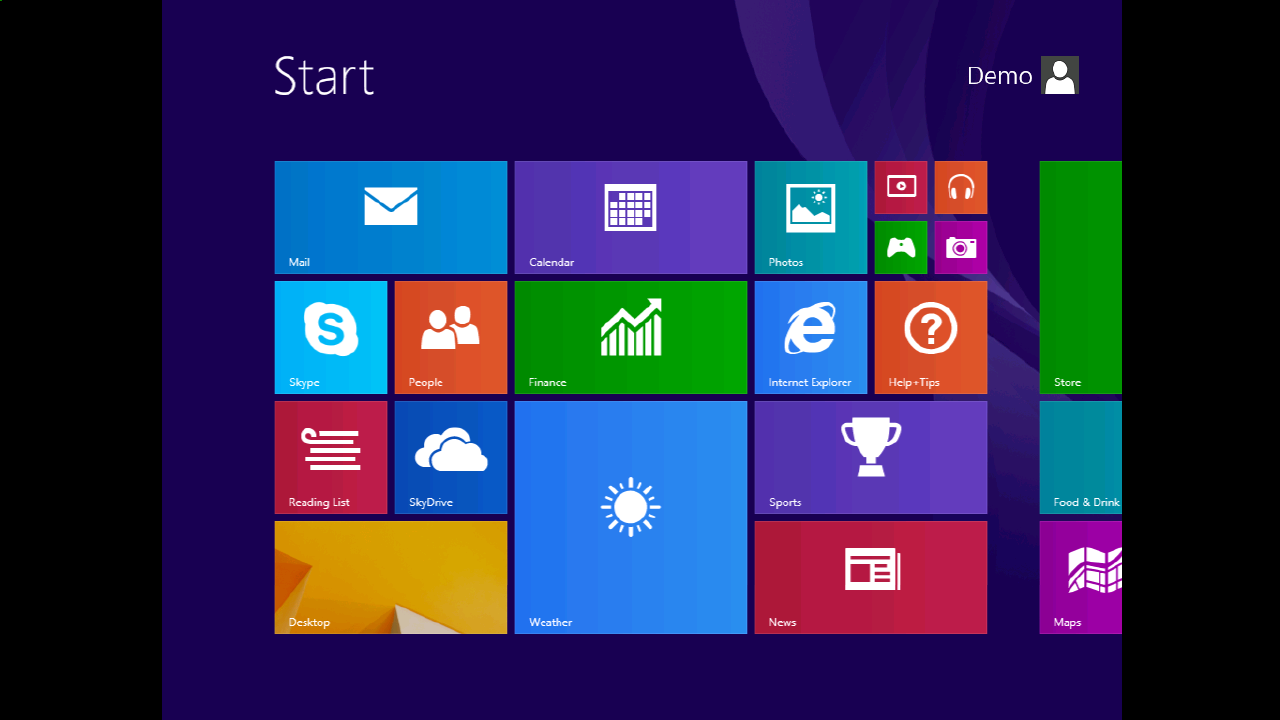
- After We’re setting things up for you, the Start screen appears. To go to the desktop, press Win + D.
Check the version
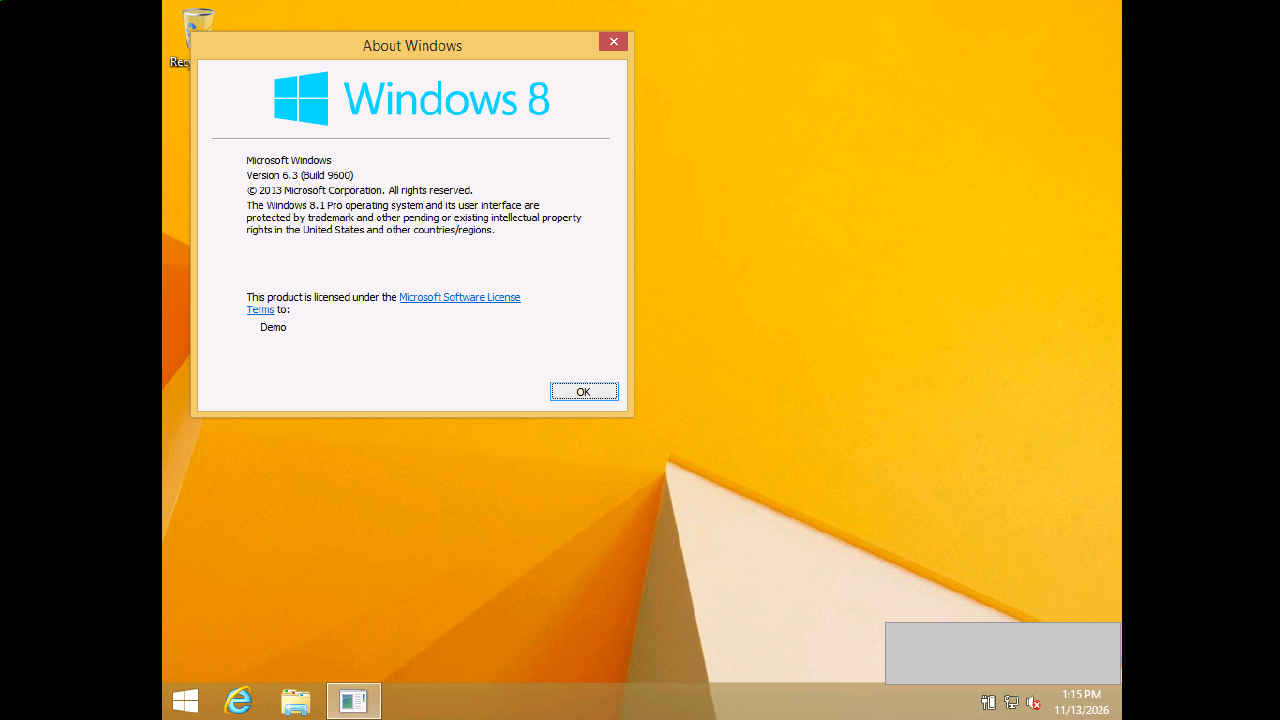
Press Win + R, type winver and press Enter. The About Windows window should show Windows 8.1 Pro and Version 6.3 (Build 9600).
Activating Windows 8.1 Pro
- Keep the PC connected to the internet.
- Press Win + R, type
control /name Microsoft.Systemand press Enter. The System window opens. - Under Windows edition it should say Windows 8.1 Pro, and under System type, 64-bit Operating System. Under Windows activation you see the status: as long as Windows is not activated, it shows Windows is not activated. and the Activate Windows link.
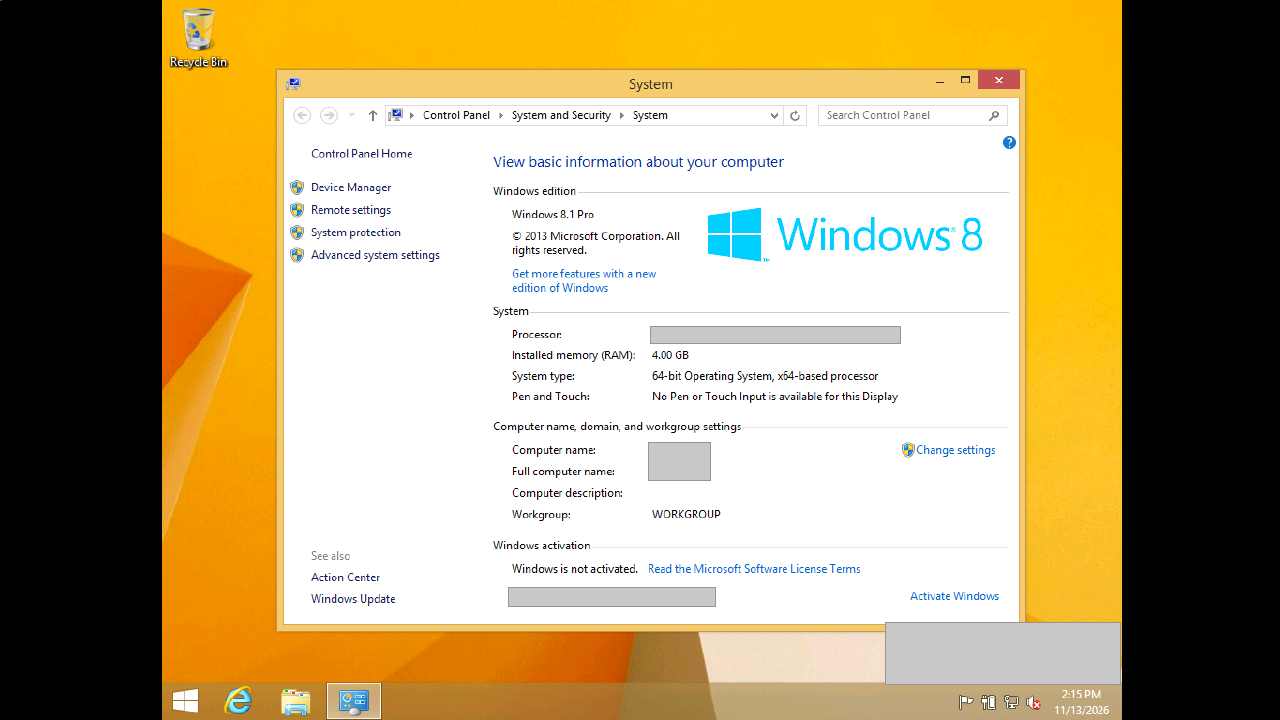
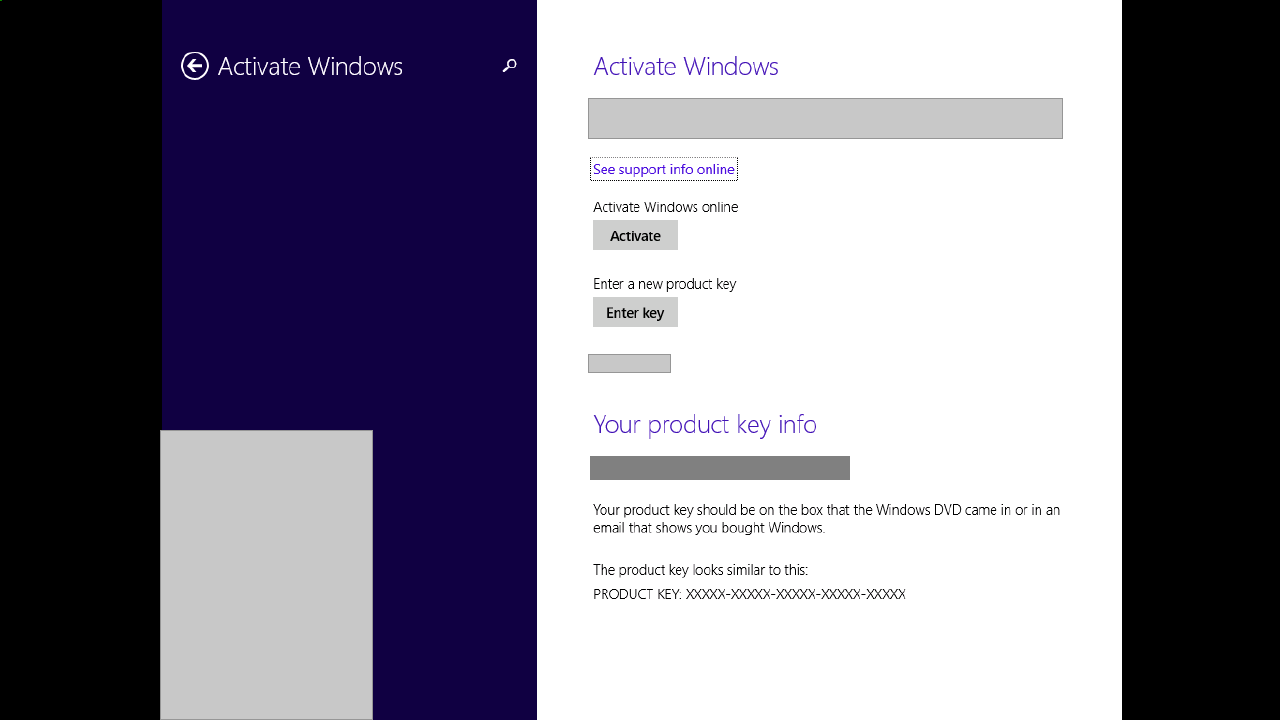
- Click Activate Windows. A page in PC settings opens, with the buttons Activate (online) and Enter key (a new key). Click Activate. If you need to enter the key we sent you, click Enter key, type it in the Product key field and follow the steps on the screen.
- If activation fails, note the exact message on the screen and write to us. The contact details are at the end.
Buying the license?
- Windows 8.1 Pro, digital license
- Alternative with Microsoft support: Windows 11 Professional
Frequently asked questions
Does Windows 8.1 still get updates?
No. Support ended on January 10, 2023, with no Extended Security Updates.
Can I install Windows 8.1 without a product key?
In our test, the installer asked for the key on the first screen and did not offer an option to skip the step.
Need help?
Write to us at contact@conio-software.ro or on WhatsApp: 0799 237 426.