
This guide takes you through installing 64-bit Windows 10 Enterprise LTSC 2021, from the installation kit to the first desktop and the place where you enter the key. We took the screenshots ourselves, on a test installation with an English ISO image. You can find the license in the shop: Windows 10 Enterprise LTSC 2021, digital license.
Warning: according to Microsoft, Windows 10 Enterprise LTSC 2021 receives updates until January 12, 2027. A clean installation erases the data on the disk you choose, so back up your important files first: backup before reinstalling Windows.
What you need
- The installation kit: the ISO image from the kits page.
- A bootable USB stick or a DVD. It is an ISO image: turn it into a bootable USB stick with a program that writes ISO images to a stick, or burn it to a blank DVD. Everything on the stick is erased.
- The product key we sent you. You enter it after the installation. Do not post it anywhere.
Installing Windows 10 Enterprise LTSC 2021
- Start the PC from the stick or the DVD. If Press any key to boot from CD or DVD appears, press a key.
In Windows Setup, leave the language and the format as English (United States) and the keyboard as US, then click Next.
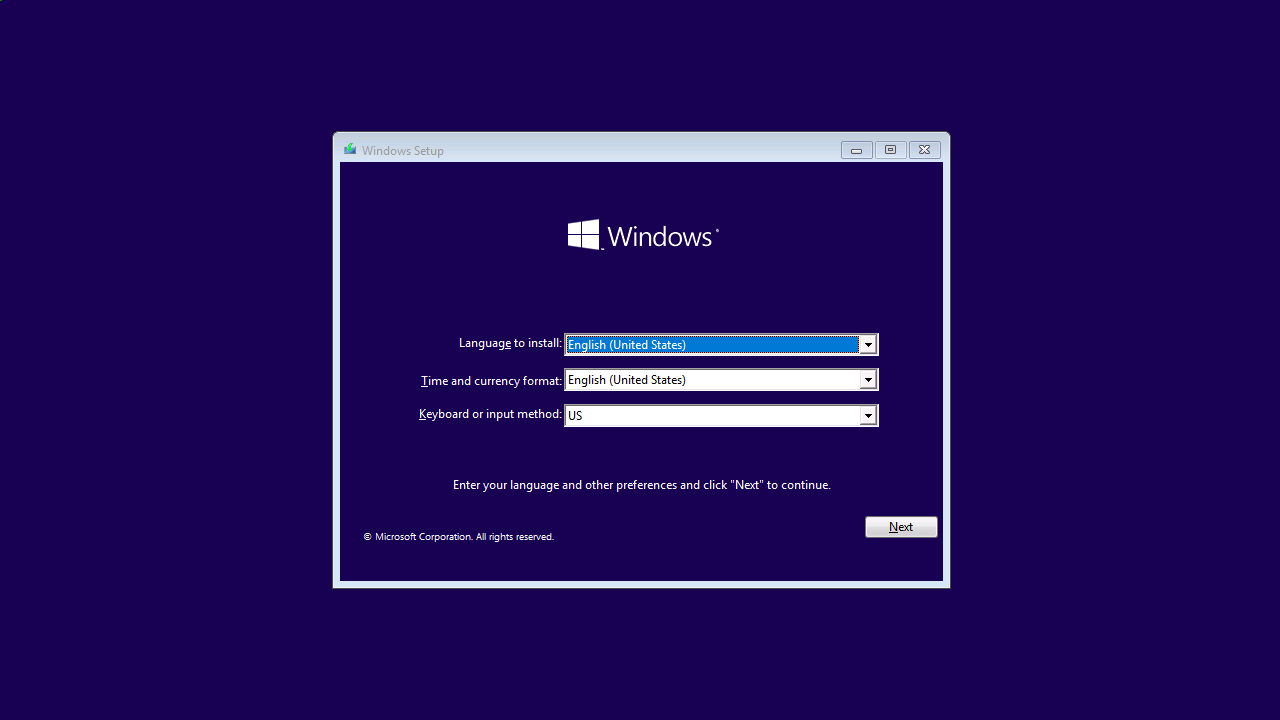
Screenshot from Windows 10 Enterprise LTSC 2021: the “Windows Setup” screen, with the language, the format and the keyboard (English interface). Used with permission from Microsoft. Click Install now.
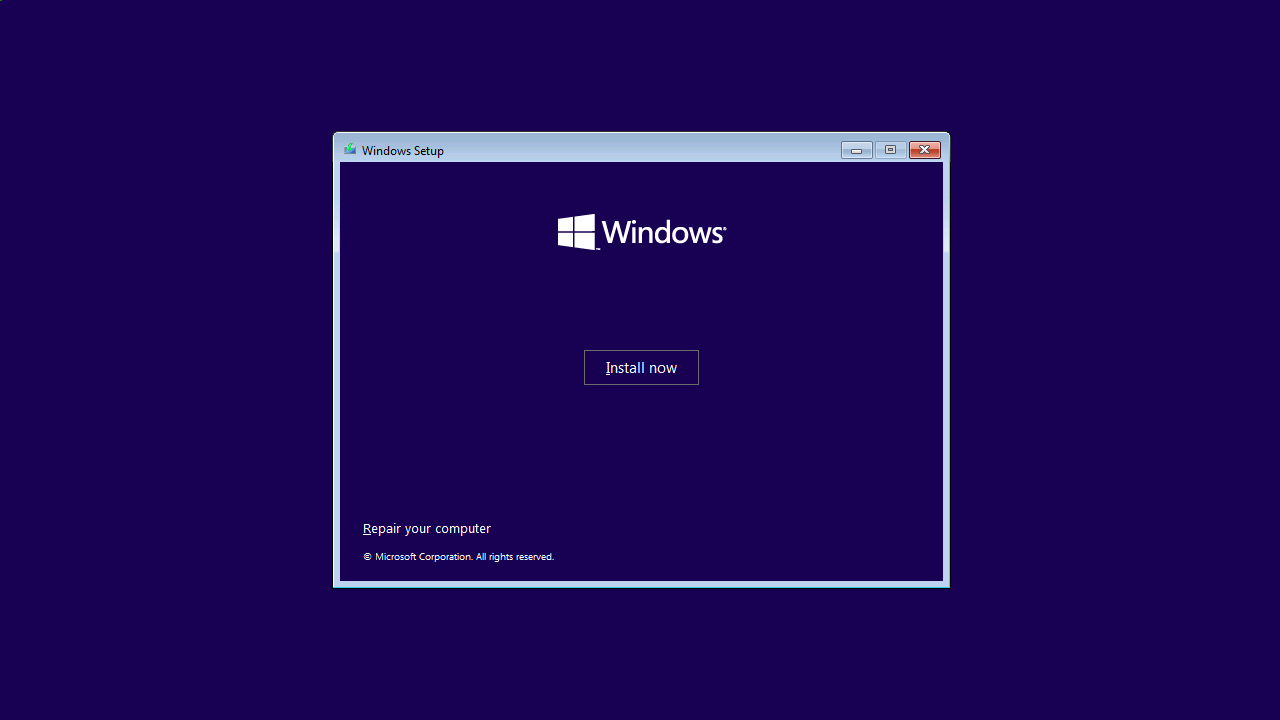
Screenshot from Windows 10 Enterprise LTSC 2021: the “Windows Setup” screen, with the “Install now” button (English interface). Used with permission from Microsoft. At Select the operating system you want to install, choose Windows 10 Enterprise LTSC and click Next. In our test, the image had two editions, with and without N. Choose the N option only if you have a license for the N edition.
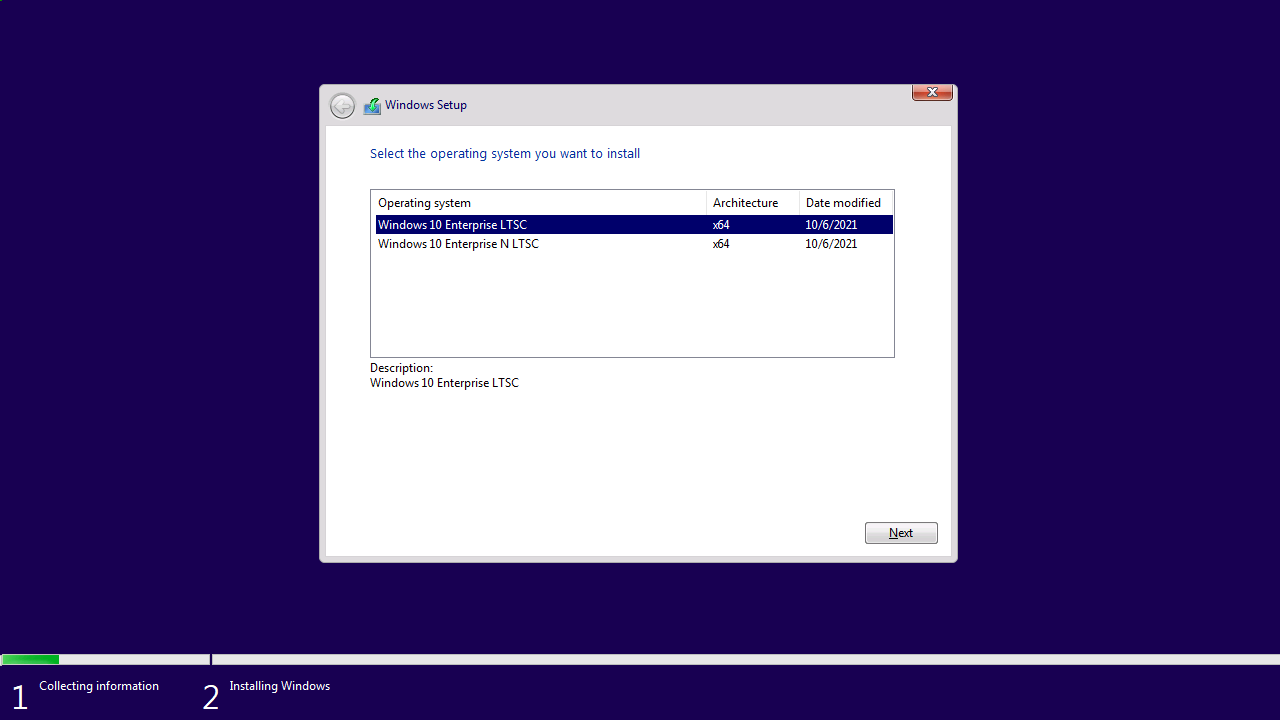
Screenshot from Windows 10 Enterprise LTSC 2021: the “Select the operating system you want to install” screen, with the Windows 10 Enterprise LTSC edition selected (English interface). Used with permission from Microsoft. - Read the license terms (Applicable notices and license terms), check I accept the license terms and click Next.
At Which type of installation do you want?, choose Custom: Install Windows only (advanced). The Upgrade option works only if you start the setup from within a Windows installation that is already on the PC.
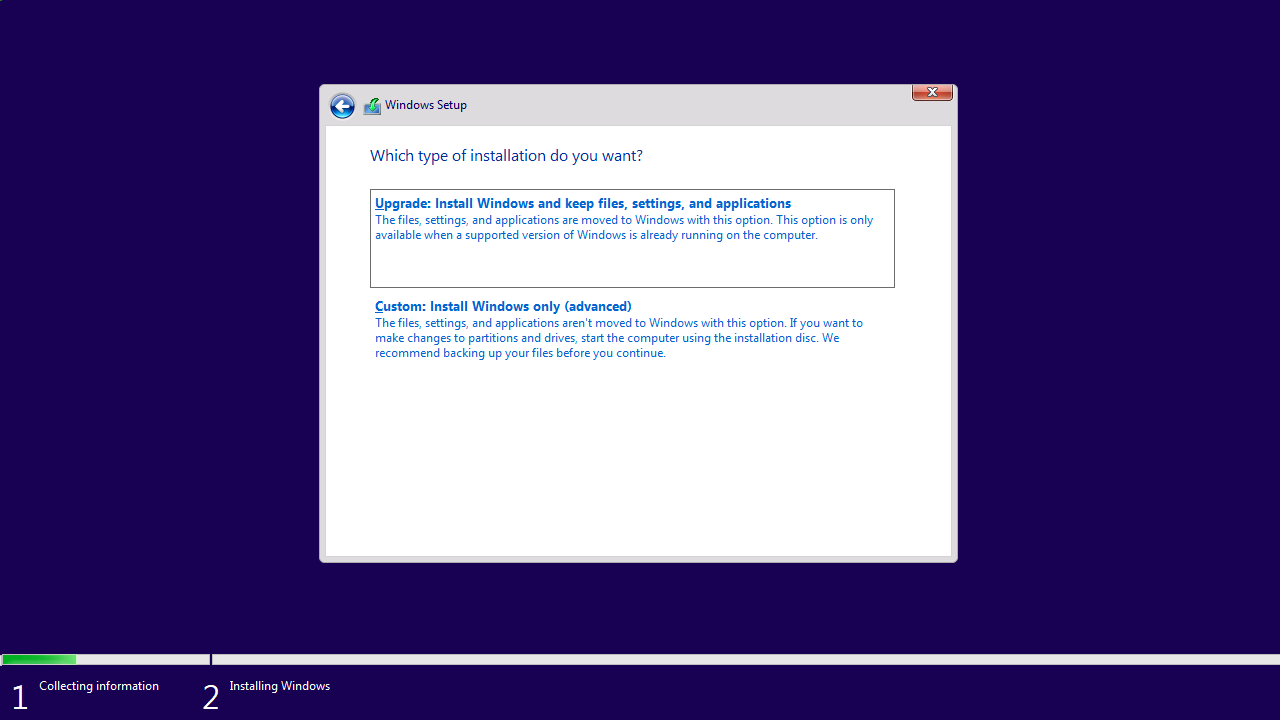
Screenshot from Windows 10 Enterprise LTSC 2021: the “Which type of installation do you want?” screen, with the options “Upgrade” and “Custom” (English interface). Used with permission from Microsoft. At Where do you want to install Windows?, select the disk and click Next. If no disk appears, the PC may need a storage driver from the manufacturer, which you load with Load driver. More details: problems installing Windows.
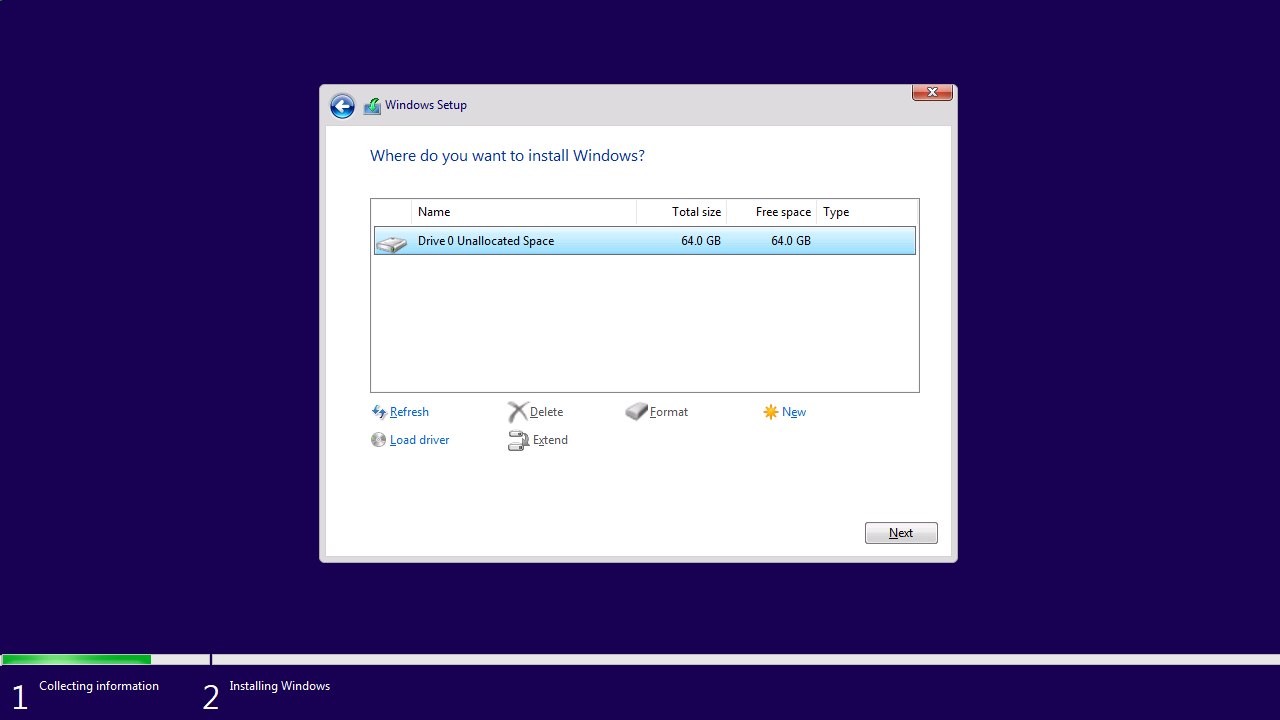
Screenshot from Windows 10 Enterprise LTSC 2021: the “Where do you want to install Windows?” screen, with “Drive 0 Unallocated Space” (English interface). Used with permission from Microsoft. Warning: deleting or formatting a partition permanently erases the data on it. Do not change the partitions on any disk other than the one you are installing on.
Wait. The PC restarts by itself several times. In our test, on a virtual machine, it took about 25 minutes.
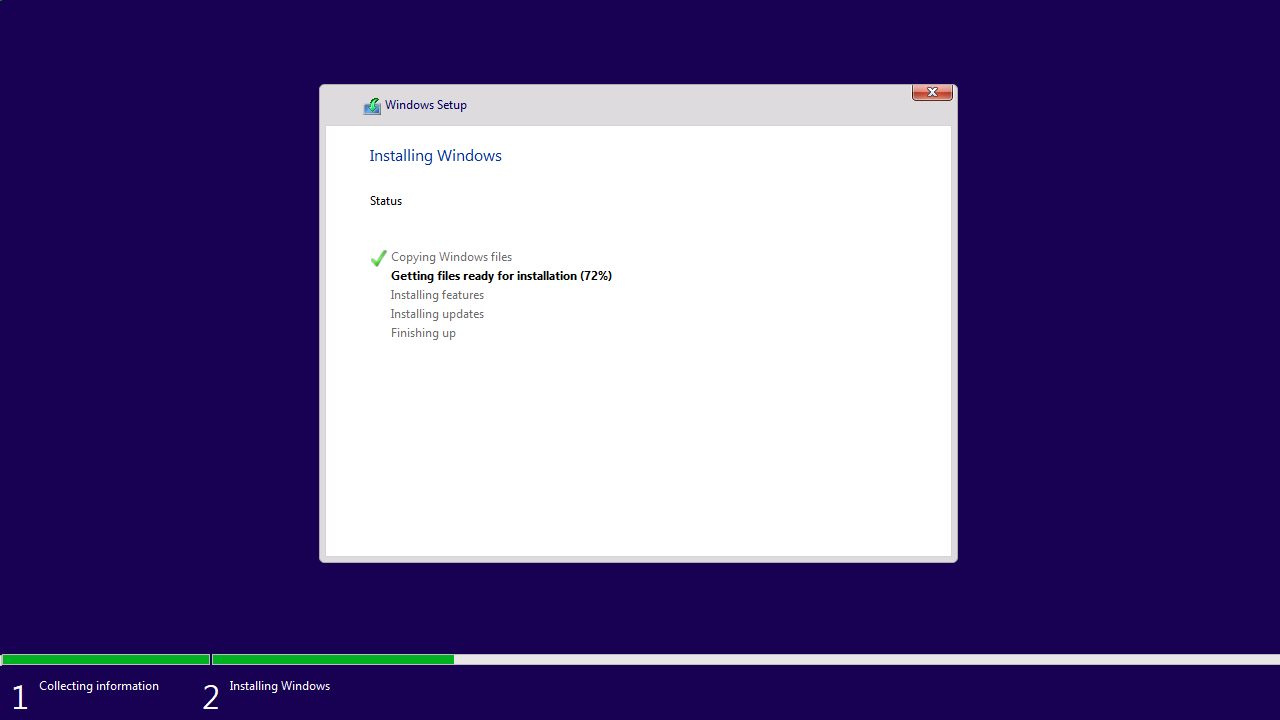
Screenshot from Windows 10 Enterprise LTSC 2021: the “Installing Windows” screen, with the “Getting files ready for installation” step in progress (English interface). Used with permission from Microsoft.
Setup on first start
In our test we installed without an internet connection. With internet, the screens may look different.
At Let’s start with region. Is this right?, choose your country and click Yes. On the keyboard screen, choose the layout and click Yes, and on the second one click Skip.
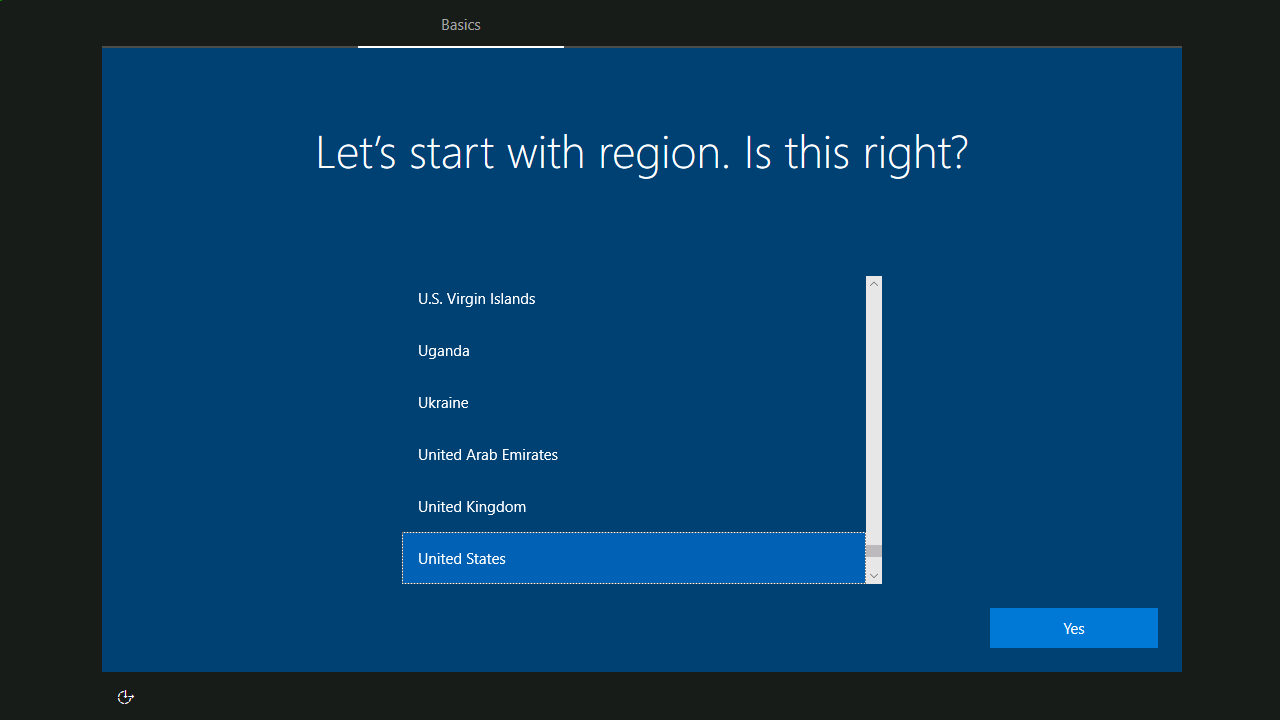
Screenshot from Windows 10 Enterprise LTSC 2021: the “Let’s start with region. Is this right?” screen, with the country list and the “Yes” button (English interface). Used with permission from Microsoft. At Let’s connect you to a network, in our test without a network, we clicked I don’t have internet.
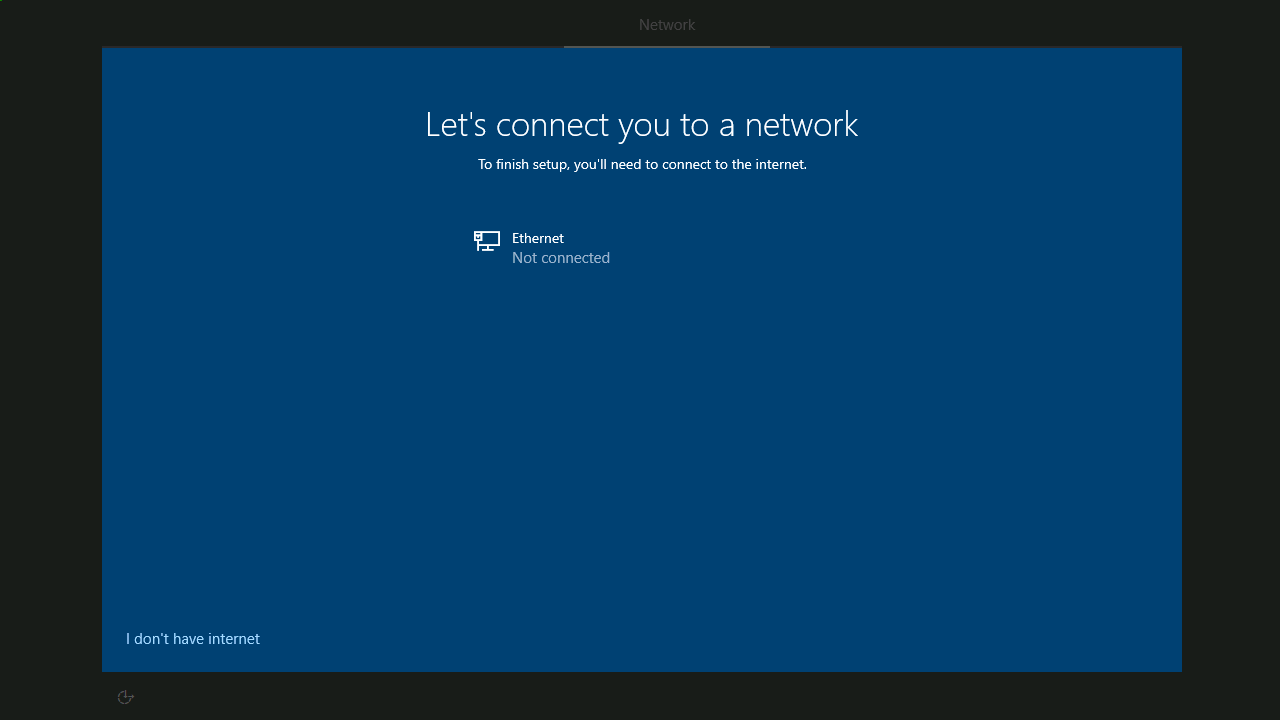
Screenshot from Windows 10 Enterprise LTSC 2021: the “Let’s connect you to a network” screen, with the “I don’t have internet” link (English interface). Used with permission from Microsoft. At There’s more to discover when you connect to the internet, click Continue with limited setup.
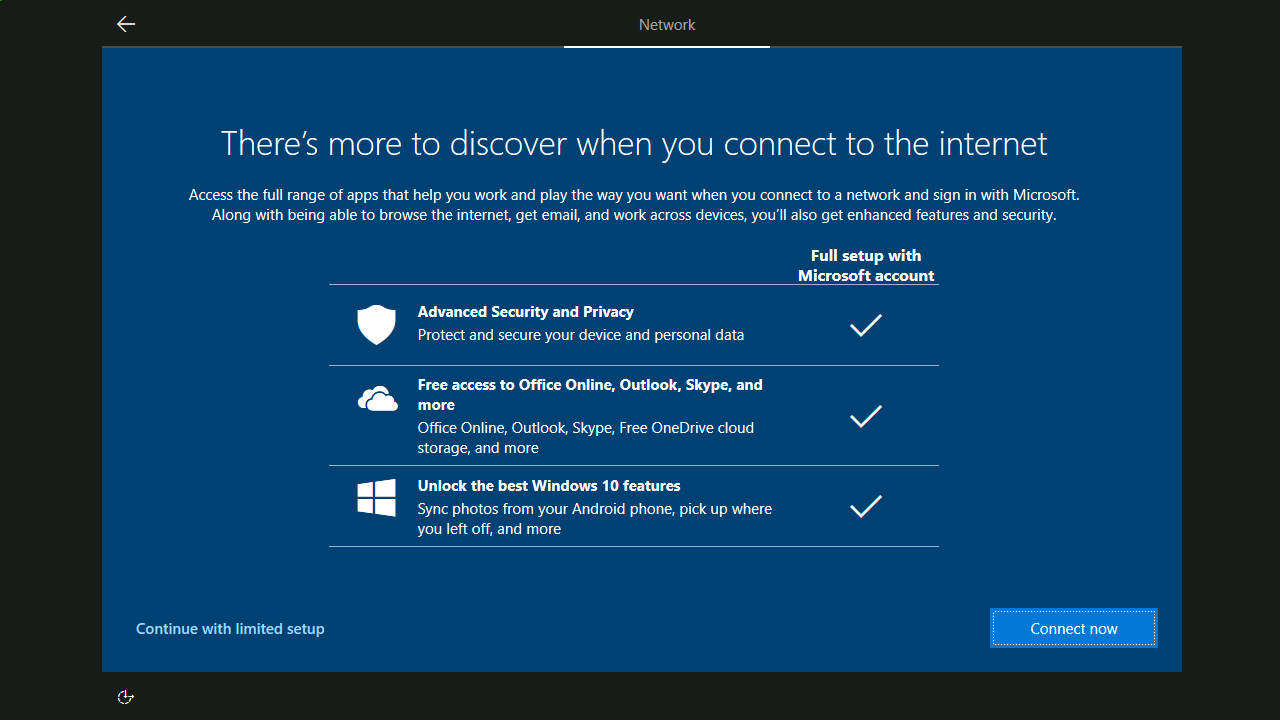
Screenshot from Windows 10 Enterprise LTSC 2021: the “There’s more to discover when you connect to the internet” screen, with “Continue with limited setup” (English interface). Used with permission from Microsoft. At Who’s going to use this PC?, type a user name and click Next. The account created this way is a local account.
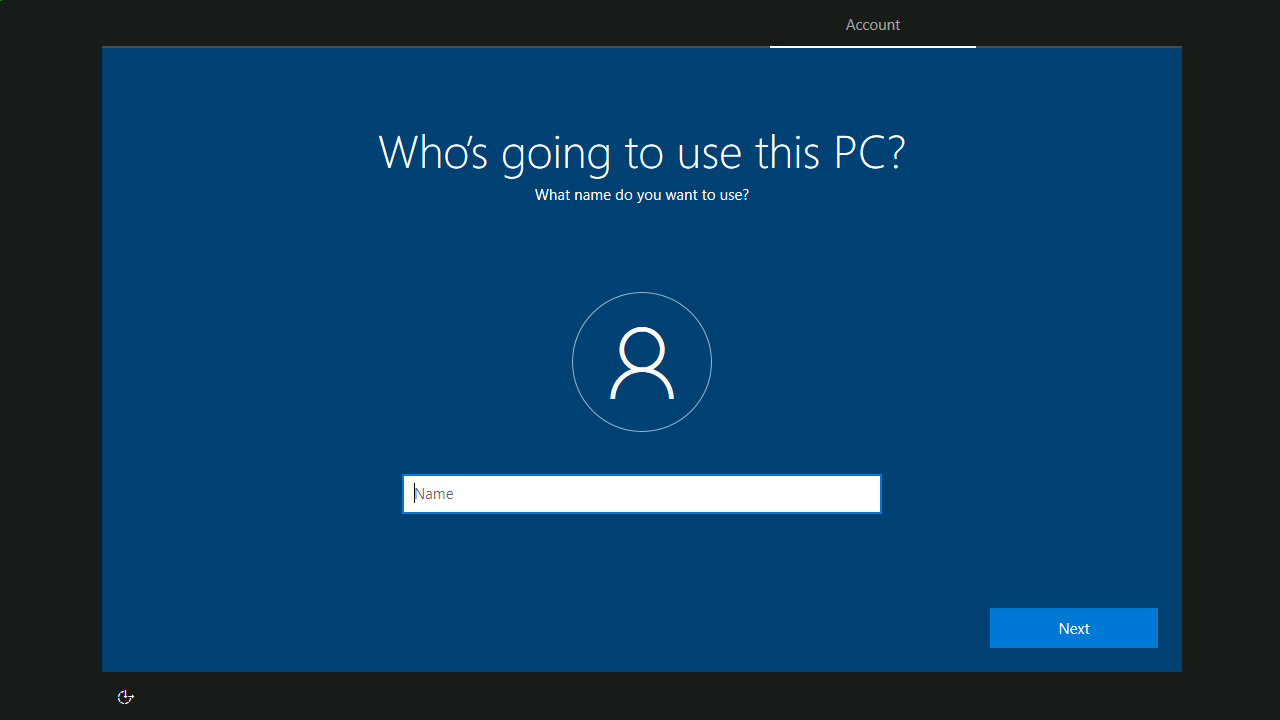
Screenshot from Windows 10 Enterprise LTSC 2021: the “Who’s going to use this PC?” screen, with the “Name” field empty (English interface). Used with permission from Microsoft. - At Create a super memorable password, type the account password and click Next.
At Choose privacy settings for your device, change what you want and click Accept.
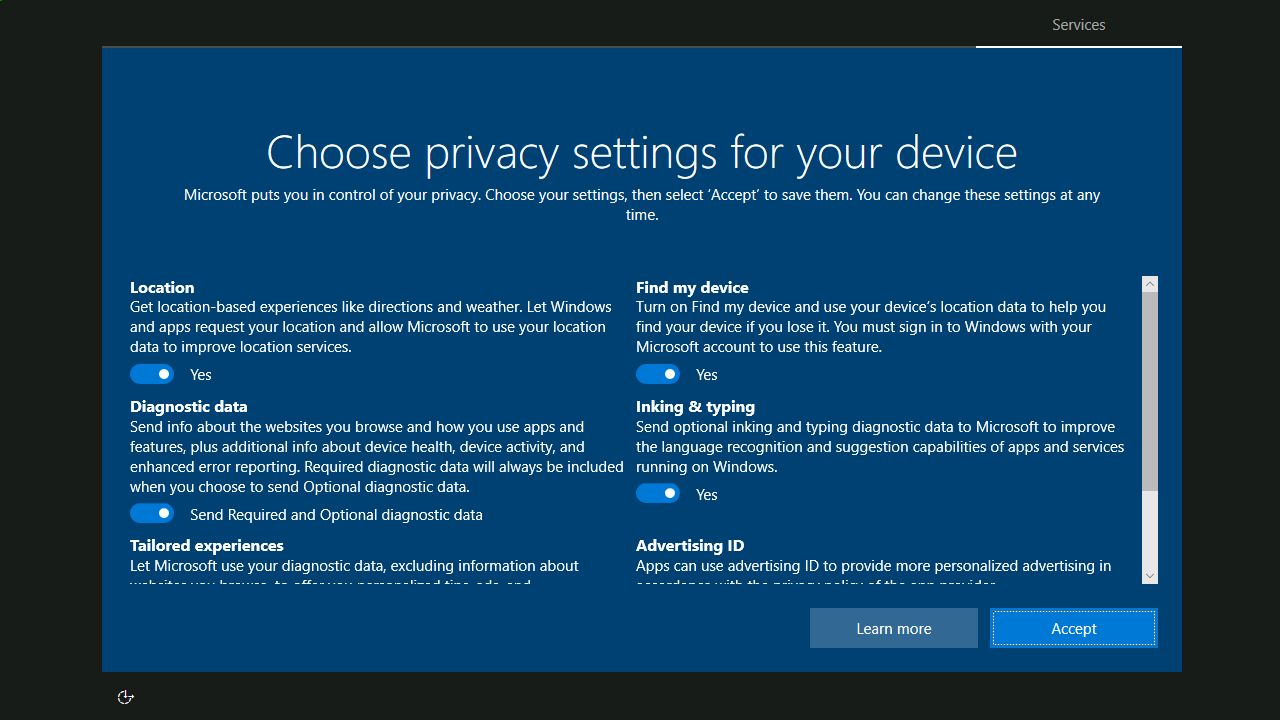
Screenshot from Windows 10 Enterprise LTSC 2021: the “Choose privacy settings for your device” screen, with the “Accept” button (English interface). Used with permission from Microsoft. Wait a few minutes. Then the Windows 10 desktop appears.
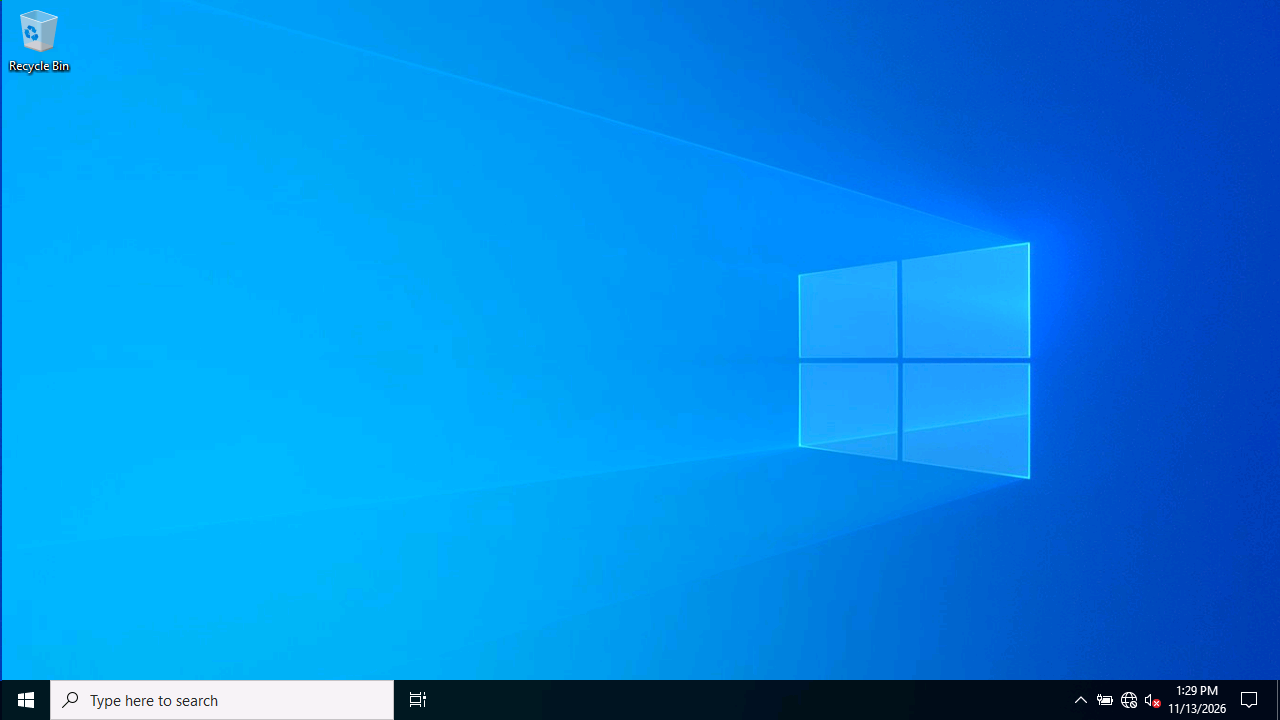
Screenshot from Windows 10 Enterprise LTSC 2021: the desktop after the first start, with the “Recycle Bin” and the taskbar (English interface). Used with permission from Microsoft.
Check the installed version
Press Win + R, type
winverand press Enter. In our test it said Windows 10 Enterprise LTSC, Version 21H2 (OS Build 19044.1288).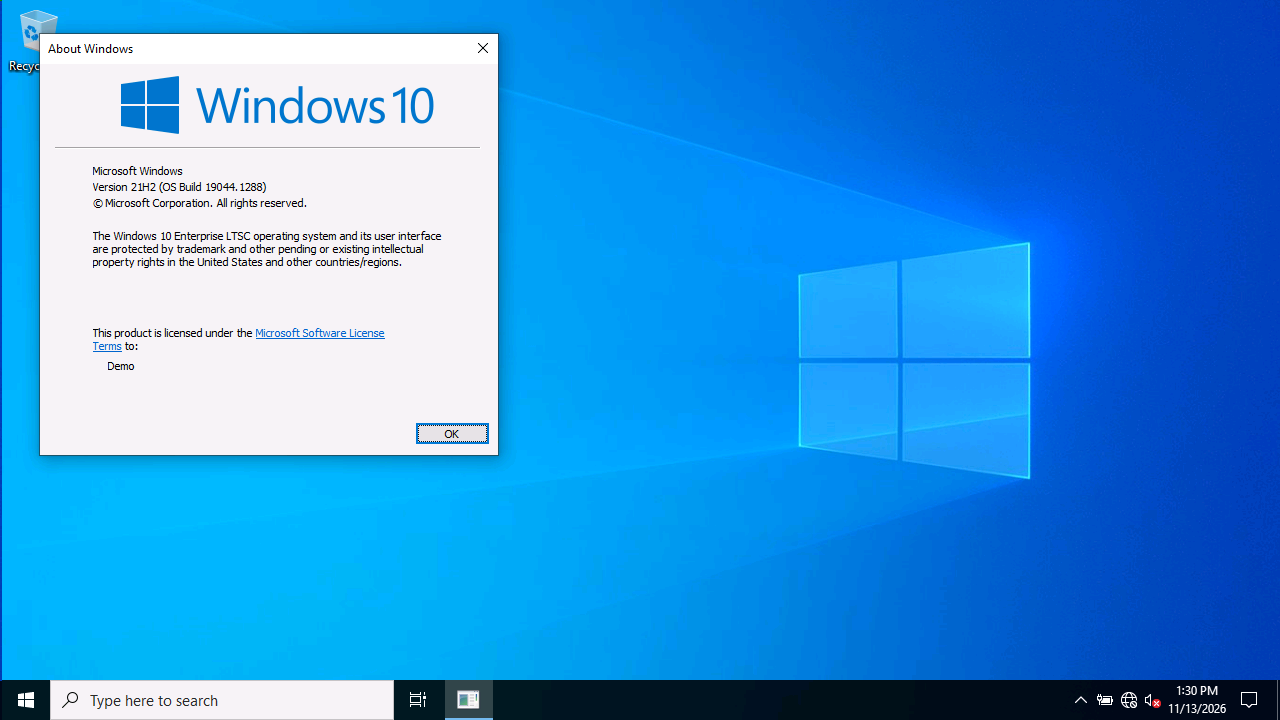
Screenshot from Windows 10 Enterprise LTSC 2021: the “About Windows” window, with “Version 21H2 (OS Build 19044.1288)” (English interface). Used with permission from Microsoft. Press Win + R, type
ms-settings:aboutand press Enter. The About page in Settings → System shows the edition and the version.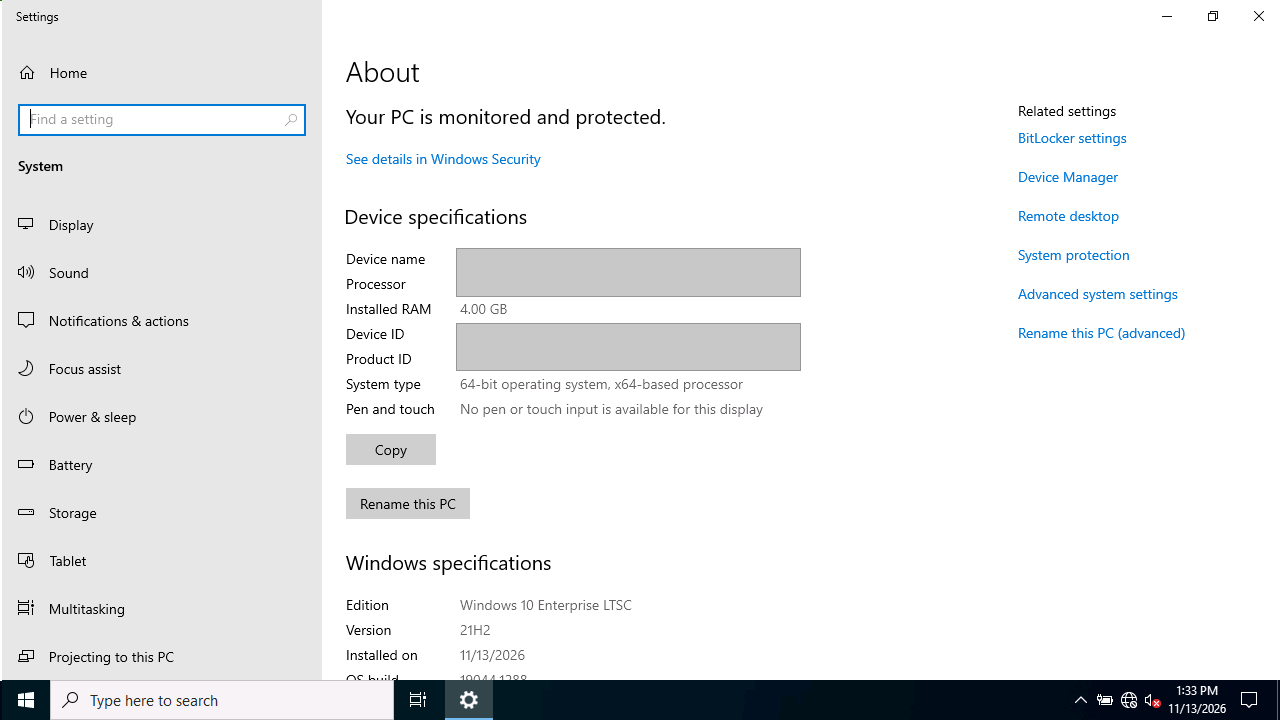
Screenshot from Windows 10 Enterprise LTSC 2021: the “About” page in Settings, with the edition and the version, and the PC name, the processor, the Device ID and the Product ID covered (English interface). Used with permission from Microsoft.
Where you enter the key
- Open Settings → Update & Security → Activation. Shortcut: Win + R,
ms-settings:activation, Enter. Click Change product key. The Enter a product key window opens.
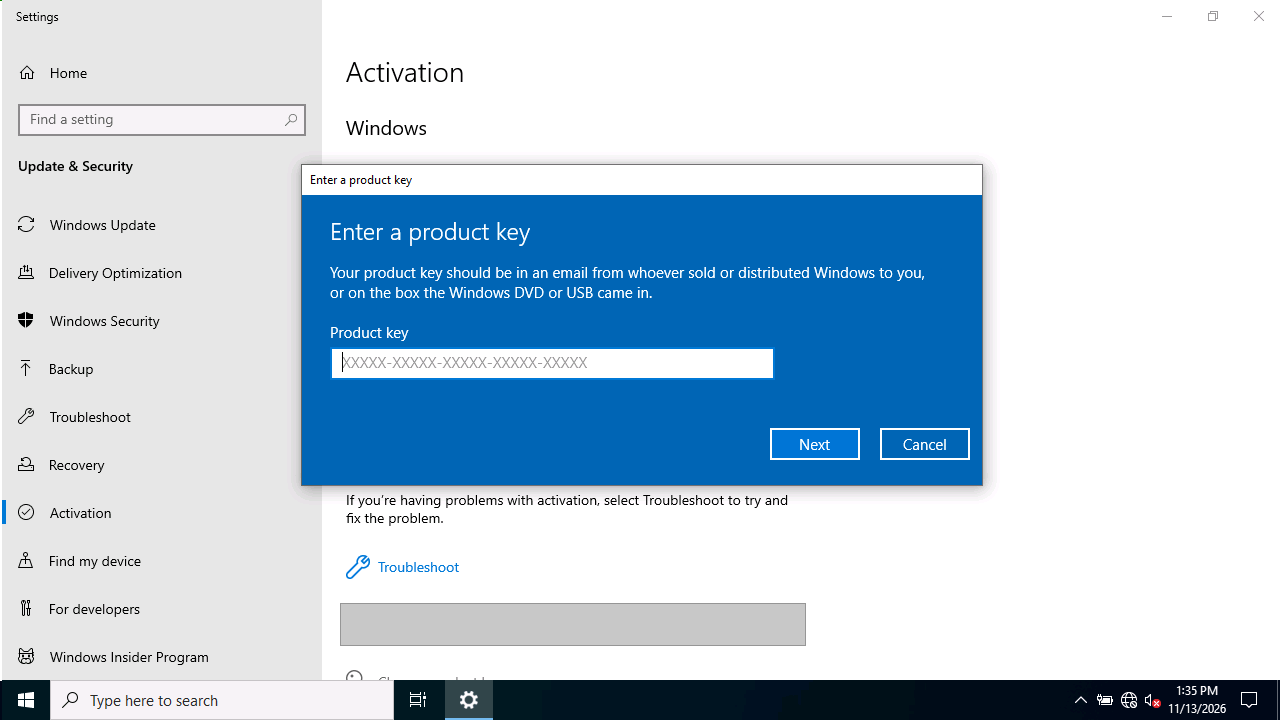
Screenshot from Windows 10 Enterprise LTSC 2021: the “Enter a product key” window, with the field empty, over the “Activation” page, with the activation message in the background covered (English interface). Used with permission from Microsoft. - Type the 25-character key we sent you (the dashes can be added automatically) and click Next. Keep the PC connected to the internet.
- If activation does not succeed, note the message on the screen and write to us (the contact details are at the end of the guide).
In our test we did not enter any key, so we cannot describe the screen after activation.
Buying the license?
Windows 10 Enterprise LTSC 2021, digital license from our shop.
Frequently asked questions
Does the installer ask me for the product key?
Not in our test. After Install now, the list of editions appeared right away, and you enter the key after the installation, from Settings → Update & Security → Activation → Change product key.
Until when does Windows 10 Enterprise LTSC 2021 receive support?
Until January 12, 2027, according to Microsoft. Check the current date on the Microsoft Lifecycle page.
Can I keep my files and applications?
The Upgrade option works only if you start the setup from within a Windows installation that is already on the PC. When you boot from the stick, you choose Custom, and the installation is clean.
Need help?
Write to us at contact@conio-software.ro or on WhatsApp: 0799 237 426.