
It happens often: during installation you chose or received Windows Home, but the license you bought is for Windows Pro. The key you bought from us activates the Pro edition only, so you cannot enter it directly on Windows Home. Below are the steps to upgrade Windows Home to Pro without reinstalling. You can find the Pro edition in the shop as Windows 11 Pro, digital license ESD or Windows 10 Pro, digital license ESD.
You have two options:
- Reinstall Windows Pro. The cleanest way, but it takes longer. The steps are in the installation tutorial (Windows 11 or Windows 10).
- Switch to Pro without reinstalling, using the generic upgrade key, then activate with your own key. The steps are below.
Warning: back up your files before any edition change. Use only installation media from Microsoft’s websites or from the USB stick in the package. Do not try to activate a copy of Windows obtained from other sources.
Video: Loxyo Tech channel (YouTube), in English
The generic upgrade key
The generic key changes only the installed edition, from Home to Pro. It does not activate Windows and it is not a license: after the edition changes, you activate with your own key. Generic keys are public, and this guide lists two. Start with the first one; if Windows says it is not valid, try the second.
- The first key:
VK7JG-NPHTM-C97JM-9MPGT-3V66T - The second key, published by Microsoft on the client activation keys page, for Windows 10 Pro and Windows 11 Pro:
W269N-WFGWX-YVC9B-4J6C9-T83GX
Steps to upgrade Windows Home to Pro
- Disconnect the PC from the internet (unplug the network cable or turn off Wi-Fi).
Open the Activation page:
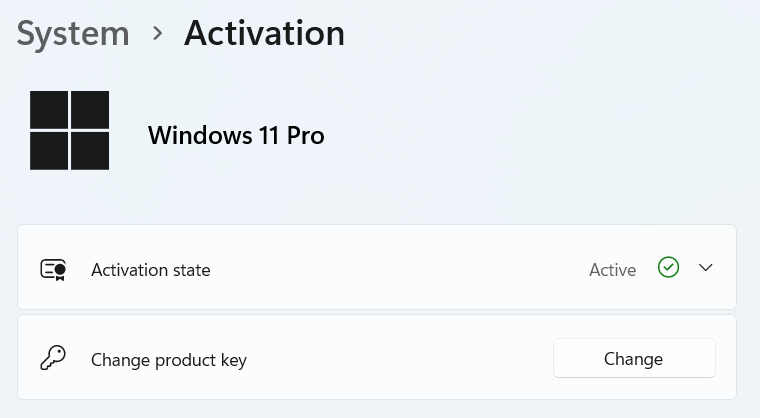
- Windows 11: Start → Settings → System → Activation.
- Windows 10: Start → Settings → Update & Security → Activation.
- Windows 11: on the Change product key row, click the Change button (sign in as an administrator if asked). The Enter a product key window opens. Windows 10: select Change product key.
- Enter the generic key in the Product key field and click Next. Restart when asked.
- After the restart, check that the edition is now Windows Pro. In Windows 11, the Activation page shows the edition name next to the logo, and you can find the full edition under Settings, System, About, in Windows specifications, on the Edition row. Windows will show as not activated, and that is normal.
- Reconnect the PC to the internet.
- On the same page, open Change product key again (Windows 11: the Change button), enter your Pro key (the one you received from us) and click Next.
- Check the activation status: it should say that Windows is activated. See also how to check whether Windows is activated and which edition you have.
Warning: use Settings only. Microsoft marks command-line tools (for example
changepkorslmgr) as unsupported for moving from Home to Pro. Do not enter the generic key in place of your own key, and do not use it for activation.
If an error appears
- Run the activation troubleshooter from the Activation page (the Troubleshoot button, which appears only if Windows is not activated).
- If you get an error saying the key does not match the installed edition (for example 0xC004F210 or 0xC004F212), go back to step 5 and check that the edition has become Pro. If it is still Home, repeat steps 4 and 5 with the second generic key.
- You can find other codes on the Microsoft page about activation errors and in our article about Windows activation errors.
Buying the license?
Windows Pro licenses in the shop:
- Windows 11 Pro, digital license ESD
- Windows 10 Pro, digital license ESD
- Windows 11 Pro, BOX with USB stick
- Windows 10 Pro, BOX with USB stick
See also all digital Windows licenses.
Frequently asked questions
How do I switch from Windows Home to Pro without reinstalling?
First enter the generic upgrade key at Change product key, restart, and check that the edition has become Pro. Then enter your own Pro key.
Can I enter the Pro key directly on Windows Home?
No. The key you bought from us activates only the Pro edition, so you cannot enter it directly on Windows Home.
Does the generic upgrade key activate Windows?
No. The generic key changes only the installed edition, from Home to Pro. It does not activate Windows and it is not a license: after the edition changes, you activate with your own key.
What do I do if I get an error during the upgrade?
Run the activation troubleshooter from the Activation page. If the error says the key does not match the edition (0xC004F210 or 0xC004F212), go back to step 5 to check whether the edition has become Pro, and repeat steps 4 and 5 with the second generic key.
Need help?
Write to us at contact@conio-software.ro or on WhatsApp: 0799 237 426.