
After an installation or a key change, you want to know two things. Check whether Windows is activated, and whether the installed edition (Home or Pro) is the one you bought. You can find both in less than a minute. The edition must match the license: Windows 11 Home, digital license ESD for Home and Windows 11 Pro, digital license ESD for Pro.
Warning: the installed edition must match the license. Microsoft states that if they do not match, Windows will not activate. The
slmgrcommand also has options that change the license (for example/upkremoves the installed key): run only the ones in this article.
1. Check whether Windows is activated from Settings
- In Windows 11, open Start, then Settings, System, Activation. In Windows 10, the path is Settings, Update & Security, Activation.
- Read the activation status at the top of the page. The edition name appears next to the logo (for example “Windows 11 Pro”), but the page has no separate “Edition” row. You can see the full edition, with the version and build, under Settings, System, About, in the Windows specifications section, on the Edition row.
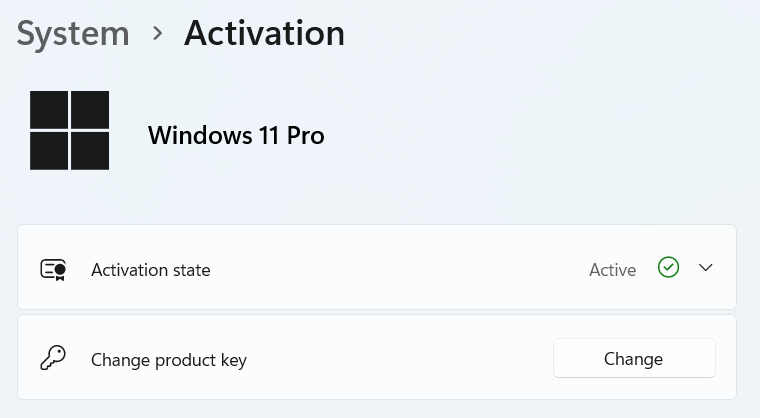
The possible messages and what they mean:
- Windows is activated: Windows is activated, and the Microsoft account is not linked.
- Windows is activated with a digital license: Windows is activated, and the digital license is not linked to the Microsoft account.
- Windows is activated with a digital license linked to your Microsoft account: Windows is activated and linked to your account. Linking helps you reactivate Windows after a reinstall on the same computer.
- Windows is not activated: Windows also shows an error message that explains the reason. The Activation state row shows Not active, and below it a red message with the error code appears (for example “Windows reported that no product key was found on your device. Error code: 0xC004F213”), along with the Troubleshoot button.
To link the license to your account, sign in as an administrator, go to Settings, Accounts, Your info, make sure a Microsoft account is shown under your name, then under Activation click Add an account and sign in.
2. With the slmgr command
The commands below do not require administrator rights.
- Press Windows + R, type
cmdand press Enter. To see the activation status, run:
slmgr /xprA window opens. On a permanently activated Windows 11, the message is “The machine is permanently activated.” If the activation has an expiration date, the window shows that date. On a Windows that is not activated, the window shows “Windows is in Notification mode”.
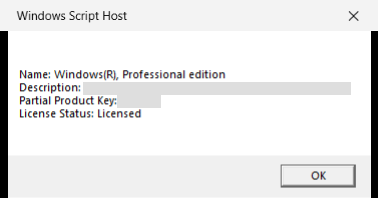
To see the license information, run:
slmgr /dliThe window shows the edition name (Name), the description (Description), part of the key (Partial Product Key, not the whole key) and the license status (License Status). The status “Licensed” means Windows is licensed. On a Windows that is not activated, License Status shows “Notification”, and below it Notification Reason appears, with an error code. This code may differ from the one in Settings: look up both in the article about activation errors.
- For more details, you can use
slmgr /dlv.
3. What to do if Windows is not activated
- Check that the installed edition is the same as your key’s edition.
- Open Settings, System, Activation. On the Change product key row, click the Change button, enter the key you received from us in the Product key field and click Next. The steps are in the tutorial Installing Windows 11 Home and Pro, step by step.
- If Windows shows an error, write down the exact message and look it up in the article Windows activation errors and their common codes or on Microsoft’s “Activate Windows” page, which also links to the activation troubleshooter.
- If you have Windows 11 Home and a Pro key (or the other way around), see the tutorial on moving from Windows Home to Pro.
Windows 10 reached the end of support on October 14, 2025. If your PC is compatible, Microsoft recommends moving to Windows 11. See upgrading from Windows 10 to Windows 11.
Where to find your key
The key is the one you received at purchase: by email for digital licenses, printed inside the package for BOX licenses. Keep it in a safe place. Do not count on recovering it from Windows: slmgr /dli shows only part of the key.
Buying a license?
Windows licenses for each edition:
- Windows 11 Pro, digital license ESD
- Windows 11 Home, digital license ESD
- Windows 10 Pro, digital license ESD
- Windows 10 Home, digital license ESD
See also all digital Windows licenses.
Frequently asked questions
How do I see whether Windows 11 is activated?
Open Start → Settings → System → Activation and read the activation status at the top of the page. In Windows 10, the path is Settings → Update & Security → Activation.
How do I find out which Windows edition I have?
The edition name appears next to the logo, on the Activation page. You can see the full edition under Settings → System → About, in the Windows specifications section, on the Edition row, or with the slmgr /dli command, in the Name field.
What does the slmgr /xpr command do?
It shows the activation status in a window. On a permanently activated Windows 11, the message is “The machine is permanently activated.”; if the activation has an expiration date, that date appears.
What does “Windows is activated with a digital license linked to your Microsoft account” mean?
Windows is activated and linked to your Microsoft account. Linking helps you reactivate Windows after a reinstall on the same computer.
Need help?
For any other situation, including if you can no longer find your key, write to us at contact@conio-software.ro or on WhatsApp at 0799 237 426 (https://wa.me/40799237426), with a screenshot of the Activation page.